Import page
Use the Import page for elevation or design data collected with an external tool. Open it from the Main Page or the wizard’s surfacing step. The page initially lists the available import types.
Do not import a TCI file. Load it instead; see Loading Projects.
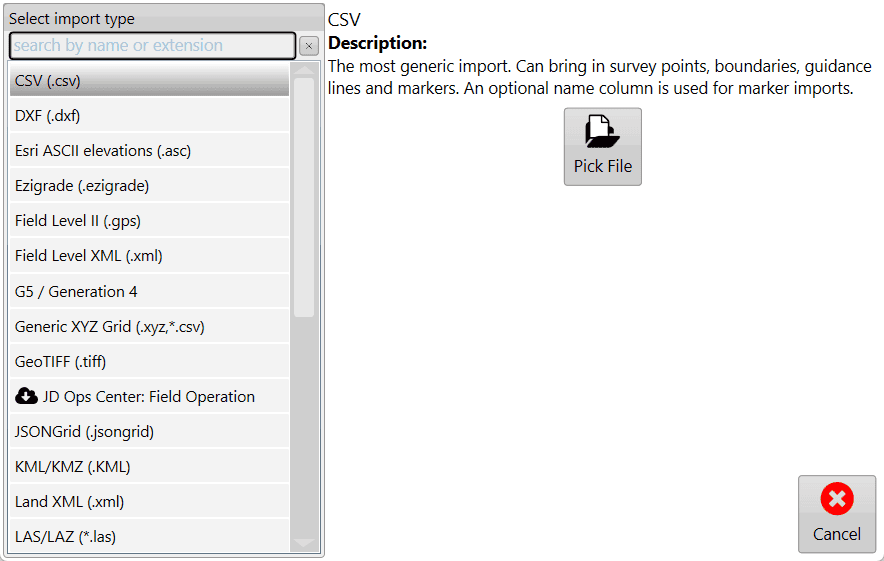
Select the import type and files
Tap the import type you need in the list, or use the text box at the top to search for it. After selecting the type, tap Pick File on the right and navigate to the file(s) you want to import.
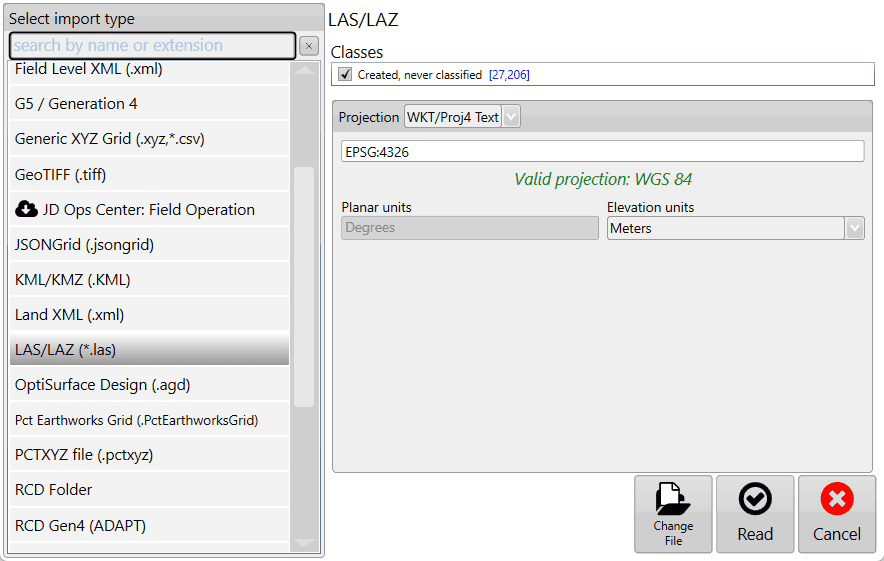
Set any required options and read the files
After you select the file(s), additional options appear if more information is required. For LAS/LAZ, these options let you filter point classifications and the projection. If you selected the wrong file, tap Change File; otherwise, tap Read to continue.
Review the contents and import
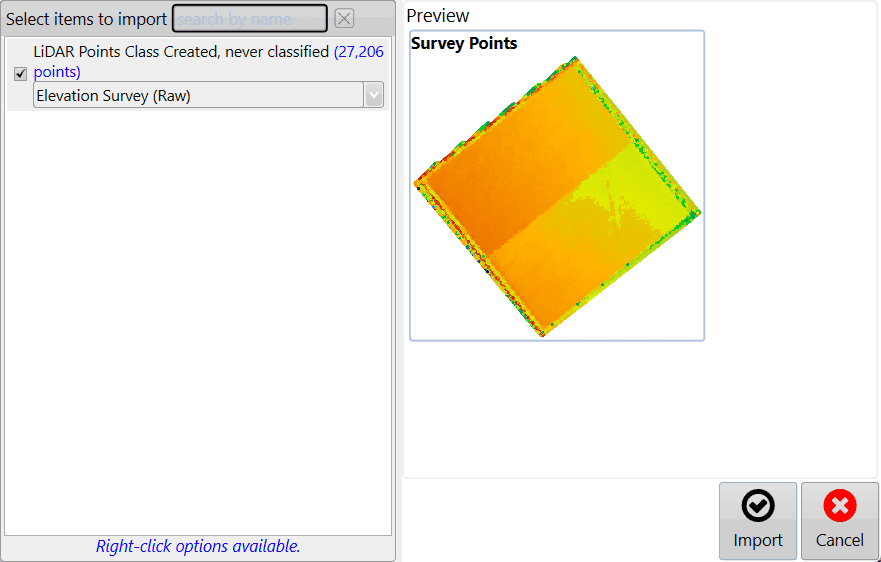
The file(s) are then read, and the contents available for import are listed. Edit the details of each item as needed:
- Mark surfaces as Elevation or Design.
- Mark points as surveys, drains, linework, markers, or boundaries.
When you are satisfied with the edits, tap Import to start working with your data.