
6.8 | Drain Surveying specific edit controls
These tools are available in the Collection and Surfacing stages when drain survey points exist.
- Edit Drain
- Merge Drains
- Extend Drain
- Split Drain
Edit Drain
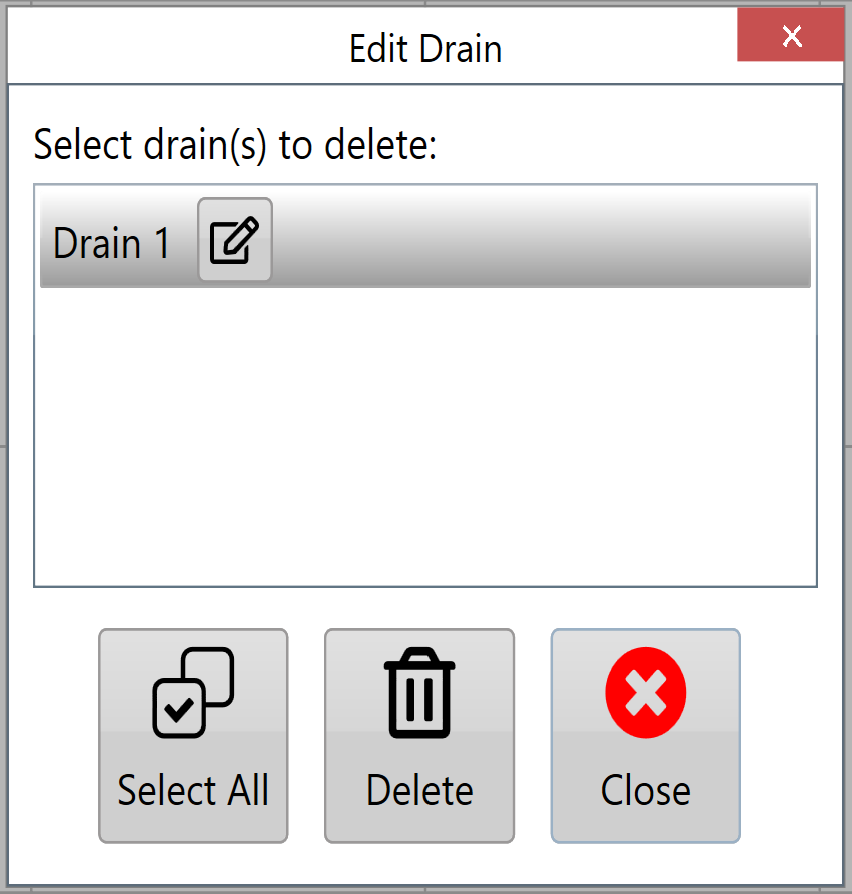
Press Edit drain to open a window listing the available drain paths. Select a drain, then press the corresponding button to rename or delete it.
Merge drains
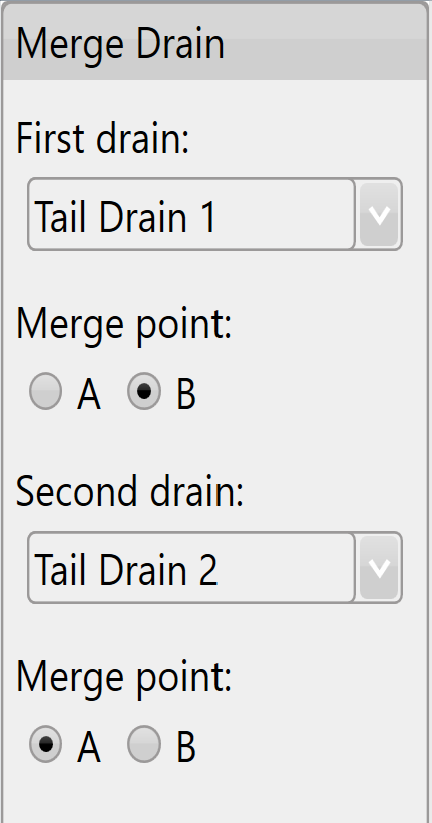
Use this tool to join two drains at either end. Merging creates a copy of the original drains with a joining line. You then have the option to delete the originals.

Extend drain
Use this tool to extend a drain from either end of its surveyed path. This is useful when the drain needs to reach a location that the surveying vehicle could not access directly.
Press Extend Drain to open the extension screen. You can extend the drain in any direction.
The red arrow indicates both the direction of the extension and the end of the drain that will be extended.
Use the controls on the left to select a drain. Then choose the extension’s length, elevation and direction.
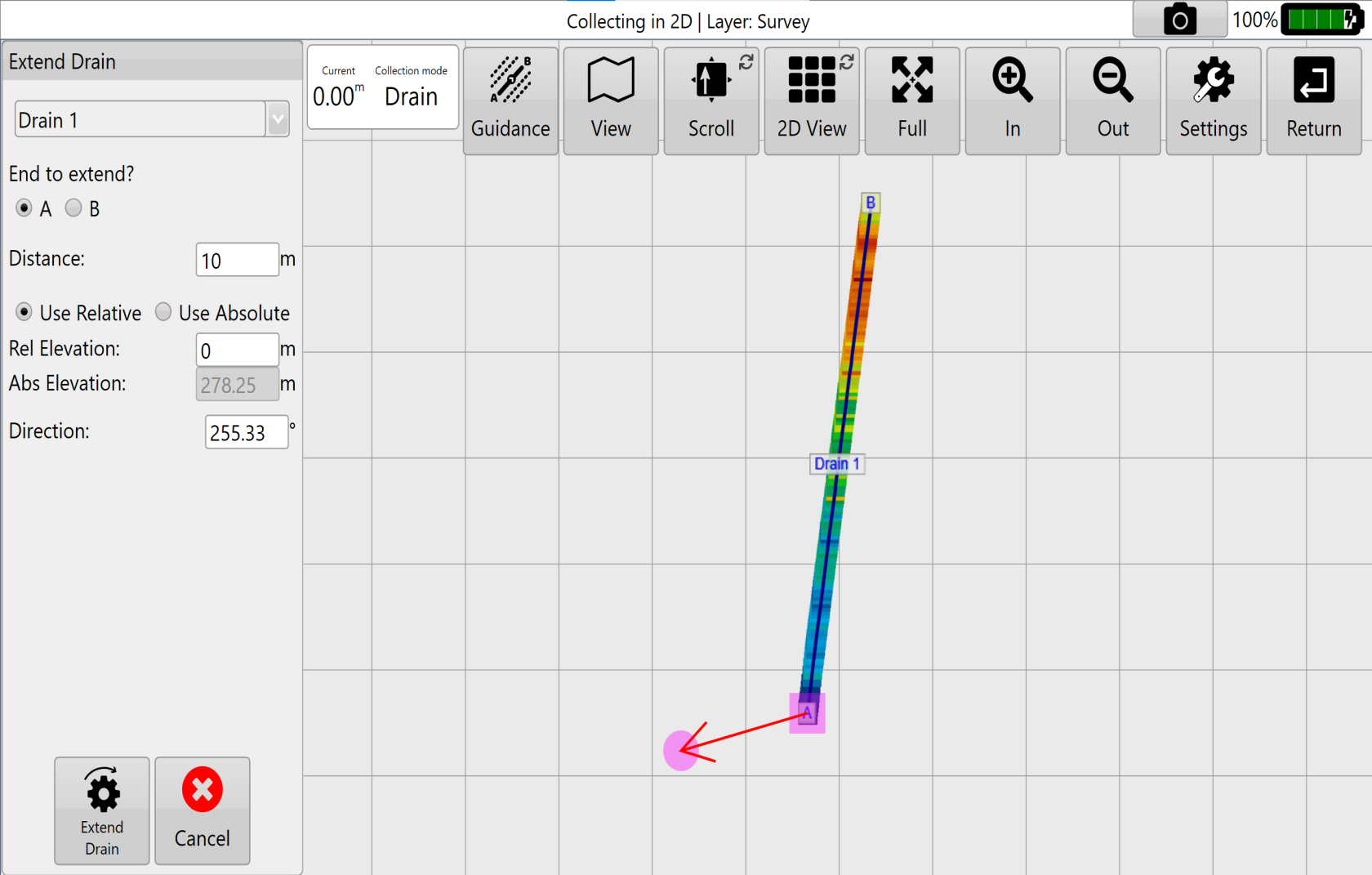
Rel elevation adds or subtracts the entered value from the existing drain end’s elevation to calculate the extended end’s elevation.
Abs elevation sets the extended drain end’s elevation to the entered value.
For example, to extend a drain 1ft below an ending elevation of 100ft, use either of these values:
Rel elevation value: -1ft
Abs elevation value: 99ft
After making the adjustments, press Extend Drain.
Split drain
Use Split drain to divide one drain into two separate drains.
First, select the drain from the Which drain to split? drop-down menu at the bottom center.
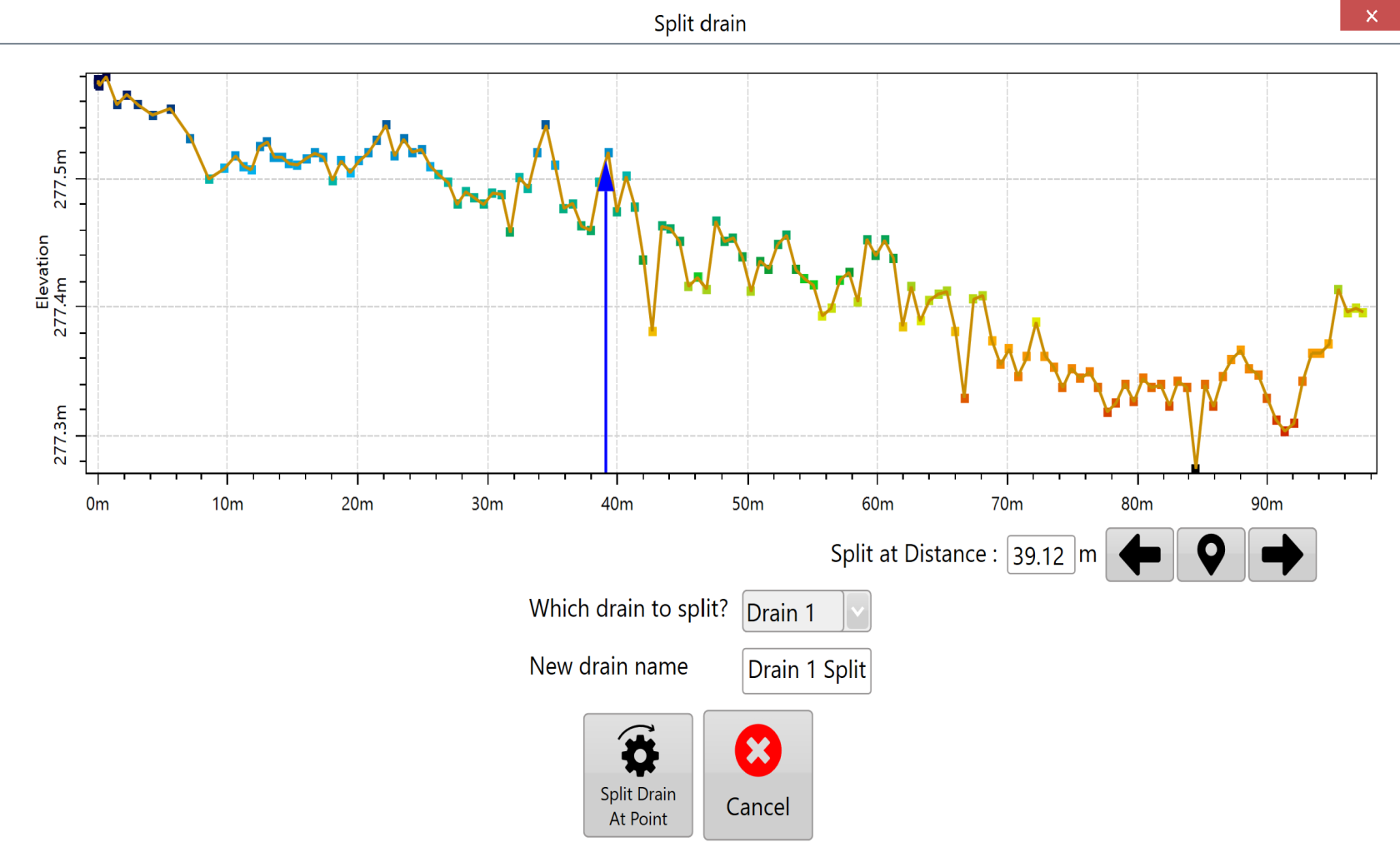
After selecting a drain, press anywhere along its profile. A blue arrow shows where the split will occur. You can also move the arrow using the left and right arrows to the right of Split at Distance.
Choose the Marker button to create a Marker for reference.
Enter a name in New drain name. When the settings are satisfactory, press Split Drain At Point to apply the split.
NOTE: The new drain name must differ from every existing drain name. If it matches an existing name, Split Drain At Point is disabled.