
6.5 | Choose Mode/Terrain/Layer
Mode
2D View displays the map as a 2D aerial view by default.
3D View shows terrain as small hills and valleys. Press the vertical scale magnifier shown below to exaggerate the hills and valleys, making them easier to identify. To change the focal point in 3D, quickly double tap a position.

View
A map has several display options.
Surface
Surface selects the source of the map’s 3D topography and coloring. There are 6 options:
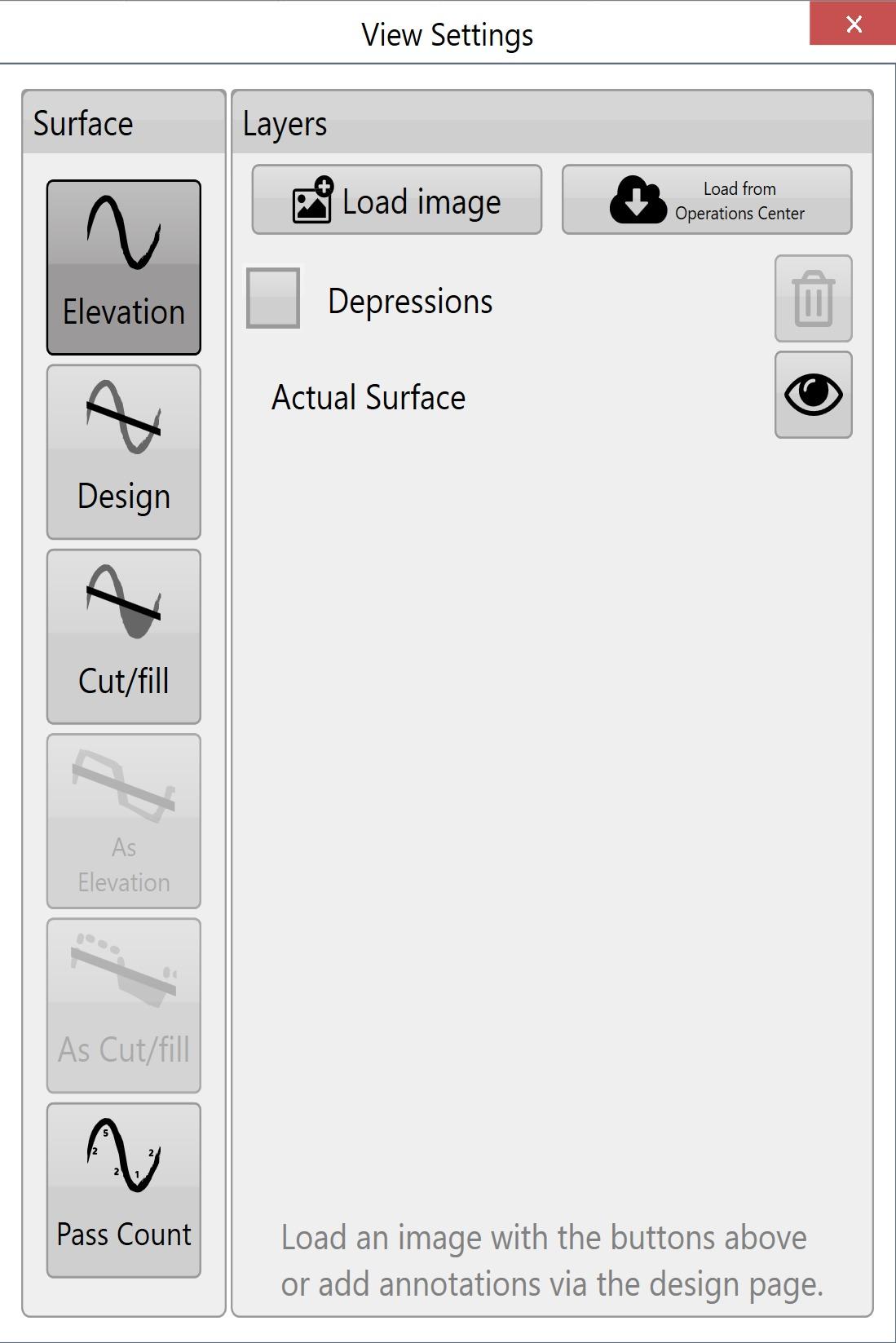
Elevation shows the original surface before any dirt is moved. Its Red to Blue gradient shows low areas in Red and high areas in Blue.
Design shows the applied design: the surface you are trying to reach at the end of the dirt moving process. It uses the same color scheme as Elevation.
Cut/Fill shows where the design will take dirt from and where it will put dirt. The layer’s coloring depends on the current Cut/Fill color scheme in Settings > Application.
As applied shows changes as they occur, providing a real-time view of work progress. It uses the same color scheme as Elevation.
This terrain is only available if As Applied mapping has been enabled in the machine tab of Settings.
As Cut/Fill shows where the design will take dirt from and where it will put dirt. The layer’s coloring depends on the current Cut/Fill color scheme in Settings > Application.
Pass Count shows how many passes you have made over an area.
This layer is only available once pass count tracking has been enabled in Settings > Machine.

Layers
Turn defined layers on or off here, including the current surface described above, depressions, drains, linework, and loaded overlays such as KML. The buttons at the top load and clear layers. Each layer has a transparency toggle button beside it; click that button to change the layer’s transparency.

NOTE: The depressions layer is not shown if the project only has drains (and no elevation surface).