
4.1 | Main page / New Project Page
The Main Page appears when T3RRA software opens and when you select New Project within the Wizard.
Use the Main Page to access display settings, software configuration, the Operator’s Manual and T3RRA support tools.
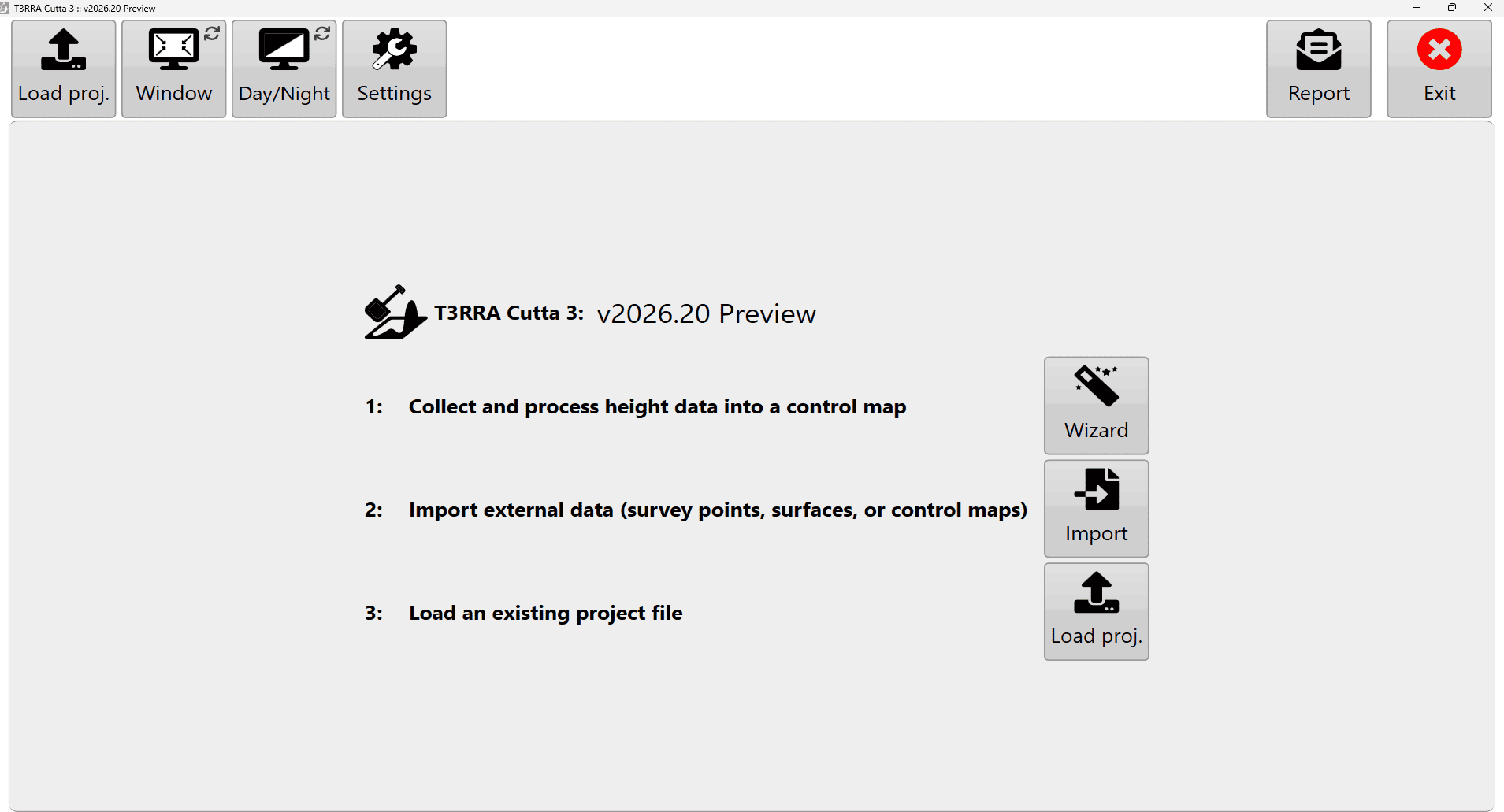 Main Page with display, settings, manual and report controls, and project-start options
Application Information
In windowed mode, the title bar shows information about the running application and current project.
The information varies with the software and may include:
- The name of the currently loaded project file.
- The T3RRA application name, such as T3RRA Cutta 3, T3RRA Ditch 3, T3RRA Plane 3, T3RRA Survey 3 or T3RRA Apply 3.
- The installed software version.
Full Screen Mode
Use Full Scrn to toggle between full-screen and windowed operation.
Full-screen mode maximises the display area available to T3RRA. Use windowed mode when you also need another application or a Windows function.
With a keyboard connected, F11 also switches between full-screen and windowed modes.
Display Modes
Three display modes help improve visibility in different operating conditions:
| Mode | Description |
|---|---|
| Day | Standard light interface with a white background. This is the display mode used throughout this manual. |
| High Contrast | Uses an inverted colour scheme to improve visibility in some lighting conditions. |
| Night | Uses a dark background with a green foreground to reduce screen brightness during low-light operation. |
Settings
Open Settings to review or configure the application.
Before starting work, check that the software configuration is correct for the machine, implement, project and GNSS system in use.
Refer to the Settings chapter for the available settings and their functions.
Open Manual
Use Open Manual to access the T3RRA Operator’s Manual.
On first use, this option downloads and installs a local copy of the manual on the tablet. After installation, Open Manual opens that copy directly.
The first download requires an internet connection.
Report
Use Report to open the T3RRA bug report and feature request window.
Use this window to:
- Report unexpected software behaviour.
- Submit information about a problem.
- Request or suggest new functionality.
Licence details automatically populate the Name and Email Address fields.
Submitting a report requires an active internet connection.