
5.5 | GPS Port Settings Tab
GPS connection settings
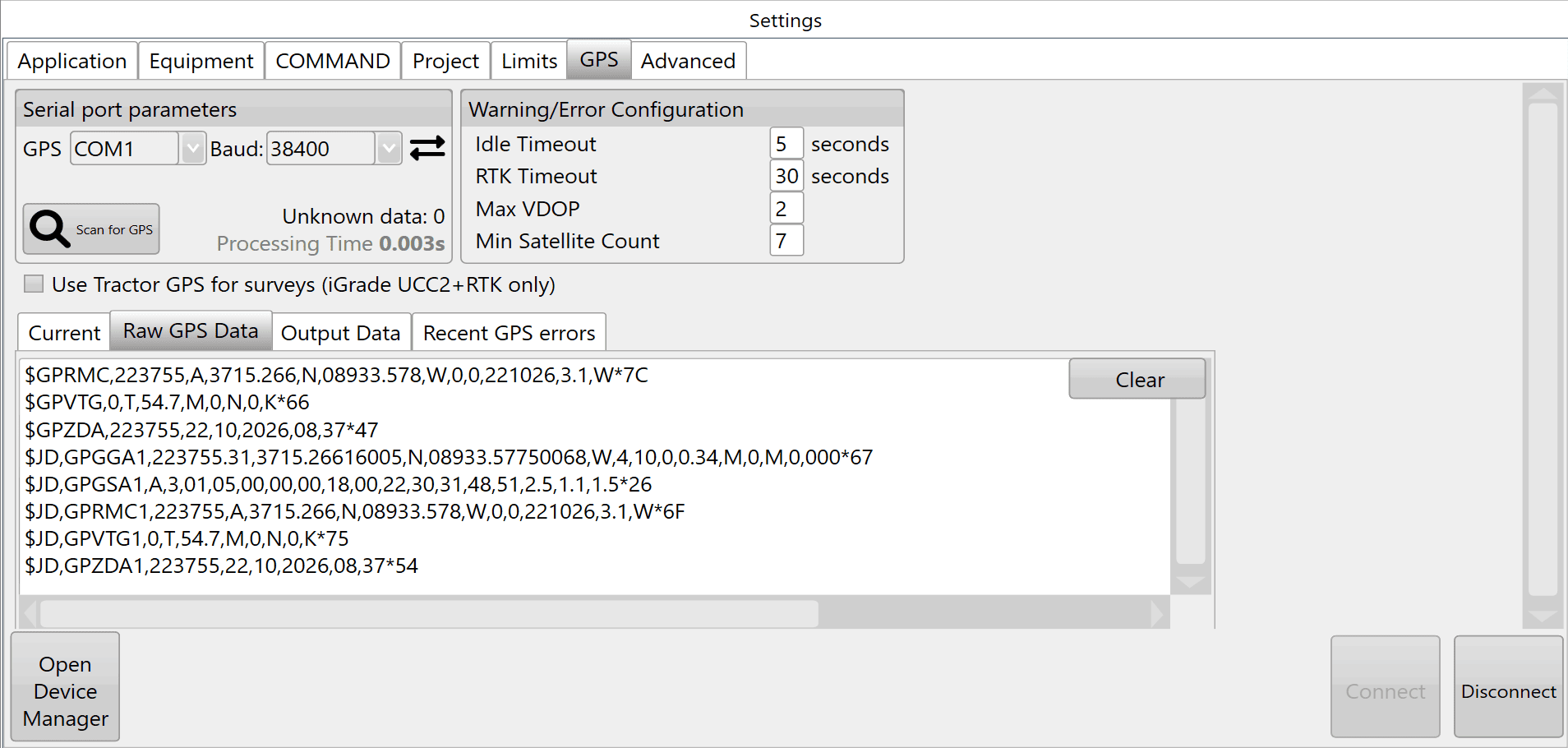
GPS displays the COM port used to communicate with the GPS. Select the correct port from the drop down menu.
Baud (Rate) sets the communication speed between the software and GPS. It should match the GPS baud rate.
Scan for GPS checks available COM ports and usual baud rates for valid GPS data.
NOTE: T3RRA software and iGrade™ must have identical Com port and Baud Rate settings in order to communicate.
Configuration and diagnostics
Warning/Error Configuration settings changed on this page remain in effect after the system is turned off.
Current displays the most recent GPS information received in a table.
Raw GPS data displays the most recent GPS data received. It is primarily used for diagnostics when support is required.
Output Data displays the most recent outgoing communications. It is primarily used for diagnostics when support is required.
Recent GPS errors lists the most recent GPS errors so that intermittent errors can be reviewed.
Open Device Manager is used to investigate COM port issues when required.
Connect and Disconnect manually start or stop communication with the app controller.
Serial port parameters
Com port: The adapter assigns the Com port #. The drop-down box lists all available com ports. Select the serial port physically connected by cable to the iGrade™ Application Controller. Windows Device Manager provides diagnostics for the current serial ports; you can open it using the button at the bottom left of Settings > GPS.
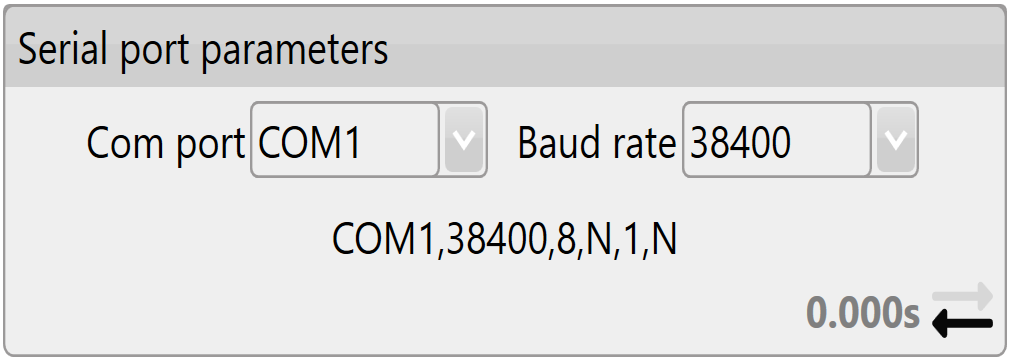
Baud rate: This is the speed of communication with iGrade™. It must match the iGrade™ settings, or T3RRA software cannot communicate with iGrade™. For iGrade v1, the recommended baud rate is 38400. For iGrade™ v2, the recommended baud rate is 115200, with NMEA Message Type set to “All”.
Warning Thresholds
Idle timeout: An error warning appears if no GPS messages are received within this time period.
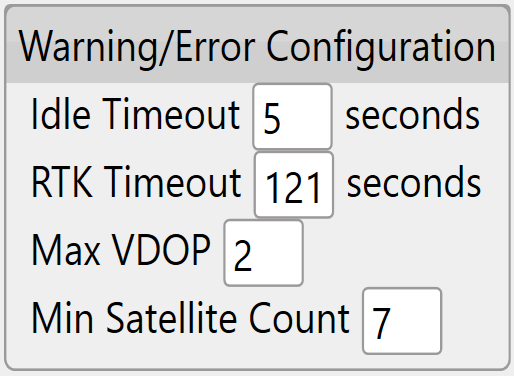
RTK Timeout: This monitors the time since the last good RTK correction packet. It should not normally be set above 10-20sec.
Max VDOP: Vertical Dilution of Precision measures altitude accuracy. Keep this value as low as possible for the most accurate implementation, but setting it lower than 2 may interrupt use of T3RRA software.
Min Satellite Count: Sets how few satellites the GPS needs to see before a warning appears.
Input/Output

| Field | Meaning |
|---|---|
| Current & Raw GPS Data: | Current shows the receiver’s current position data. Raw GPS Data shows all incoming messages. |
| Output Data: | Outgoing command messages |
| Recent GPS errors | Current GPS state and any errors |
| Lat & Lon: | Your current location coordinates (latitude and longitude). |
| Altitude: | Your current height above sea level, displayed in the chosen measurement format. |
| Num Sats: | The number of satellites currently tracked by your GPS. It is linked to Min Satellite Count in Warning thresholds: an error appears if the count drops below that setting. |
| Fix: | The type of position solution calculated. |
| Time: | The current GPS time. |
| Last Correction: | The time since the last differential correction message from the base station. Keep it as low as possible for the most accurate readings. It is linked to RTK Timeout in Warning thresholds: an error appears if it exceeds that limit. |
| VDOP: | Vertical Dilution of Precision. An error appears if this number exceeds Max VDOP in warning thresholds. |
| Speed: | Your current travel speed |
| Heading: | Current heading out of 360 degrees |