
7.3 | Language & Accessibility
The Language & Accessibility page allows you to customise the interface language and on-screen keyboard behaviour to suit your device and operating preferences.
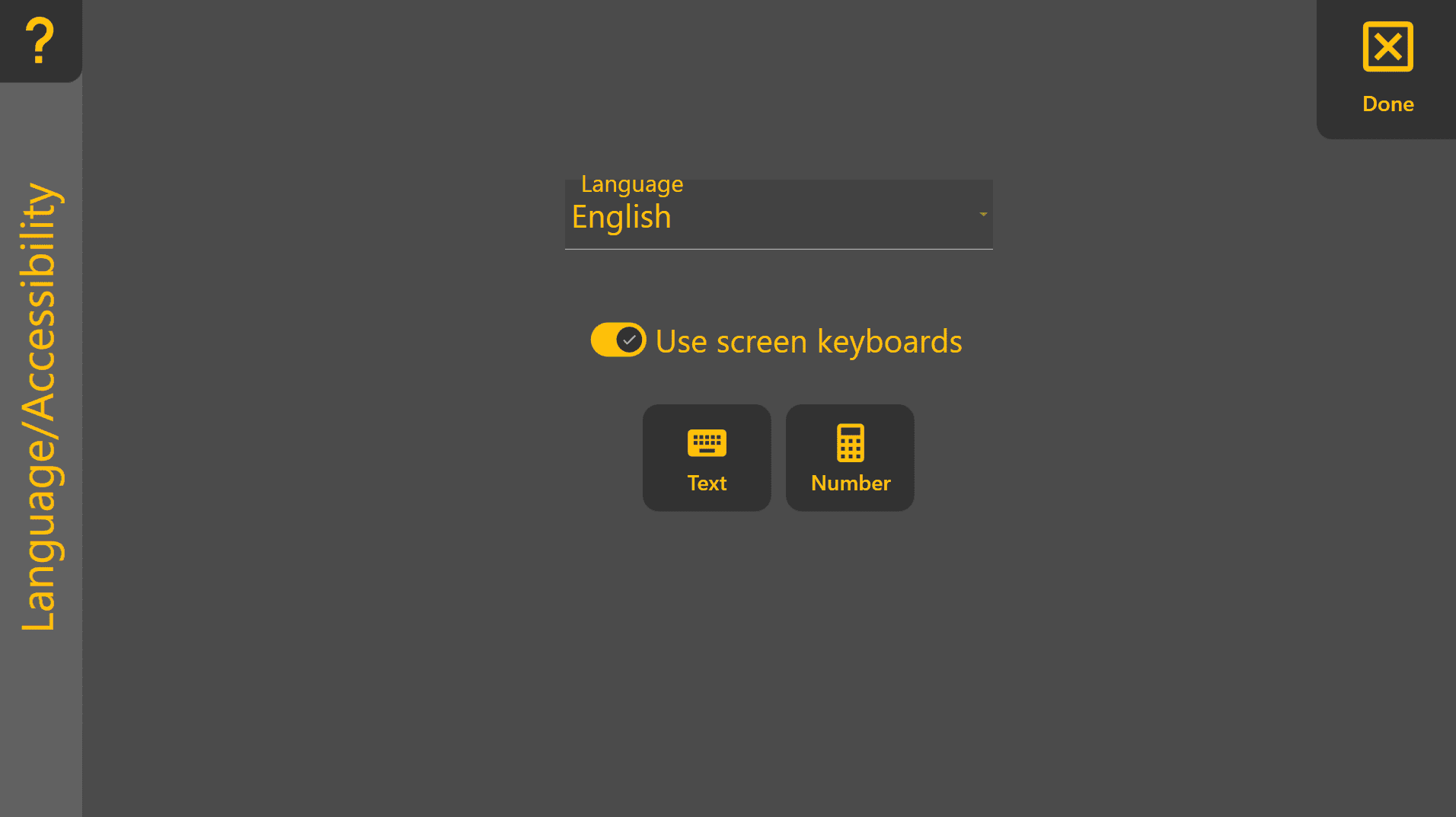
Language
Selects the display language used throughout Level COMMAND.

For the best experience, restart Level COMMAND after changing the language.
Use Screen Keyboards
When enabled, Level COMMAND automatically opens the appropriate on-screen keyboard whenever text or numeric input is required.
This setting is particularly useful when using tablets or touchscreen devices without a physical keyboard.

Keyboard Test
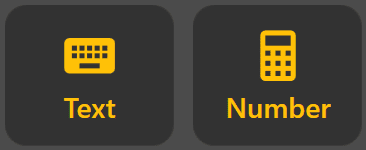
The Show for Text and Show for Number buttons allow you to verify that the configured on-screen keyboards are operating correctly.
- Show for Text – Opens the text keyboard.
- Show for Number – Opens the numeric keypad.
These options are intended as a quick test if the on-screen keyboard is not appearing as expected.
If the On-Screen Keyboard Does Not Appear
If the Windows on-screen keyboard does not open automatically:
- Verify that Use Screen Keyboards is enabled.
- Confirm that the Windows on-screen keyboard is installed and enabled.
- Connect a physical keyboard if required.
Refer to the Microsoft Windows documentation for additional information about configuring on-screen keyboards.