
4.7 | Closing Level COMMAND
Before Closing Level COMMAND
Before closing Level COMMAND, verify that:
✓ Automatic Control has been disengaged.
✓ Hydraulic functions have been returned to manual operation.
✓ The machine is in a safe operating condition.
✓ The implement has been lowered safely to the ground where appropriate.
If COMMAND Status shows Engaged - Active or Engaged - Low Speed, disengage Automatic Control before continuing.
Saving Your Work
Projects, design files, Plane surfaces, markers and configuration changes are saved automatically as they are created or modified. In normal operation, no manual save process is required before exiting Level COMMAND.
Although work is saved automatically, it is good practice to close Level COMMAND before shutting down the tablet or PC.
If you wish to manually save a copy of the current project:
- Press More.
- Press the current project name at the top of the window.
- Press Save As.
- Select the desired save location.
- Press Save.
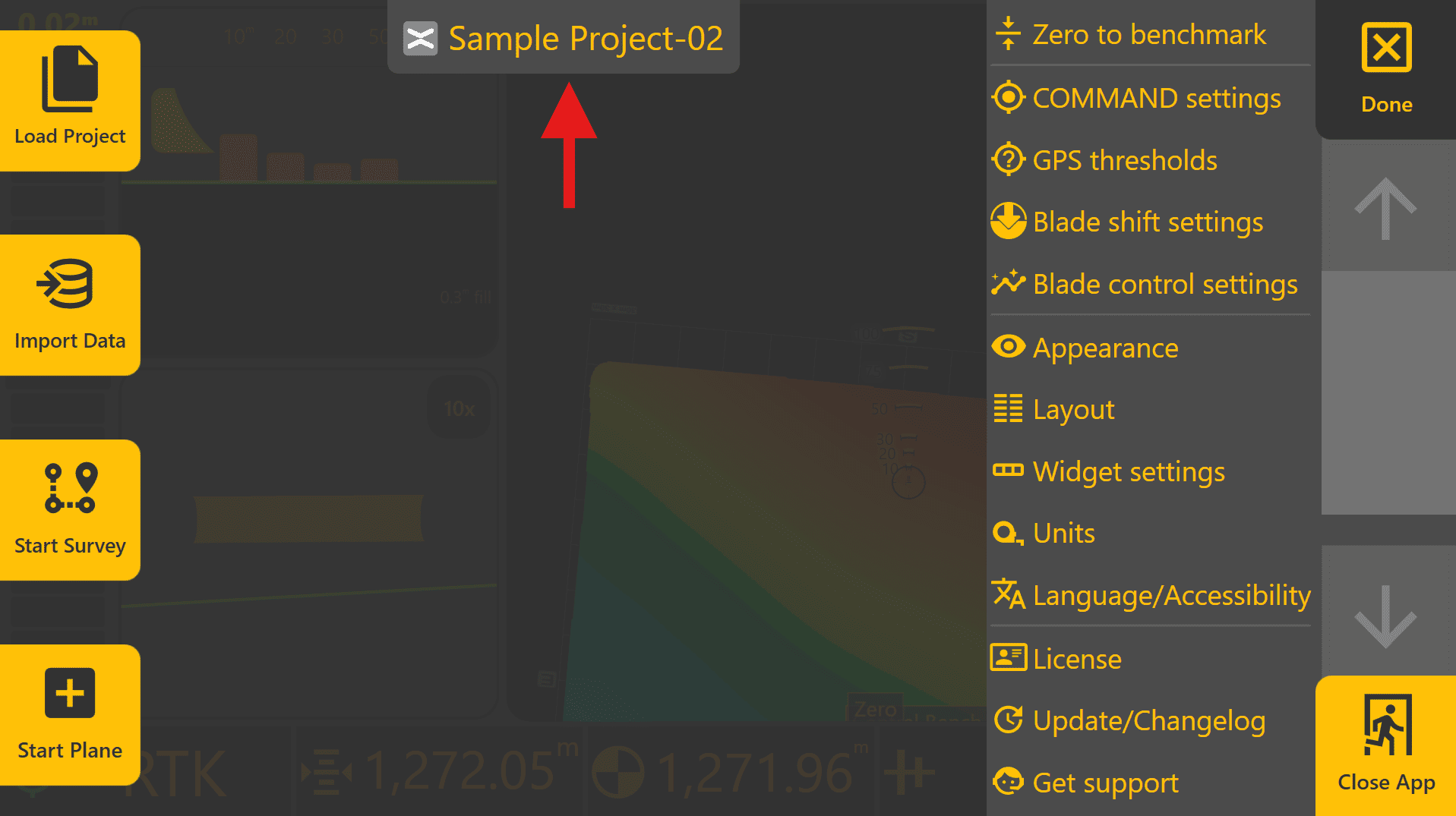
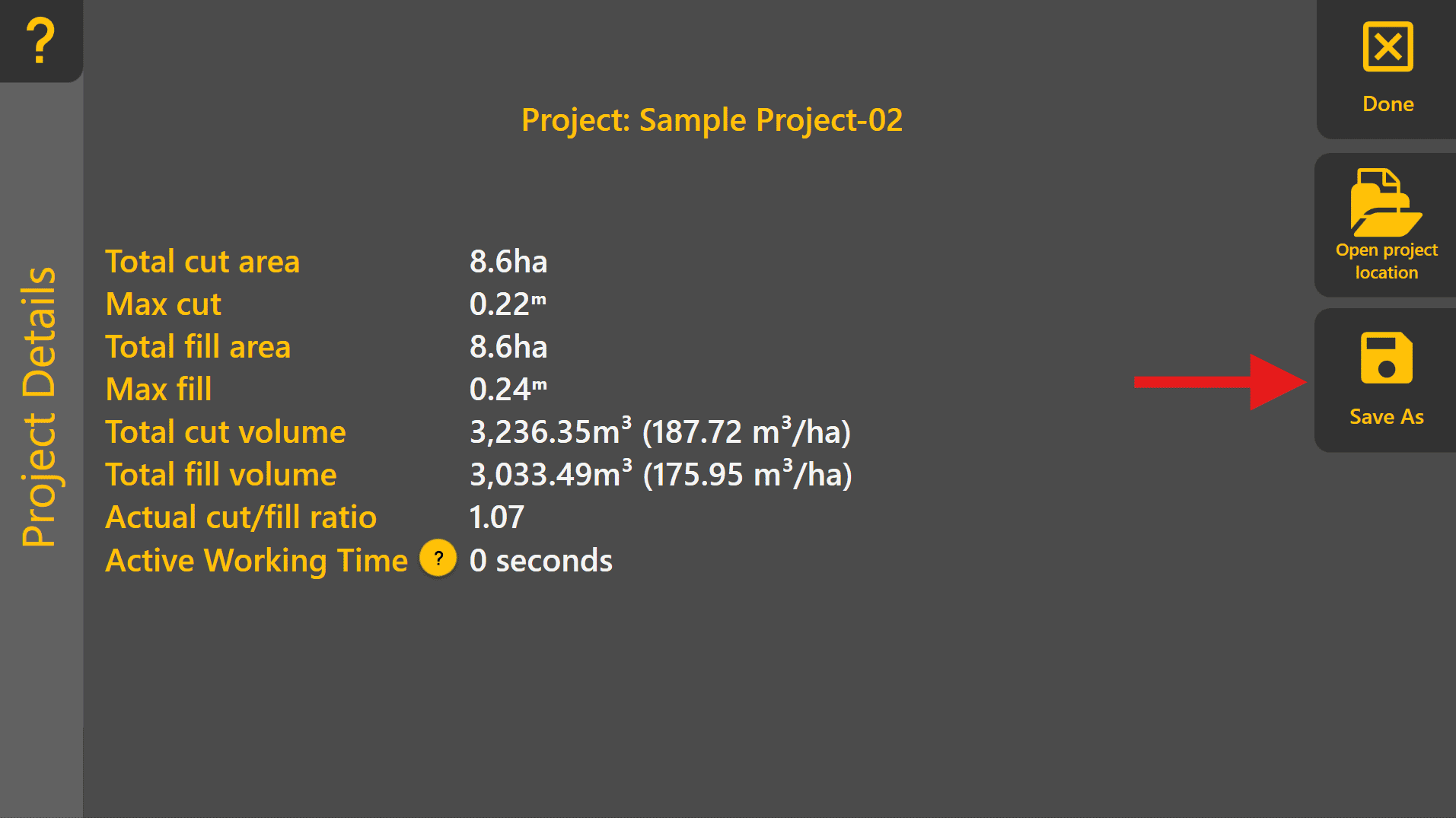
This can be useful when creating backups, archiving completed projects or creating a modified copy of an existing project.
Closing the Application

To close Level COMMAND:
-
Press More.
-
Press Close App at the bottom right.
-
Press Yes.
The application will close and return to the operating system.
Automatic Startup
Level COMMAND can be configured to start automatically when Windows starts.
To modify this setting:
More → Diagnostics/Advanced
Use the Start Level COMMAND when computer starts option to enable or disable automatic startup. This setting is enabled by default.

Unexpected Shutdowns
If the tablet or PC unexpectedly shuts down, COMMAND will automatically disengage Automatic Control once position updates are no longer received from Level COMMAND.
The operator immediately becomes responsible for machine control and implement position.
If an unexpected shutdown occurs:
-
Raise the implement if necessary.
-
Return hydraulic controls to a safe state.
-
Restart the tablet or PC.
-
Start Level COMMAND and verify system readiness before continuing work.
Because project information is saved automatically, work progress will normally be retained after restarting the application.
Restarting Level COMMAND
When Level COMMAND is started again:
-
The previous project remains available.
-
Previously created Plane surfaces and markers remain available.
-
Machine configuration and calibration settings remain stored within the COMMAND ECU.
Automatic Control will not automatically re-engage after restarting the application. The operator must verify system readiness and manually engage Automatic Control before continuing work.
Quick Start Complete
You have now completed the basic Level COMMAND Quick Start workflow:
-
Start Level COMMAND.
-
Check COMMAND Status.
-
Load or create a project.
-
Set Zero.
-
Engage Automatic Control.
-
Perform a pass.
-
Exit Level COMMAND safely.
For additional workflows, project creation tools and advanced operating procedures, continue to Chapter 5 | Operational Workflows.