8.2 | Trimble FMX/GFX/TMX with Ag25
Applicable to:
Trimble FMX, GFX, and TMX displays using NMEA 0183 RS232 output via 12-way DTM port.
Harnessing Layout Overview
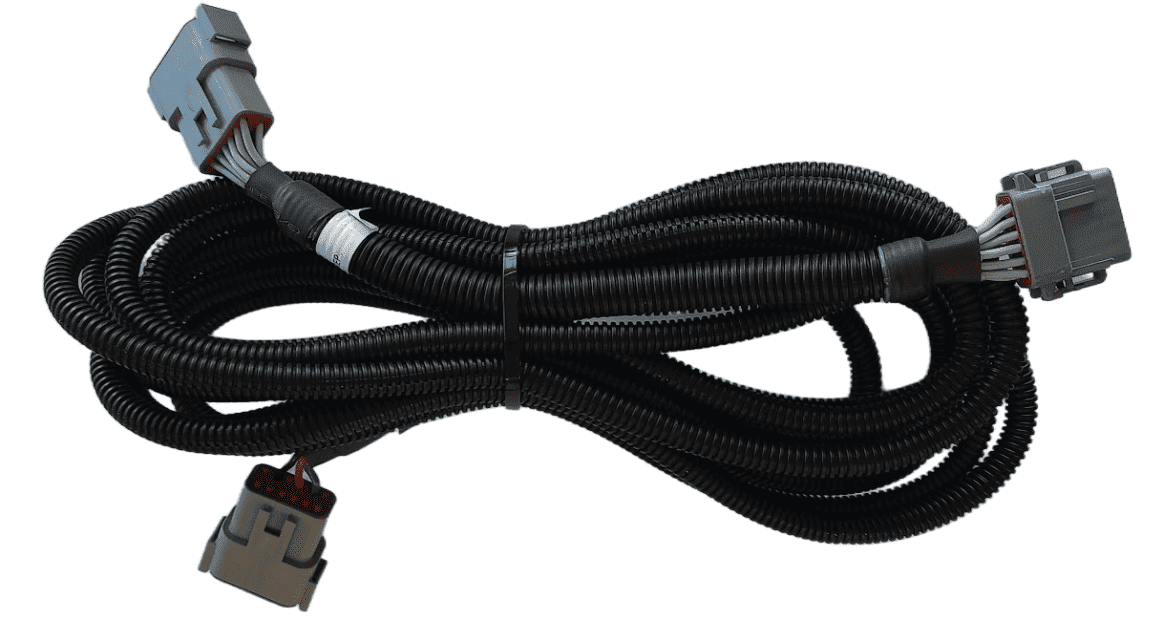
Usage of the FMX/TMX NMEA 0183 output only requires the addition of a T3H-G004 adapter to the T3H-C002 ECU breakout harness.
Parts Required
- T3H-G004 - COMMAND Trimble NMEA Output Adapter
Connection Process
NOTE: The T3H-G004 adapter routes the RS232 Tx and Rx connection to the COMMAND ECU and they are NOT replicated on the port replicator connector. All other pins are replicated for connection of other devices.
For FMX/FM1000
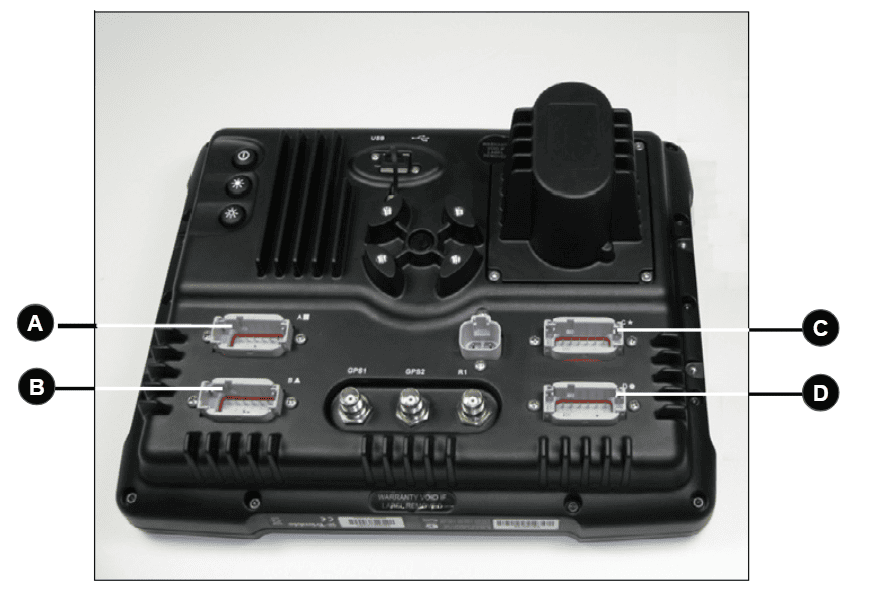
Connect the T3H-G004 adapter to Port C or Port D on the FMX display depending on whether antenna port 1 or 2 is to be used. Port C will provide the NMEA output for antenna port 1 while Port D will provide NMEA output for antenna port 2.
For GFX/TMX with TM-200 and EXP-100
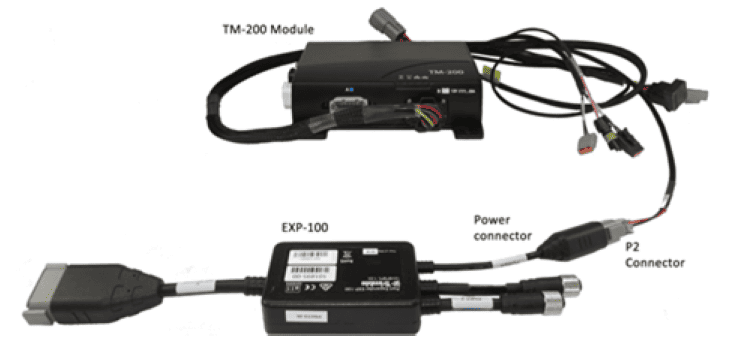
Connect the T3H-G004 adapter to the EXP-100 port expander module.
A port replicator is supplied in case the port was already in use for something else, if so disconnect the device, connect T3H-G004 and then reconnect the device using the port replicator on T3H-G004.
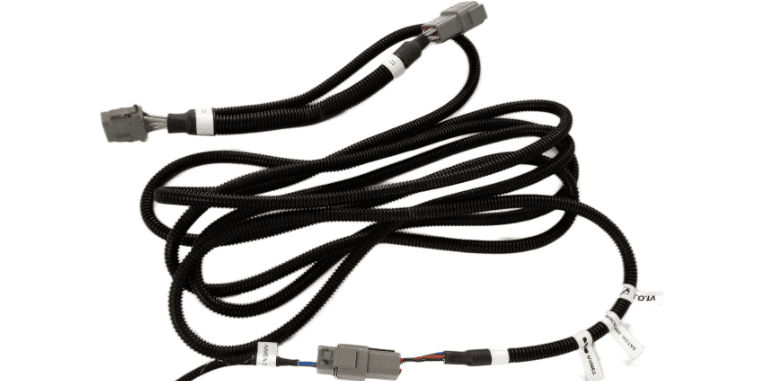
Connect the other end of T3H-G004 to the T3H-C002 ECU breakout harness.
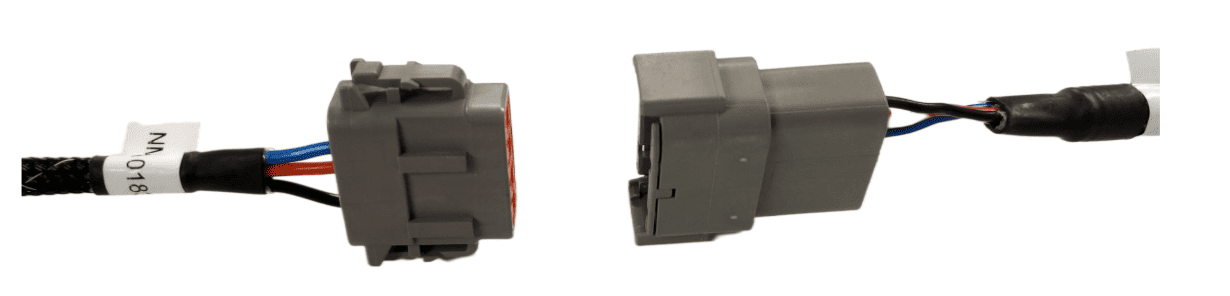
Next, follow the setup process below for activating the NMEA output port on the FMX/TMX system.
Activating the NMEA Output - FMX/FM1000
Make sure that if present, Autopilot is configured for use on Port A - this leaves Port C and Port D free for NMEA output of either implement receiver.
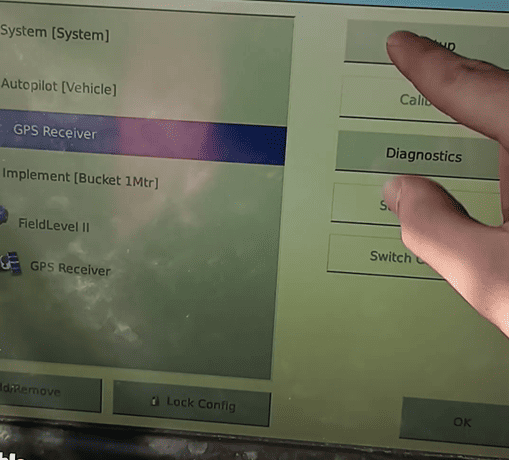
1. Select the GPS Receiver listed below Autopilot [Vehicle] and press "Setup".
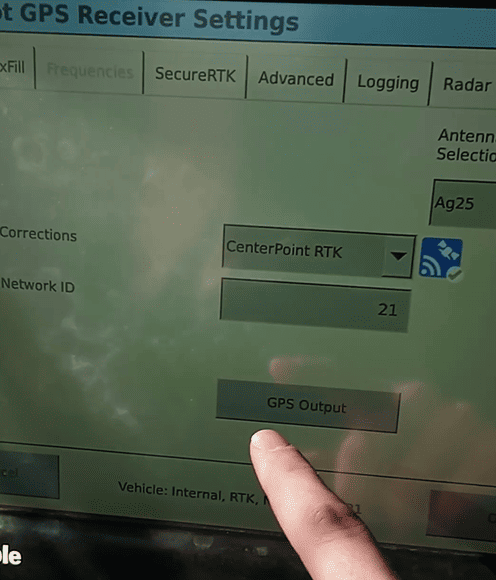
2. Press the "GPS Output" button.
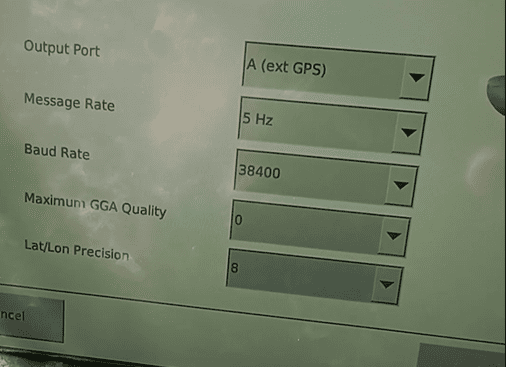
3. Configure the NMEA GPS Output port as below:
- Select Output Port A (ext. GPS)
- Select a message rate of 5 Hz
- Select a Baud Rate of 38400
- Set Maximum GGA Quality to 0
- Set Lat/Lon Precision to 8
- Press the "NMEA Messages" Tab.
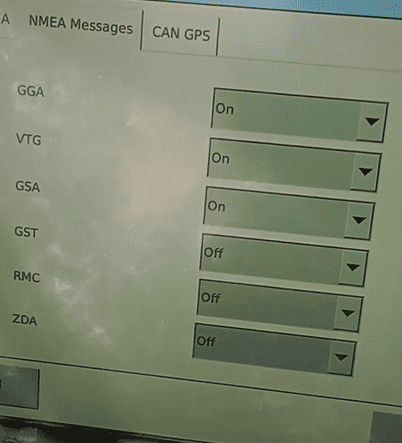
4. Configure the NMEA Messages as below:
- Set GGA, to "On".
- Set GSA, to "On".
- Set VTG, to "On".
- Leave all other messages set to "Off".