
Saving and Auto-Saving Projects
Saving a project allows you to close T3RRA software and return to your work later while retaining the project's survey, design and other associated data.
Although T3RRA software includes an automatic backup system, regularly saving your project is strongly recommended to minimise the risk of data loss.

Saving a Project
The Save project button is available from the main Wizard pages.
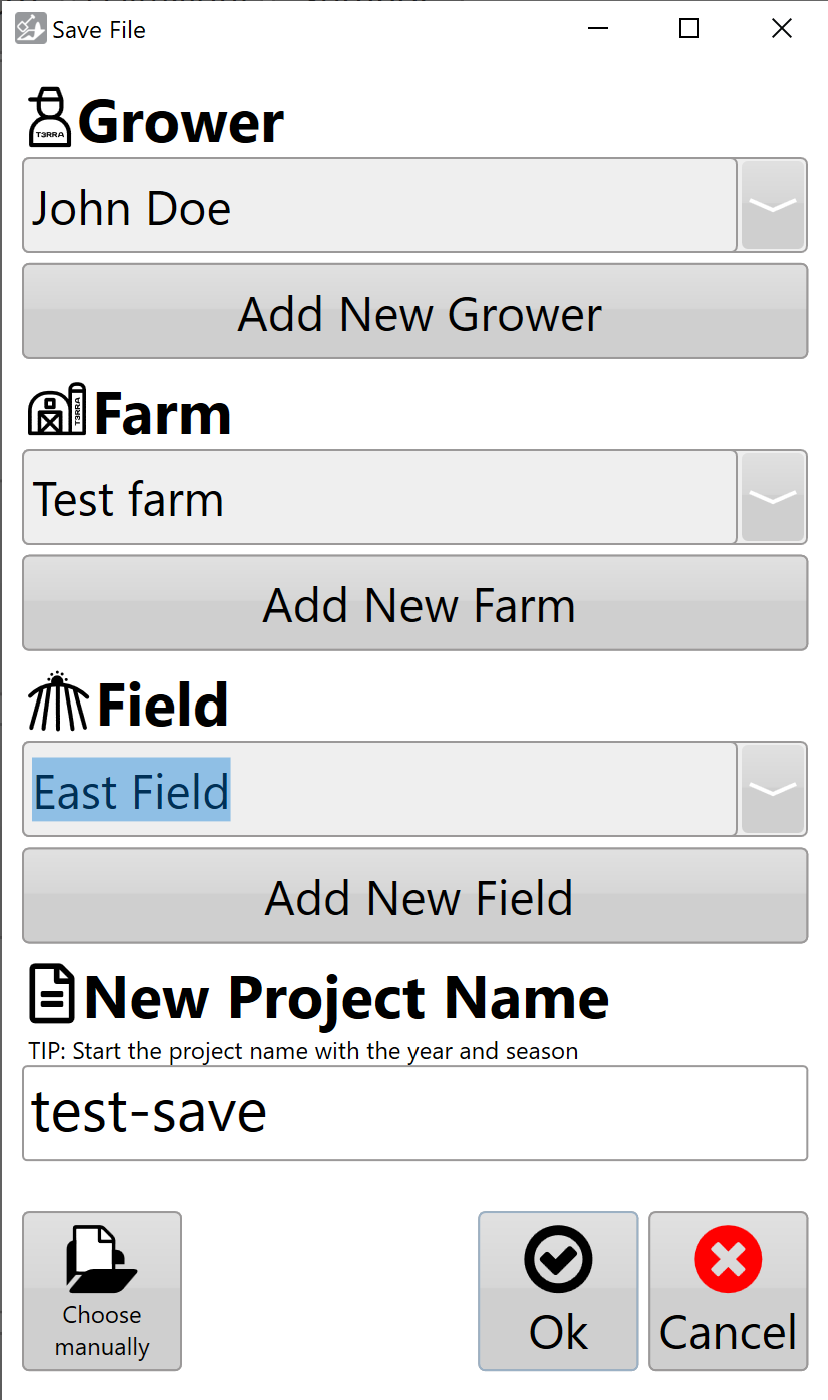
Select Save project to open the project save window. T3RRA's standard project structure organises projects using the following information:
- Grower
- Farm Name
- Field Name
- Project Name
Enter the required information or select an existing Grower, Farm or Field from the available drop-down lists.
Select OK to save the project within the standard T3RRA project structure.
Saving to Another Location
T3RRA project files are standard Windows files and can also be saved outside the default T3RRA project structure.
Select Manually Choose Location to specify an alternative save location.
The save window can be navigated using either the folder tree on the left or the main file browser. Navigate to the required location, enter a filename, then select Save.
This can be used to save projects elsewhere on the tablet PC or to another available storage location.

Important — Back Up Your Projects
Regularly copy important project files to a location separate from the in-cab tablet PC. This provides an additional copy of your project data if the tablet is damaged, lost or experiences a hardware failure.
Consider backing up projects at appropriate stages throughout a job, rather than waiting until the work is complete.
Auto-Saving
T3RRA software automatically creates backup copies of project data while you are working. Autosaving helps protect against data loss if the application closes unexpectedly or the tablet PC experiences a software or hardware failure.
The autosave interval can be configured under Settings > Advanced.
Autosave files are stored in the same location as the active project and use the same project filename with an additional .backup suffix.

Recovering an Auto-Saved Project
When an existing project is loaded, T3RRA checks for a corresponding autosave file.
If an autosave exists and has a newer date and time than the saved project, T3RRA will prompt you to choose whether to load the newer autosaved version.
This allows work completed since the project's last manual save to be recovered following an unexpected shutdown or other interruption.
Manually Recovering an Auto-Save
An autosave contains the same project data format as a regular T3RRA project and can also be recovered manually if required.
Using Windows File Explorer, locate the appropriate autosave file and make a copy before modifying it. Rename the copied file by removing the .backup suffix:
ExampleProject.tci.backup → ExampleProject.tci
The recovered copy can then be opened as a normal T3RRA project while retaining both the original project and autosaved version.