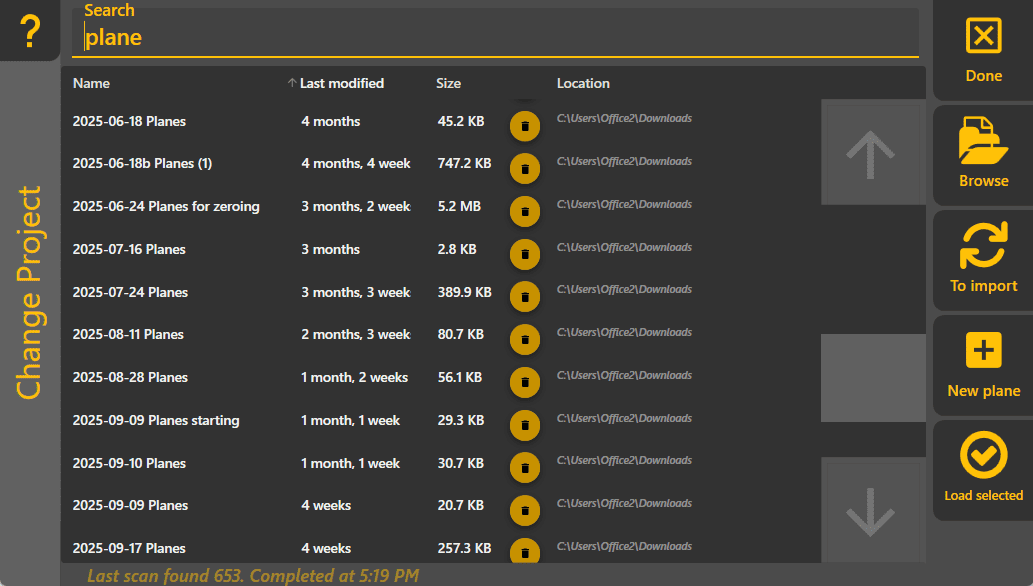
Change Projects
To change the loaded project, tap the Change Project button on the Apply View or in the More menu. Tapping it will show a full page (see below), listing all projects that can be found on your computer. To load a specific project, tap it, then choose Load selected on the bottom right (double-tapping a project also works). To filter the projects to a specific one, tap the search field at the top and type in a search term.
Done: Closes the page, going back to the Apply View.
Browse: Opens a file selector so you can navigate to a specific project. Select your file then tap Open to start loading it.
To import: Switches to list files that can be imported into Level COMMAND. Select an importable file from the list and then tap on the Import selected button in the bottom right. Press this button again (it will now say To Load) to switch back to loading Level COMMAND projects.
New plane: Starts a new plane project. Use this for creating planar designs and start moving dirt quickly.
Load selected: Loads the project selected in the main list. Once the project is loaded, it will show the Apply View.