
Saving and Auto-Saving Projects
Save project
ityour at awork later timewhile retaining the project's survey, design and ensuresother thatassociated youdata.
Although aT3RRA copysoftware ofincludes an automatic backup system, regularly saving your project is strongly recommended to minimise the data in caserisk of accidents. We STRONGLY recommend periodic saving of your projects in order to guard against data loss.

Saving a Project
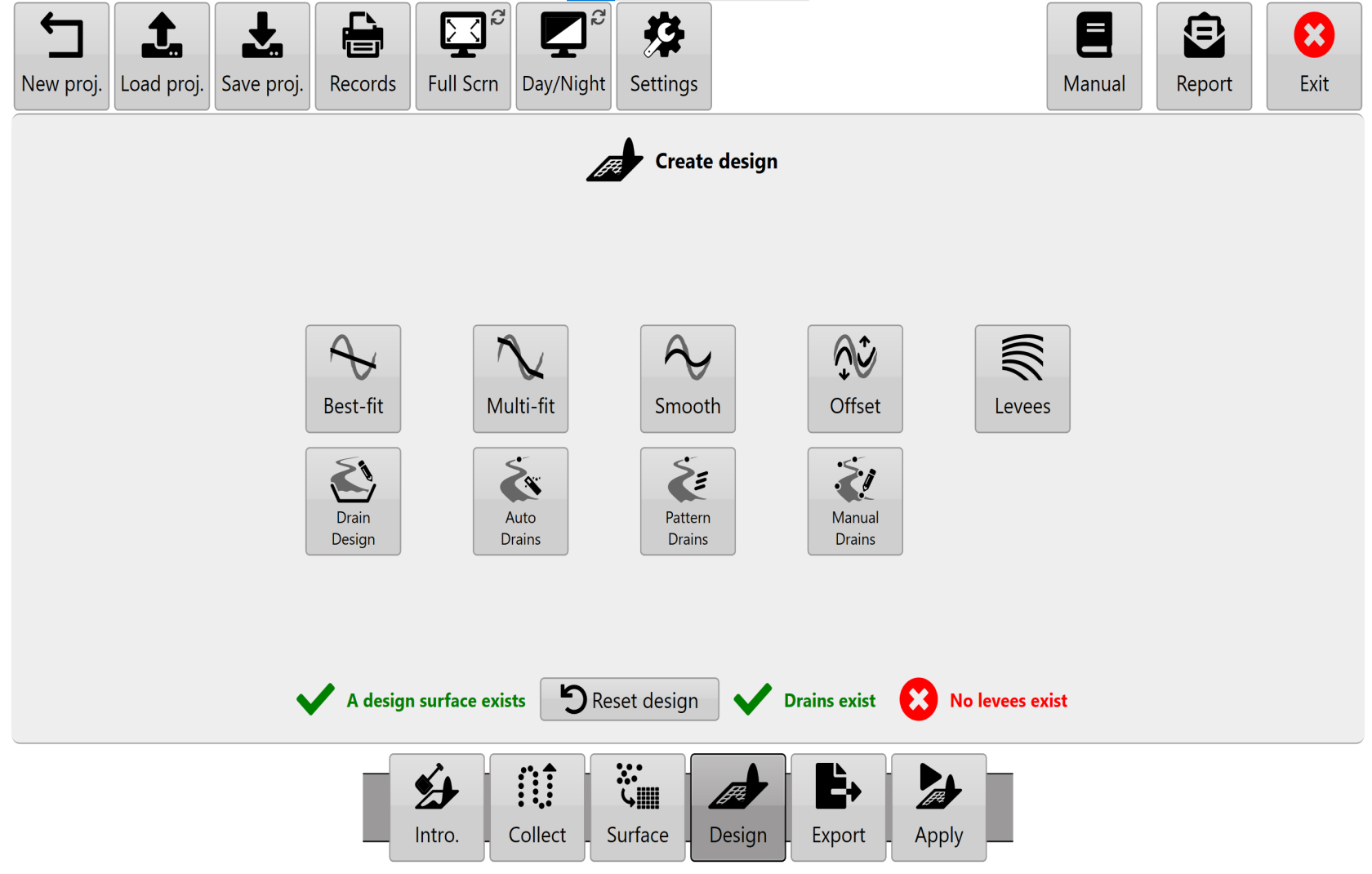
‘Save project’project button canis beavailable found in the top left corner on any offrom the main wizardWizard pages.
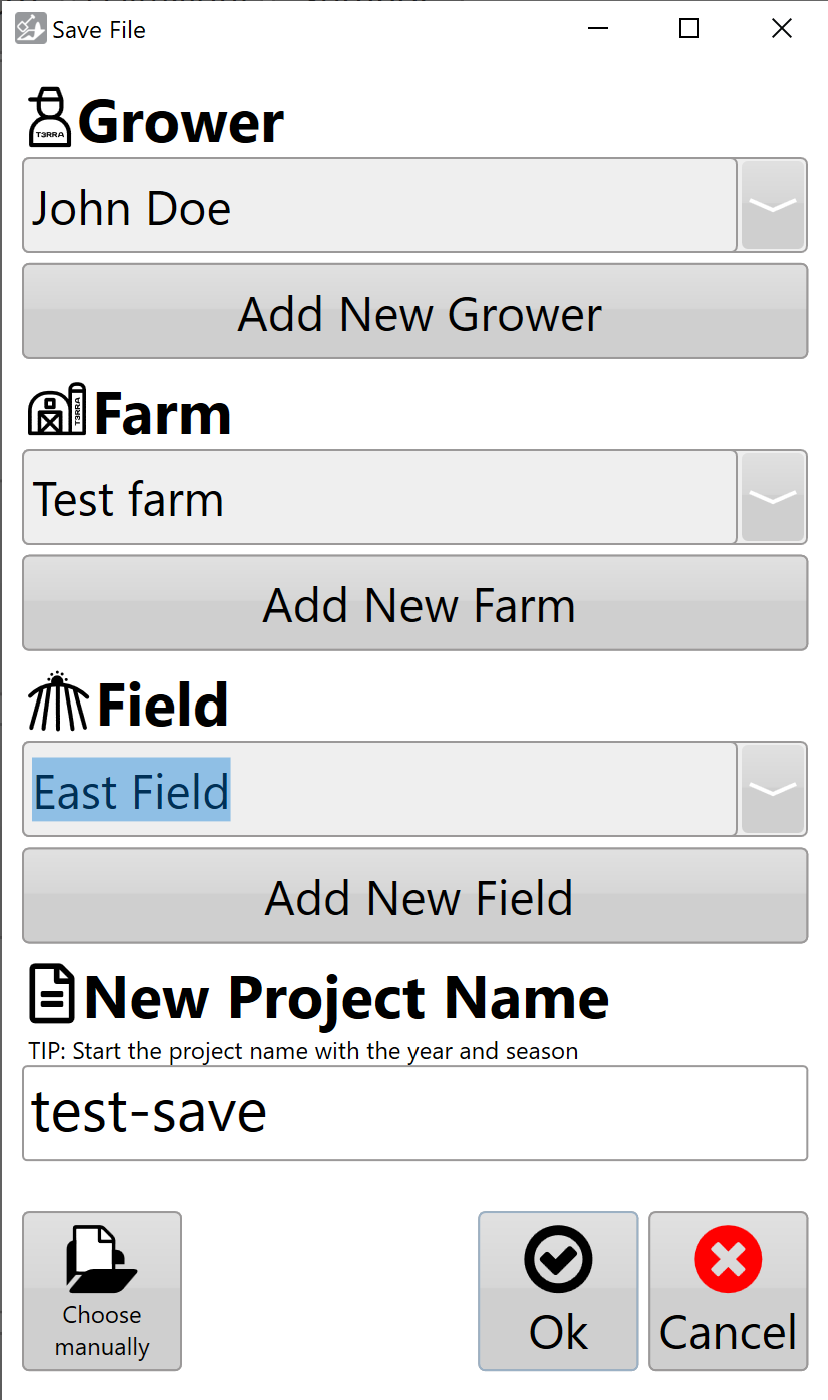
TheSelect 'Save proj.' button presents you with a screen that allows youproject to open the project save window. T3RRA's standard project structure organises projects using the following structure.information:
You
Grower
Field Name
Project Name
Or you can choose a previously saved value in any ofEnter the fieldsrequired information or select an existing Grower, Farm or Field from the dropavailable drop-down list.lists.
PressingSelect theOK final 'Ok' willto save the project and addwithin the filestandard T3RRA’sT3RRA structuredproject file saving area.
'Manually Choose Location' allows you to select an alternate location to save to.structure.

When manually choosing the save location there are two ways of navigating
Saving to whereAnother you would like to save the file.Location
YouT3RRA can use the left portion of the window to navigate through folders to find the desired save location.
Using the main section in the centre of the window you can navigate to the desired file save location.
NOTE: Projectproject files are normalstandard Windows files and can also be storedsaved anywhereoutside the default T3RRA project structure.
Select Manually Choose Location to specify an alternative save location.
The save window can be navigated using either the folder tree on the computer.left Weor recommendthe thatmain youfile regularlybrowser. Navigate to the required location, enter a filename, then select Save.
This can be used to save projects elsewhere on the tablet PC or to another available storage location.
Important — Back Up Your Projects
Regularly copy yourimportant project files to a location offseparate from the in-cab tablet inPC. orderThis toprovides havean themadditional storedcopy safely in case anything happens toof your tablet.project data if the tablet is damaged, lost or experiences a hardware failure.
AutosavingConsider backing up projects at appropriate stages throughout a job, rather than waiting until the work is complete.
Auto-Saving
T3RRA software autosavesautomatically creates backup copies of project data,data Youwhile canyou adjustare working. Autosaving helps protect against data loss if the frequencyapplication levelcloses inunexpectedly settings underor the advancedtablet tab.PC Thisexperiences is to assist in case of accidentally closing the software, ora software or hardware failure.
The autosave interval can be configured under Settings > Advanced.
Autosave files haveare stored in the same name and location as the openactive project,project and use the same project filename with thean additional suffix.backup ‘.backup’.
suffix.

Recovering an Auto-Saved Project
When aan existing project is loadedloaded, T3RRA checks for a checkcorresponding isautosave madefile.
If seean if a backupautosave exists for that project. If it does and the backup has a newer date/date and time stampthan associatedthe withsaved it,project, T3RRA will prompt you willto choose whether to load the newer autosaved version.
This allows work completed since the project's last manual save to be givenrecovered thefollowing optionan ofunexpected loadingshutdown it.or other interruption.
Manually Recovering an Auto-Save
An autosave file hascontains the same project data format as a regular project.T3RRA Fromproject withinand can also be recovered manually if required.
Using Windows ExplorerFile youExplorer, can renamelocate the appropriate autosave file and removemake a copy before modifying it. Rename the copied file by removing the .backup extensionsuffix:
ExampleProject.tci.backup order→ toExampleProject.tci
The recovered copy can then be opened as a normal T3RRA project while retaining both the original fileproject and the autosaved version.