Loading a Project
TheSelect ‘Load proj.’ button is used to loadopen anyan savedexisting T3RRA projects.project T3RRA(.tci). projectsProjects can be loaded infrom severalthe differentstandard ways,T3RRA allowingproject youstructure, tofrom loadanother fileslocation savedon directly to yourthe tablet PC, or from external sourcesstorage such as USB’s.a USB drive.
To loadbegin, aselect Load proj. from the Main Page.
Loading from Grower/Farm/Field
Projects stored within the standard T3RRA file structure are organised using Grower, Farm and Field profiles.
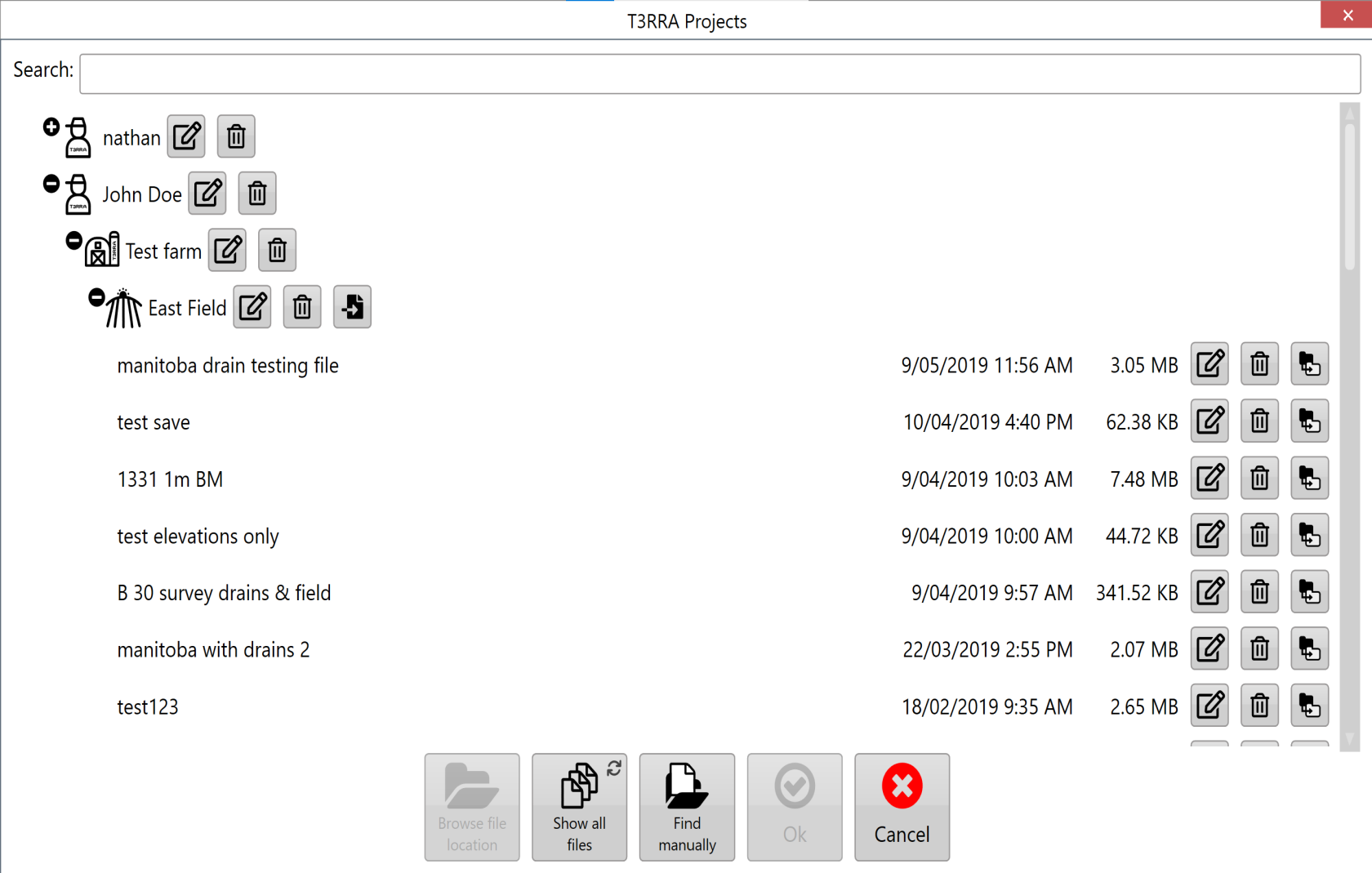
Select the appropriate Grower, Farm and Field, then select the project you wish to open and press OK.
For more information about creating and managing Grower, Farm and Field profiles, refer to the 'Loadrelevant proj.'section buttonlater in thethis topchapter.
corner or bottom center of the main/new project screen.
 Managing Saved Projects
SelectThree management buttons are displayed alongside each project:
The ‘Grower/Farm/Field’ file structure allows for projects to be easily organized. For more information on these profiles and how they are set up see later in this section.
Next to each file there are 3 buttons:
These controls allow existing project files to be organised without leaving T3RRA software.
Finding a newProject location.Manually
T3RRA
'Find manually' can be used whenproject files are standard Windows files and are not savedrequired into be stored within the default T3RRA folder structure.
To filesopen area normalproject stored elsewhere, select Find manually.
Use Windows filesFile andExplorer canto bebrowse stored anywhere onto the computer.
T3RRA project (.tci), select the file, then select Open.
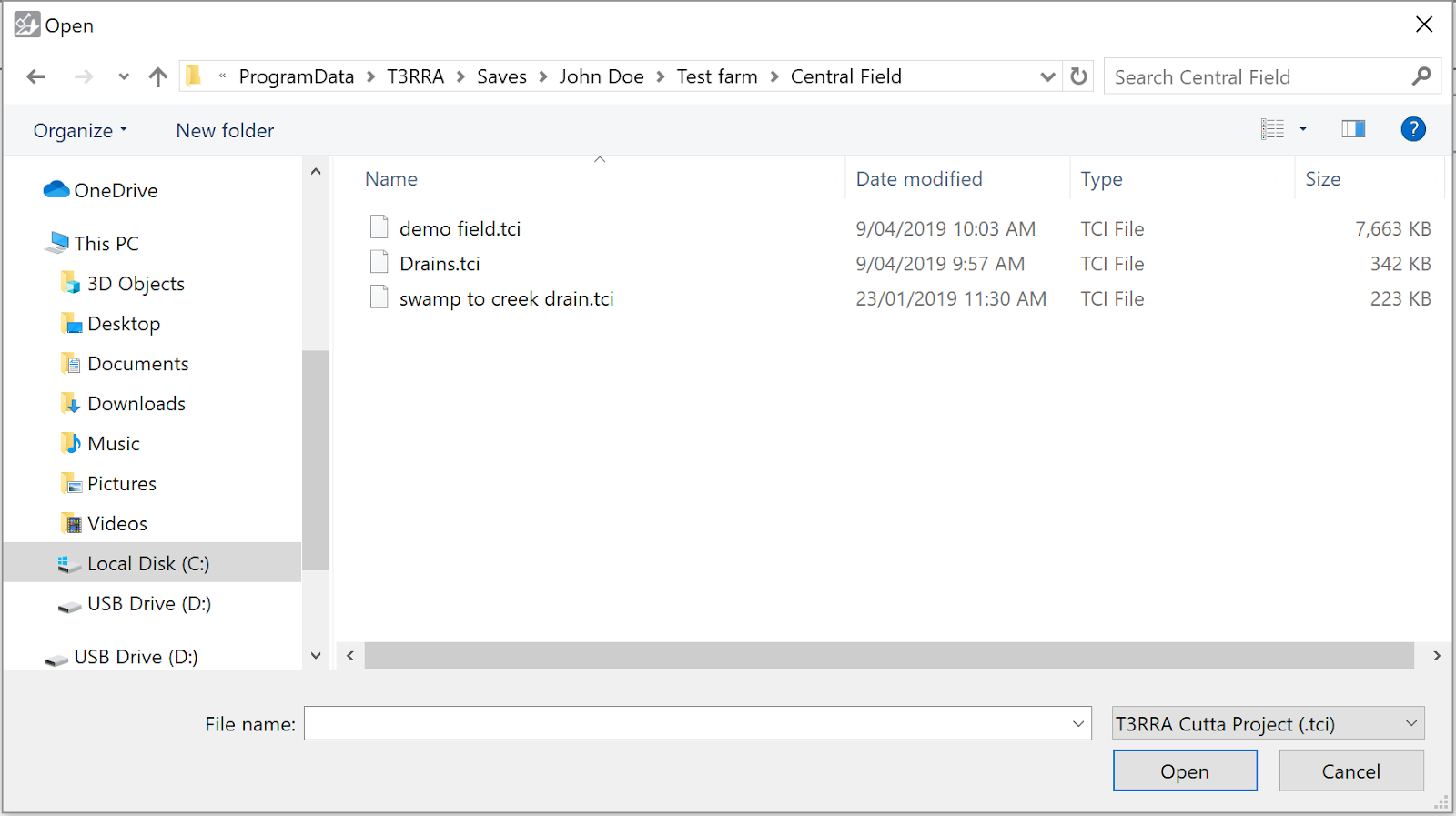
UseThis theoption filecan exploreralso be used to findopen theprojects T3Cstored on external media such as a USB drive.
Finding All T3RRA Projects
If you do not know where a project file,has thenbeen saved, select the file and press the ‘Open’ button.
Choosing 'Show all files'files.
T3RRA will start a scan of yourthe computer's C: drive.drive Afor list of thecompatible T3RRA Cutta project files willand bepopulate populatedthe onceproject list as files are found. A progress bar in the lower-right corner indicates that the scan hasis beenstill finished.in progress.
Entering text in ‘Search’ will limitUse the displayedSearch projectsfield to onlyfilter withthe matchingresults fileby names.
filename.
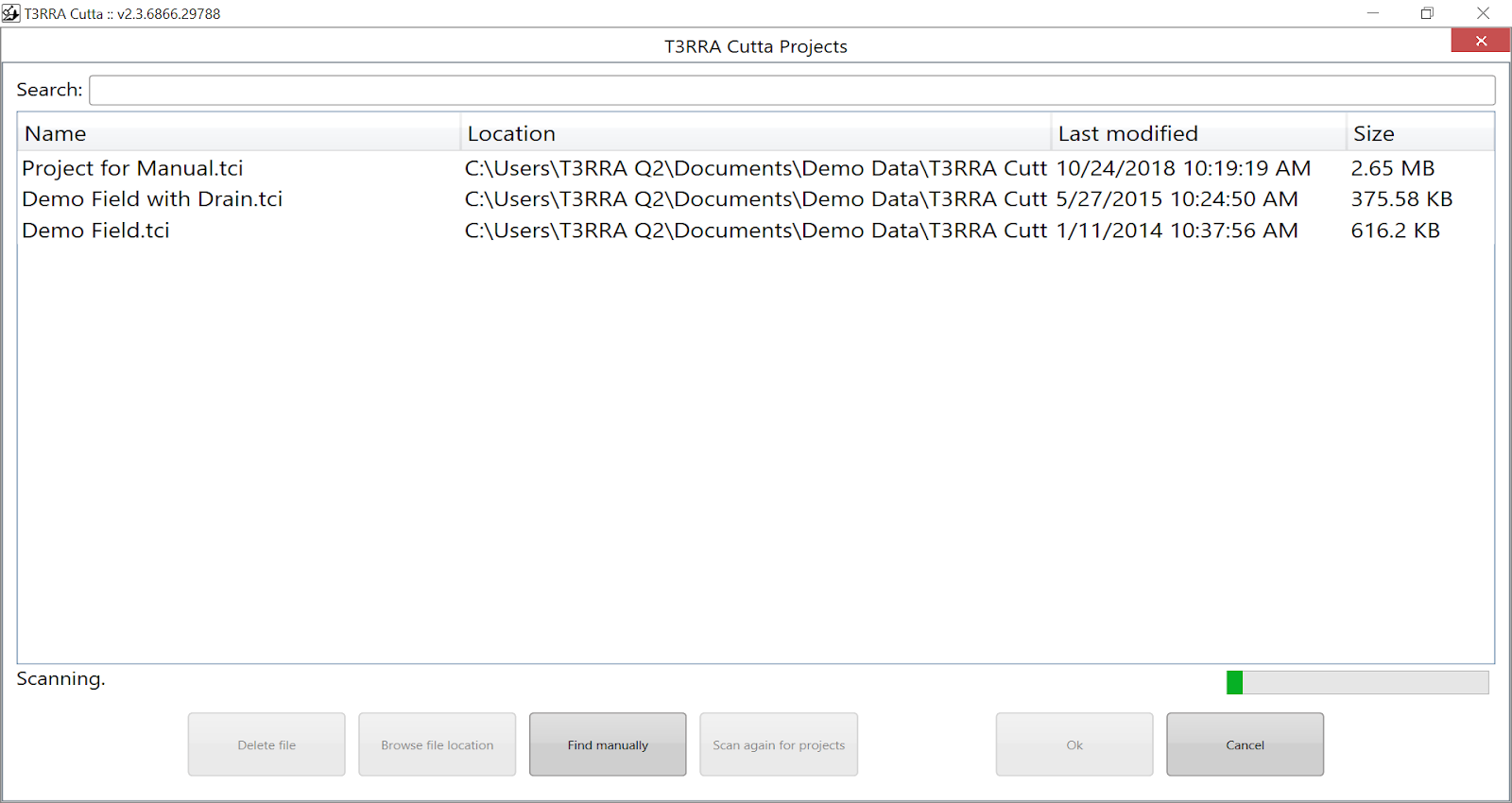
Progress bar in the lower right indicates scanning in progress
Once the desiredrequired fileproject has been found in the list,located, select the fileit and press ‘Ok’OK.
Continuing a Loaded Project
Once a fileproject has been selectedloaded, andT3RRA loaded,will open the wizardWizard page should appear and showat the appropriate stage for that project. Existing project progress is retained, allowing you to continue from where the project was previously saved.
Where the project is upready to.for Ifmachine applicable,control, you can proceed directly to implementation.the Apply stage.

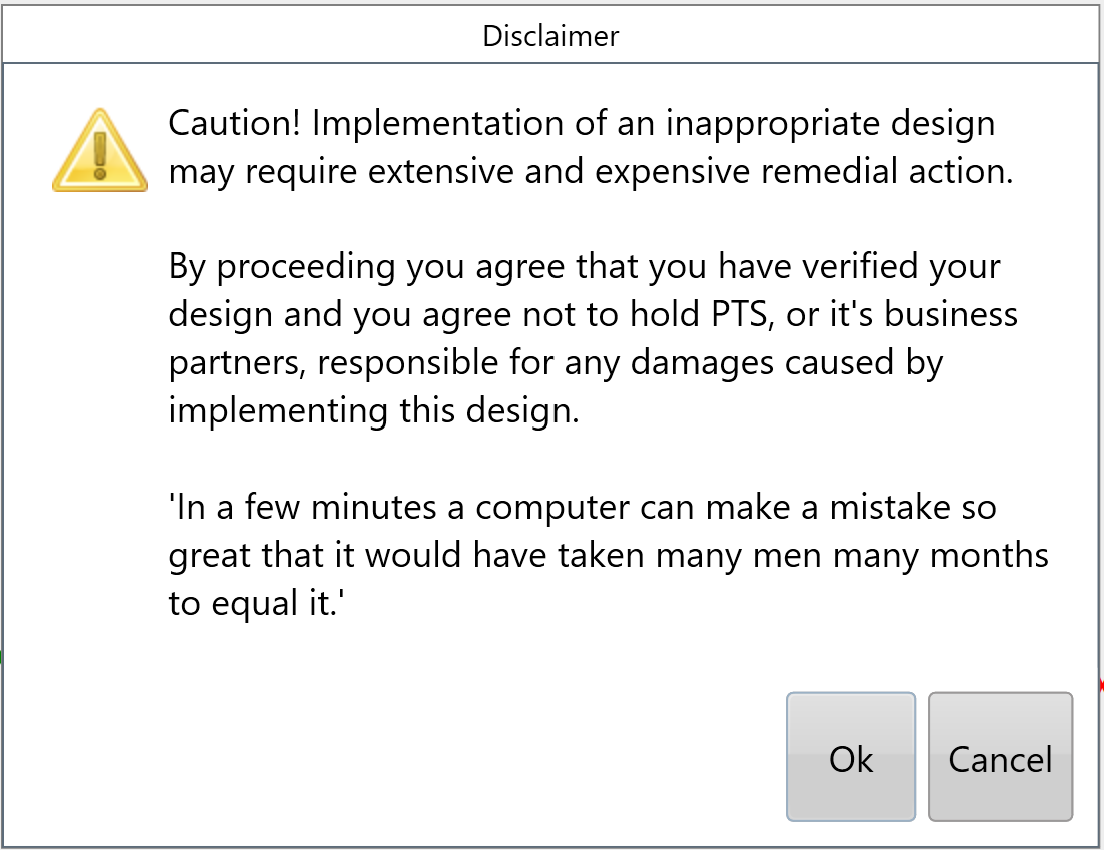
When ready you should press 'Start' to implementbegin yourimplementation, design.select Start. You will needbe required to accept the displayed Disclaimer to beginbefore machine control.control
begin.