Main Page
When T3RRA software is first opened this will be the first screen you see. This screen is also shown when you press the ‘New Project’ button on a Wizard page (discussed in the Wizard section).
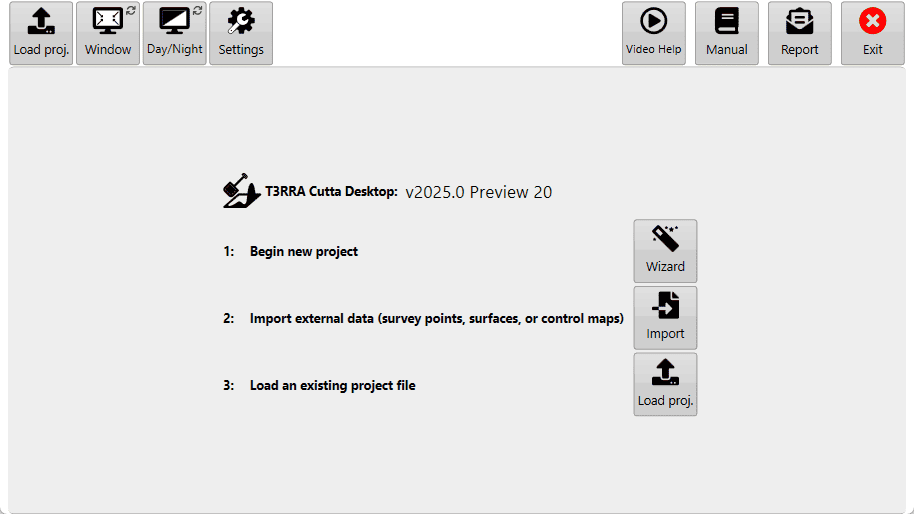
Points to note:
-
The file name currently loaded will be displayed at the top of the screen if you are not using ‘Full Screen’ mode.
-
The name of the software will be displayed.
-
The version (v2023.2) will be displayed.
In the center

Wizard - Tap this to enter the wizard and start collecting data for a new project. It leads you through the process of collecting, surfacing, design and applying the new design.

Import - Tap this to import external data from any of a variety of sources. This could be from files like CSV and LandXML, or John Deere Ops Center.

Load proj. - Tap this to load a previously saved T3RRA project (*.TCI). This allows you to continue where you left off last time.
Along the top
Window - this option allows you to switch T3RRA software between full screen mode or windowed mode. This is helpful if you need to be looking at other pages on the tablet or computer at the same time as using the T3RRA software. If a keyboard is attached you can use the shortcut of F11.
Day, Night, & High Contrast modes - These are different color schemes for the software.
Day mode (1): Classic white (the mode used in the manual).
High Contrast (2): Is an inverted version of classic white.
Night mode (3): Has a black background and a green foreground.
Settings - After the T3RRA software has started the first step is to confirm the correctness of your software configuration. The different settings and how they operate will be covered in the next section. For more info on the settings page refer to the Settings article.
Manual - The ‘Open Manual’ button will download a digital copy of the manual and install it on your device. After the manual has been downloaded, pressing the same button will open the manual.

Report - The report button opens up a bug report/feature request window (shown below) allowing you to report issues to T3RRA. The name and email address fields of this window are automatically filled using the details linked to the software licence. You must be connected to the internet for this to work.