Quick Start Guide
Start!
When Level COMMAND is first started, you'll be greeted by the apply page below:
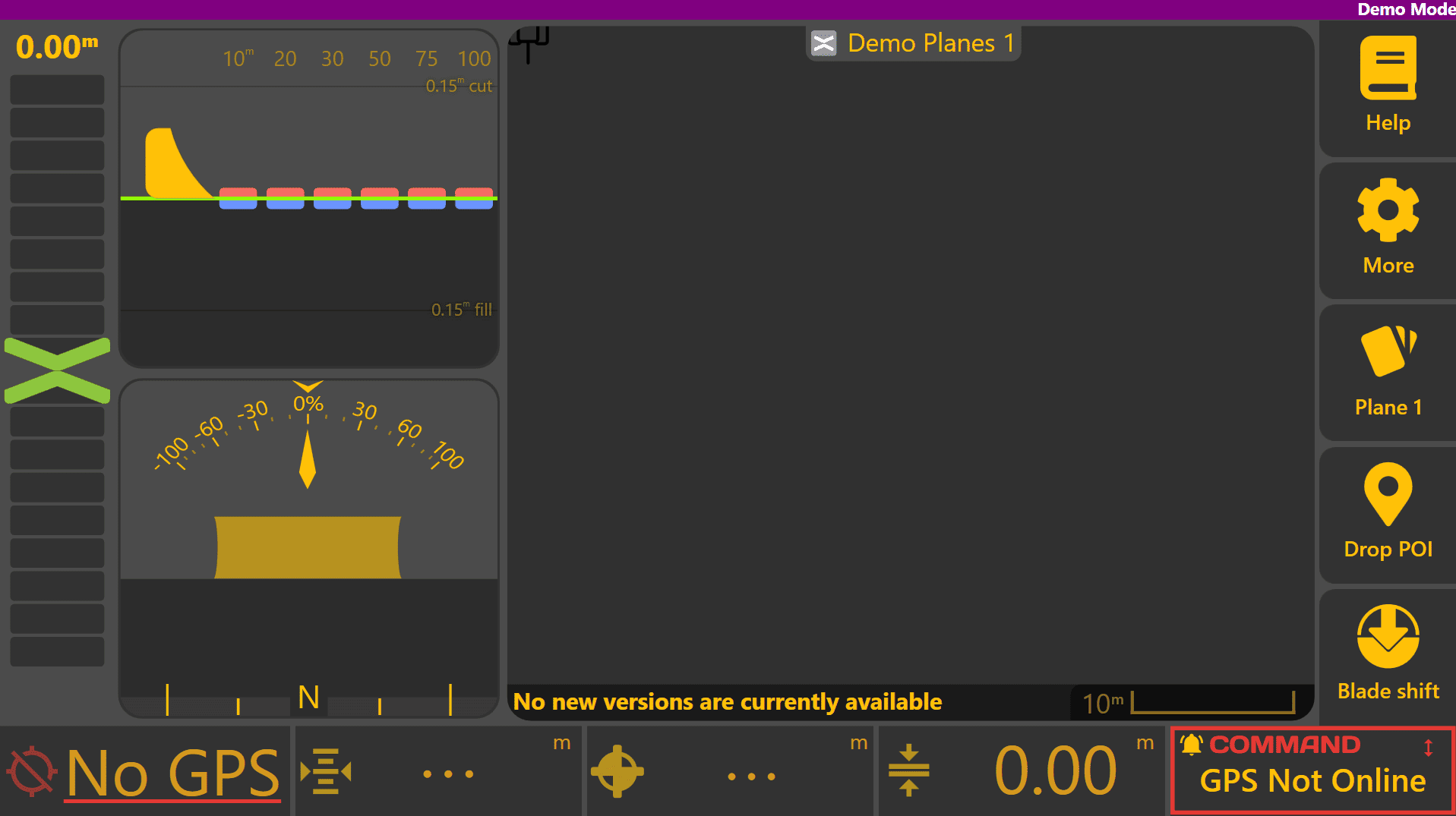
Once all hardware components have been fitted, the COMMAND ECU needs to be set up for the correct configuration to operate Level COMMAND.
COMMAND ECU Quick Setup
For more detailed information on COMMAND hardware such as the ECU or harnessing, please refer to the COMMAND Manual.
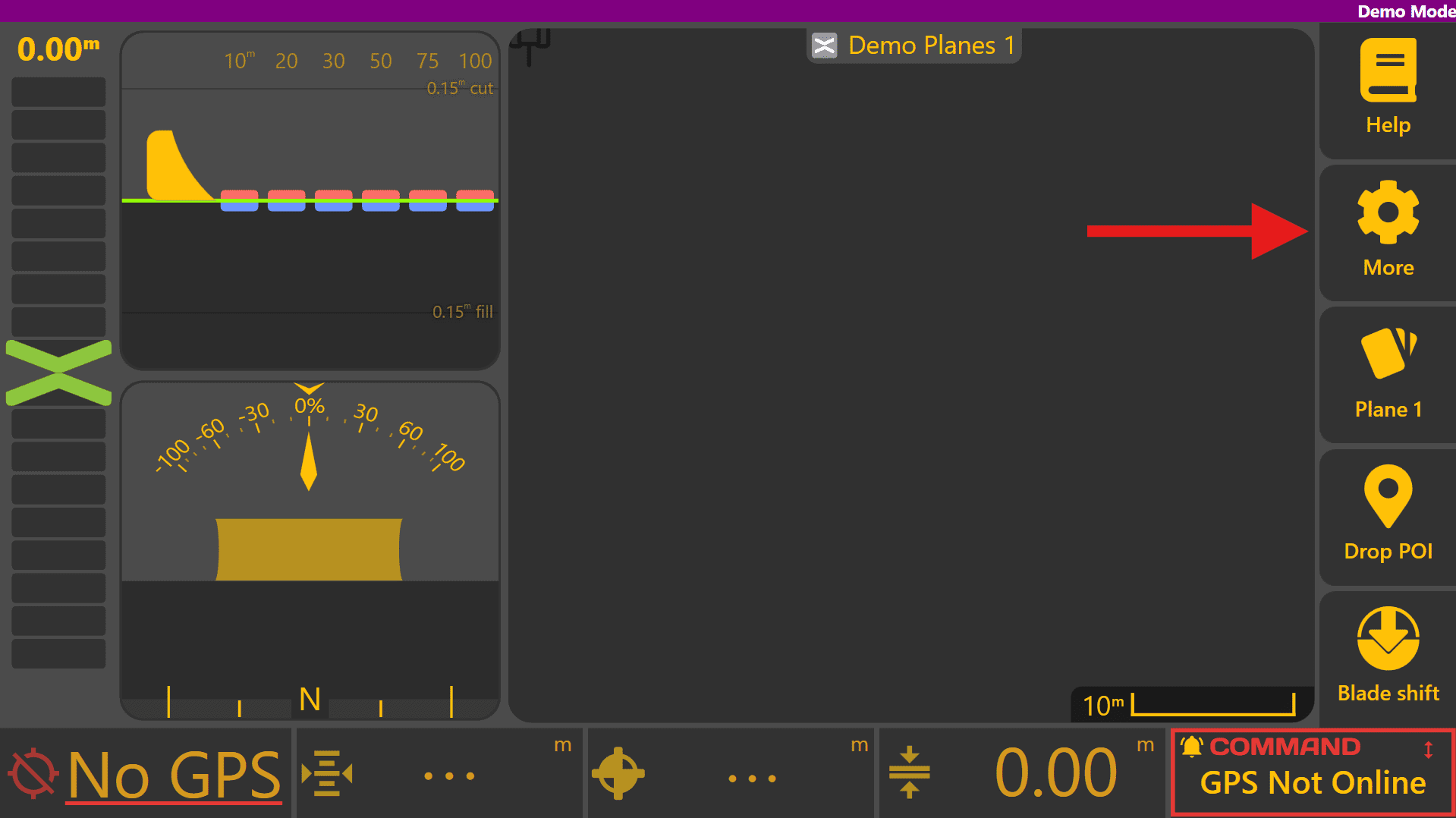
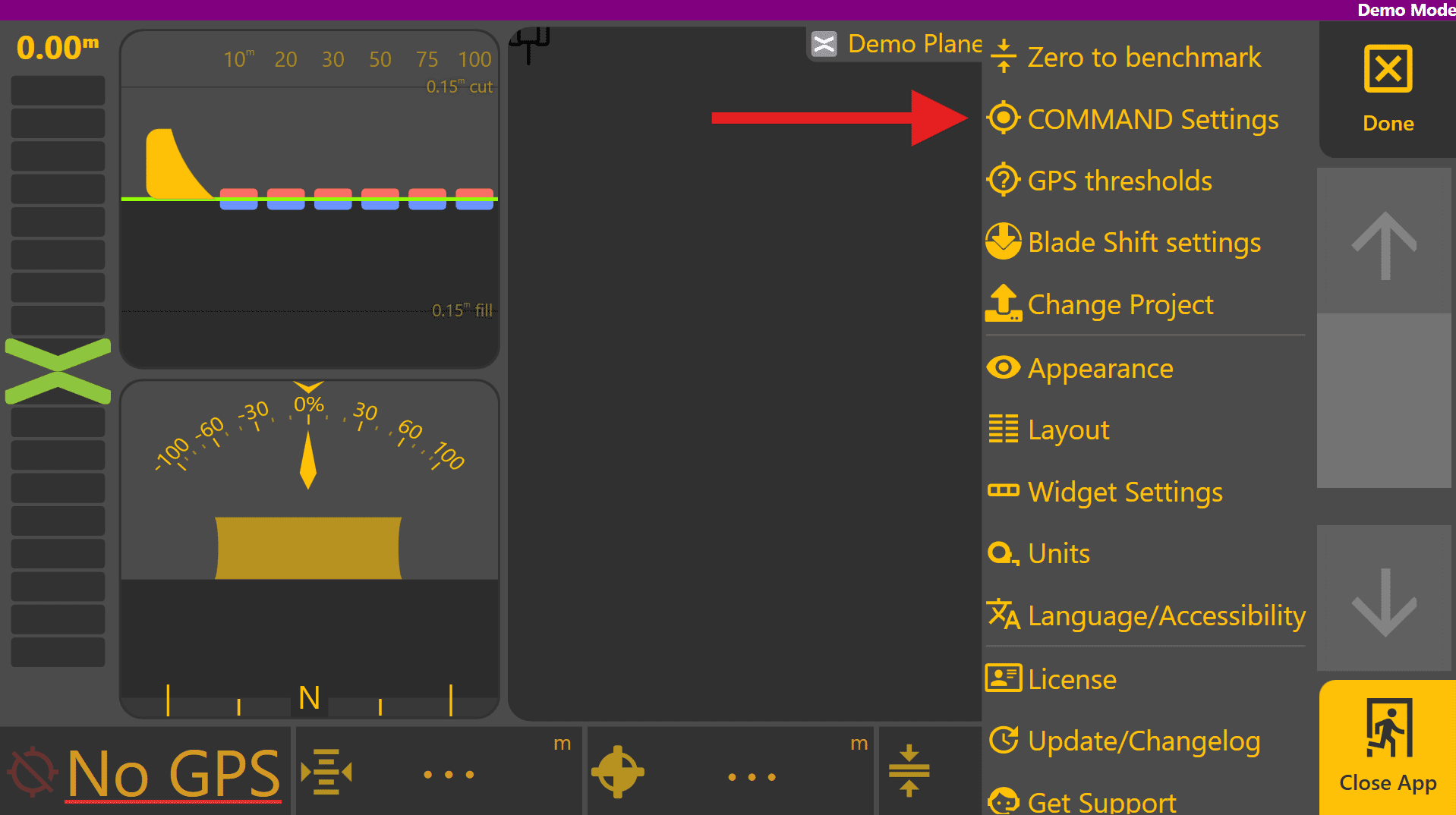
Machine
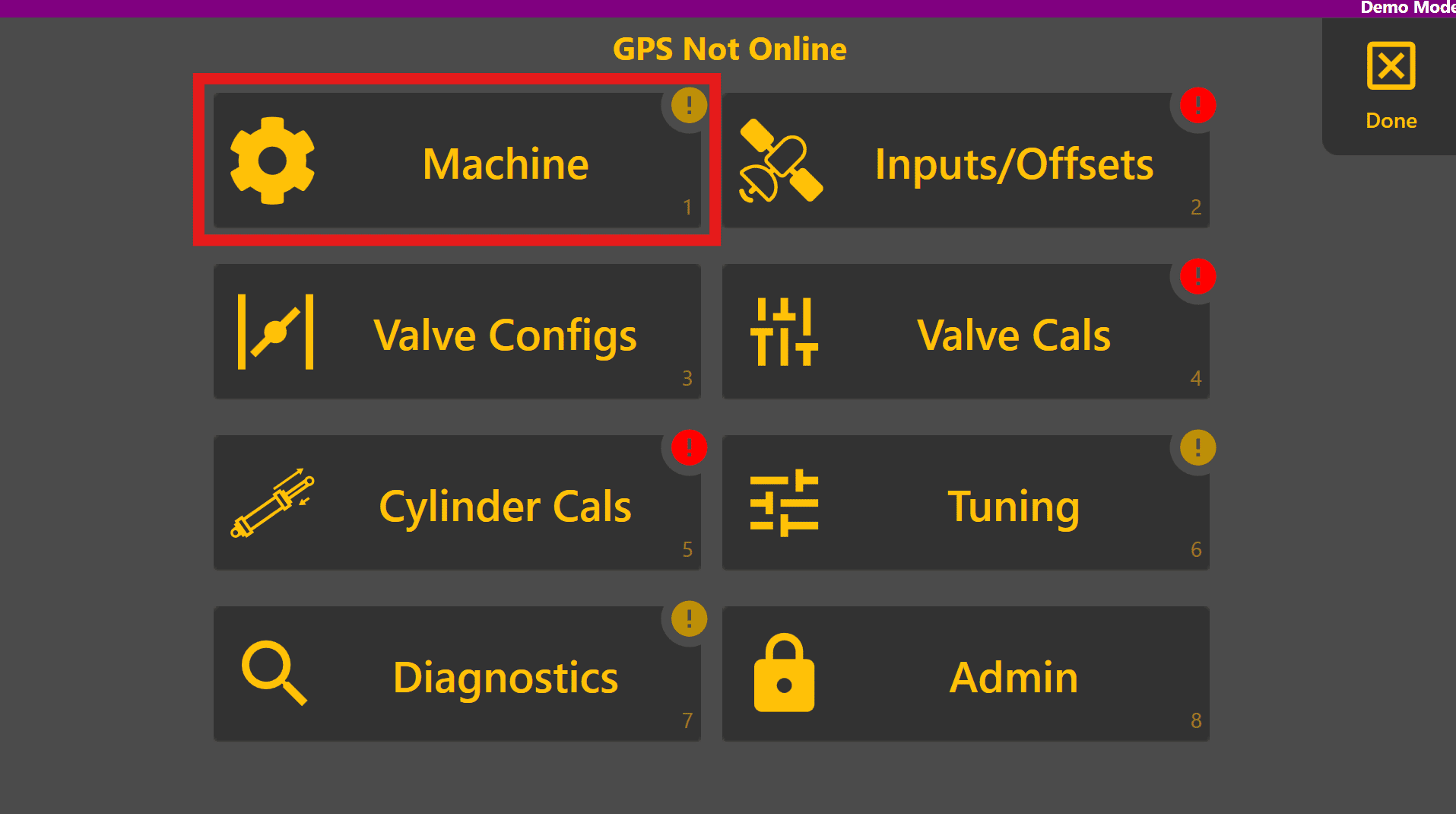
Select the Machine page:
Open Comms tab to check ECU connection status. If not connected, refer to "Troubleshooting Guide".
Select the appropriate profile for the tractor/implement:

Enter the implement blade width into the Blade Width field:
The Blade Width should be measured as the width of the blade or cutting edge that will make contact with the ground during operation.

Inputs / Offsets
Press Back and then select the Inputs/Offsets page:

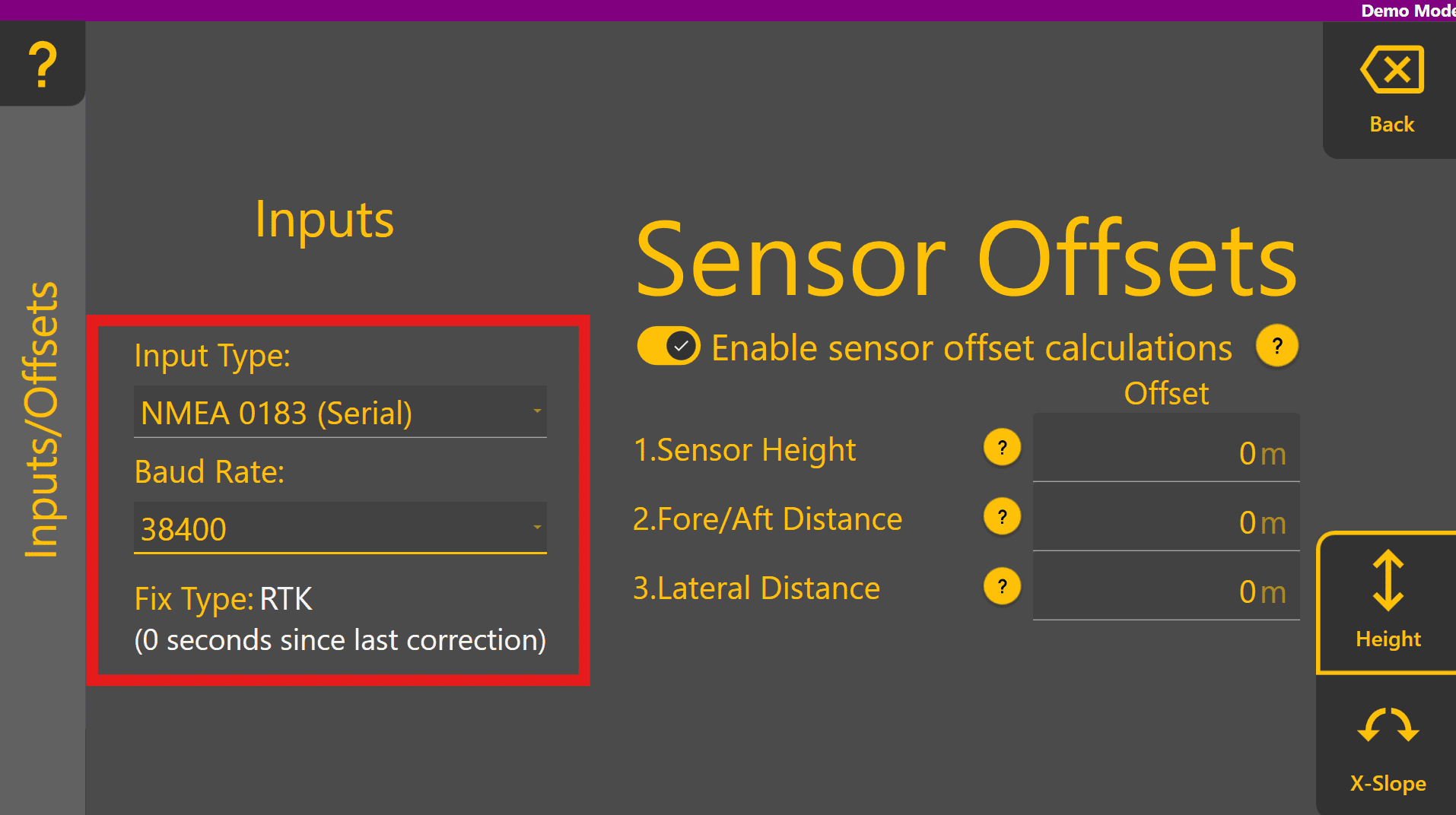
For height-only machine profiles, this page only has one tab for Height. Other profiles like Height & X‑Slope will display a tab for each function in the bottom right. Select the desired height Input type and Baud rate if required (we recommend 38400, but this must be configured at both Level COMMAND AND the receiver itself).
If position data is available from the selected GNSS receiver, the Fix Type should change.
Note that fix type MUST be RTK for automatic implement control.
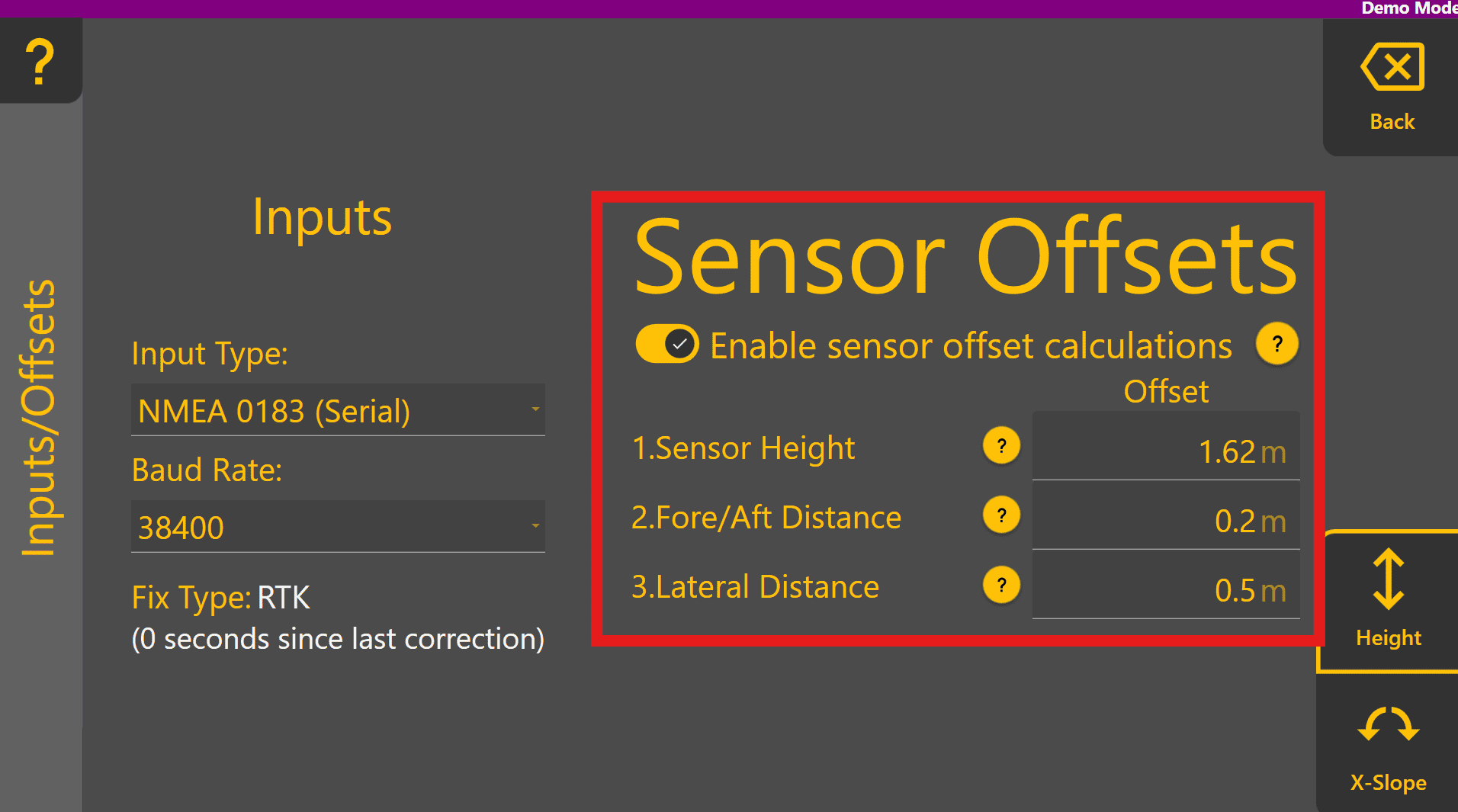
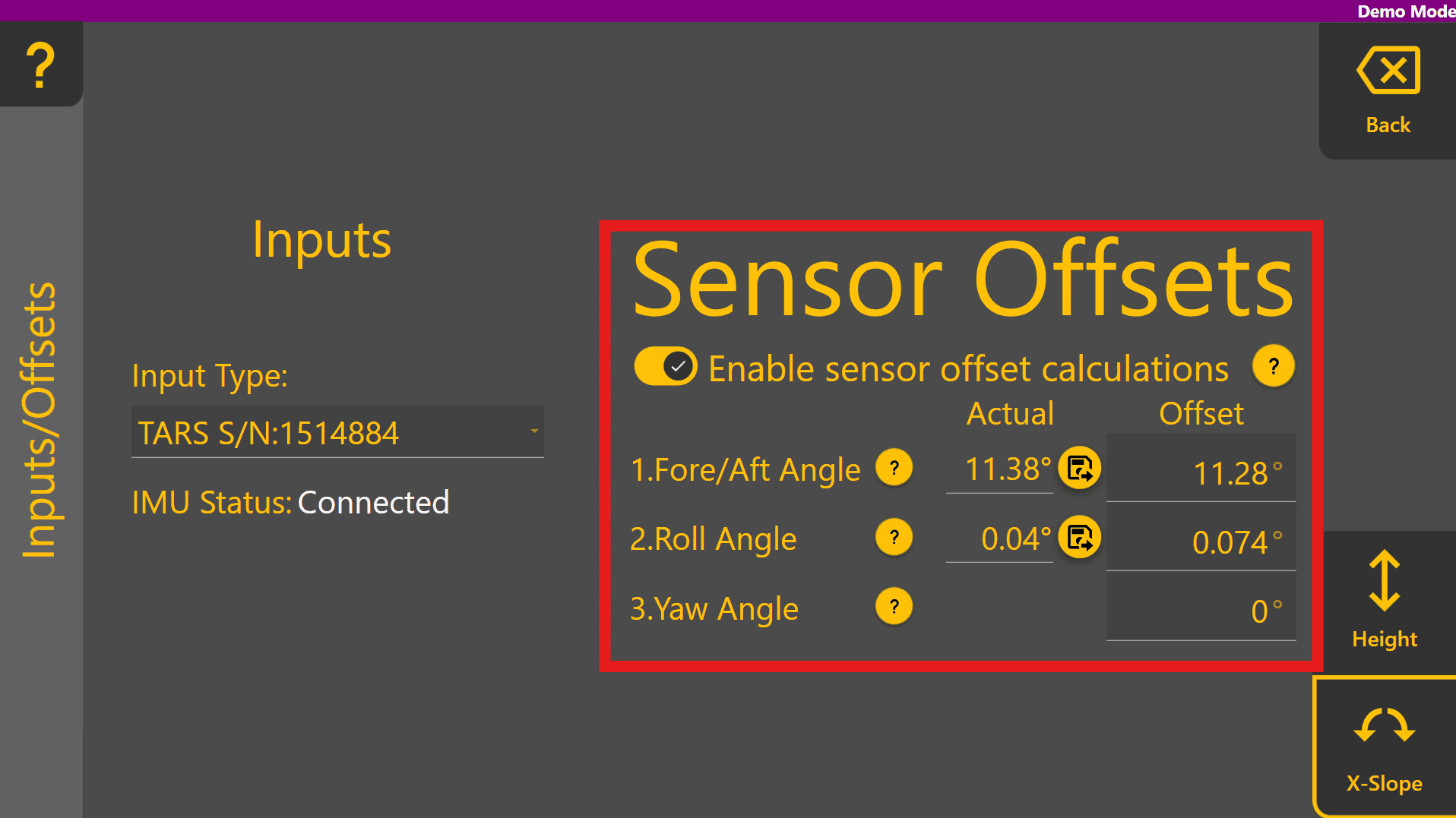
Enable Sensor Offset calculations using the toggle and then measure and enter each of the offsets - tap the ? for more information on each offset.
Note: Do Not enable sensory offset calculations if the receiver configuration has already applied the sensory offsets.
If using the Height & X‑Slope profile, move to the X-Slope tab at the bottom right, then select the desired IMU under Input Type:
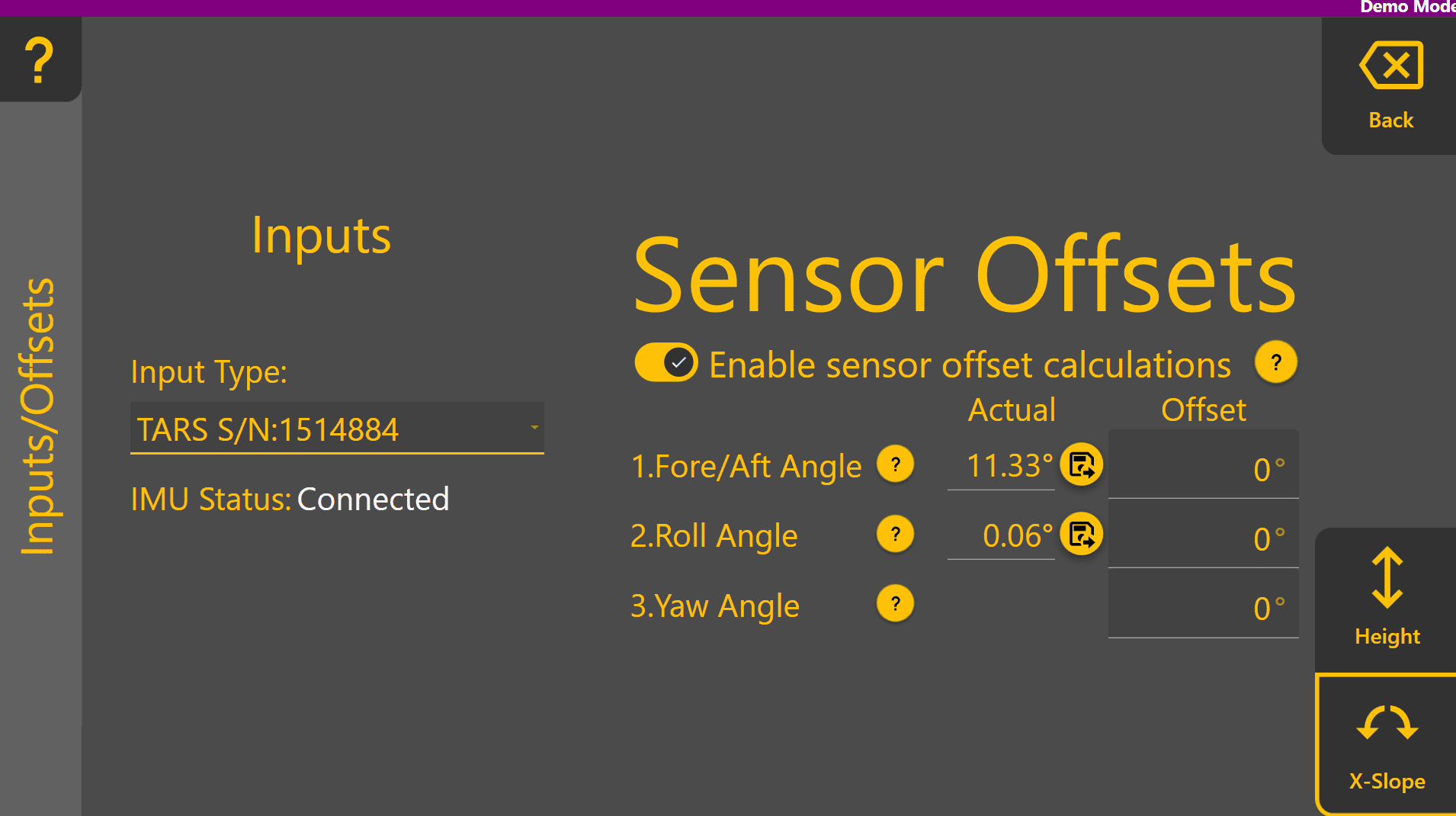
Level the implement blade using a spirit level or similar device to ensure the tilt angle is exactly 0 degrees, or as close as physically possible. Press the set button (located between actual and offset on each line) for both Fore/Aft Angle and Roll Angle to set the pitch and roll offsets for the IMU. This zeros out the existing angles if the IMU has been mounted on an angle in either direction.
Valve Configs
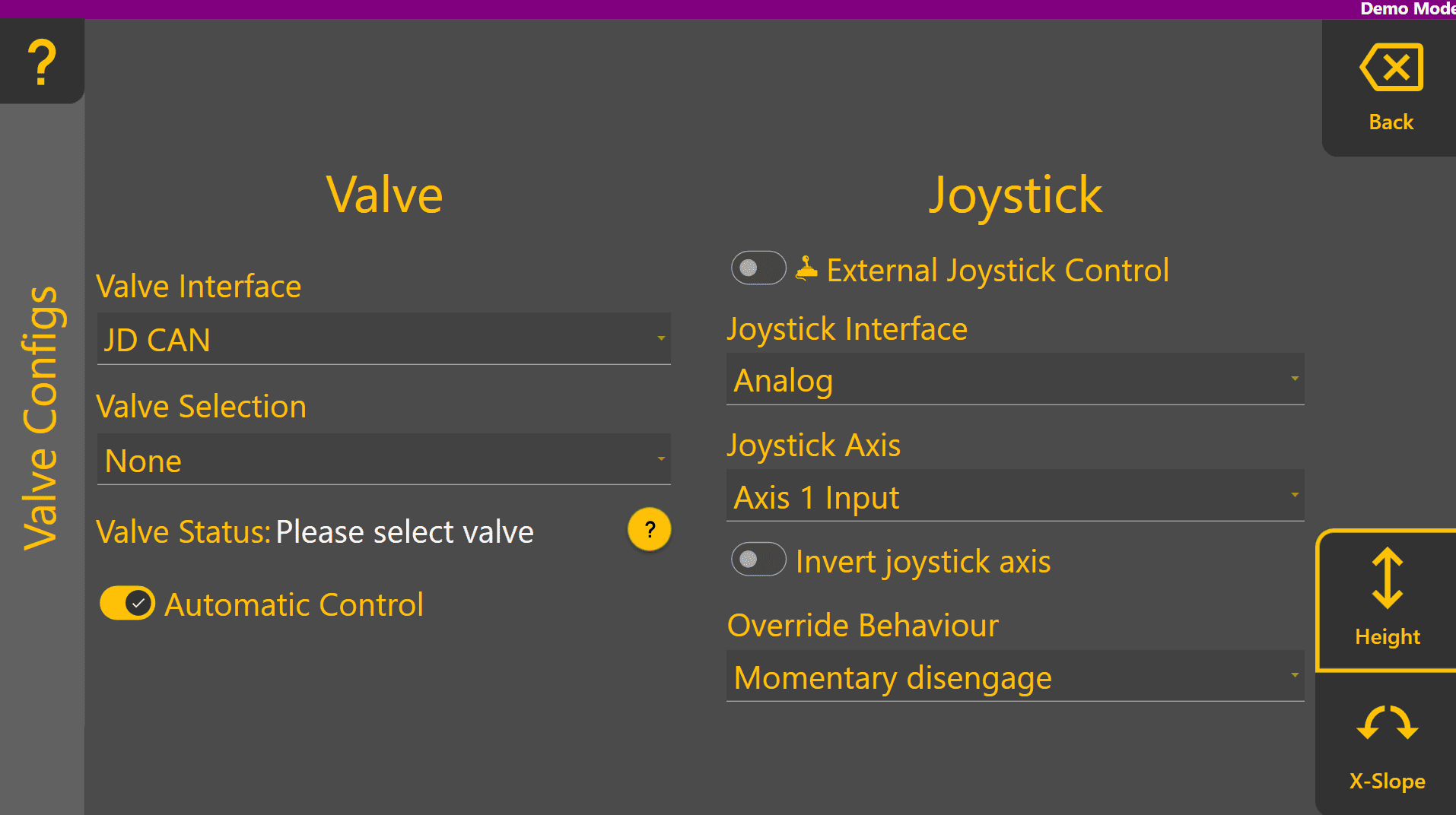
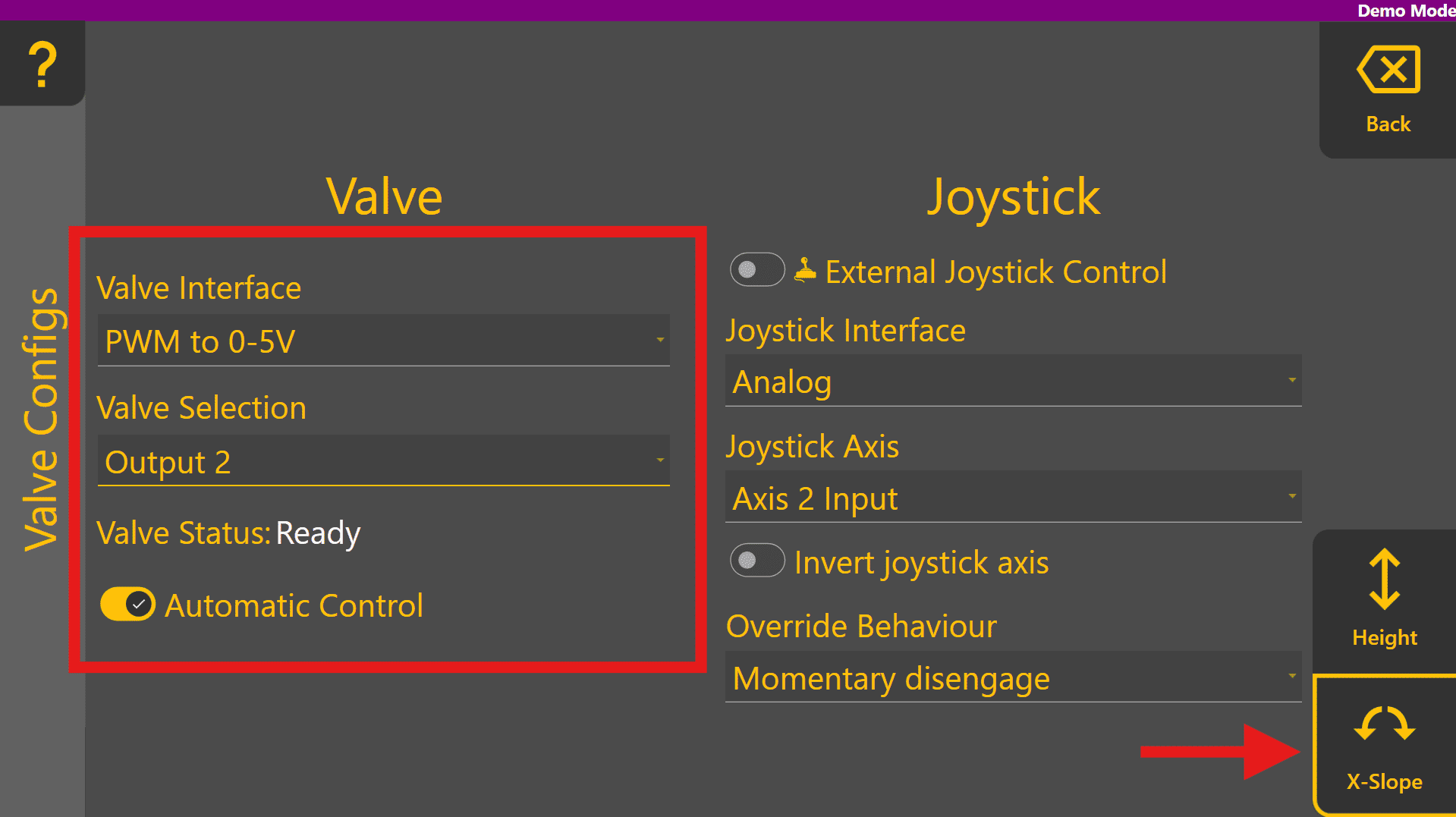
Press the Back button and then select the Valve Configs Page. Select the desired valve interface depending on the tractor or external hydraulics and select the appropriate valve for that function.
Press or toggle the arm/engage switch off then on to arm the system. If the valve status is "Ready", the valve is likely configured correctly but will need to be tested in calibration to be sure.

Repeat the step for the X-Slope function by swapping tabs and selecting the correct Valve Interface option and Valve Selection. If using Height only, skip this step.
Valve Cals
Now that the valves have been selected, calibration of each function can be performed. Press Back and select the Valve Cals page:
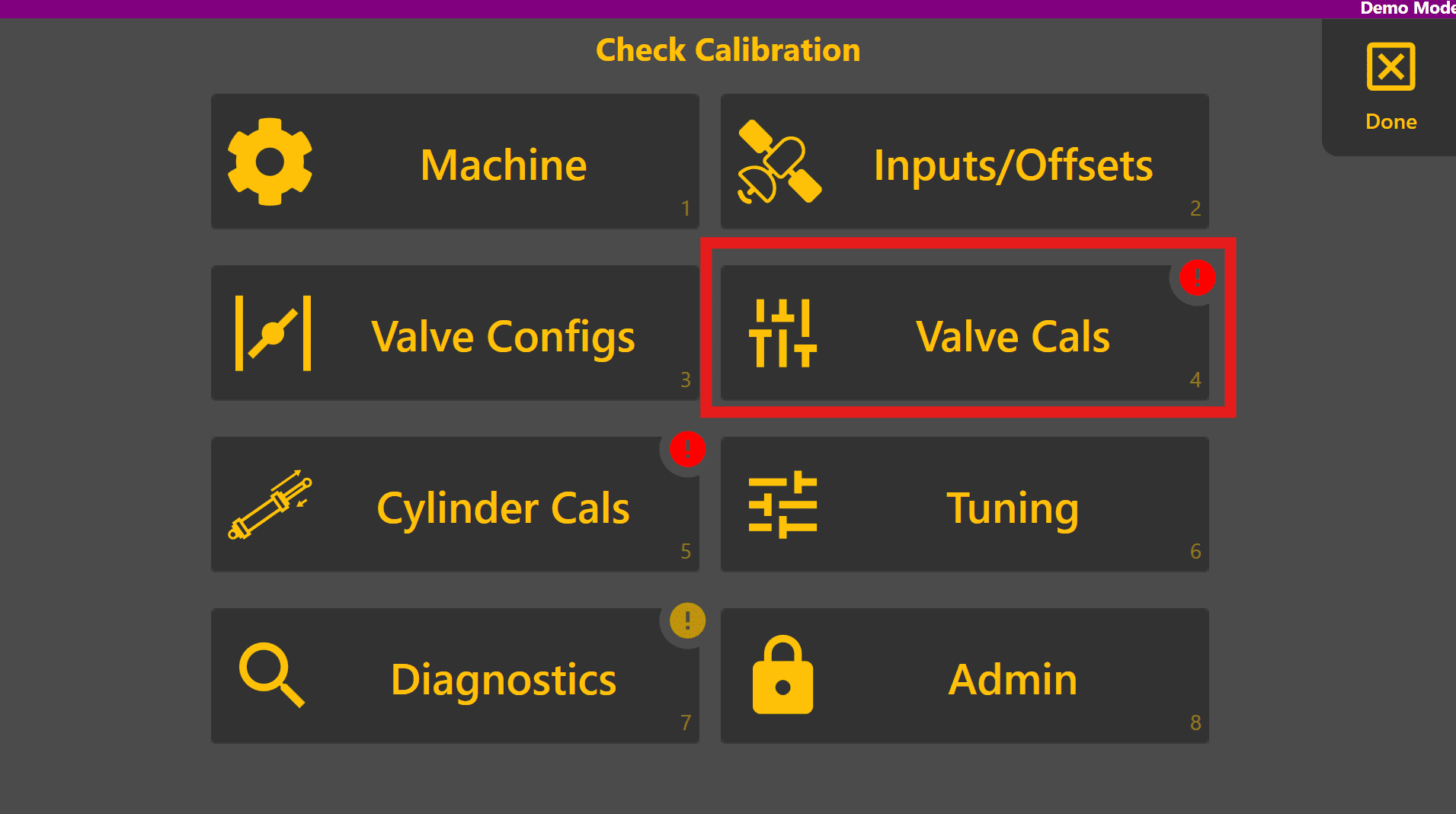
For each of the function tabs present at the bottom right, the minimum and maximum calibrations for each direction need to be set. Calibration may be performed while stationary (the operator must hold the engage button down for the valve signal to trigger) or while moving, but no faster than 5 km/h. For more detailed information on calibration, refer to the Settings section in this manual.
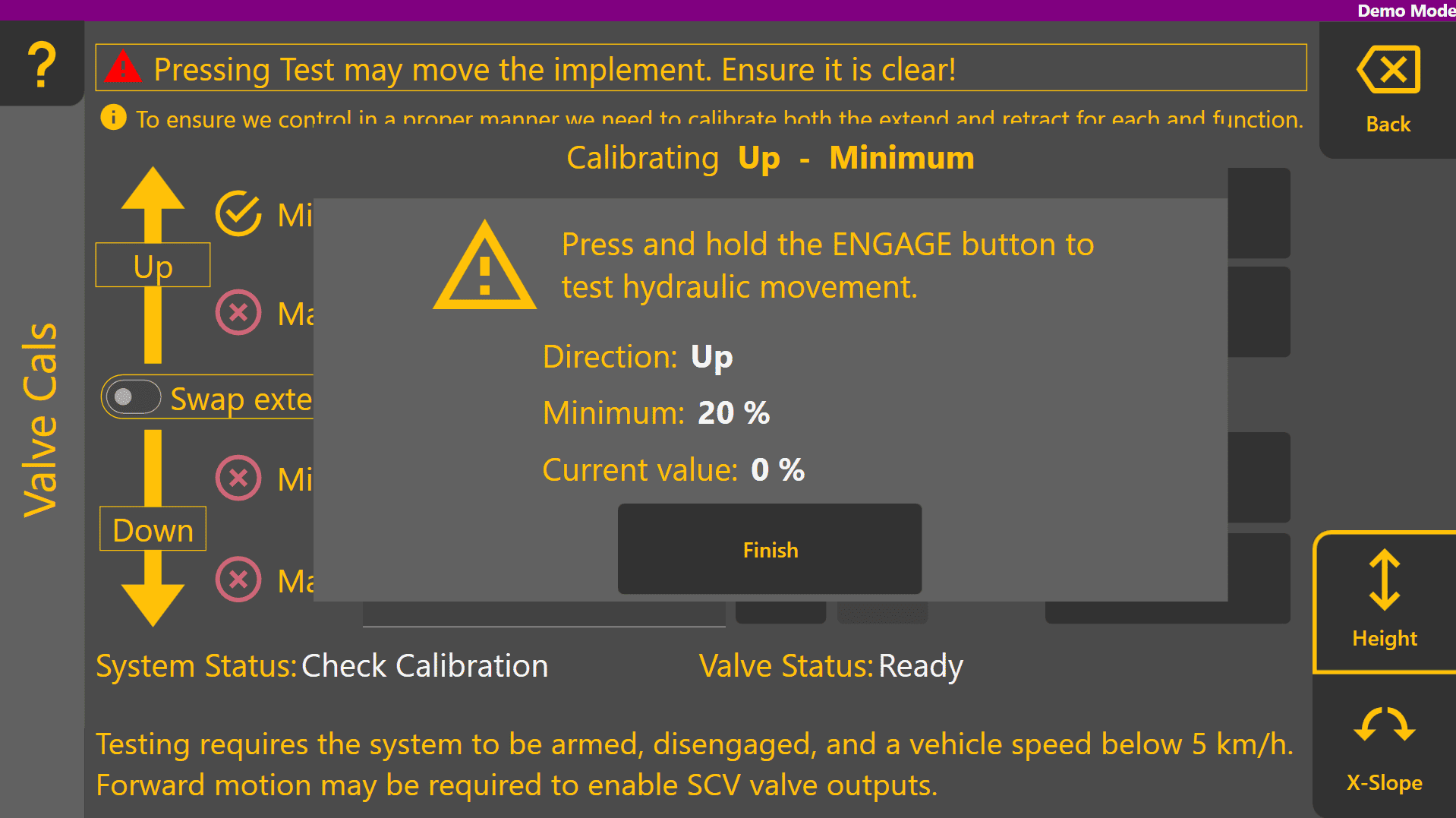
To perform calibration tests, set the parameter to the desired value. We recommend starting at 20% for the minimum thresholds and leaving the maximum thresholds on 100% generally. Set the minimum Up % to 20 and press the "TEST" button on the right. Once the pop up window is displayed, holding the engage button will activate the up direction at 20% intensity.
Pay attention to whether the direction of movement is correct - if not, press the swap extend/retract toggle to reverse the direction.
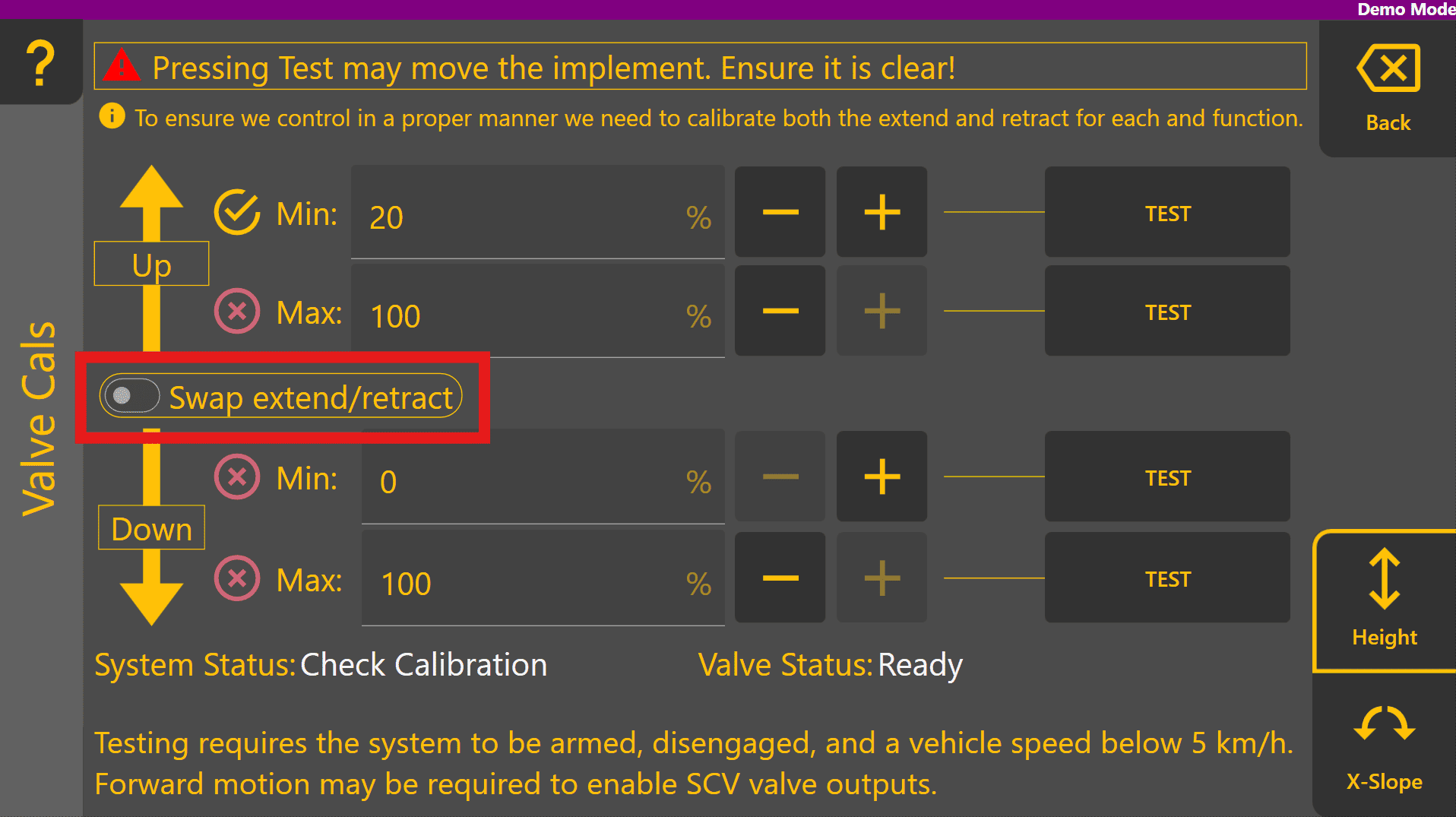
Once each of the thresholds for a function have all been tested, all four parameters will be ticked instead of crossed.
Ticks in this instance simply mean that the test button was pressed and do not indicate a correctly calibrated function.
Perform the same calibration routine for the X-Slope function if present, otherwise skip this step:

Ideally, the System Status will now change to Ready to Engage indicating that automatic control can now be engaged. All that's left in terms of setting up the ECU at this point is to tune calibration thresholds further if needed, and to tune the tracking sensitivity for best performance of each function.
Press the Back button to return to the COMMAND Settings overview page.
Checking Control Performance
To check whether control performance is initially acceptable, there are two options:
- Load a suitable design file OR
- Create a basic plane
Loading a Design File
To load a design file, press Done at the top-right to return to the Level COMMAND apply page, then press More > Change Project:
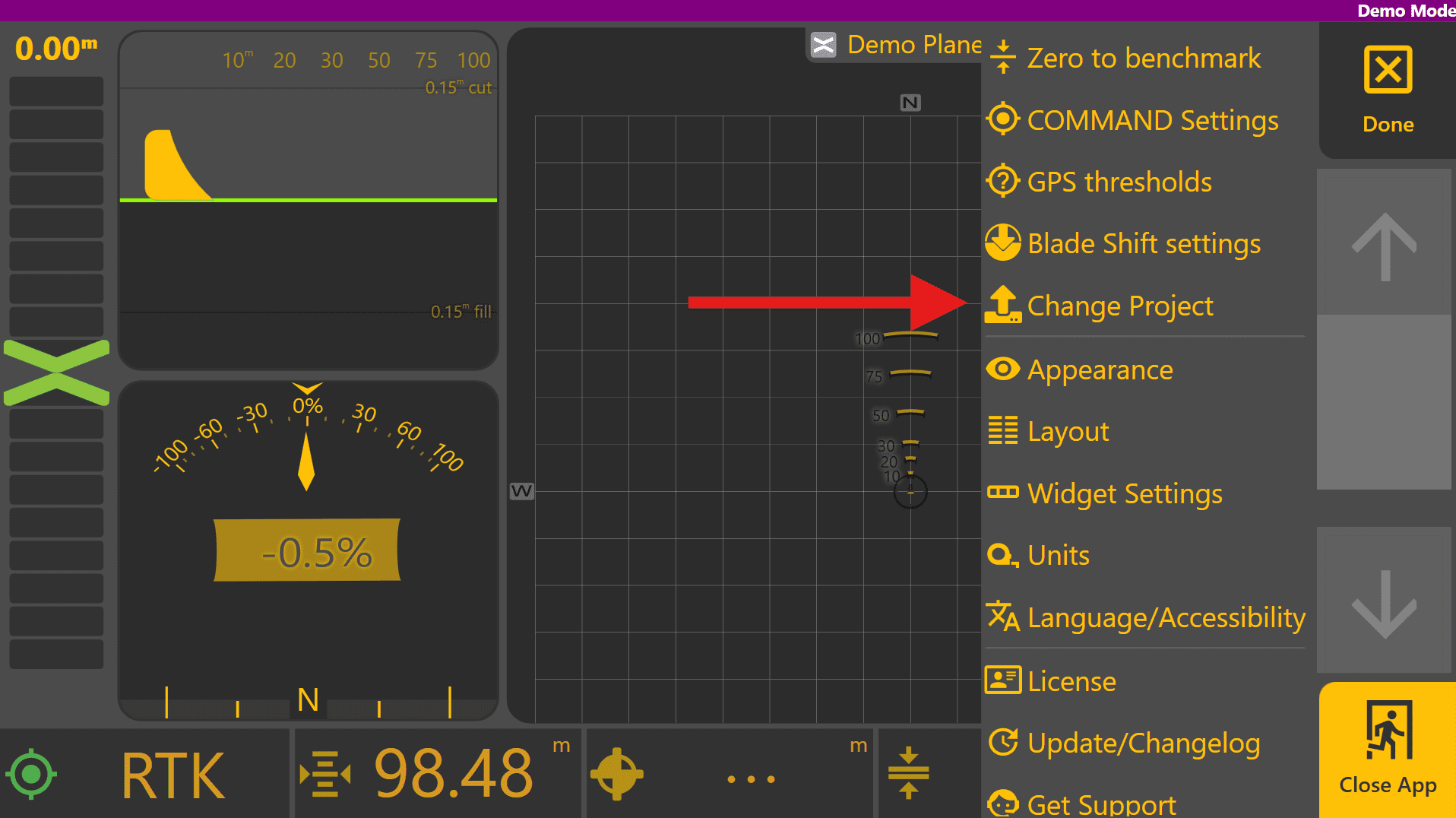
If loading an existing Plane Project, select it from the list and press Load Selected. If loading a .tci or .gps design file, press To Import.
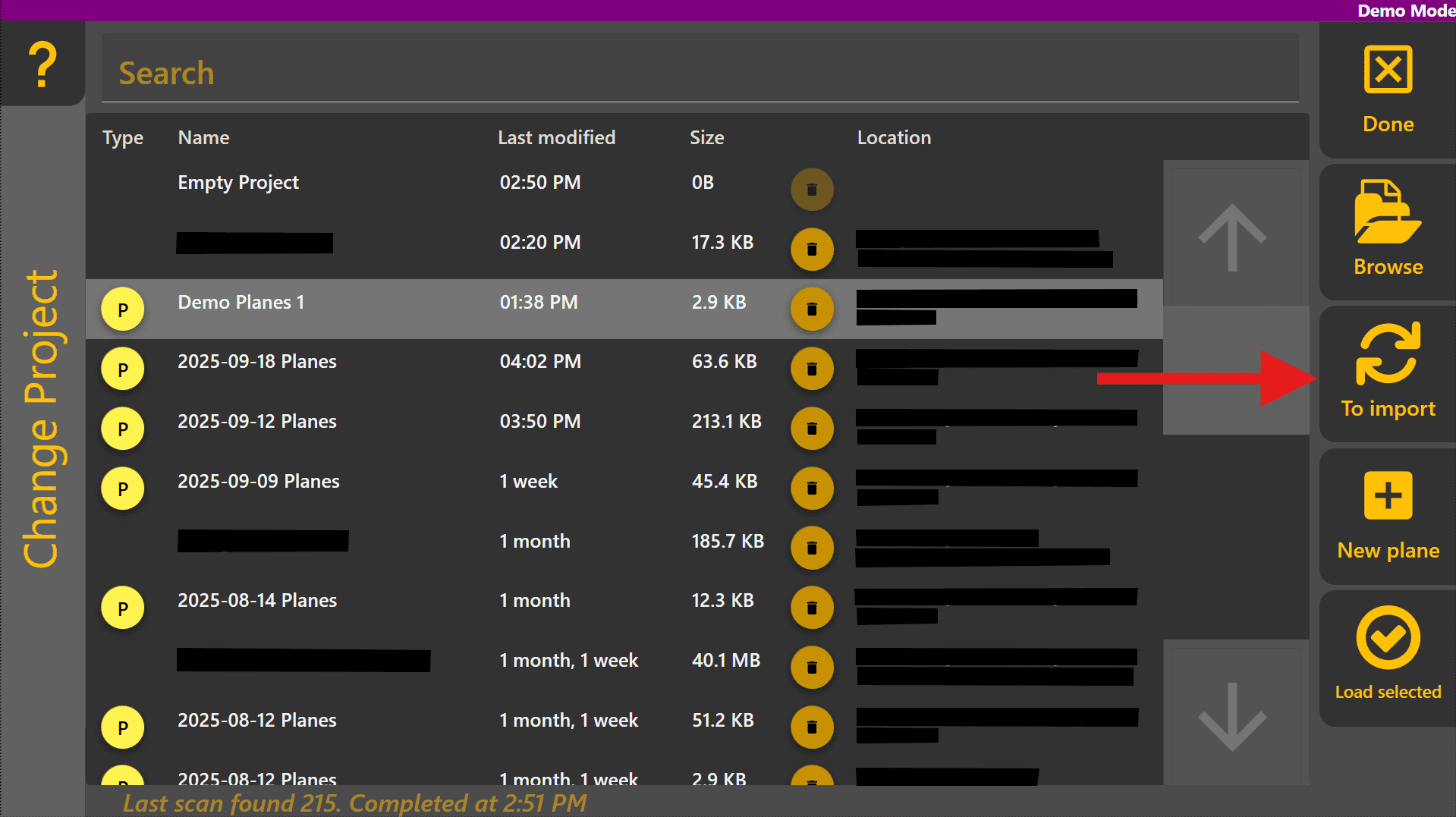
Select the design file from the list and press Load Selected.

Creating a Basic Plane
To create a basic plane, begin by making a fresh Plane Project by pressing Change Project on the right of the home screen and select New Plane . Name the project and choose where it should be saved. Press the Planes button to expand the plane selection tabs. Press 1 Create.
Set the height of the implement cutting edge about 20cm / 0.5ft above the ground surface. If working on a steeply sloped area, you may want to "drive-out" the primary slope using the plane tool and can then test control above the surface without making contact with the ground.
Make sure the GPS selection is chosen, then press Slope at the bottom right, and then Done to finalise the plane design. This will create a 2000 x 2000 meter plane with the current position as the centre.
First Test - Air-levelling
Press More > COMMAND Settings > Tuning.
Begin moving the machine/implement at a low speed (above 0.5km/h or 0.3 mi/h) and enable any detent or limit switches allowing automatic control of tractor valves if required. Fully raise the implement/blade.
Engage automatic control with the Arm/Engage switch while observing the blade. Level COMMAND will target the height of the plane that was just made, and you should see the blade lower to that height and control to it.
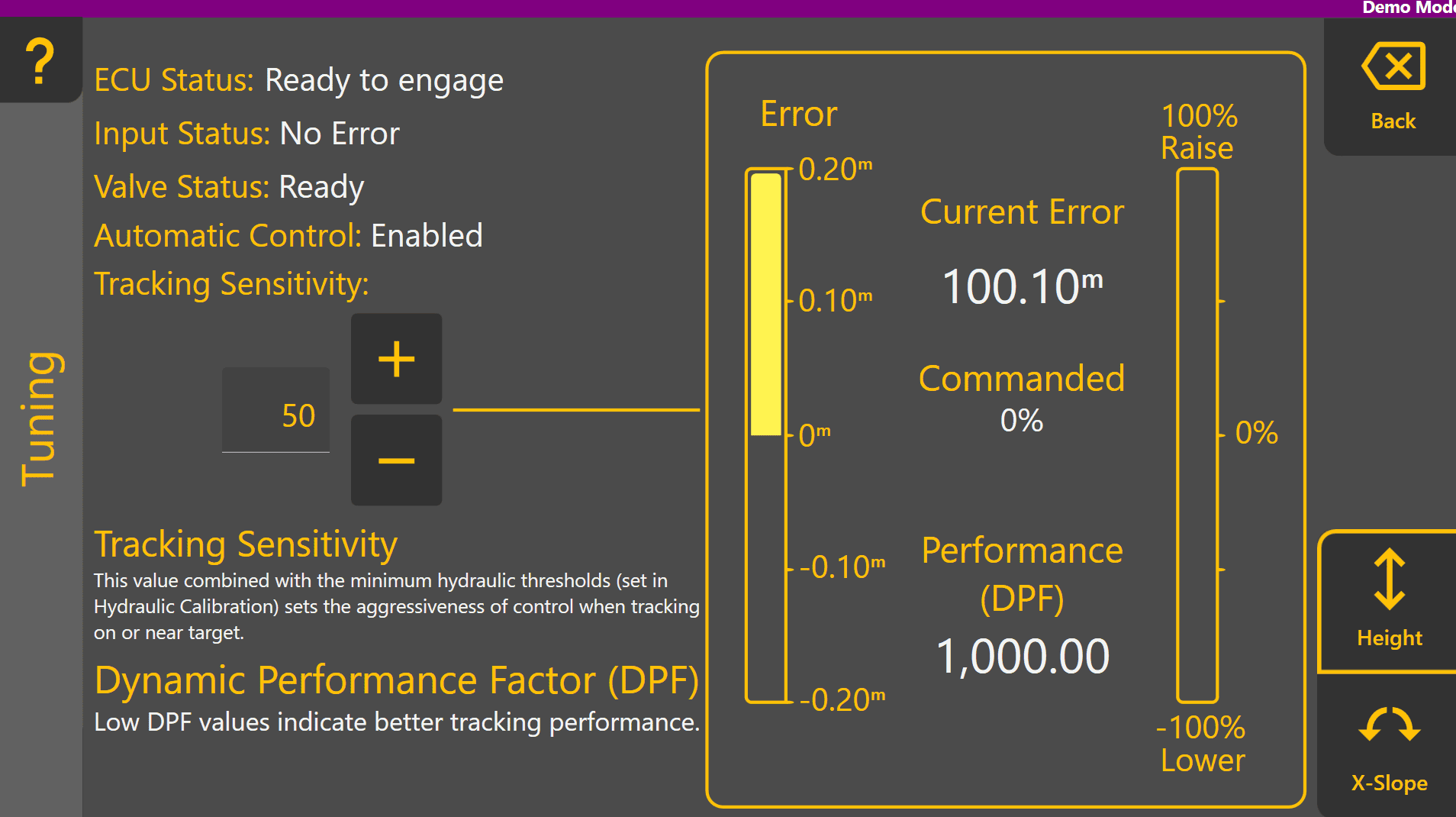
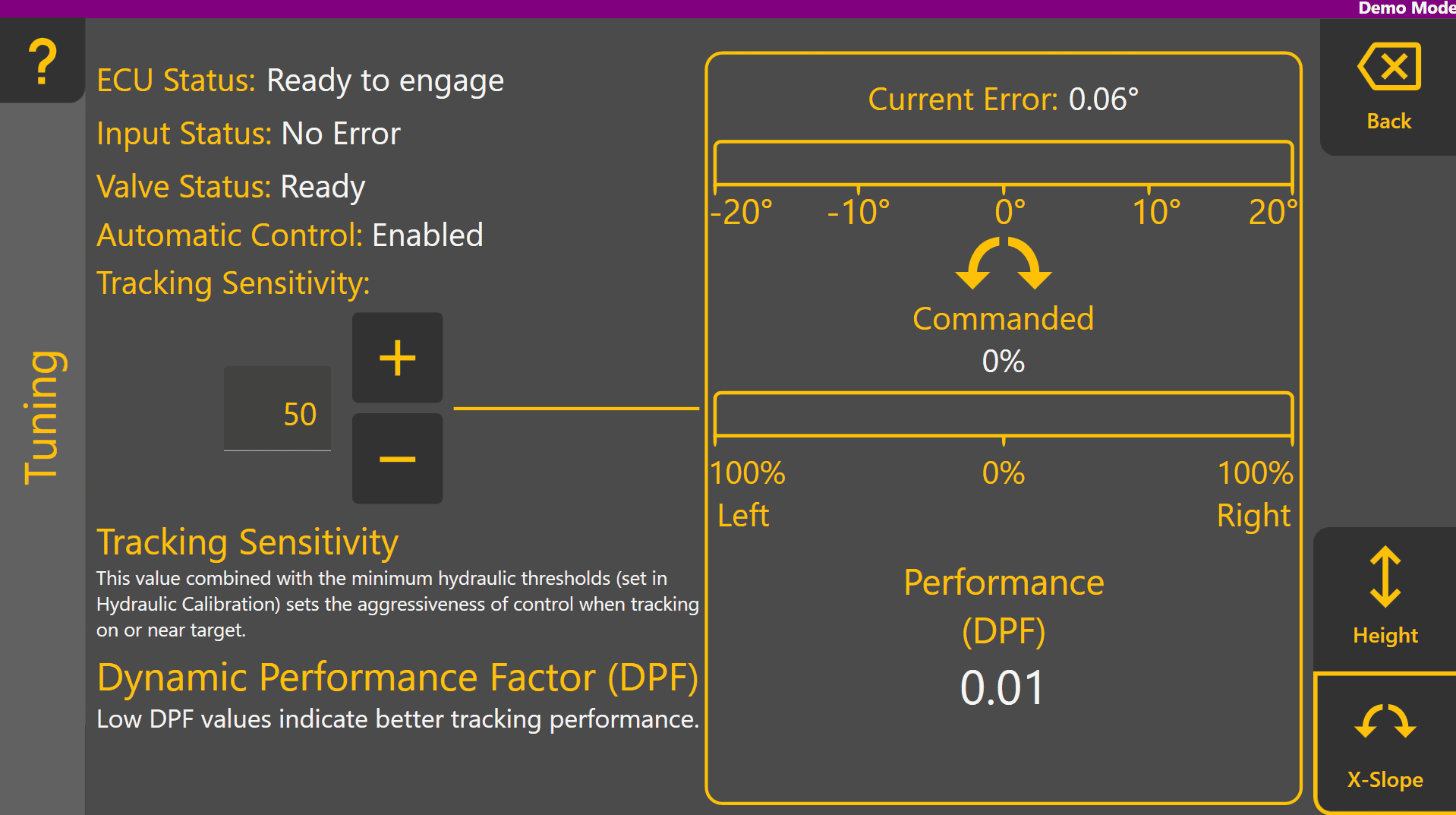
The control performance is indicated on the Tuning page in real-time by Performance (DPF) which is based on the last few seconds of control data. While engaged, adjust the Tracking Sensitivity to get the DPF value as close to 0 as possible, which represents perfect 1:1 control of the blade position 100% of the time.
If the blade is raising/lowering or tilt back and forth quickly or erratically, reduce the Tracking Sensitivity by a larger amount like 10-20 and check whether this improves the performance.
If the blade is lagging behind the target and the error never reaches zero, increase the Tracking Sensitivity by a larger amount like 10-20 and check whether this improves the performance.
Tuning
Select the Tuning page from the COMMAND Settings overview page.