Quick Start Guide
Start!
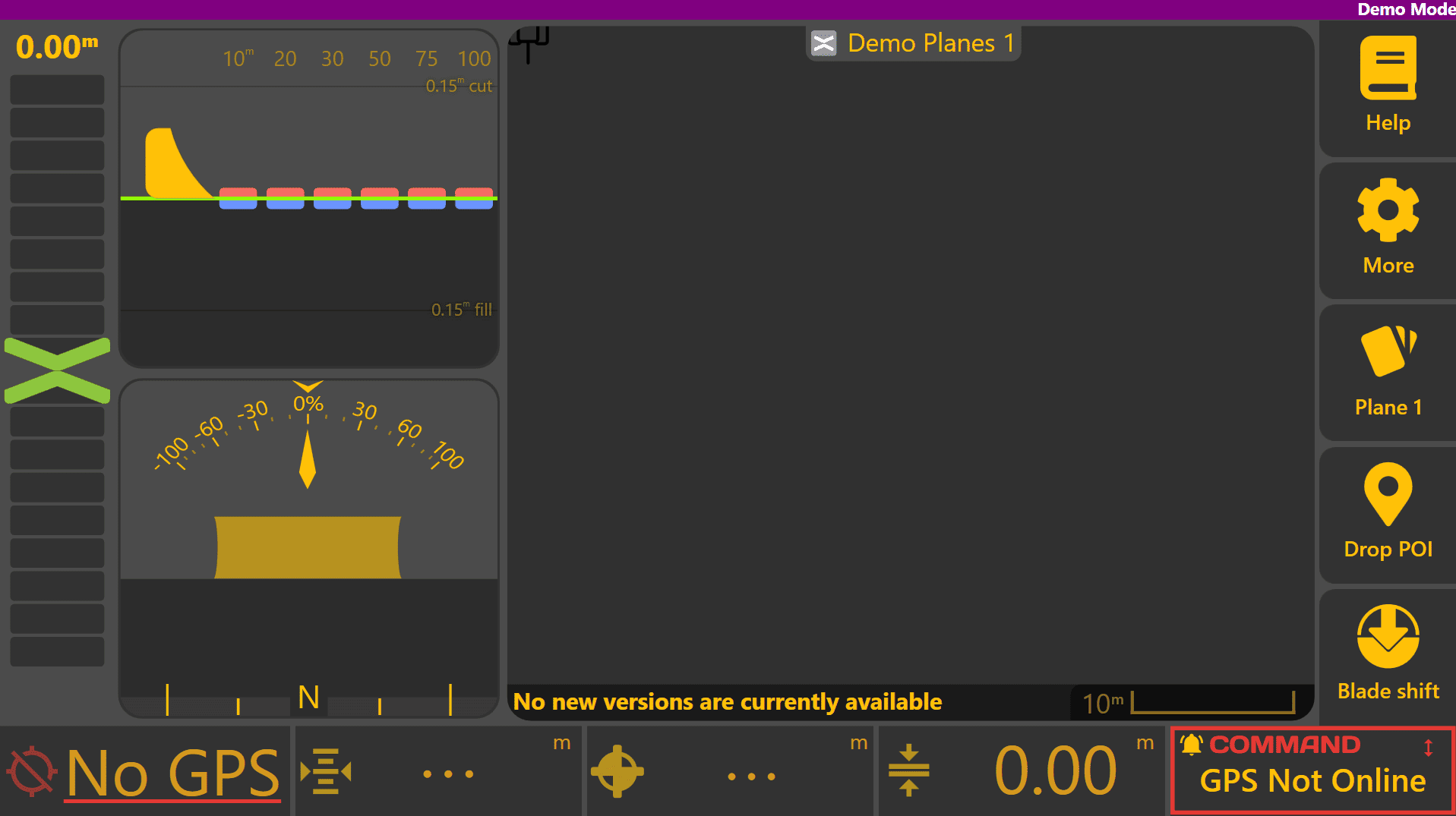
When Level COMMAND is first started, you'll be greeted by the apply page below:
Once all hardware components have been fitted, the COMMAND ECU needs to be set up for the correct configuration to operate Level COMMAND.
COMMAND ECU Quick Setup
For more detailed information on COMMAND hardware such as the ECU or harnessing, please refer to the COMMAND Manual.
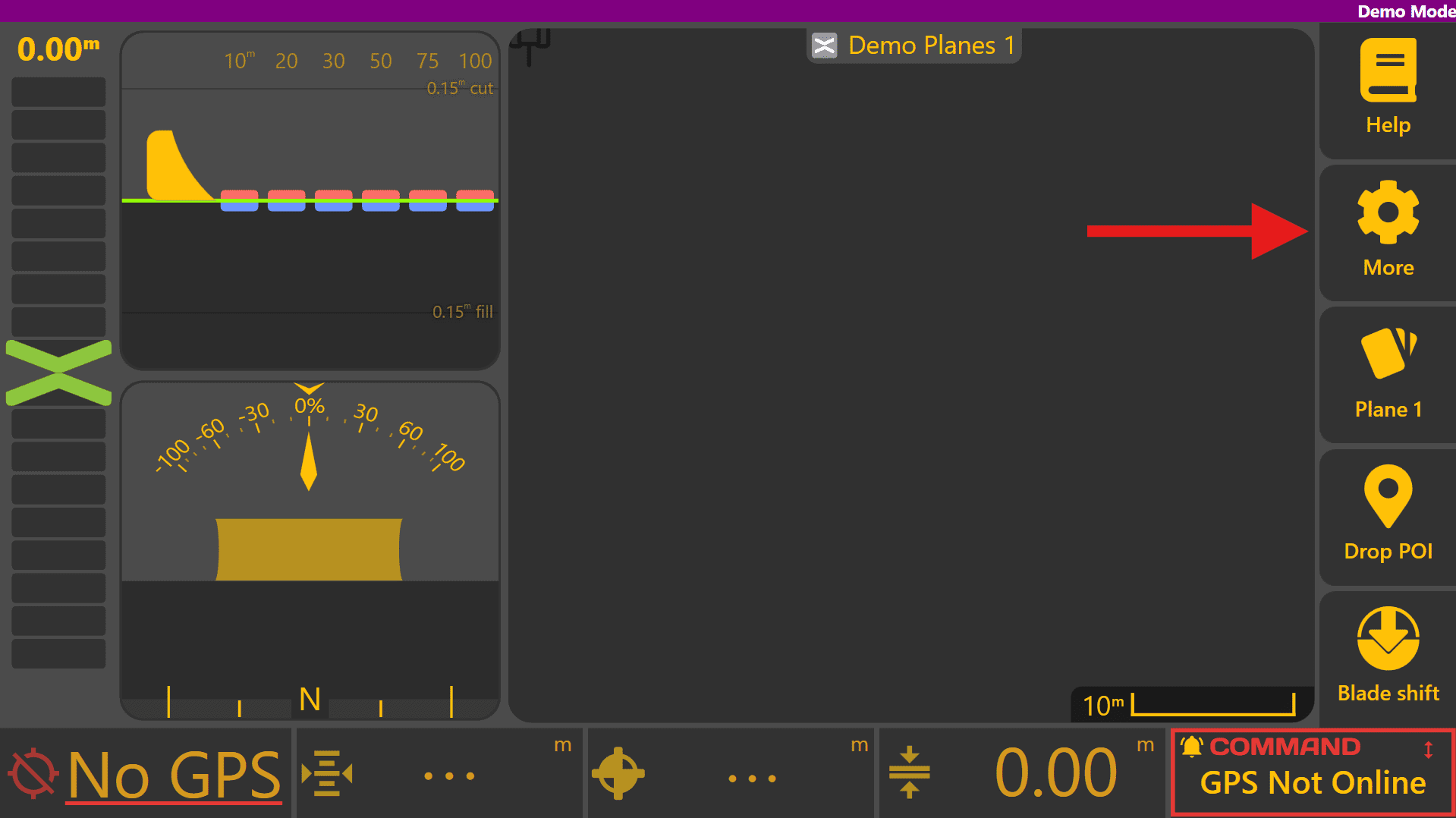
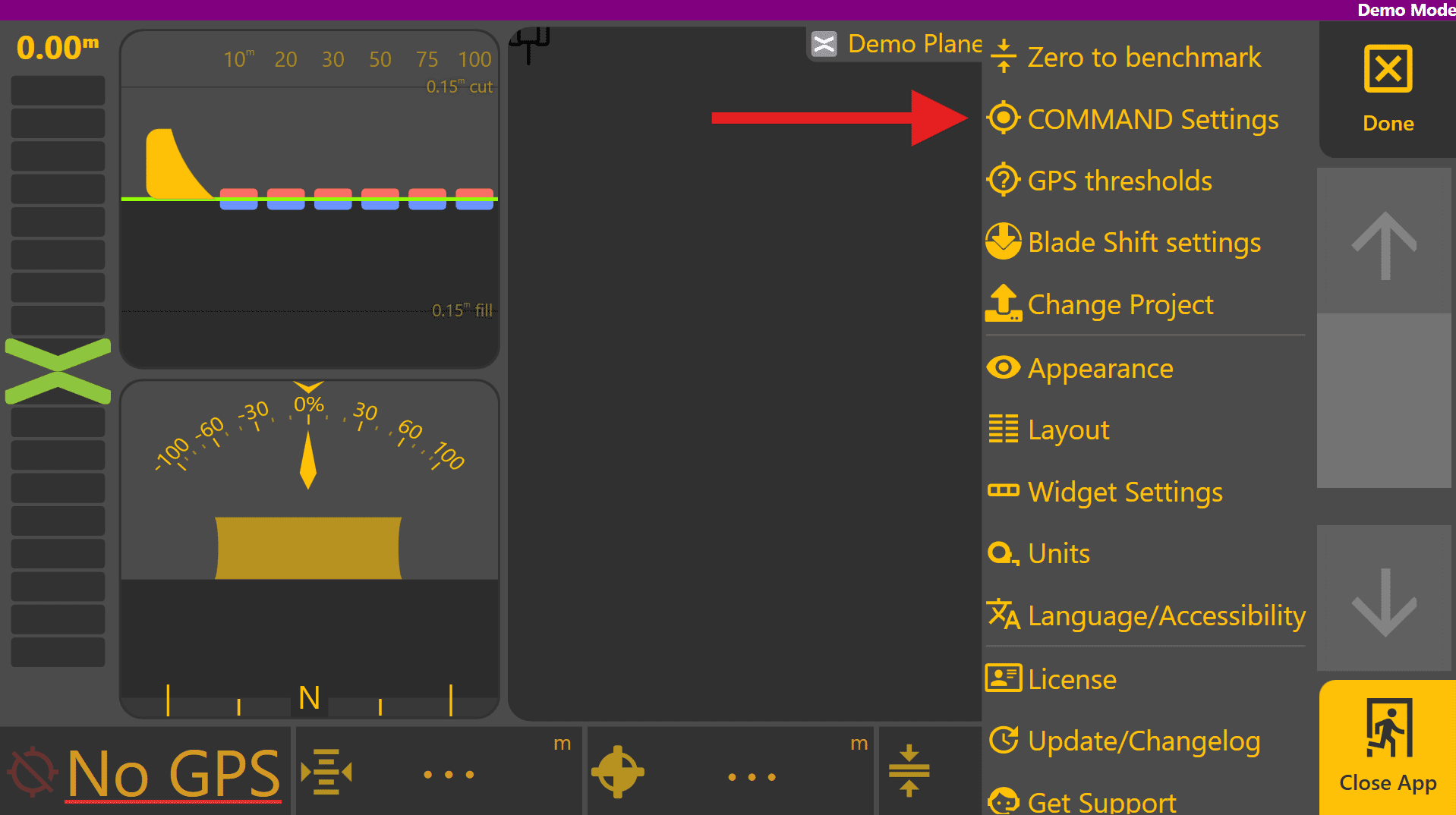
Select the Machine page:
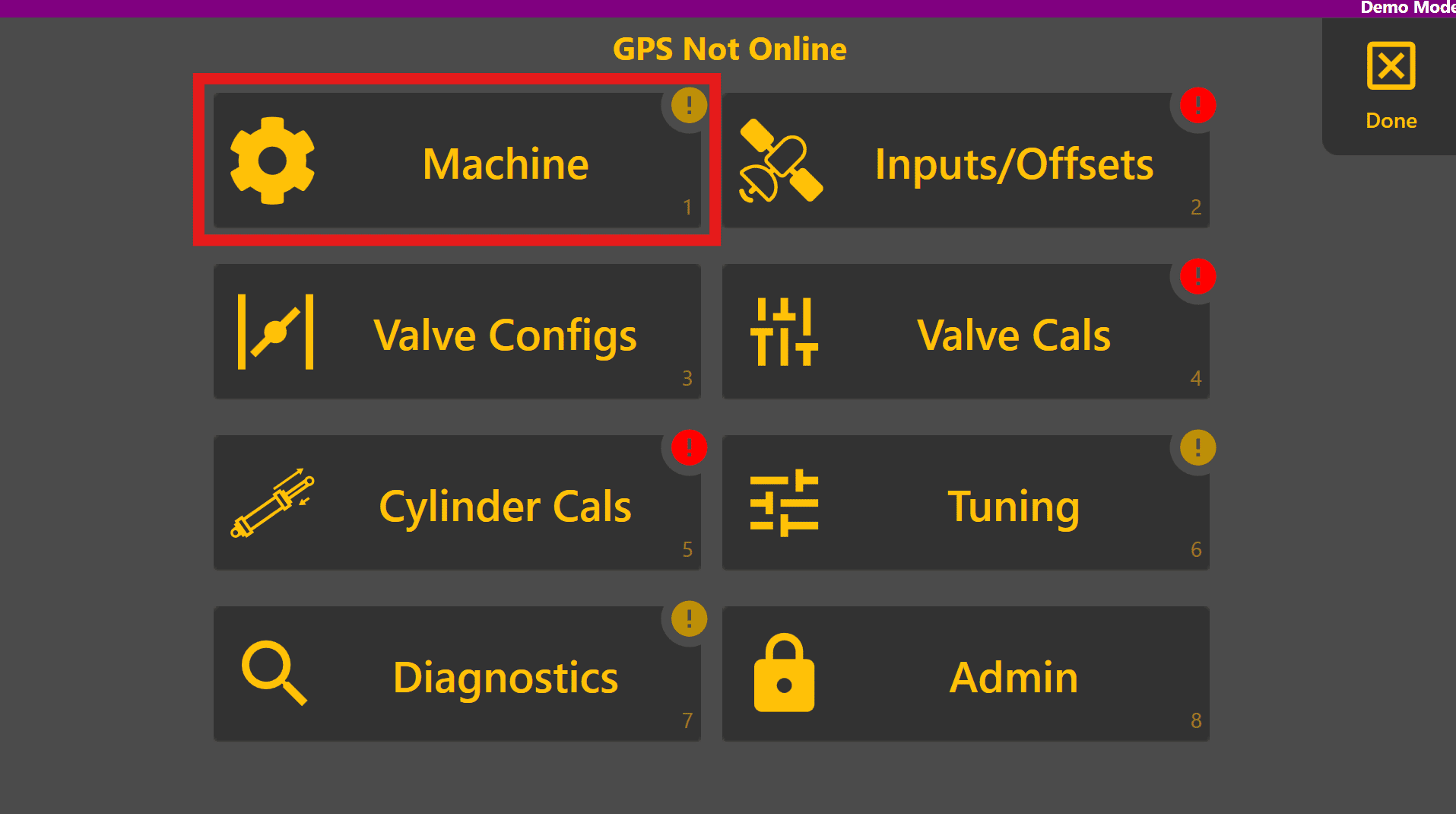
If the Comms tab appears along with "Unable to connect/authenticate to the COMMAND ECU. Confirm ECU power and harnessing", begin troubleshooting harnessing and cable connections to ensure the ECU is powered and serial cable is connected to the tablet PC. If the Profile tabs appears then the ECU has been detected.
Select the appropriate profile for the tractor/implement:

Enter the implement blade width, measured along the cutting edge in the Blade Width field:

Press Back and then select the Inputs/Offsets Page:

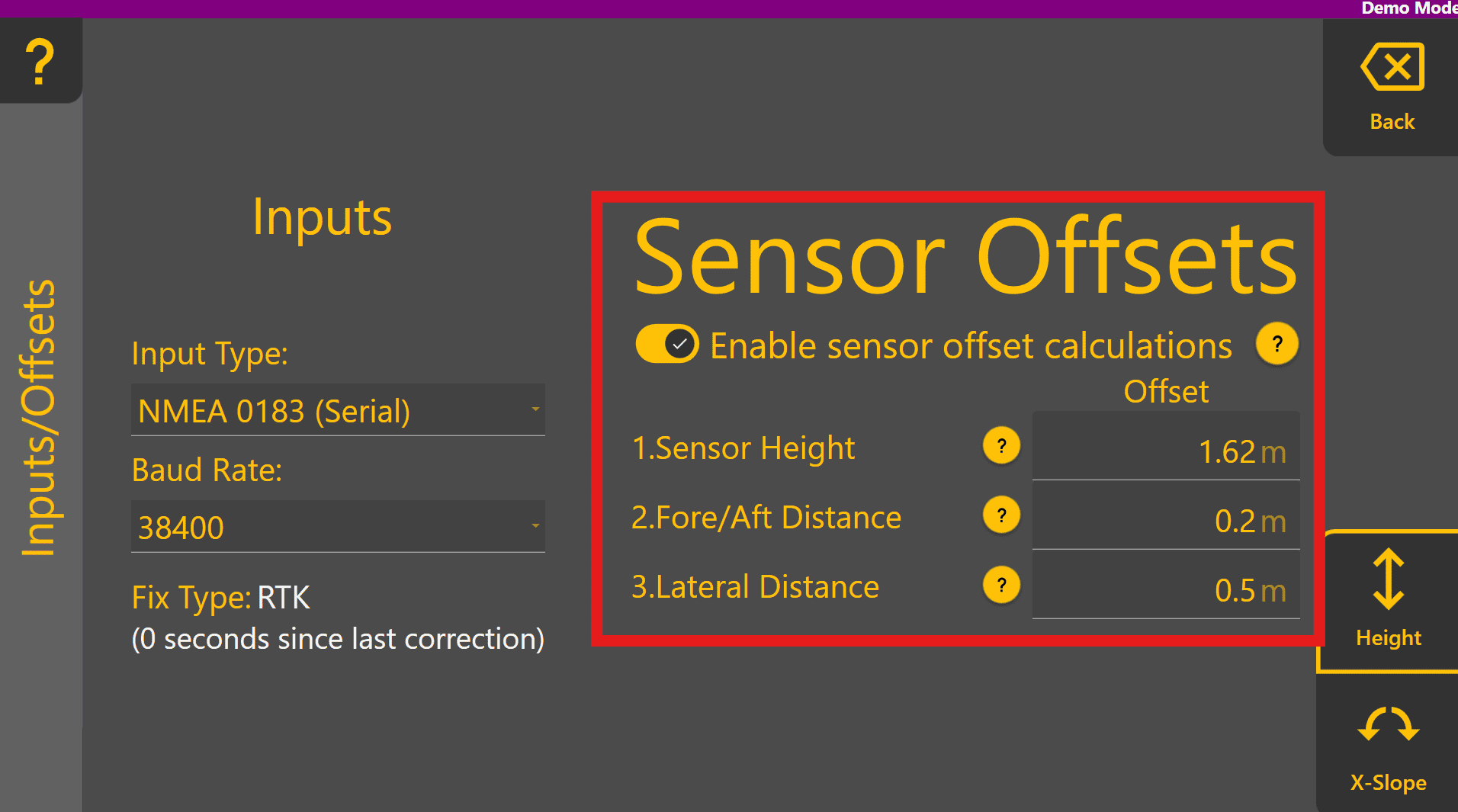
For height-only machine profiles, this page only has one tab for Height. Other profiles like Height & XSlope will display a tab for each function in the bottom right. Select the desired height Input type and Baud rate if required (we recommend 38400, but this must be configured at both Level COMMAND AND the receiver itself).
If position data is available from the selected GNSS receiver, the Fix Type should change. Note that fix type MUST be RTK for automatic implement control.
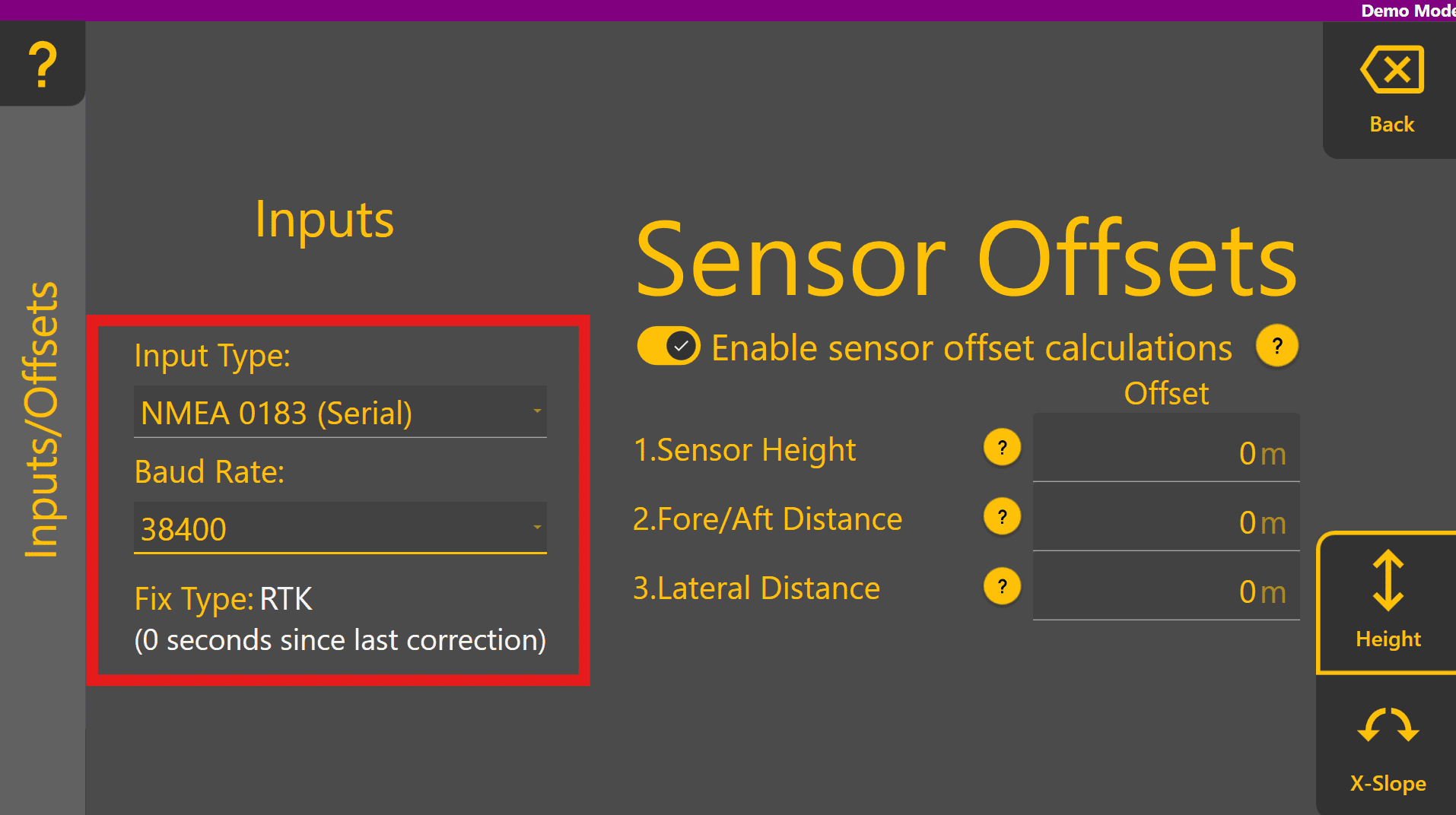
Enable sensor offset calculations using the toggle and then measure and enter each of the offsets - tap the ? for more info on each offset: