
Appearance
'Appearance'This page lets you tweake the appearance of Level COMMAND. You can control things such as screen brightness, various colors, and what data is shown on the map.
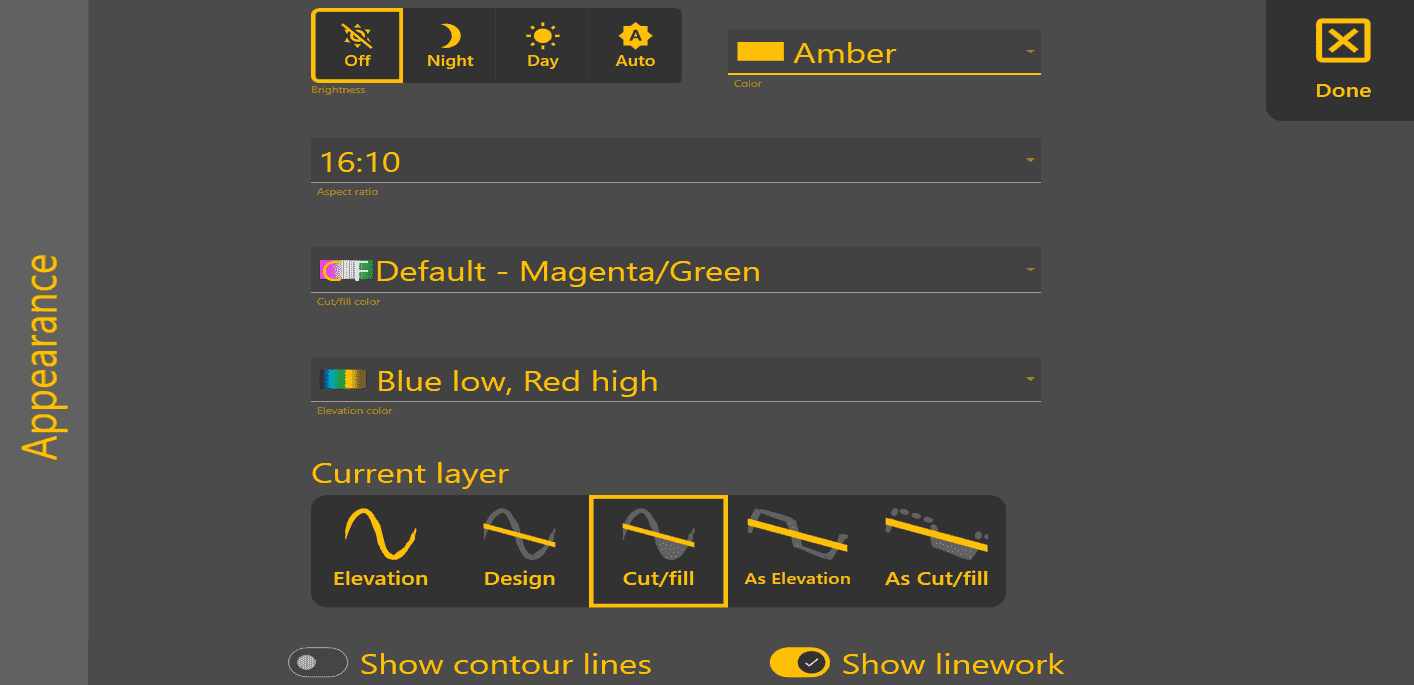

'Brightness' - to easily control the brightness, LC provides 4 options.
- Off: does not change brightness.
- Night: Sets the brightness to a low level.
- Day: Sets the brightness to a high level.
- Auto: Adjusts the brightness automatically so that at sunset it will dim.
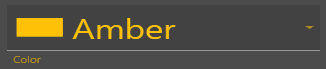
'Color' - select main theme color.
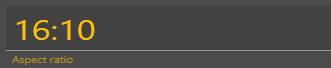
'Aspect ratio' - Choose the best option for optimal display on your device(16:9, 16:10).

'Cut/fill color' - Set colors used for Cut/Fill map to Magenta/Green or Red/Green/Blue. (Magenta as cuts/Green as fills, or Red as cuts/Green as neutral/Blue as fills)
- The Magenta/Green color scheme may be easier to view for those users with red/green color blindness. The Red/Green/Blue color scheme may be preferred by users wanting a clearer delineation of “on grade” areas.

'Elevation color' - allows you to change which colors represent your highs and lows. (this is limited to selecting from a drop down menu)
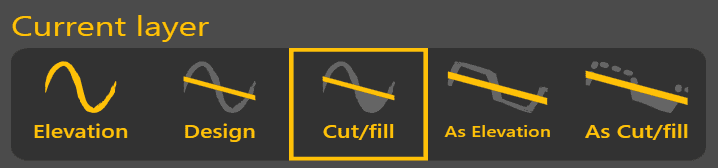
'Current layer' - choose the layer you want to see.see in the map:
- Elevation: This
terrain viewing modelayer showsthe map asthe original surface prior to any dirt being moved. - Design: This
viewing modelayer shows the designthattohas beenbe applied. This is the surface that you are attempting to reach at the end of the dirt moving process. Has the same color scheme as Elevation. - Cut/fill: Shows where the design
willrequires dirt to betakingremoveddirtorfromadded,andrelativewheretoitthewilloriginalbe putting it.elevations. Coloring of this layer depends on the current Cut/Fill colorscheme.(see above). The default is Magenta/Green. - As
elevationElevation:DisplayingThisthe map using this methodlayer shows elevation changes as theyoccur.occur (the As refers to "As Applied"). It shows a real-time representation ofprogress asworkprogresses.progress. Has the same color scheme as Elevation. - As
cut/fillCut/Fill: Shows where the designwillrequires dirt to betakingaddeddirtorfromremoved, relative to As Elevation - i.e., the remaining cut andwherefillittowillcompletebetheputting it.design. Coloring of this layer depends on the current Cut/Fill colorscheme(see above).

'Show contour lines' - Turn cnourcontour lines on or off on the map. Contour lines are not shown for As Elevation or As Cut/Fill layers, because they change too much.

'Show linworklinework' - Turn linework on or off on the map.