
7.8 | Support & Error Reporting
'Get support' - helps your dealer give you remote support. You must be connected to the Internet for this to work.
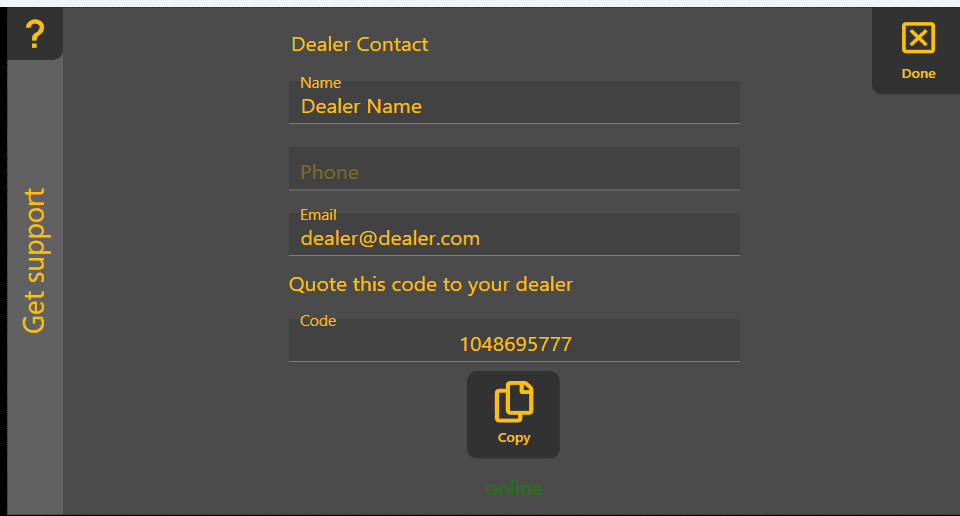
'Setup remote support' - downloads and installs the support app. A progress bar will be displayed, followed by a code that you should provide to your dealer.

-
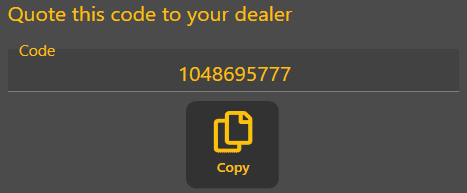
- Send your code to your dealer. You will then be able to receive remote support.

The 'Setup remote support' button only is only shown when the support app is not installed on your device.
This is the last option in the More menu. It opens up a page to send a bug report or feature request to T3RRA. The name and email address fields of this window are automatically filled using the details from your License page. You must be connected to the Internet for this to work.
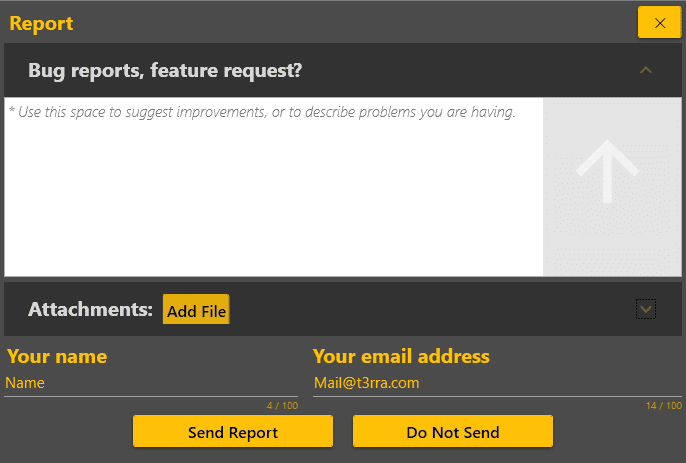
'Bug reports, Feature request' - Use this space to suggest improvements, or to describe problems you are having. For best results, explain the issue in as much detail as possible.
 'Add file' - allows you to attach extra files that help the T3RRA development team address your issue.

'Send report' - Sends your report and attached files to T3RRA. You will be notified by email about how your request is being processed. Please don't close Level COMMAND until you see the message 'The report has been sent.' Otherwise, attached files may not be sent.

'Do not send' - Close the page without sending the report.