
6.4 | Blade Shift & Target Adjustment
Blade Shift allows the operator to temporarily adjust the targetTarget positionPosition during grading.
This provides a quick method of making small grading adjustments to suit changing site conditions without modifyingchanging the underlyingproject design surface.itself.
Blade Shift changes the current Target—not the Design. Remove the applied shift at any time to return Automatic Control to the original design surface. If large Blade Shift values become necessary, verify the project alignment and consider performing Zero instead.
To access the Blade Shift controls from the Apply View:

Press Blade Shift.
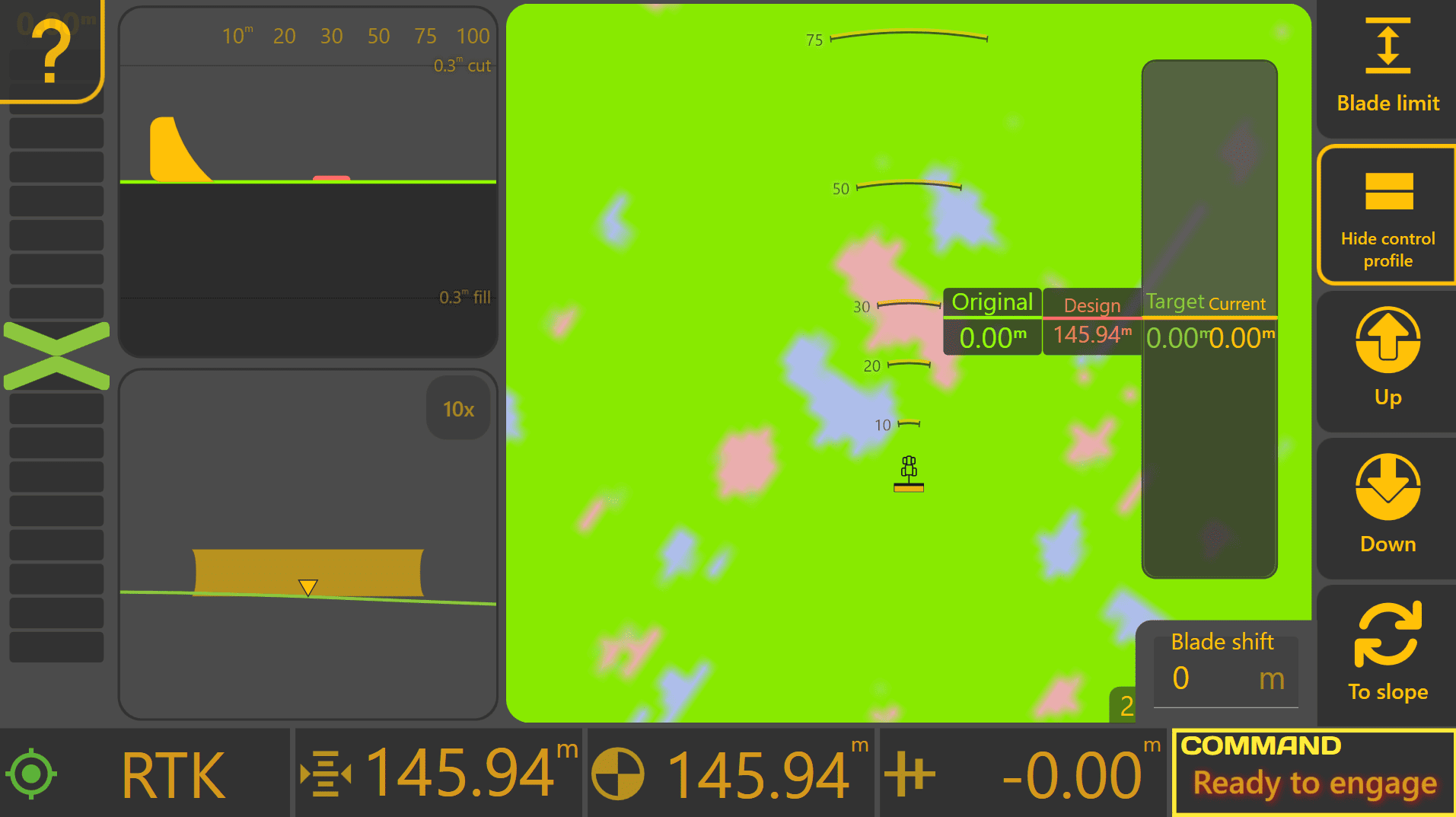
Understanding the Control Profile
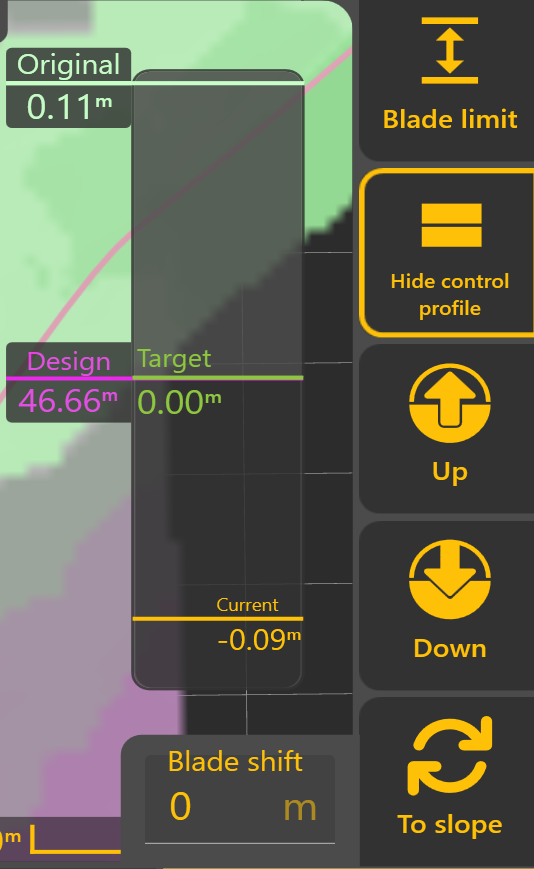
The Control Profile provides a live cross-sectional view of the current grading state. It allows the operator to see how the original ground, designDesign, surface,Target target positionPosition and current implement position relate to one another during Automatic Control.Control.
The Control Profile displays four key references:
Original
The original surveyed ground surface before grading began, shown relative to the design surface.Design.
Design
The intended finished surface. This remains fixed throughout the project and represents the final grading objective.
Target
The position currently being tracked by Automatic Control.
Normally, the Target matches the Design. However, Blade Shift or Dynamic Cut/Cut & Fill Limiting may temporarily adjust the Target whileduring leaving the Design unchanged.grading.
Current
The current implement position relative to the Design.
As Automatic Control operates, the Current position should progressively move towards the Target.
 Blade Shift

The Up and Down buttons temporarily raise or lower the Target by the configured Blade Shift Increment.Increment.
Multiple adjustments can be applied as required, and the current Blade Shift value is displayed within the Blade Shift window. Selecting the displayed value allows a specific offset to be entered directly.
Because Blade Shift modifies only the Target position, the original Design remains unchanged and can be returned to at any time by removing the applied shift.
Dynamic Cut & Fill Limiting

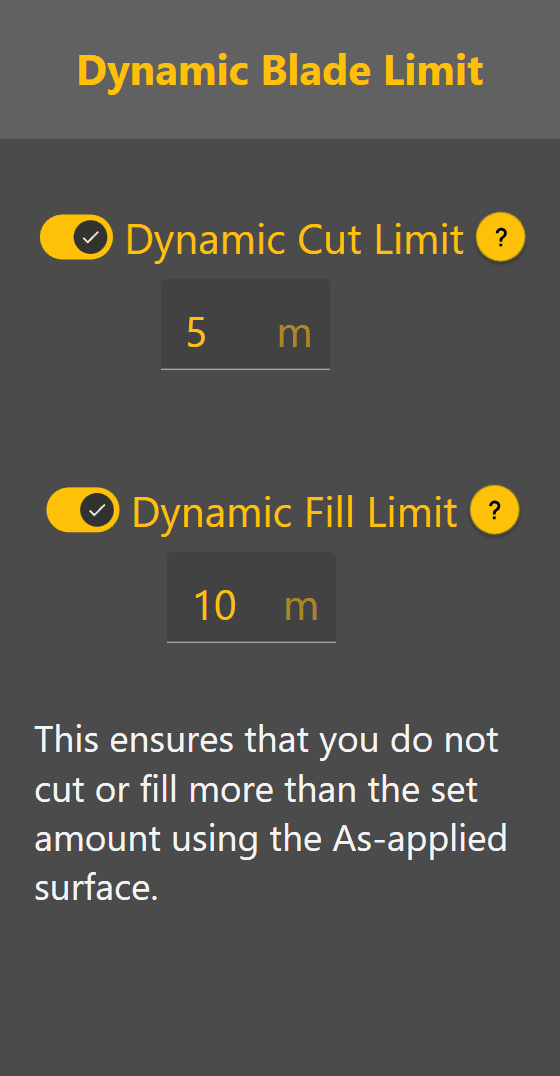
Dynamic Cut and& Fill Limiting temporarily restrictrestricts how much material Automatic Control attempts to remove or place during a single pass.
Rather than immediately targeting the finished Design, Level COMMAND calculates a temporary Target Position that respects the configured Cut or Fill Limit. As grading progresses, the Target automatically moves towards the Design until the finished surface is achieved.
ThisDynamic canCut be& Fill Limiting is useful when:for:
- Removing material
inover multiple controlled passes. - Reducing machine load.
- Preventing excessive cutting or filling in a single pass.
MinimisingImprovingoperator interventioncontrol on difficult ground.
As each pass is completed, the Target Position progressively moves towards the final Design until the required surface is achieved.
 Manual X-Slope Adjustment


Machines equipped with Height & X-Slope control can temporarily adjust the target cross-slope.
Select To Slope to switch from Blade Shift controls to X-Slope controls.
When X-Slope Auto is enabled, Level COMMAND automatically follows the designDesign cross-slope. When Auto is disabled, the operator may manually adjust the target cross-slope using the Left and Right controls or enter a specific value directly.
Select To Shift to return to the Blade Shift controls.
Blade Shift Increment
The amount applied by each press of the Up or Down buttons is determined by the configured Blade Shift Increment. Likewise, manual X-Slope adjustments use the configured X-Slope Shift Increment.
To change the Blade Shift Increment, from the Apply View presspress:
More >→ Blade Shift Settings.Settings
Smaller increments provide finer control, while larger increments allow quicker adjustments during grading.
Typical Blade Shift Increment values are:
These values provide a good balance between adjustment precision and operating efficiency for most grading applications.
Operator Tip: Use Blade Shift to make temporary grading adjustments as conditions change throughout the day. If large Blade Shift values become necessary to maintain the desired grade, verify the project alignment and consider performing Zero again rather than continuing to increase the applied offset.
Continue to 6.5 | Position Quality & GNSS Validation to understand how Level COMMAND validates positioning information before Automatic Control is allowed to operate.