
5.5 | Projects & Design Data
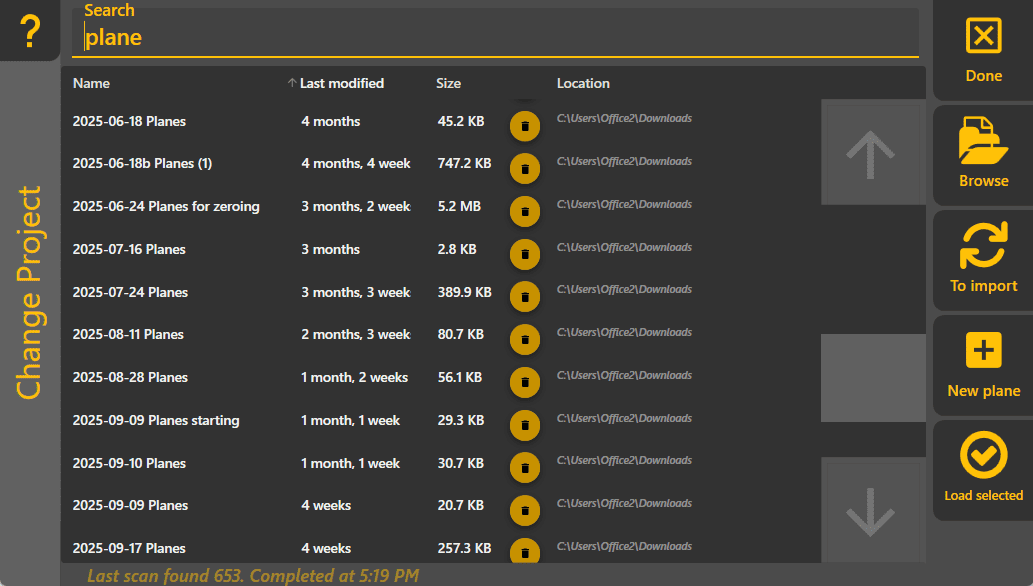
To change the loaded project, tap the Change Project button on the Apply View or in the More menu. Tapping it will show a full page (see below), listing all projects that can be found on your computer. To load a specific project, tap it, then choose Load selected on the bottom right (double-tapping a project also works). To filter the projects to a specific one, tap the search field at the top and type in a search term.
Done: Closes the page, going back to the Apply View.
Browse: Opens a file selector so you can navigate to a specific project. Select your file then tap Open to start loading it.
To import: Switches to list files that can be imported into Level COMMAND. Select an importable file from the list and then tap on the Import selected button in the bottom right. Press this button again (it will now say To Load) to switch back to loading Level COMMAND projects.
New plane: Starts a new plane project. Use this for creating planar designs and start moving dirt quickly.
Load selected: Loads the project selected in the main list. Once the project is loaded, it will show the Apply View.
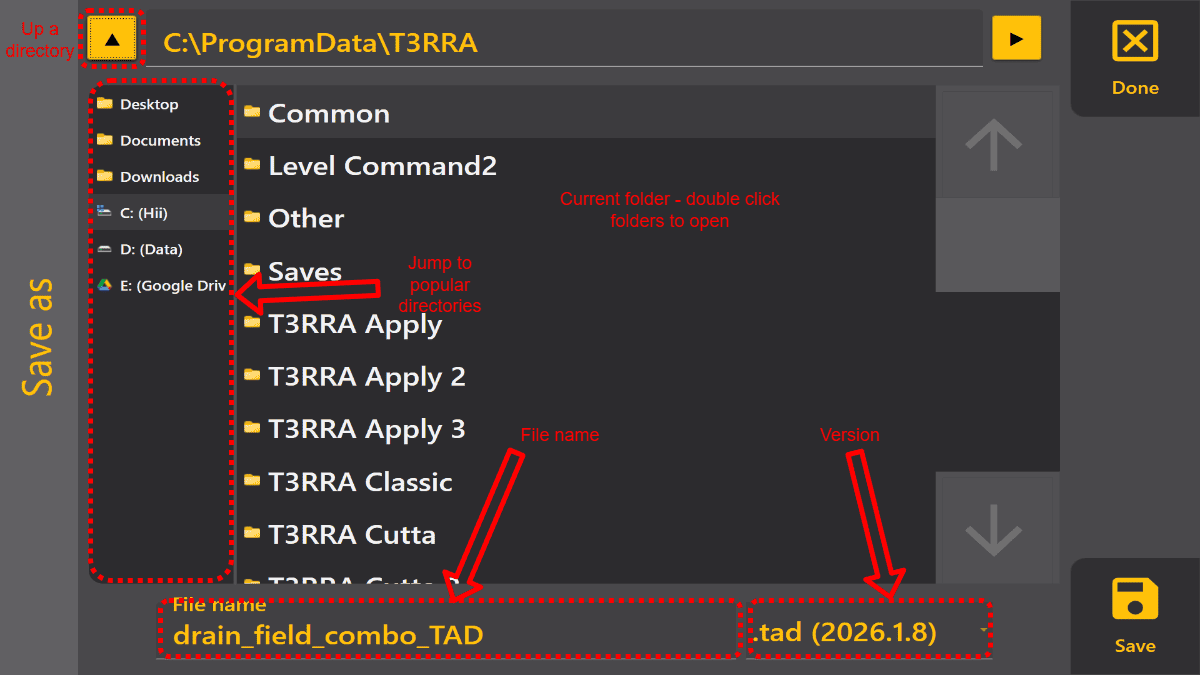
Allows you to save a 2nd copy of your project. It also lets you choose a prior version for compatibility with earlier releases of Level COMMAND.
How to use
It works similarily to the native save dialog, but is optimised for touch. You can choose where to save by tapping on the locations and folders on the left or in the main view. Tapping on a folder shows its contents in the main area, so it's easy to navigate to sub-folders. If you go to deep into the folders, tap the ▲ button the top left to go up one level. If you want to explore the folder contents using Windows Explorer, tap the ▶ button in the top right. Once you've found your location, enter the new project name at the bottom.
Leave the version as default UNLESS you are trying to send a file to and older verison of Level COMMAND that errors when loading the most recent version. The error message will tell you which version is supported by that Level COMMAND. This is because using older versions of the project format can lead to loss of information.