
5.3 | Widget Customisation

To change theThe widgets that are displayed along the bottom of the Apply View, long-pressprovide onquick aaccess widget.to Itimportant machine, GNSS and grading information while operating Level COMMAND.

Almost every widget can be replaced with another value, allowing the display to be customised to suit different operators, machine configurations or grading tasks.

The COMMAND Status widget at the far right is fixed and cannot be changed.

Opening Widget Settings

To customise the displayed widgets:

    Press and hold any configurable widget along the bottom of the Apply View. The Widget Settings page will showopen.

    The upper section displays all available widgets, while the lower section shows the widgets currently displayed widgets downon the bottom,Apply andView.

    the


    other

    Changing availableDisplayed widgetsWidgets

    at the top. To view a different widget, drag them around, or select one and press the arrow to put it in a particular slot.

    Widgets can be re-orderedreplaced using either of the following methods.

    Drag and Drop

    Press and hold any available widget, then drag it onto one of the widget positions along the bottom of the screen.

    When released, the selected widget replaces the existing widget.

    Arrow Selection

    Alternatively:

      Select the desired widget from the upper list. Press the arrow above the widget position you wish to replace.

      This method can be easier when operating with gloves or on smaller displays.

      Reordering Widgets

      Widgets may also be rearranged by dragging too.them between positions along the bottom row.
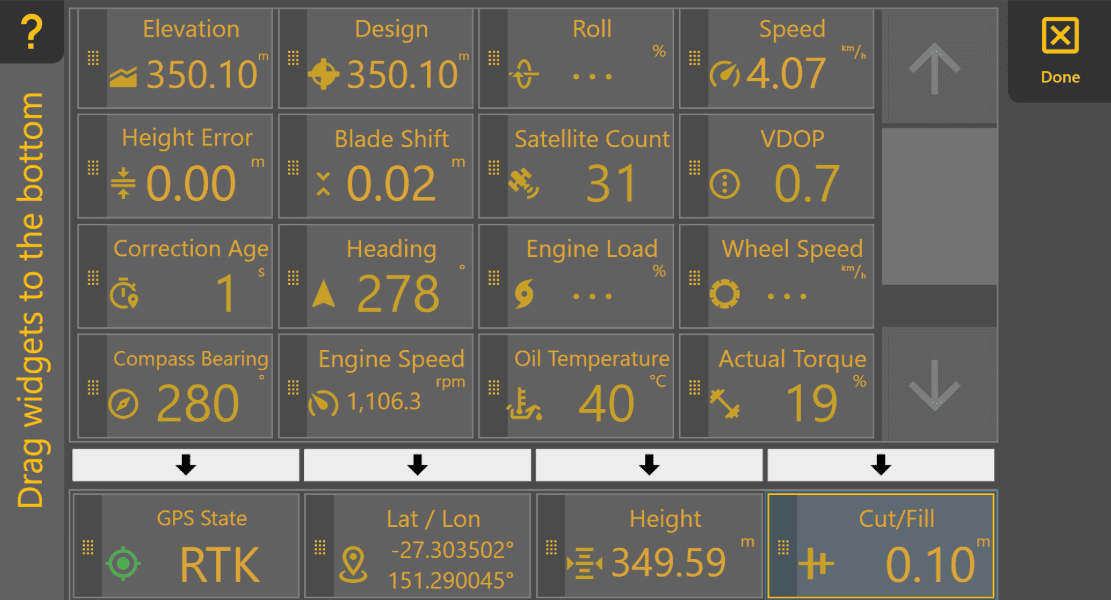
      image.png

      You'll notice that the name of each widget is displayed when you're in this view. The names will disappear once this settings screen is closed. When you'refinished, done, tap thepress Done button in the top right to go backreturn to the Apply View.

      Changing Measurement Units

      Many widgets display measurements using configurable units.

      To change measurement units:

      More → Units

      The available units ofdepend measure of many widget's values can be configured inon the Unitsinformation page.being displayed.

      Available Widgets

      Widget
      Description Elevation TheCurrent surveyed heightground elevation at the implement location. Design Design elevation at the current location. DesignHeight TheCurrent targetimplement heightheight. Cut/Fill Amount of cut or fill required at the current location as specified by the design.location. CutHeight And fillError Difference

      How much cut/fill there is atbetween the current locationimplement ofheight and the implement.target

      height. Persistent error may indicate incorrect valve calibration or that the implement cannot physically reach the target. CurrentBlade HeightShift TheDisplays the current heightBlade ofShift offset applied to the implement.target surface. This widget displays the active offset only; Blade Shift is adjusted using the Blade Shift control on the Apply View. Current Speed TheCurrent currentmachine speed of the implement.speed. Heading The currentCurrent direction theof implementtravel isrelative pointing. 0 Isto north. CoordinatesLatitude (lat/lon)/ Longitude TheCurrent currentGNSS position. Roll (X-Slope) Current implement roll angle. Target Roll Target roll angle defined by the design surface. Roll Error Difference between the measured roll angle and the target roll angle. Useful when monitoring X-Slope performance. GNSS Status Current GNSS positioning quality. RTK provides the highest positioning accuracy. Satellite Count Number of satellites currently being tracked. Some receivers may report fewer satellites than are actually contributing to the position solution. VDOP Vertical Dilution of Precision. Lower values generally indicate better vertical positioning accuracy. Correction Age Time since the implementlast inRTK latitudecorrection longitudewas received. Lower values indicate a healthier correction link. Actual Torque* Engine torque currently being produced. Demanded Torque* Engine torque currently being requested. Engine Load* Current engine load as a percentage. Engine Speed* Current engine speed (in decimal degrees)RPM). HeightOil ErrorTemperature* TheHydraulic differenceoil between the desired height and the actual height the implement is. Ie if Level Command is telling the implement to be at 1m, but the implement is only at 0.8m the height error will be 0.2m. A high error can be caused by poorly calibrated hydraulics or the implement being unable to reach target due to other physical restraints.temperature. X-SlopeCompass Bearing* The current roll of the implement.  X-Slope Target The target roll for the implement (ie the angle of the design surface) X-Slope Error How much the current implement roll is off from the desired angle. Useful when checking how tight the control is Nudge How much the blade has been nudged. See Nudge tool settings for more information on nudging. GPS State

      What quality of GPS that is being received. RTK is the best quality.

      Satellite Count

      How many satellites the implement is tracking. 

      Note: due to how some receivers operate, we may only be reporting a max of 12 satellites when in fact it may be much higher. (i.e. if connected to GPS, GLONASS, Beidou, or Galileo)

      VDOP

      Vertical Dilution of Precision (VDOP) - a number specifying the vertical accuracy. A smaller value signifies greater precision in vertical positioning. 

      RTK Age

      How long since we have last seen an RTK correction in seconds. The smaller the better. If it's getting bigger it likely means the base station is having issues communicating with the receiver.

      Actual Torque*

      The rotational force produced by the engine.

      Compass Bearing*

      TheVehicle heading reported by the vehicle.

      machine. DemandedWheel Torque*Slip* Estimated

      Thewheel rotational force that the vehicle is demanding from the engine.

      Engine Load*

      How hard the engine is working, as aslip percentage.

      Higher values indicate Engine Speed*

      The revolutions per minute (rpm) of the engine.

      Oil Temperature*

      The temperature of the hydraulic oil.

      Wheel Slip*

      If the tractor is loosingreduced traction. 0 - 100% where 100% is the tractor not moving with the wheels spinning.

      *Available Onlyonly availablewhen ifsupported by the connected machine CAN network.

      Operator Tip: Configure the widgets you check most often so they can be read with a tractorquick CANglance iswhile presentgrading. Some operators keep GNSS Status, Height, Cut/Fill and theCurrent informationBlade isShift transmittedpermanently onvisible, then customise the CAN.remaining widget to suit the current task.