
5.2 | Apply View Layout
'The Layout' -page Useallows thisthe Apply View to be customised to suit different machines, grading tasks and operator preferences.
To open the Layout page from the Apply View, press:
More → Layout
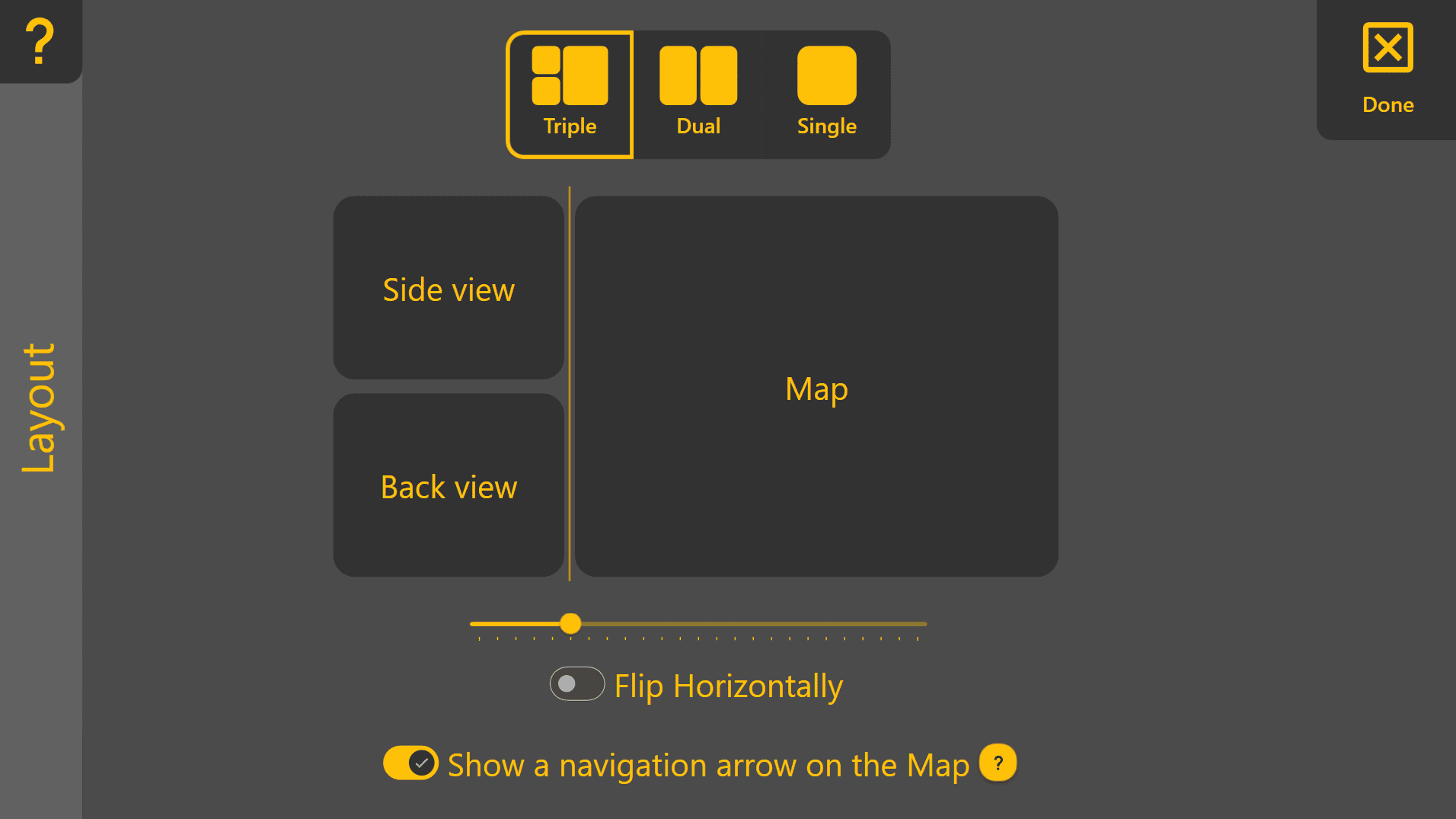
Choosing a Layout

Three layout modes are available:
Select the desired layout by pressing Triple, Dual or Single at the top of the page.
Selecting Display Views
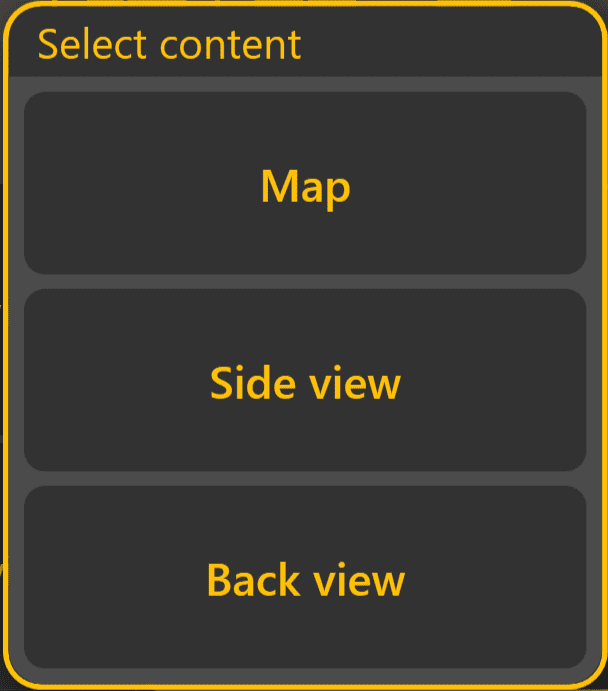
Each display area can independently display one of the following:
Simply press any display area shown on the Layout page to tweakchoose which view it will display.
This allows the layoutApply View to be configured for different operating tasks. Common examples include:
Layout Options
Additional options are available when using the Dual or Triple layouts.
Split Position
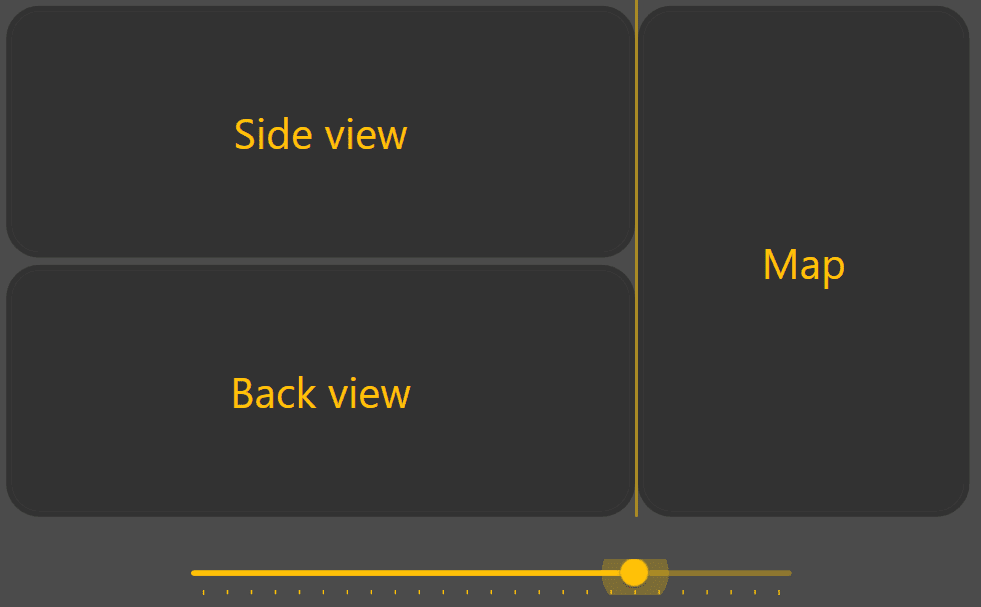 Use the slider to adjust how much screen space is allocated to the main viewing area and the secondary viewing areas.
Increasing the size of the main viewing area provides a larger Map display, Thewhile Applyincreasing the secondary viewing areas makes the Side View. Thereor areBack threeView wayseasier to arrangemonitor.
Flip Horizontally
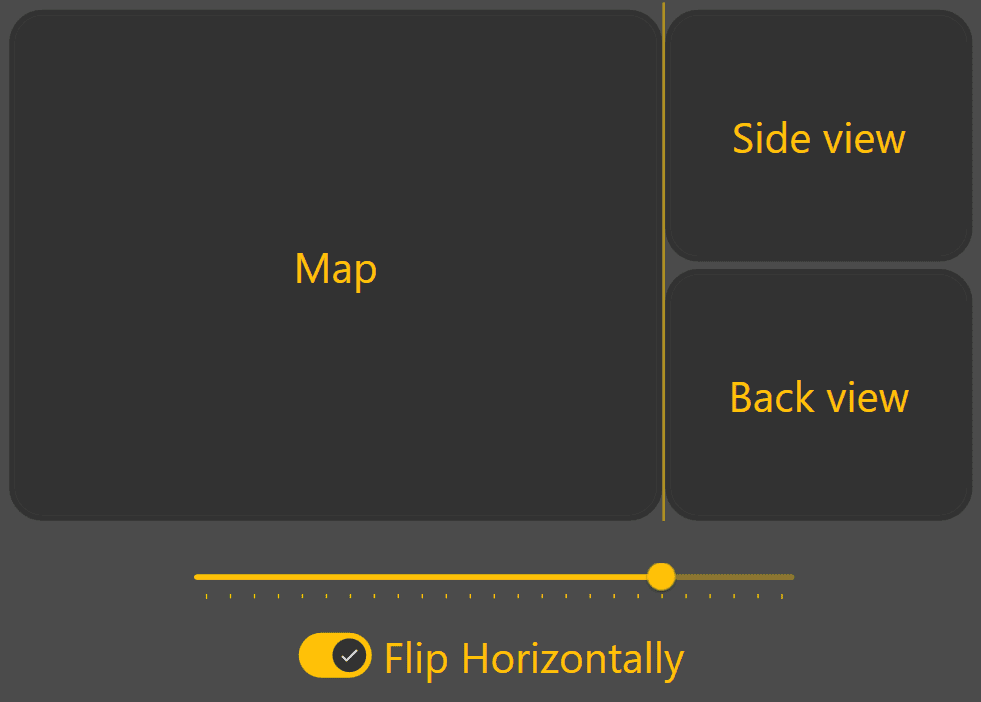
Enable Flip Horizontally to swap the Apply View - triple, dual, and single. Below the selectors, taking up the center of the screen is a stylized representation of the chosen layout, with content placeholders. Tap on a content placeholder to choose what it will display. For Dual and Triple views you can adjust the positionpositions of the main split with the slider below, and usesecondary theviewing "Flip Horizontally" toggle to swap the left and right contents.areas.
This can improve visibility depending on display mounting position or operator preference.
Navigation Arrow
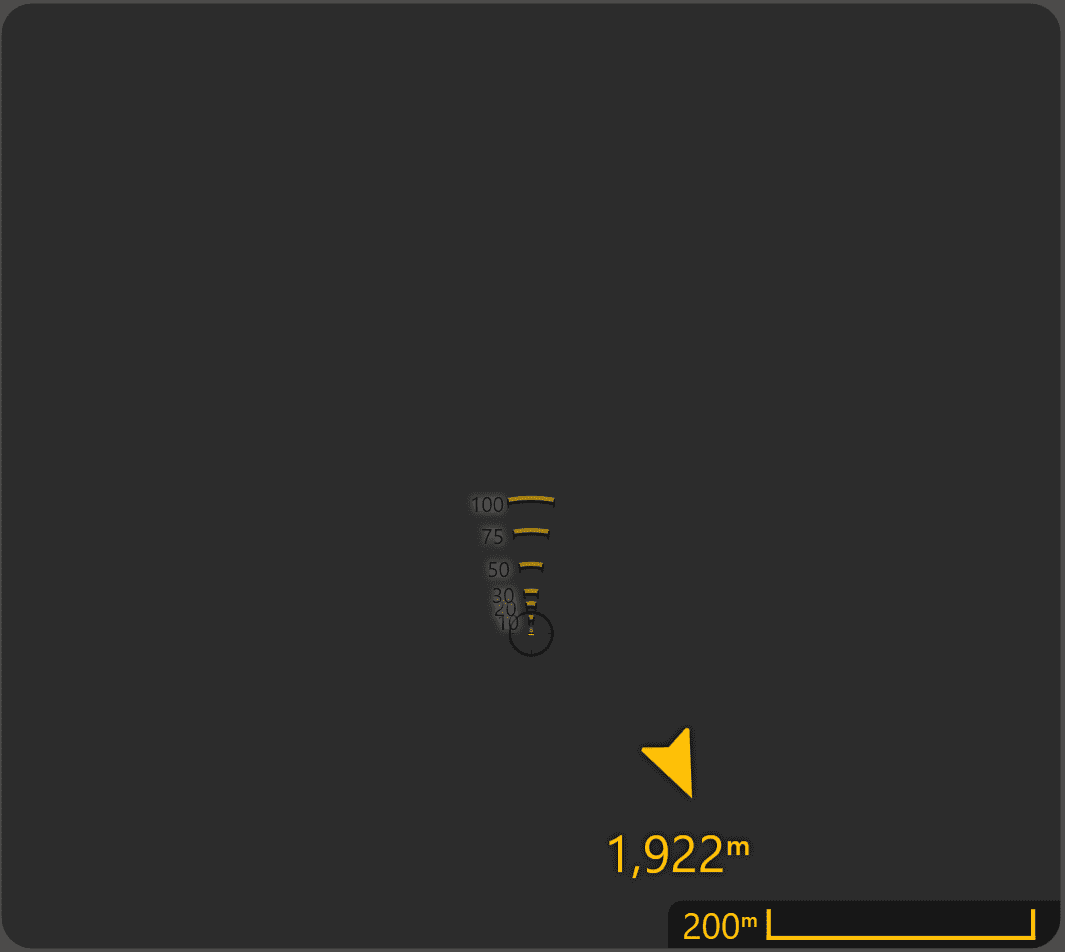
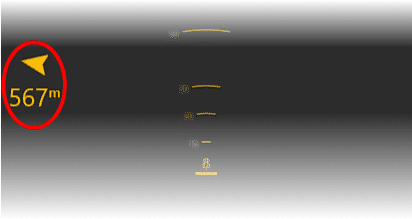
The arrow points towards the centre of the project thatsurface isand far from your current location, as it indicatesdisplays the approximate direction and distance to thatthe field.work area. This can be particularly useful when travelling between fields or locating a project after loading it.
Continue to 5.3 | Widget Customisation to configure the information displayed along the bottom of the Apply View.