# Tablet issues

# Tablet screen freezes (Panasonic)

<span dir="ltr" style="font-size: 14pt; font-family: Helvetica, sans-serif; color: rgb(0, 0, 0); font-weight: 400;">**Symptoms**:</span><span style="font-family: Helvetica,sans-serif;"><span style="font-size: 14pt; color: rgb(0, 0, 0); font-weight: 300;"></span></span>

<span style="font-family: Helvetica,sans-serif;"><span style="font-size: 14pt; color: rgb(0, 0, 0); font-weight: 300;">The screen of the tablet PC has frozen and is not responding to inputs such as pressing on the screen or the mouse (if one is attached).</span></span>

<span style="font-family: Helvetica,sans-serif;"><span style="font-size: 14pt; color: rgb(0, 0, 0); font-weight: 300;">Your tablet becomes slow and sluggish.</span></span>

<span style="font-family: Helvetica,sans-serif;">  
</span>

<span style="font-family: Helvetica,sans-serif;"><span style="font-size: 14pt; color: rgb(0, 0, 0); font-weight: 400;">**Cause**:</span></span>

<span style="font-family: Helvetica,sans-serif;"><span style="font-size: 14pt; color: rgb(0, 0, 0); font-weight: 300;">The Tablet may not have enough available memory.</span></span>

<span style="font-family: Helvetica,sans-serif;"><span style="font-size: 14pt; color: rgb(0, 0, 0); font-weight: 300;">Windows or the T3RRA software needs updating.</span></span>

<span style="font-family: Helvetica,sans-serif;"><span style="font-size: 14pt; color: rgb(0, 0, 0); font-weight: 300;">If you have connected your tablet to the Wi-Fi hotspot previously, the tablet will retain internet access credentials and connect to the internet. Automatic updates of the operating system, or software can start without your knowledge.These can slow operations.</span></span>

<span style="font-family: Helvetica,sans-serif;"><span style="font-size: 14pt; color: rgb(0, 0, 0); font-weight: 300;">If you have surveyed the field in ‘drain mode’ rather than ‘field survey mode’ the tablet can become sluggish when implementing (due to continual calculations positioning the displayed position relative to the large drain line created).</span></span>

<span style="font-family: Helvetica,sans-serif;">  
</span>

<span style="font-family: Helvetica,sans-serif;"><span style="font-size: 14pt; color: rgb(0, 0, 0); font-weight: 400;">**Solutions**:</span></span>

1. <span style="font-family: Helvetica,sans-serif;"><span style="font-size: 14pt; color: rgb(0, 0, 0); font-weight: 300;">Confirm tablet running T3RRA meets minimum requirements:</span></span>

- <span style="font-family: Helvetica,sans-serif;"><span style="font-size: 14pt; color: rgb(0, 0, 0); font-weight: 300;">Windows 10</span></span>
- <span style="font-family: Helvetica,sans-serif;"><span style="font-size: 14pt; color: rgb(0, 0, 0); font-weight: 300;">CPU: Intel i5</span></span>
- <span style="font-family: Helvetica,sans-serif;"><span style="font-size: 14pt; color: rgb(0, 0, 0); font-weight: 300;">RAM: 8GB, HDD</span></span>
- <span style="font-family: Helvetica,sans-serif;"><span style="font-size: 14pt; color: rgb(0, 0, 0); font-weight: 300;">HDD 128GB (minimum)</span></span>

2. <span style="font-family: Helvetica,sans-serif;"><span style="font-size: 14pt; color: rgb(0, 0, 0); font-weight: 300;">Perform updates for T3RRA and Windows:</span></span>

<span style="font-family: Helvetica,sans-serif;"><span style="font-size: 14pt; color: rgb(0, 0, 0); font-weight: 300;">T3RRA needs to be updated regularly in order to perform at its best. When connected to a good internet connection, click on 'Check online for updates' in T3RRA Settings Application tab and the newest version will install. (T3RRA alerts when a new version is available if connected to the internet). Windows &amp; .NET need to be regularly updated. Windows 10 is best updated using the Windows 10 Update Assistant downloadable from the Microsoft website. Perform a hard restart after updates are completed.</span></span>

3. <span style="font-family: Helvetica,sans-serif;"><span style="font-size: 14pt; color: rgb(0, 0, 0); font-weight: 300;">Create manageable projects:</span></span>

<span style="font-family: Helvetica,sans-serif;"><span style="font-size: 14pt; color: rgb(0, 0, 0); font-weight: 300;">Break large projects into smaller projects that are less taxing on the computer.</span></span>

4. <span style="font-family: Helvetica,sans-serif;"><span style="font-size: 14pt; color: rgb(0, 0, 0); font-weight: 300;">Check for applications running in the background:</span></span>

<span style="font-family: Helvetica,sans-serif;"><span style="font-size: 14pt; color: rgb(0, 0, 0); font-weight: 300;">Make sure there is nothing else running on the computer and bogging it down (you can go into Task Manager and look at the performance charts).</span></span>

5. <span style="font-family: Helvetica,sans-serif;"><span style="font-size: 14pt; color: rgb(0, 0, 0); font-weight: 300;">Report detailed information to T3RRA if the problem persists.</span></span>

- <span style="font-family: Helvetica,sans-serif;"><span style="font-size: 14pt; color: rgb(0, 0, 0); font-weight: 300;">Does the tablet freeze? </span></span>
- <span style="font-family: Helvetica,sans-serif;"><span style="font-size: 14pt; color: rgb(0, 0, 0); font-weight: 300;">Does the software freeze? </span></span>
- <span style="font-family: Helvetica,sans-serif;"><span style="font-size: 14pt; color: rgb(0, 0, 0); font-weight: 300;">Does the freeze 'unfreeze' at some time?</span></span>
- <span style="font-family: Helvetica,sans-serif;"><span style="font-size: 14pt; color: rgb(0, 0, 0); font-weight: 300;">Can the software be killed manually or does the machine have to be re-started?</span></span>

<span dir="ltr" style="font-size: 14pt; font-family: Helvetica, sans-serif; color: rgb(0, 0, 0); font-weight: 300;">Please provide this information when reporting an issue.</span>

# Surface Pro tablet not updating or freezing

<span dir="ltr" style="font-size: 14pt; font-family: Helvetica, sans-serif; color: rgb(0, 0, 0); font-weight: 400;">**Symptoms**:</span>

<span style="font-family: Helvetica,sans-serif;"><span style="font-size: 14pt; color: rgb(0, 0, 0); font-weight: 300;">Surface Pro tablet does not update T3RRA software completely and/or freezes.</span></span>

<span style="font-family: Helvetica,sans-serif;">  
</span>

<span style="font-family: Helvetica,sans-serif;"><span style="font-size: 14pt; color: rgb(0, 0, 0); font-weight: 400;">**Cause**:</span></span>

<span style="font-family: Helvetica,sans-serif;"><span style="font-size: 14pt; color: rgb(0, 0, 0); font-weight: 300;">Windows updates require hard restart to take effect.</span></span>

<span style="font-family: Helvetica,sans-serif;"><span style="font-size: 14pt; color: rgb(0, 0, 0); font-weight: 300;">High speed internet connection required.</span></span>

<span style="font-family: Helvetica,sans-serif;">  
</span>

<span style="font-family: Helvetica,sans-serif;"><span style="font-size: 14pt; color: rgb(0, 0, 0); font-weight: 400;">**Solution**:</span></span>

<span style="font-family: Helvetica,sans-serif;"><span style="font-size: 14pt; color: rgb(0, 0, 0); font-weight: 300;">Microsoft suggests executing the “Two Button Shutdown” after restart and before signing in. This is only to be used on Surface Pros. Do not use this process on Surface RT, Surface 2, or Surface 3. Using this two-button shutdown process ensures that your Surface is turned off completely. Here’s how:</span></span>

<span style="font-family: Helvetica,sans-serif;">  
</span>

<span style="font-family: Helvetica,sans-serif;"><span style="font-size: 14pt; color: rgb(0, 0, 0); font-weight: 300;">***Step 1:*** Press and hold the power button on your Surface for 45 seconds and then release it.</span></span>

<span style="font-family: Helvetica,sans-serif;"><span style="font-size: 14pt; color: rgb(0, 0, 0); font-weight: 300;">***Step 2:*** Press and hold the volume-up button and the power button at the same time for at least 20 seconds and then release both. (the screen may flash the Surface logo or something else, but continue holding the buttons down)</span></span>

<span style="font-family: Helvetica,sans-serif;"><span style="font-size: 14pt; color: rgb(0, 0, 0); font-weight: 300;">***Step 3:*** After you release the buttons, wait 10 seconds.</span></span>

<span style="font-family: Helvetica,sans-serif;"><span style="font-size: 14pt; color: rgb(0, 0, 0); font-weight: 300;">***Step 4:*** Press and release the power button to turn your Surface back on.</span></span>

<span style="font-family: Helvetica,sans-serif;">  
</span>

<span style="font-family: Helvetica,sans-serif;"><span style="font-size: 14pt; color: rgb(0, 0, 0); font-weight: 300; text-decoration-skip-ink: none;">Things we have also found useful:</span></span>

<span style="font-family: Helvetica,sans-serif;"><span style="font-size: 14pt; color: rgb(0, 0, 0); font-weight: 300;">Connect to the hotspot on your cell phone for a possible higher speed internet connection.</span></span>

<span style="font-family: Helvetica,sans-serif;"><span style="font-size: 14pt; color: rgb(0, 0, 0); font-weight: 300;">Make sure there is nothing else running on the computer and bogging it down (you can go into the task manager and look at the performance charts).</span></span>

<span dir="ltr" style="font-size: 14pt; font-family: Helvetica, sans-serif; color: rgb(0, 0, 0); font-weight: 300;">Break large projects into smaller projects that are less taxing on the computer.</span>

# Mouse Pointer flickers across the screen randomly

<span dir="ltr" style="font-size: 14pt; font-family: Helvetica, sans-serif; color: rgb(0, 0, 0); font-weight: 400;">**Symptoms**:</span>

<span style="font-family: Helvetica,sans-serif;"><span style="font-size: 14pt; color: rgb(0, 0, 0); font-weight: 300;">When the tablet starts the on-screen mouse jumps randomly about the screen. Windows may open and close as the mouse clicks on desktop or program icons. Input is difficult due to competition from the ‘crazed and possessed’ mouse arrow. You will likely receive a pop-up error about your desired com port being taken already when you try to open your T3RRA software.</span></span>

<span style="font-family: Helvetica,sans-serif;">  
</span>

<span style="font-family: Helvetica,sans-serif;"><span style="font-size: 14pt; color: rgb(0, 0, 0); font-weight: 400;">**Cause**:</span></span>

<span style="font-family: Helvetica,sans-serif;"><span style="font-size: 14pt; color: rgb(0, 0, 0); font-weight: 300;">When booting, some tablets check the serial port for the presence of a serial mouse (a common type of mouse prior to PS1 and bluetooth mice). If a stream of GPS data is present the operating system can mistake it for mouse data and direct the data to the onscreen pointing device. As the data is not mouse data it simply results in random movement and clicking. This also monopolizes the serial port, which then cannot be used by T3RRA software. </span><span style="font-size: 14pt; color: rgb(255, 0, 0); font-weight: 400;">Note</span><span style="font-size: 14pt; color: rgb(255, 0, 0); font-weight: 300;">: Even after implementing the registry fix below a ‘Windows Update’ can sometimes cause this fix to be reverted and the problem will re-appear.</span></span>

<span style="font-family: Helvetica,sans-serif;">  
</span>

<span style="font-family: Helvetica,sans-serif;"><span style="font-size: 14pt; color: rgb(0, 0, 0); font-weight: 400;">**Solutions**:</span></span>

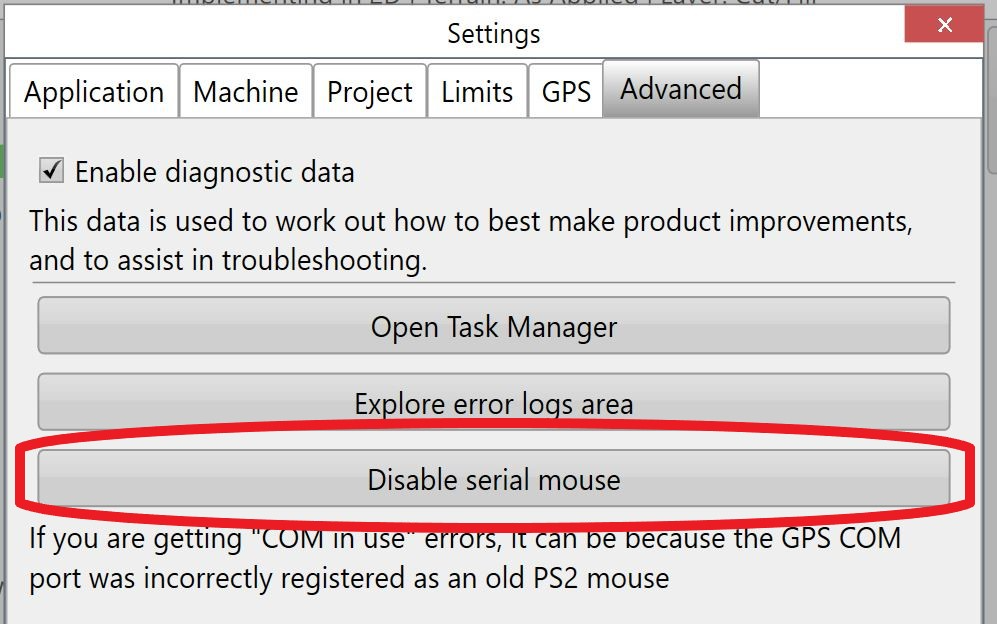
1. <span style="font-family: Helvetica,sans-serif;"><span dir="ltr" style="font-size: 14pt; color: rgb(0, 0, 0); font-weight: 300;">Go to ‘Settings &gt; Advanced’ and disable the serial mouse (Version 2 software).</span></span>  
    <span style="font-family: Helvetica,sans-serif;"><span dir="ltr" style="font-size: 14pt; color: rgb(0, 0, 0); font-weight: 300;">![](https://docs.t3rra.com/uploads/images/gallery/2025-03/scaled-1680-/u8o4htanzo9c-mgiwucmxjuuspp6nel3-g-png.png)</span></span>
2. <span style="font-family: Helvetica,sans-serif;"><span style="font-size: 14pt; color: rgb(0, 0, 0); font-weight: 300;">Always start the tablet before the tractor is turned on. If the tablet starts prior to any incoming GPS data the problem will not occur.</span></span>
3. <span style="font-family: Helvetica,sans-serif;"><span style="font-size: 14pt; color: rgb(0, 0, 0); font-weight: 300;">Search for the serial mouse with the Windows ‘Device Manager’ and disable it.</span></span>
4. <span style="font-family: Helvetica,sans-serif;"><span dir="ltr" style="font-size: 14pt; color: rgb(0, 0, 0); font-weight: 300;">Permanently disable serial mice using the Windows Registry. Instructions for doing this can be found online on pages like: </span>[<span style="font-size: 14pt; color: rgb(17, 85, 204); font-weight: 300; text-decoration-skip-ink: none;">http://www.taltech.com/support/entry/windows\_2000\_nt\_serial\_mice\_and\_missing\_com\_port</span>](http://www.taltech.com/support/entry/windows_2000_nt_serial_mice_and_missing_com_port)</span>

<span style="font-family: Helvetica,sans-serif;"><span style="font-size: 14pt; color: rgb(255, 0, 0); font-weight: 300;">NOTE: Do not alter the Windows Registry unless you are competent to do so and understand the possible issues of doing so. If in doubt contact your dealer or T3RRA.</span></span>

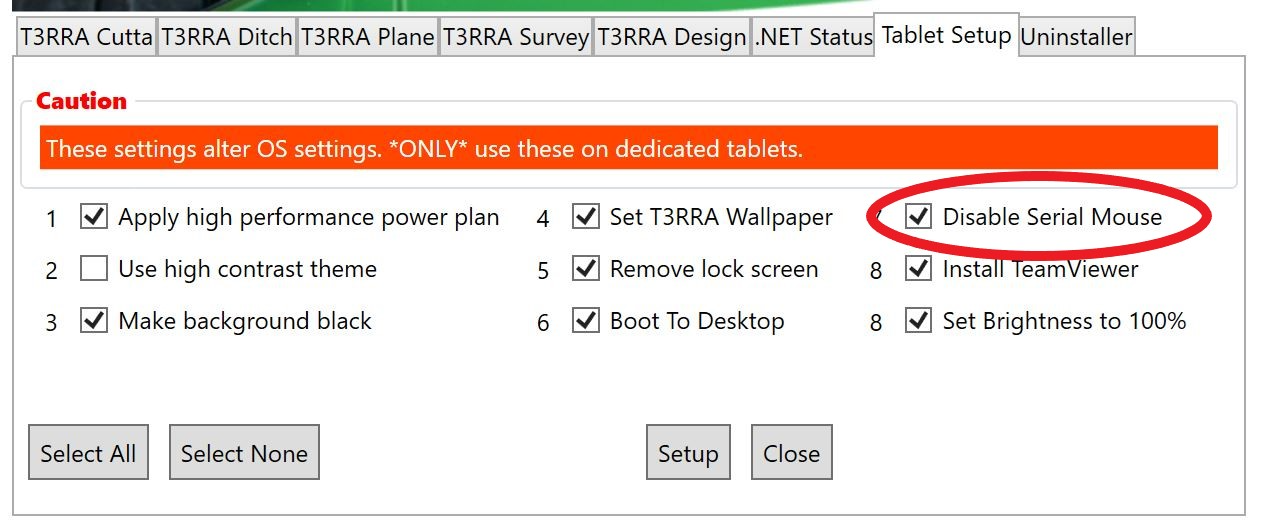
5. <span style="font-family: Helvetica,sans-serif;"><span dir="ltr" style="font-size: 14pt; color: rgb(0, 0, 0); font-weight: 300;">Request that your dealer uses their T3RRA Installer software to correct the issue. This software will perform the Registry fix action. The relevant tab in the software is the “Tablet Setup” tab.![](https://docs.t3rra.com/uploads/images/gallery/2025-03/scaled-1680-/uymdz52orpylokymevbse59-no9dll-aag-png.png) </span></span>
# Windows are opening and closing on the tablet randomly.

<span data-identifyelement="485" dir="ltr" style="font-size: 14pt; font-family: Helvetica, sans-serif; color: rgb(0, 0, 0); font-weight: 400;">**Symptoms**:</span>

<span data-identifyelement="487" style="font-family: Helvetica,sans-serif;"><span data-identifyelement="488" style="font-size: 14pt; color: rgb(0, 0, 0); font-weight: 300;">Windows are opening and closing randomly as if someone was tapping on desktop or program icons. </span></span>

<span data-identifyelement="490" style="font-family: Helvetica,sans-serif;">  
</span>

<span data-identifyelement="493" style="font-family: Helvetica,sans-serif;"><span data-identifyelement="494" style="font-size: 14pt; color: rgb(0, 0, 0); font-weight: 400;">**Cause**:</span></span>

<span data-identifyelement="496" style="font-family: Helvetica,sans-serif;"><span data-identifyelement="497" style="font-size: 14pt; color: rgb(0, 0, 0); font-weight: 300;">It is possible that the touch screen is malfunctioning. A crack in the screen may be a good indicator. This happens whether or not GPS data is streaming into the tablet COM port (see </span>[<span data-identifyelement="499" style="font-size: 14pt; color: rgb(17, 85, 204); font-weight: 300; text-decoration-skip-ink: none;">Mouse pointer flickers across the screen randomly.</span>](https://t3rra-help.freshdesk.com/en/support/solutions/articles/51000330204-mouse-pointer-flickers-across-the-screen-randomly)<span data-identifyelement="500" style="font-size: 14pt; color: rgb(0, 0, 0); font-weight: 300;">)</span></span>

<span data-identifyelement="502" style="font-family: Helvetica,sans-serif;">  
</span>

<span data-identifyelement="505" style="font-family: Helvetica,sans-serif;"><span data-identifyelement="506" style="font-size: 14pt; color: rgb(0, 0, 0); font-weight: 400;">**Solutions**:</span></span>

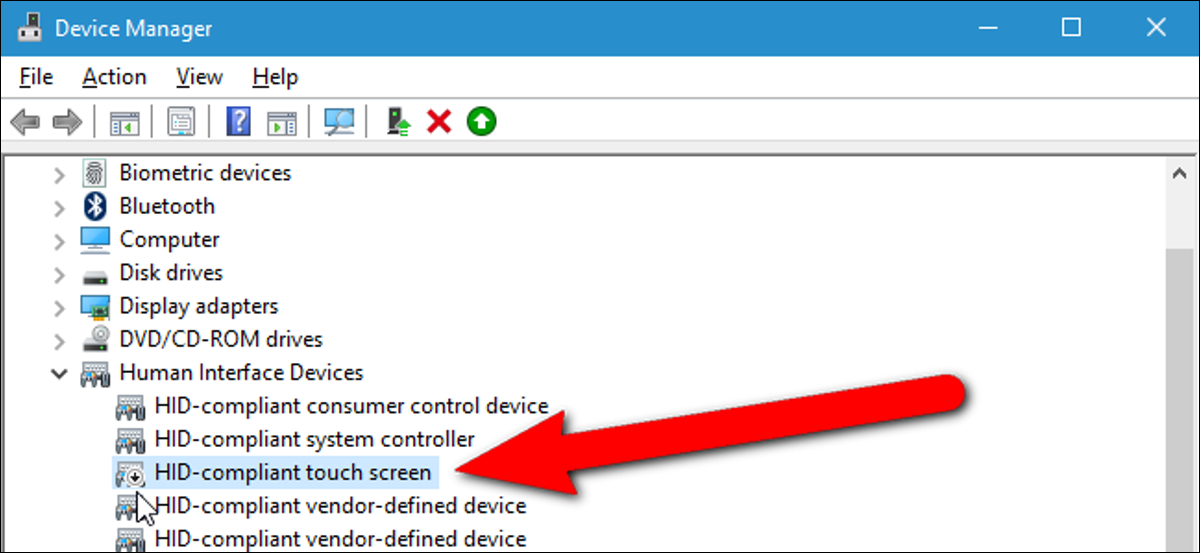
<span data-identifyelement="508" style="font-family: Helvetica,sans-serif;"><span data-identifyelement="509" dir="ltr" style="font-size: 14pt; color: rgb(0, 0, 0); font-weight: 300;">Tablet repair may be required. Alternatively, disable touch input (via the Human Interface Devices section of the Windows Device Manager) and use a computer mouse for input. ![](https://docs.t3rra.com/uploads/images/gallery/2025-03/scaled-1680-/3xp-juxqquug02m9-itmyeo-ccmo-nsnda-png.png)</span></span>
# T3RRA software does not automatically start when the tablet boots.

<span dir="ltr" style="font-size: 14pt; font-family: Helvetica, sans-serif; color: rgb(0, 0, 0); font-weight: 400;">**Symptoms**:</span>

<span style="font-family: Helvetica,sans-serif;"><span style="font-size: 14pt; color: rgb(0, 0, 0); font-weight: 300;">When the tablet starts it is normal for T3RRA software to automatically load. However if you wait a reasonable period (sometimes up to several minutes, if updates or other activities are occurring) the T3RRA software still may not load,</span></span>

<span style="font-family: Helvetica,sans-serif;">  
</span>

<span style="font-family: Helvetica,sans-serif;"><span style="font-size: 14pt; color: rgb(0, 0, 0); font-weight: 400;">**Cause**:</span></span>

<span style="font-family: Helvetica,sans-serif;"><span style="font-size: 14pt; color: rgb(0, 0, 0); font-weight: 300;">The tablet has not been properly configured to load the T3RRA software on startup, or the load routine has been disabled.</span></span>

<span style="font-family: Helvetica,sans-serif;">  
</span>

<span style="font-family: Helvetica,sans-serif;"><span style="font-size: 14pt; color: rgb(0, 0, 0); font-weight: 400;">**Solutions**:</span></span>

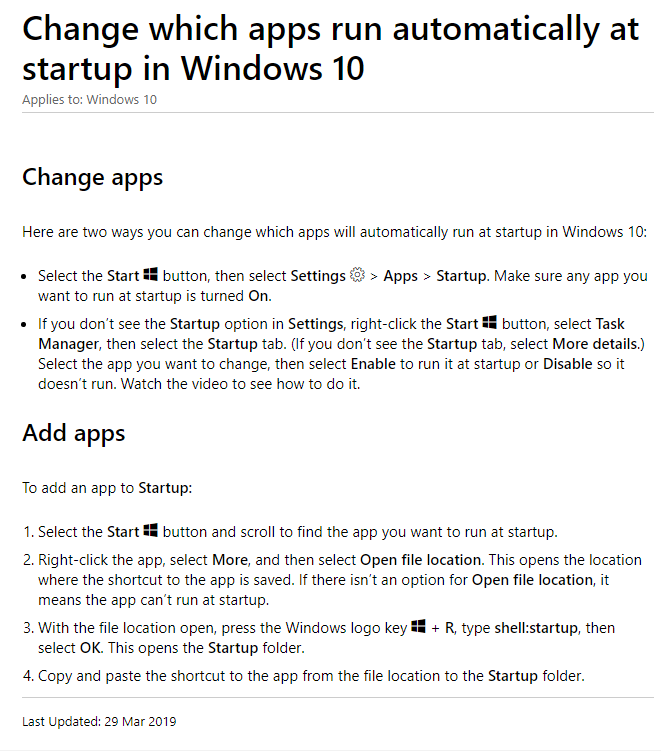
<span style="font-family: Helvetica,sans-serif;"><span style="font-size: 14pt; color: rgb(0, 0, 0); font-weight: 300;">Configure your system to start T3RRA software on startup. There are several ways to do this. Google will provide many answers. See below for answers from Microsoft at </span>[<span style="font-size: 14pt; color: rgb(17, 85, 204); font-weight: 300; text-decoration-skip-ink: none;">https://support.microsoft.com/en-au/help/4026268/windows-10-change-startup-apps</span>](https://support.microsoft.com/en-au/help/4026268/windows-10-change-startup-apps)</span>

<span style="font-family: Helvetica,sans-serif;">  
</span>

<span style="font-family: Helvetica,sans-serif;"><span style="font-size: 14pt; color: rgb(0, 0, 0); font-weight: 300;">**Note**: If you are asked to copy the T3RRA software program file to a startup location DO NOT copy an actual executable file from any of the T3RRA software program directories. Copy the shortcut that is on the Windows desktop instead. Alternatively, create a shortcut pointing to the executable file and copy it. Note that the executable file that the shortcut must point to will normally be in a folder with two subfolders named ‘d’ and ‘v’ (see below for T3RRA Cutta’s program file, other software will be named similarly, according to the application name).</span></span>

<span style="font-family: Helvetica,sans-serif;">  
</span>

<span dir="ltr" style="font-family: Helvetica,sans-serif;">![](https://docs.t3rra.com/uploads/images/gallery/2025-03/scaled-1680-/gzvnxpreptds4ur3txxozorjys6e4mvdhg-png.png) </span><span style="font-family: Helvetica,sans-serif;">  
</span>

<span style="font-family: Helvetica,sans-serif;"><span dir="ltr" style="font-size: 14pt; color: rgb(255, 0, 0); font-weight: 300;">Important: you should be familiar with working with files in Windows in order to apply this fix. Mistakes while performing these types of activities can cause serious system problems. If you are not confident of your abilities please contact T3RRA or your dealer.</span></span>

![](https://docs.t3rra.com/uploads/images/gallery/2025-03/scaled-1680-/gojbh901tj3p-oogut5elkwdiwgsln0rq-png.png)

# Can’t find an onscreen keyboard.

<span dir="ltr" style="font-size: 14pt; font-family: Helvetica, sans-serif; color: rgb(0, 0, 0); font-weight: 400;">**Symptoms**:</span>

<span style="font-family: Helvetica,sans-serif;"><span style="font-size: 14pt; color: rgb(0, 0, 0); font-weight: 300;">You need to enter text (like a filename) while running T3RRA software but you can’t figure out how to.</span></span>

<span style="font-family: Helvetica,sans-serif;">  
</span>

<span style="font-family: Helvetica,sans-serif;"><span style="font-size: 14pt; color: rgb(0, 0, 0); font-weight: 400;">**Cause**:</span></span>

<span style="font-family: Helvetica,sans-serif;"><span style="font-size: 14pt; color: rgb(0, 0, 0); font-weight: 300;">Microsoft Windows has at least one onscreen keyboard available to use for text input on tablets. However it can sometimes be challenging to find it.</span></span>

<span style="font-family: Helvetica,sans-serif;">  
</span>

<span style="font-family: Helvetica,sans-serif;"><span style="font-size: 14pt; color: rgb(0, 0, 0); font-weight: 300;">Windows may be set to desktop mode and the Keyboard won't automatically open when a text box is selected,</span></span>

<span style="font-family: Helvetica,sans-serif;">  
</span>

<span style="font-family: Helvetica,sans-serif;"><span style="font-size: 14pt; color: rgb(0, 0, 0); font-weight: 400;">**Solutions**:</span></span>

<span style="font-family: Helvetica,sans-serif;"><span style="font-size: 14pt; color: rgb(0, 0, 0); font-weight: 300;">There are 2 current solutions to this problem.</span></span>

<span style="font-family: Helvetica,sans-serif;">  
</span>

1. <span style="font-family: Helvetica,sans-serif;"><span style="font-size: 14pt; color: rgb(0, 0, 0); font-weight: 300;">Plug a physical keyboard into your tablet</span></span>  
    <span style="font-family: Helvetica,sans-serif;">  
    </span>
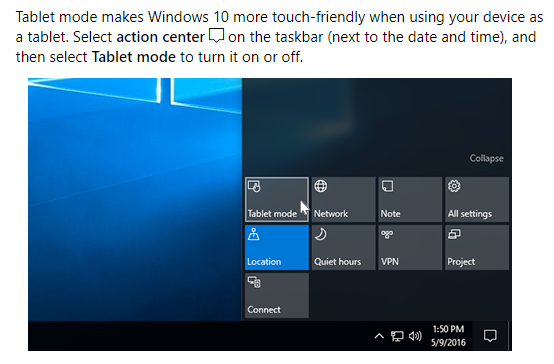
2. <span style="font-family: Helvetica,sans-serif;"><span style="font-size: 14pt; color: rgb(0, 0, 0); font-weight: 300;">Swipe in from the “right” side of the screen and check if tablet mode is on/off, the icon should be highlighted blue if tablet mode is on.</span></span>  
    <span dir="ltr" style="font-size: 14pt; font-family: Helvetica, sans-serif; color: rgb(0, 0, 0); font-weight: 300;">If tablet mode is on press the small image of a keyboard on the task bar in the lower right corner of the screen (in case you have moved the taskbar the keyboard icon should be next to the clock).</span>
3. <span dir="ltr" style="font-size: 14pt; font-family: Helvetica, sans-serif; color: rgb(0, 0, 0); font-weight: 300;">The onscreen keyboard may not be enabled. Go into Settings&gt;Devices&gt;Typing and scroll down to find a toggle option labelled "Show the touch keyboard when not in tablet mode and there's no keyboard attached".</span>

# T3RRA software will not install

<span data-identifyelement="491" dir="ltr" style="font-size: 14pt; font-family: Helvetica, sans-serif; color: rgb(0, 0, 0); font-weight: 400;">**Symptoms:**</span>

<span data-identifyelement="494" style="font-family: Helvetica,sans-serif;"><span data-identifyelement="495" style="font-size: 14pt; color: rgb(0, 0, 0); font-weight: 300;">Installation proceeds smoothly. However, when attempting to run the software it will not start. The program shortcut icon may disappear. Subsequent attempts to re-install may throw errors indicating the user does not have sufficient permissions to perform file writing or folder accessing tasks.</span></span>

<span data-identifyelement="497" style="font-family: Helvetica,sans-serif;">  
</span>

<span data-identifyelement="500" style="font-family: Helvetica,sans-serif;"><span data-identifyelement="501" style="font-size: 14pt; color: rgb(0, 0, 0); font-weight: 400;">**Cause:**</span></span>

<span data-identifyelement="504" style="font-family: Helvetica,sans-serif;"><span data-identifyelement="505" style="font-size: 14pt; color: rgb(0, 0, 0); font-weight: 300;">It is likely that you are running some type of anti-virus or malware protection software. This software may be seeing T3RRA software as a potential threat and refusing to run it. Alternatively, your administrative settings may be such that software cannot be installed without help from your system administrator.</span></span>

<span data-identifyelement="507" style="font-family: Helvetica,sans-serif;">  
</span>

<span data-identifyelement="510" style="font-family: Helvetica,sans-serif;"><span data-identifyelement="511" style="font-size: 14pt; color: rgb(0, 0, 0); font-weight: 400;">**Solutions:**</span></span>

1. <span data-identifyelement="515" style="font-size: 14pt; font-family: Helvetica, sans-serif; color: rgb(0, 0, 0); font-weight: 300;">Read the documentation provided with your malware protection software. Follow directions to allow the T3RRA software to run as a whitelisted application. The path to add as an exclusion is:</span>  
    <span data-identifyelement="517" dir="ltr" style="font-size: 18px; font-family: "Courier New"; color: rgb(0, 0, 0); font-weight: 400;"> C:\\Users\\YourUserName\\AppData\\Local\\T3RRA\\</span>
2. <span data-identifyelement="519" style="font-size: 14pt; font-family: Helvetica, sans-serif; color: rgb(0, 0, 0); font-weight: 300;">Alternatively, uninstall your malware product and install the T3RRA software while it is uninstalled. Then re-install your malware software.</span>
3. <span data-identifyelement="521" dir="ltr" style="font-size: 14pt; font-family: Helvetica, sans-serif; color: rgb(0, 0, 0); font-weight: 300;">Seek advice from your system administrator.</span>

# T3RRA software is not updating

<span dir="ltr" style="font-size: 14pt; font-family: Helvetica, sans-serif; color: rgb(0, 0, 0); font-weight: 400;">**Symptoms**:</span>

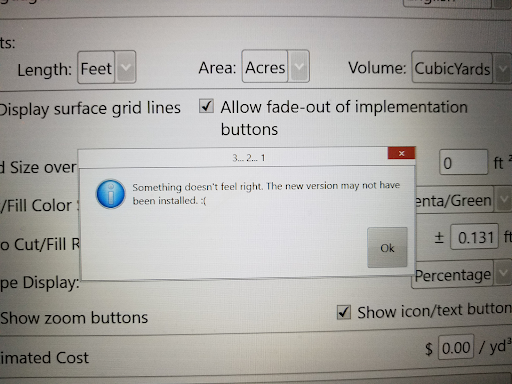
<span style="font-family: Helvetica,sans-serif;"><span style="font-size: 14pt; color: rgb(0, 0, 0); font-weight: 300;">When attempting to update T3RRA software using the normal method in the Settings area an error message like the following appears. You appear to have a good internet connection.</span></span>

![](https://docs.t3rra.com/uploads/images/gallery/2025-03/scaled-1680-/0msrhlamhkazdhdqd5jf91nenpv5hcyqyq-png.png)

<span style="font-family: Helvetica,sans-serif;"><span style="font-size: 14pt; color: rgb(0, 0, 0); font-weight: 400;">**Cause**:</span></span>

<span style="font-family: Helvetica,sans-serif;"><span style="font-size: 14pt; color: rgb(0, 0, 0); font-weight: 300;">If you are on a corporate network it might be configured not to allow access to certain websites. Our download server may not be on an approved whitelist.</span></span>

<span style="font-family: Helvetica,sans-serif;">  
</span>

<span style="font-family: Helvetica,sans-serif;"><span style="font-size: 14pt; color: rgb(0, 0, 0); font-weight: 400;">**Solution**:</span></span>

<span dir="ltr" style="font-size: 14pt; font-family: Helvetica, sans-serif; color: rgb(0, 0, 0); font-weight: 300;">Request help from the company network administrators. Alternatively switch to another network (such as by tethering the tablet to your phone’s internet signal).</span>

# In-cab tablet is too small to design on effectively

<span dir="ltr" style="font-size: 14pt; font-family: Helvetica, sans-serif; color: rgb(0, 0, 0); font-weight: 400;">**Symptoms**:</span>

<span style="font-family: Helvetica,sans-serif;"><span style="font-size: 14pt; color: rgb(0, 0, 0); font-weight: 300;">You are having difficulty performing designs on a tablet screen that is 10 or 12 inches in size.</span></span>

<span style="font-family: Helvetica,sans-serif;">  
</span>

<span style="font-family: Helvetica,sans-serif;"><span style="font-size: 14pt; color: rgb(0, 0, 0); font-weight: 400;">**Cause**:</span></span>

<span style="font-family: Helvetica,sans-serif;"><span style="font-size: 14pt; color: rgb(0, 0, 0); font-weight: 300;">Small screens can be difficult to work with, particularly for anyone with impaired vision.</span></span>

<span style="font-family: Helvetica,sans-serif;">  
</span>

<span style="font-family: Helvetica,sans-serif;"><span style="font-size: 14pt; color: rgb(0, 0, 0); font-weight: 400;">**Solution**:</span></span>

<span dir="ltr" style="font-size: 14pt; font-family: Helvetica, sans-serif; color: rgb(0, 0, 0); font-weight: 300;">Take the tablet back to your office. Plug the tablet into a large PC monitor or TV. Most tablets will have an HDMI connector for this purpose. Consult your local IT retail firm regarding cables or adapters required. Duplicate your tablet screen on the external monitor. </span>

# Tablet is in ‘Tablet Mode’ and you can’t find the desktop icon for your T3RRA Software

<span dir="ltr" style="font-size: 14pt; font-family: Helvetica, sans-serif; color: rgb(0, 0, 0); font-weight: 400;">**Symptoms**:</span>

<span style="font-family: Helvetica,sans-serif;"><span dir="ltr" style="font-size: 14pt; color: rgb(0, 0, 0); font-weight: 300;">The screen on your tablet when T3RRA Cutta is not running appears different from what you expect. It does not display the regular Windows desktop. You are unable to find the T3RRA software icon to activate your T3RRA software.</span></span>

![](https://docs.t3rra.com/uploads/images/gallery/2025-03/scaled-1680-/pkzetek94cvi1eisubq6bz17lrkpynck2w-png.png)

<span style="font-family: Helvetica,sans-serif;"><span style="font-size: 14pt; color: rgb(0, 0, 0); font-weight: 400;">**Cause**:</span></span>

<span style="font-family: Helvetica,sans-serif;"><span style="font-size: 14pt; color: rgb(0, 0, 0); font-weight: 300;">Your tablet has been somehow placed in ‘Tablet’ mode.</span></span>

<span style="font-family: Helvetica,sans-serif;">  
</span>

<span style="font-family: Helvetica,sans-serif;"><span style="font-size: 14pt; color: rgb(0, 0, 0); font-weight: 400;">**Solution**:</span></span>

<span style="font-family: Helvetica,sans-serif;"><span style="font-size: 14pt; color: rgb(0, 0, 0); font-weight: 300;">Turn off tablet mode.</span></span>

<span dir="ltr" style="font-size: 14pt; font-family: Helvetica, sans-serif; color: rgb(0, 0, 0); font-weight: 300;">![](https://docs.t3rra.com/uploads/images/gallery/2025-03/scaled-1680-/fazdspc7zipcv6qppkflub8wa7ed6eylka-png.png)</span>

# Access to the port ‘COM X’ is denied.

<span dir="ltr" style="font-size: 14pt; font-family: Helvetica, sans-serif; color: rgb(255, 0, 0); font-weight: 300;">See also: “[Mouse Pointer flickers across screen randomly](https://t3rra-help.freshdesk.com/en/support/solutions/articles/51000330204-mouse-pointer-flickers-across-the-screen-randomly)”.</span>

<span style="font-family: Helvetica,sans-serif;">  
</span>

<span style="font-family: Helvetica,sans-serif;"><span style="font-size: 14pt; color: rgb(0, 0, 0); font-weight: 400;">**Symptoms**:</span></span>

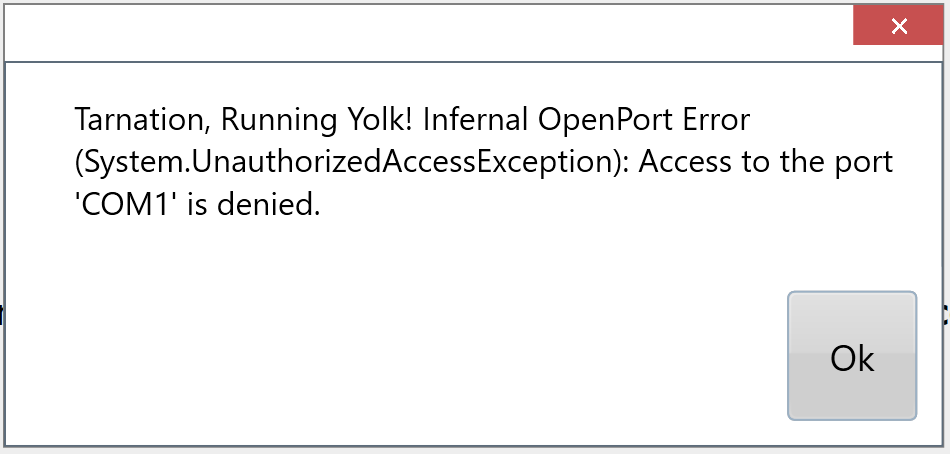
<span style="font-family: Helvetica,sans-serif;"><span style="font-size: 14pt; color: rgb(0, 0, 0); font-weight: 300;">The following message appears.</span></span>

<span dir="ltr" style="font-family: Helvetica,sans-serif;">![](https://docs.t3rra.com/uploads/images/gallery/2025-03/scaled-1680-/bqnlcyjmwjfo4rdo3jlrkga3jovemhwrdw-png.png)</span>

<span style="font-family: Helvetica,sans-serif;"><span style="font-size: 14pt; color: rgb(0, 0, 0); font-weight: 400;">**Cause**:</span></span>

<span style="font-family: Helvetica,sans-serif;"><span style="font-size: 14pt; color: rgb(0, 0, 0); font-weight: 300;">This message generally occurs when an attempt is made to open a serial connection to iGrade or directly to a GPS, but the serial port in question is already being used by another piece of software. </span></span>

<span style="font-family: Helvetica,sans-serif;">  
</span>

<span style="font-family: Helvetica,sans-serif;">  
</span>

<span style="font-family: Helvetica,sans-serif;"><span style="font-size: 14pt; color: rgb(0, 0, 0); font-weight: 400;">**Solutions**:</span></span>

1. <span style="font-family: Helvetica,sans-serif;"><span style="font-size: 14pt; color: rgb(0, 0, 0); font-weight: 300;">Check that no other software is running on the tablet and already using the port.</span></span>
2. <span style="font-family: Helvetica,sans-serif;"><span style="font-size: 14pt; color: rgb(0, 0, 0); font-weight: 300;">Check the connection of the cable to the tablet. </span></span>
3. <span style="font-family: Helvetica,sans-serif;"><span style="font-size: 14pt; color: rgb(0, 0, 0); font-weight: 300;">Power down the tablet running T3RRA and the tractor. Next, remove the serial cable or USB-Serial cable from the tablet. Turn on the tablet and start T3RRA. Once you are looking at the GPS screen, plug in the cable. Now, start up the tractor.</span></span>

<span style="font-family: Helvetica,sans-serif;">  
</span>

<span style="font-family: Helvetica,sans-serif;"><span style="font-size: 14pt; color: rgb(0, 0, 0); font-weight: 300;">Plug all cables for iGrade in before starting the tractor. In other words, the tractor needs to be OFF until iGrade is plugged in and the T3RRA tablet is powered on.</span></span>

<span style="font-family: Helvetica,sans-serif;"><span style="font-size: 14pt; color: rgb(0, 0, 0); font-weight: 300;">  
The tablets that do not have true dedicated serial ports require USB-to-serial cables which create 'virtual' COM ports. Best practice is to update the USB-to-serial cable driver before initial use of T3RRA in-field.</span></span>

<span style="font-family: Helvetica,sans-serif;"><span style="font-size: 14pt; color: rgb(0, 0, 0); font-weight: 300;">Steps:</span></span>

1. <span style="font-family: Helvetica,sans-serif;"><span style="font-size: 14pt; color: rgb(0, 0, 0); font-weight: 300;">Turn on the tablet that has T3RRA installed.</span></span>
2. <span style="font-family: Helvetica,sans-serif;"><span style="font-size: 14pt; color: rgb(0, 0, 0); font-weight: 300;">Connect to the internet.</span></span>
3. <span style="font-family: Helvetica,sans-serif;"><span style="font-size: 14pt; color: rgb(0, 0, 0); font-weight: 300;">Insert your USB to Serial cable.</span></span>
4. <span style="font-family: Helvetica,sans-serif;"><span style="font-size: 14pt; color: rgb(0, 0, 0); font-weight: 300;">Select Settings, then GPS Port settings, click on 'Device Manager'.</span></span>
5. <span style="font-family: Helvetica,sans-serif;"><span style="font-size: 14pt; color: rgb(0, 0, 0); font-weight: 300;">When the Device Manager window opens, locate 'Ports (COM &amp; LPT)'.\*</span></span>
6. <span style="font-family: Helvetica,sans-serif;"><span style="font-size: 14pt; color: rgb(0, 0, 0); font-weight: 300;">Click on 'Ports (COM &amp; LPT)' to show which COM port has been assigned.</span></span>
7. <span style="font-family: Helvetica,sans-serif;"><span style="font-size: 14pt; color: rgb(0, 0, 0); font-weight: 300;">Right click on 'COM Port'.</span></span>
8. <span style="font-family: Helvetica,sans-serif;"><span style="font-size: 14pt; color: rgb(0, 0, 0); font-weight: 300;">Select 'Update Driver'. You will be notified once the software has been updated or if it has the current driver.</span></span>
9. <span style="font-family: Helvetica,sans-serif;"><span style="font-size: 14pt; color: rgb(0, 0, 0); font-weight: 300;">Set the COM port in T3RRA GPS Port Settings to correct port from the drop down.</span></span>

<span style="font-family: Helvetica,sans-serif;"><span style="font-size: 14pt; color: rgb(0, 0, 0); font-weight: 300;">\*NOTE: If ‘Port” is not in the list, you may need to download the driver from the product website and install manually. We ONLY recommend FTDI USB to Serial Port adapters. This is the URL to download the FTDI Setup executable file: </span></span>[<span dir="ltr" style="font-size: 14pt; font-family: Helvetica, sans-serif; color: rgb(17, 85, 204); font-weight: 300; text-decoration-skip-ink: none;">https://ftdichip.com/wp-content/uploads/2021/08/CDM212364\_Setup.zip</span>](https://ftdichip.com/wp-content/uploads/2021/08/CDM212364_Setup.zip)

# iGrade dropping out during work

**Symptoms**:

iGrade is dropping its connection during work.

**Possible cause**:

To much data is being processed.

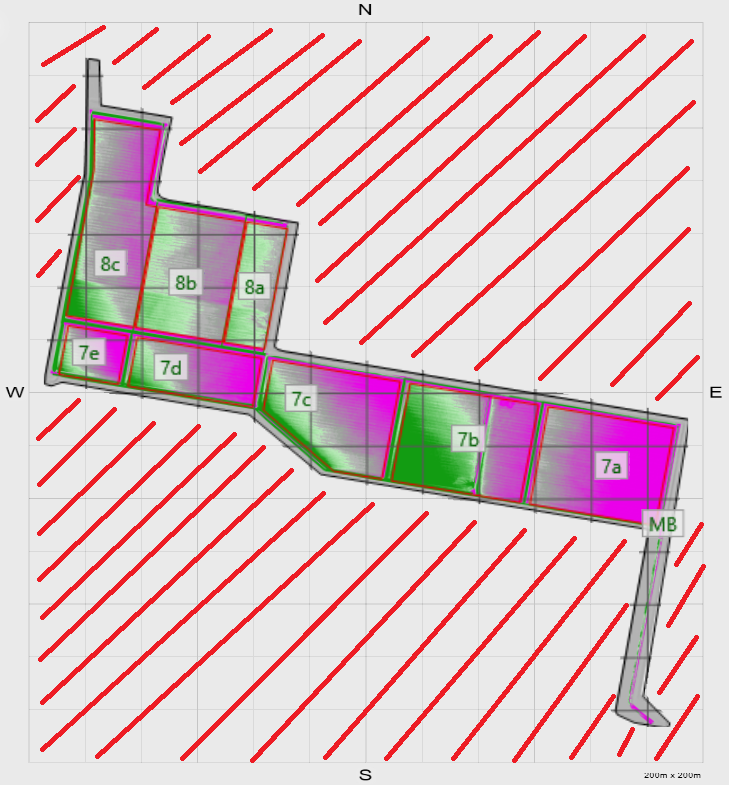
In-Cab software automatically orientates to the north, and is recorded as a square. If the surveyed field is at an angle to north it will be save additional data as invisible points to fill empty space, shown in the red hatched section of the below image.
![](https://docs.t3rra.com/uploads/images/gallery/2025-03/scaled-1680-/ygpb3025bpkklu8qustnchqyekk8h7odsq-png.png)

**Solutions**:

Separate the field into smaller sections using the [Regions tool](https://t3rra-help.freshdesk.com/en/support/solutions/articles/51000330086-regions), and "turn off" the sections that are not currently being applied.