# Surfacing

<span style="font-family: Helvetica,sans-serif;">  
</span>

<span dir="ltr" style="font-family: Helvetica,sans-serif;">![](https://docs.t3rra.com/uploads/images/gallery/2025-03/scaled-1680-/CGprftr0dofpbh73gyn0b-zchmrhn6bfa-yna-png.png)</span>

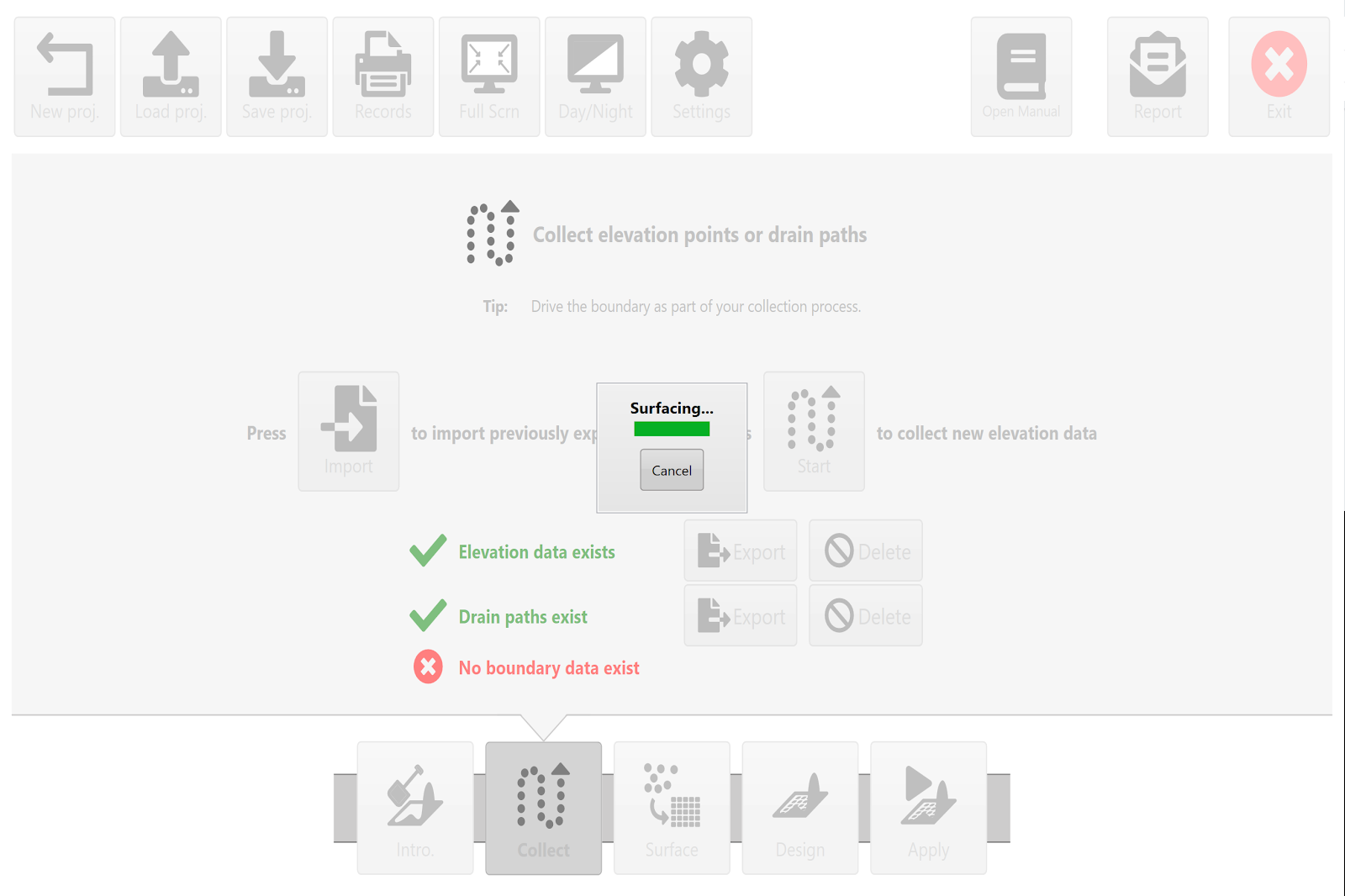
<span dir="ltr" style="font-family: Helvetica,sans-serif;"><span dir="ltr" style="font-size: 14pt; color: rgb(0, 0, 0); font-weight: 300;">"**Surfacing**" is a term used to describe the process of creating a continuous map (i.e., a “surface”) from all the discrete elevation data points collected in the '</span><span style="font-size: 14pt; color: rgb(0, 0, 0); font-weight: 400;">**Collect**</span><span dir="ltr" style="font-size: 14pt; color: rgb(0, 0, 0); font-weight: 300;">' wizard step. </span></span>

<span dir="ltr" style="font-family: Helvetica,sans-serif;"><span dir="ltr" style="font-size: 14pt; color: rgb(0, 0, 0); font-weight: 300;">This is done so that every location in the field (or work area) has an elevation point associated with it, not just the places where GPS data was physically collected. The software estimates values in all the blank areas between the survey dots. </span></span>

<span dir="ltr" style="font-family: Helvetica,sans-serif;"><span dir="ltr" style="font-size: 14pt; color: rgb(0, 0, 0); font-weight: 300;">For every blank position on the map it looks a set distance in every direction to find actual surveyed points. This distance is called the ‘</span><span style="font-size: 14pt; color: rgb(0, 0, 0); font-weight: 400;">**Search radius**</span><span style="font-size: 14pt; color: rgb(0, 0, 0); font-weight: 300;">’. Once it finds enough points it will estimate the blank location based on these points.</span></span>

<span style="font-family: Helvetica,sans-serif;">  
</span>

<span style="font-family: Helvetica,sans-serif;"><span style="font-size: 14pt; color: rgb(0, 0, 0); font-weight: 300;">Upon exiting the '</span><span style="font-size: 14pt; color: rgb(0, 0, 0); font-weight: 400;">**Collect**</span><span style="font-size: 14pt; color: rgb(0, 0, 0); font-weight: 300;">' step, T3RRA will attempt to automatically calculate the best search radius and create a surface from the collected data. If you wish to view the surfaced data before going to the ‘</span><span style="font-size: 14pt; color: rgb(0, 0, 0); font-weight: 400;">**Design**</span><span style="font-size: 14pt; color: rgb(0, 0, 0); font-weight: 300;">’ wizard step, pressing the '</span><span style="font-size: 14pt; color: rgb(0, 0, 0); font-weight: 400;">**Surface**</span><span style="font-size: 14pt; color: rgb(0, 0, 0); font-weight: 300;">' wizard button (at screen bottom) will allow you to both view it and make manual changes (if it does not match your expectations). </span></span>

<span style="font-family: Helvetica,sans-serif;"><span dir="ltr" style="font-size: 14pt; color: rgb(0, 0, 0); font-weight: 300;">**NOTE**: If you make a change to the collected elevation points (for example: by deleting a drain) you should re-run the surfacing step.</span></span>

![](https://docs.t3rra.com/uploads/images/gallery/2025-03/scaled-1680-/QO4ezhk29xgk1ntijdq0p0hujcozfnj7sfnha-png.png)