# Saving and Auto-saving

## <span dir="ltr" style="font-size: 24pt; font-family: Oswald, sans-serif; color: rgb(0, 0, 0); font-weight: 400;">Save project</span>

## <span dir="ltr" style="font-size: 14pt; font-family: Helvetica, sans-serif; color: rgb(0, 0, 0); font-weight: 300;">![](https://docs.t3rra.com/uploads/images/gallery/2025-03/scaled-1680-/FzSppuxvynngmlsf6-hdc0nulmpt8wqr5ug1g-png.png)Saving a project allows you to return to it at a later time and ensures that you have a copy of the data in case of accidents. We</span><span style="font-family: Helvetica,sans-serif;"><span style="font-size: 14pt; color: rgb(0, 0, 0); font-weight: 400;"> **STRONGLY**</span><span style="font-size: 14pt; color: rgb(0, 0, 0); font-weight: 300;"> recommend periodic saving of your projects in order to guard against data loss.</span></span>

<span style="font-family: Helvetica,sans-serif;">  
</span>

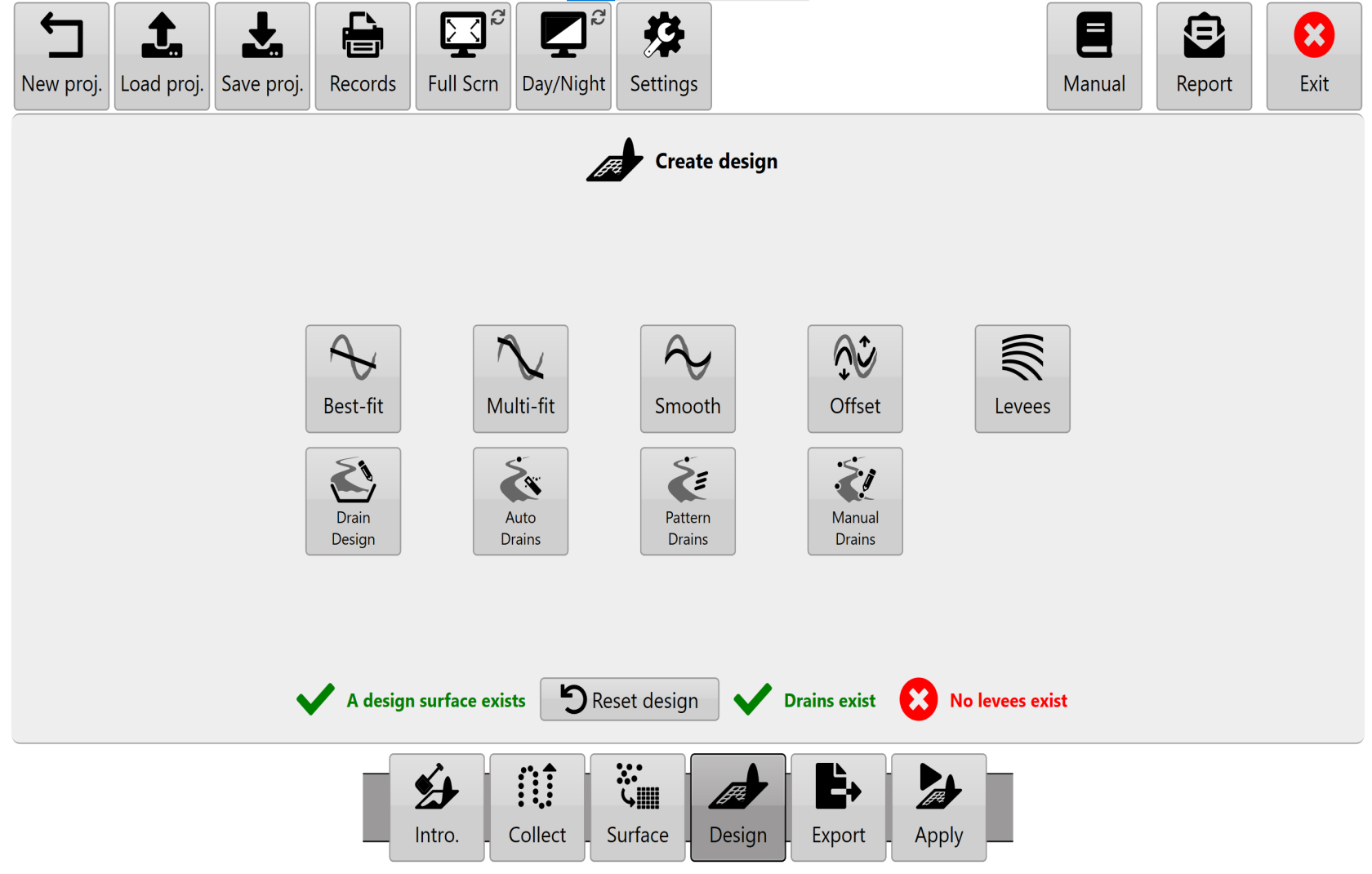
<span style="font-family: Helvetica,sans-serif;"><span dir="ltr" style="font-size: 14pt; color: rgb(0, 0, 0); font-weight: 300;">![](https://docs.t3rra.com/uploads/images/gallery/2025-03/scaled-1680-/q35whglft-fs7bvkseuosnqmx36z2ktfvhang-png.png)The ‘</span><span style="font-size: 14pt; color: rgb(0, 0, 0); font-weight: 400;">**Save project**</span><span style="font-size: 14pt; color: rgb(0, 0, 0); font-weight: 300;">’ button can be found in the top left corner on any of the main wizard pages.</span></span>

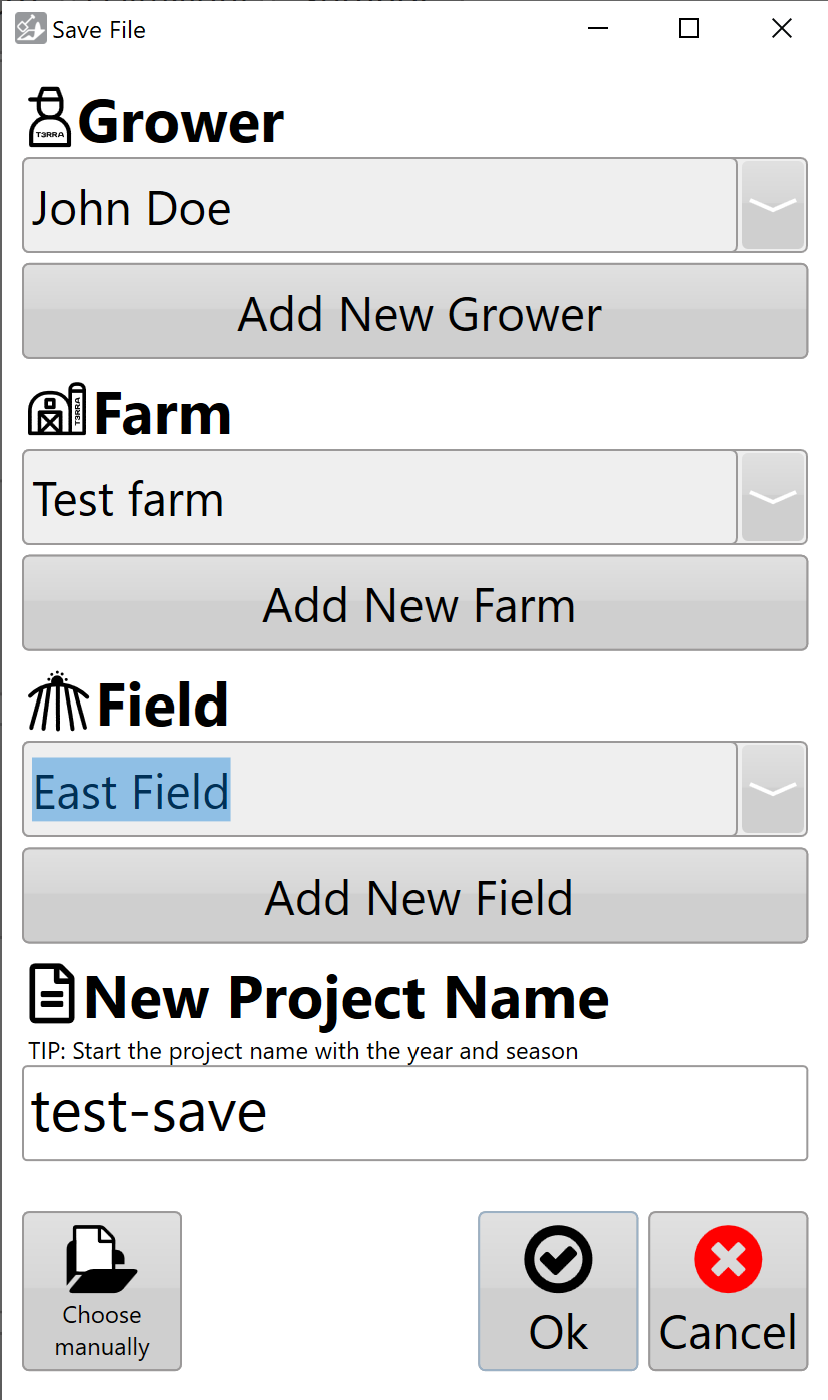
<span style="font-family: Helvetica,sans-serif;"><span dir="ltr" style="font-size: 14pt; color: rgb(0, 0, 0); font-weight: 300;">![](https://docs.t3rra.com/uploads/images/gallery/2025-03/scaled-1680-/9jRx0kbz6kzqmqpi8vf3jrlrk7mz8wrxyhwhg-png.png)The '</span><span style="font-size: 14pt; color: rgb(0, 0, 0); font-weight: 400;">**Save proj.**</span><span dir="ltr" style="font-size: 14pt; color: rgb(0, 0, 0); font-weight: 300;">' button presents you with a screen that allows you to save using the following structure.</span></span>

<span style="font-family: Helvetica,sans-serif;"><span style="font-size: 14pt; color: rgb(0, 0, 0); font-weight: 300;">You can enter:</span></span>

- <span style="font-family: Helvetica,sans-serif;"><span style="font-size: 14pt; color: rgb(0, 0, 0); font-weight: 300;">Grower</span></span>
- <span style="font-family: Helvetica,sans-serif;"><span style="font-size: 14pt; color: rgb(0, 0, 0); font-weight: 300;">Farm Name</span></span>
- <span style="font-family: Helvetica,sans-serif;"><span style="font-size: 14pt; color: rgb(0, 0, 0); font-weight: 300;">Field Name</span></span>
- <span style="font-family: Helvetica,sans-serif;"><span style="font-size: 14pt; color: rgb(0, 0, 0); font-weight: 300;">Project Name</span></span>

<span style="font-family: Helvetica,sans-serif;"><span style="font-size: 14pt; color: rgb(0, 0, 0); font-weight: 300;">Or you can choose a previously saved value in any of the fields from the drop down list.</span></span>

<span style="font-family: Helvetica,sans-serif;">  
</span>

<span style="font-family: Helvetica,sans-serif;"><span style="font-size: 14pt; color: rgb(0, 0, 0); font-weight: 300;">Pressing the final '</span><span style="font-size: 14pt; color: rgb(0, 0, 0); font-weight: 400;">**Ok**</span><span style="font-size: 14pt; color: rgb(0, 0, 0); font-weight: 300;">' will save the project and add the file T3RRA’s structured file saving area.</span></span>

<span style="font-family: Helvetica,sans-serif;">  
</span>

<span style="font-family: Helvetica,sans-serif;"><span style="font-size: 14pt; color: rgb(0, 0, 0); font-weight: 300;">'</span><span style="font-size: 14pt; color: rgb(0, 0, 0); font-weight: 400;">**Manually Choose Location**</span><span style="font-size: 14pt; color: rgb(0, 0, 0); font-weight: 300;">' allows you to select an alternate location to save to.</span></span>

<span dir="ltr" style="font-family: Helvetica,sans-serif;">  
</span>

![](https://docs.t3rra.com/uploads/images/gallery/2025-03/scaled-1680-/BaG4pkpclrl6vetfabh-ombwdioce3cpvoysw-png.png)

<span style="font-family: Helvetica,sans-serif;">  
</span>

<span style="font-family: Helvetica,sans-serif;"><span style="font-size: 14pt; color: rgb(0, 0, 0); font-weight: 300;">When manually choosing the save location there are two ways of navigating to where you would like to save the file.</span></span>

1. <span style="font-family: Helvetica,sans-serif;"><span style="font-size: 14pt; color: rgb(0, 0, 0); font-weight: 300;">You can use the left portion of the window to navigate through folders to find the desired save location.  
      
    </span></span>
2. <span style="font-family: Helvetica,sans-serif;"><span dir="ltr" style="font-size: 14pt; color: rgb(0, 0, 0); font-weight: 300;">Using the main section in the centre of the window you can navigate to the desired file save location.</span></span>

<span style="font-family: Helvetica,sans-serif;"><span style="font-size: 14pt; color: rgb(0, 0, 0); font-weight: 300;">Once you have navigated to the location where you would like to save the file, enter a name for the file and press the save button.</span></span>

<span style="font-family: Helvetica,sans-serif;">  
</span>

<span style="font-family: Helvetica,sans-serif;"><span style="font-size: 14pt; color: rgb(255, 0, 0); font-weight: 300;">NOTE: Project files are normal Windows files and can be stored anywhere on the computer. We recommend that you regularly copy your files to a location off the in-cab tablet in order to have them stored safely in case anything happens to your tablet.</span></span>

### <span style="font-size: 24pt; font-family: Oswald, sans-serif; color: rgb(0, 0, 0); font-weight: 400;">Autosaving</span>

<span dir="ltr" style="font-size: 14pt; font-family: Helvetica, sans-serif; color: rgb(0, 0, 0); font-weight: 300;">T3RRA software autosaves project data, You can adjust the frequency level in settings under the advanced tab. This is to assist in case of accidentally closing the software, or software or hardware failure.</span>

<span style="font-family: Helvetica,sans-serif;">  
</span>

<span style="font-family: Helvetica,sans-serif;"><span style="font-size: 14pt; color: rgb(0, 0, 0); font-weight: 300;">Autosave files have the same name and location as the open project, with the additional suffix ‘.backup’.</span></span>

<span style="font-family: Helvetica,sans-serif;">  
</span>

![](https://docs.t3rra.com/uploads/images/gallery/2025-03/scaled-1680-/z6joaqe05ap9sysucaciimjxg7ck3xnwvpwmw-png.png)

<span style="font-family: Helvetica,sans-serif;">  
</span>

<span style="font-family: Helvetica,sans-serif;"><span style="font-size: 14pt; color: rgb(0, 0, 0); font-weight: 300;">When a project is loaded a check is made to see if a backup exists for that project. If it does and the backup has a newer date/time stamp associated with it, you will be given the option of loading it.</span></span>

<span style="font-family: Helvetica,sans-serif;">  
</span>

<span dir="ltr" style="font-size: 14pt; font-family: Helvetica, sans-serif; color: rgb(0, 0, 0); font-weight: 300;">An autosave file has the same format as a regular project. From within Windows Explorer you can rename the autosave file and remove the .backup extension in order to keep both the original file and the autosaved version.</span>