# Loading Projects

<span dir="ltr" style="font-size: 14pt; font-family: Helvetica, sans-serif; color: rgb(0, 0, 0); font-weight: 300;">![](https://docs.t3rra.com/uploads/images/gallery/2025-03/scaled-1680-/g1dwlxqvu6k5nac0vxgd8rkykyu91ttyjqvpa-png.png)The ‘Load proj.’ button is used to load any saved T3RRA projects. T3RRA projects can be loaded in several different ways, allowing you to load files saved directly to your tablet or from external sources such as USB’s.</span>

<span style="font-family: Helvetica,sans-serif;"><span dir="ltr" style="font-size: 14pt; color: rgb(0, 0, 0); font-weight: 300;">To load a project press the '</span><span style="font-size: 14pt; color: rgb(0, 0, 0); font-weight: 400;">**Load proj.**</span><span style="font-size: 14pt; color: rgb(0, 0, 0); font-weight: 300;">' button in the top left corner or bottom center of the main/new project screen.</span></span>

<span dir="ltr" style="font-family: Helvetica,sans-serif;">![](https://docs.t3rra.com/uploads/images/gallery/2025-03/scaled-1680-/qDqdxd87ev-j3eoxjfz8tsxq6-apnlilth2wa-png.png)</span>

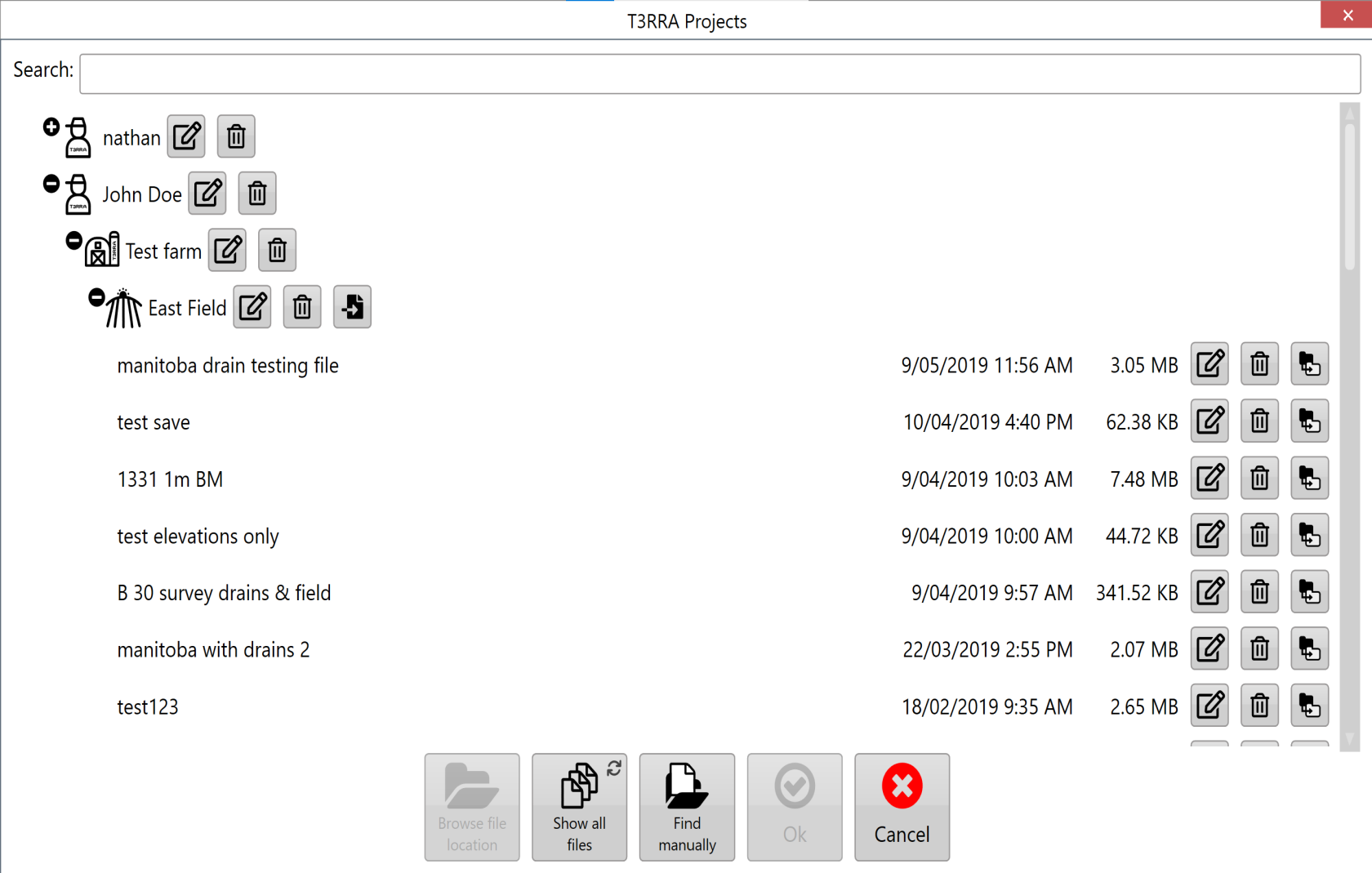
<span style="font-family: Helvetica,sans-serif;"><span style="font-size: 14pt; color: rgb(0, 0, 0); font-weight: 300;">Select the project that you wish to load from the desired field and press '</span><span style="font-size: 14pt; color: rgb(0, 0, 0); font-weight: 400;">**OK**</span><span style="font-size: 14pt; color: rgb(0, 0, 0); font-weight: 300;">'</span></span>

<span style="font-family: Helvetica,sans-serif;"><span style="font-size: 14pt; color: rgb(0, 0, 0); font-weight: 300;">The ‘Grower/Farm/Field’ file structure allows for projects to be easily organized. For more information on these profiles and how they are set up see later in this section.</span></span>

<span style="font-family: Helvetica,sans-serif;"><span dir="ltr" style="font-size: 14pt; color: rgb(0, 0, 0); font-weight: 300;">Next to each file there are 3 buttons: </span></span>

- <span style="font-family: Helvetica,sans-serif;"><span style="font-size: 14pt; color: rgb(0, 0, 0); font-weight: 300;">![](https://docs.t3rra.com/uploads/images/gallery/2025-03/scaled-1680-/QC17sbmiv-xoyoqbdrdy-t-wl1wijewnf8ojq-png.png)The left button with an image of a pencil and paper is a file renaming option.</span></span>
- <span style="font-family: Helvetica,sans-serif;"><span style="font-size: 14pt; color: rgb(0, 0, 0); font-weight: 300;">The center button with a trash can is a delete option allowing you to remove that file. Deleted files are moved to the Windows Recycling Bin.</span></span>
- <span style="font-family: Helvetica,sans-serif;"><span style="font-size: 14pt; color: rgb(0, 0, 0); font-weight: 300;">The right button with the image of 2 folders is a file moving option, this brings up the same window you have when saving a file in T3RRA software allowing you to move the project to a new location.</span></span>

![](https://docs.t3rra.com/uploads/images/gallery/2025-03/scaled-1680-/CE0yhrldvcpamd9ru-z1xogz0etku8vxfqlqw-png.png)

<span style="font-family: Helvetica,sans-serif;">  
</span>

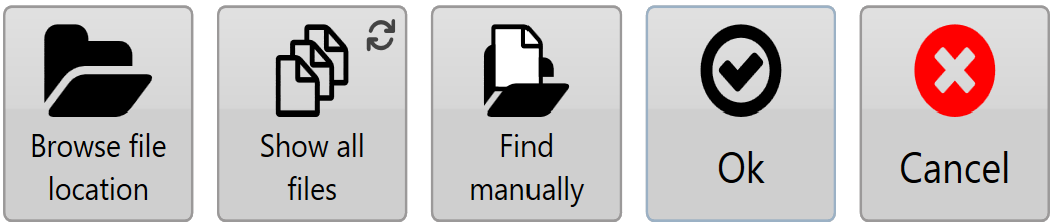
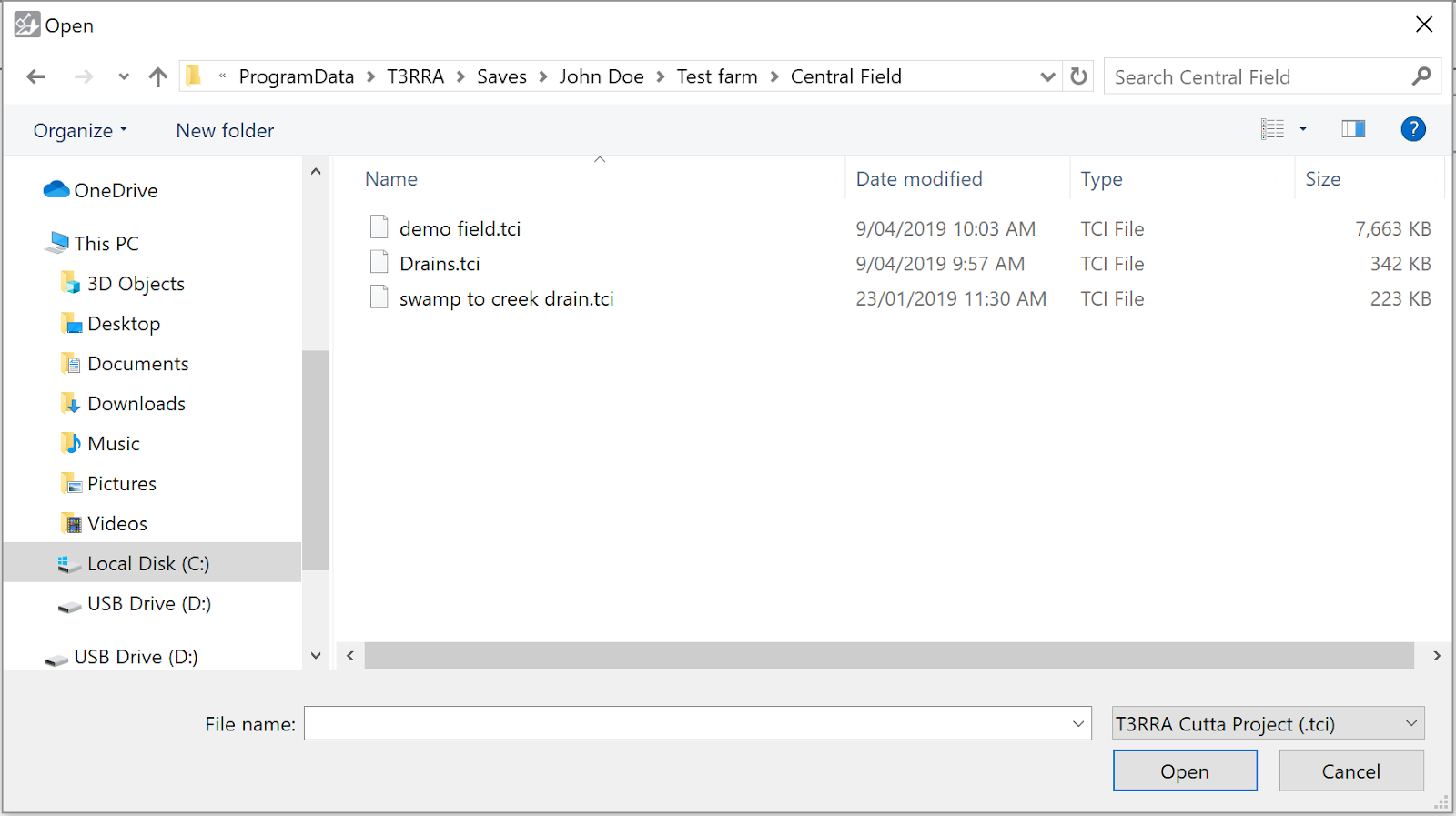
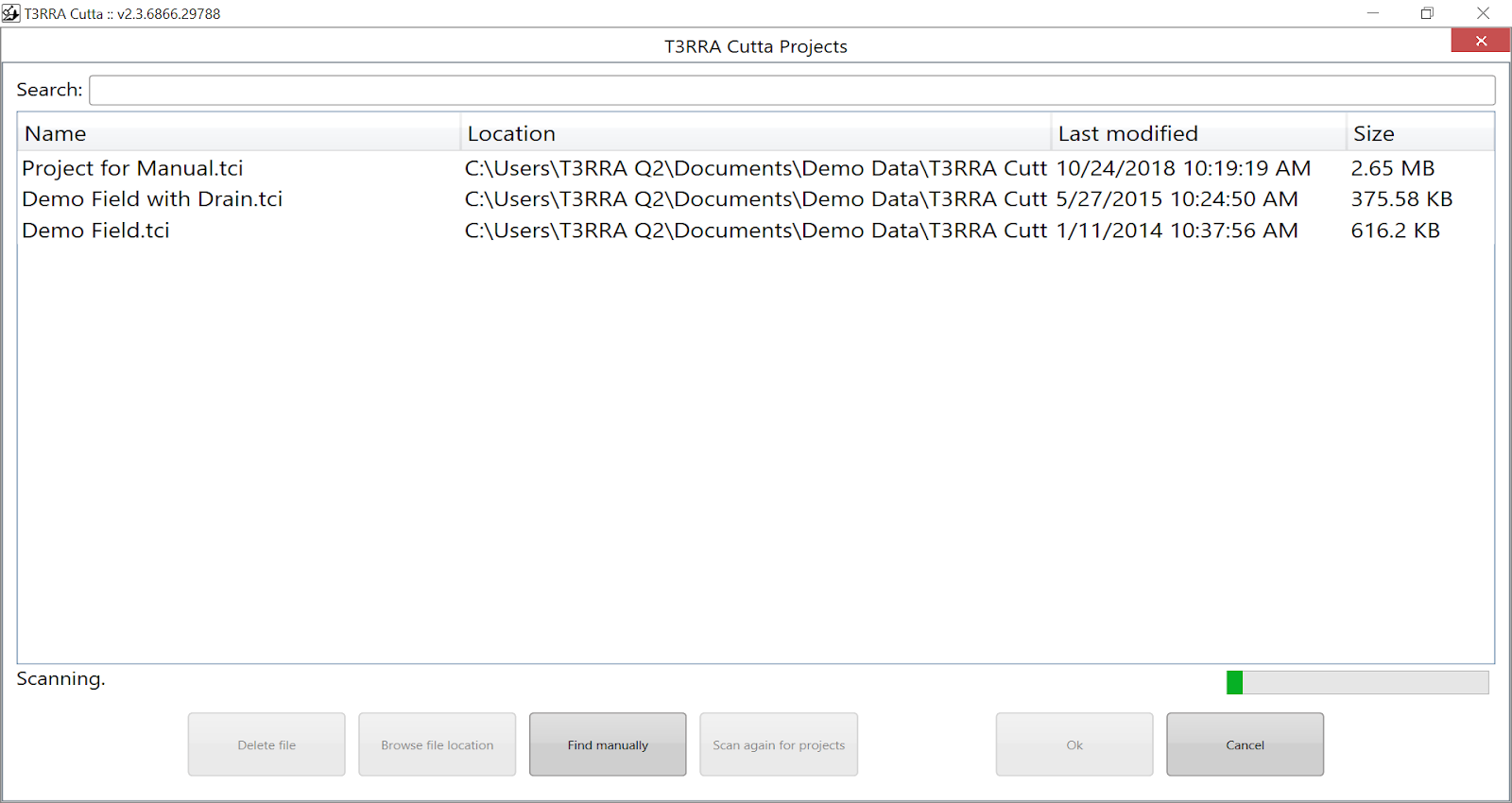
<span style="font-family: Helvetica,sans-serif;"><span style="font-size: 14pt; color: rgb(0, 0, 0); font-weight: 300;">'</span><span style="font-size: 14pt; color: rgb(0, 0, 0); font-weight: 400;">**Find manually**</span><span style="font-size: 14pt; color: rgb(0, 0, 0); font-weight: 300;">' can be used when files are not saved in the default T3RRA folder structure. Project files are normal Windows files and can be stored anywhere on the computer.</span></span>

![](https://docs.t3rra.com/uploads/images/gallery/2025-03/scaled-1680-/q0voumrw55i2tqqp5carwo0epfpeiuknppjmg-png.png)

<span style="font-family: Helvetica,sans-serif;">  
</span>

<span style="font-family: Helvetica,sans-serif;"><span style="font-size: 14pt; color: rgb(0, 0, 0); font-weight: 300;">Use the file explorer to find the T3C project file, then select the file and press the ‘</span><span style="font-size: 14pt; color: rgb(0, 0, 0); font-weight: 400;">**Open**</span><span style="font-size: 14pt; color: rgb(0, 0, 0); font-weight: 300;">’ button.</span></span>

<span style="font-family: Helvetica,sans-serif;">![](https://docs.t3rra.com/uploads/images/gallery/2025-03/scaled-1680-/GaAo7anehdt05g6hufl7xl8mkzzksms6i7fua-png.png)</span>

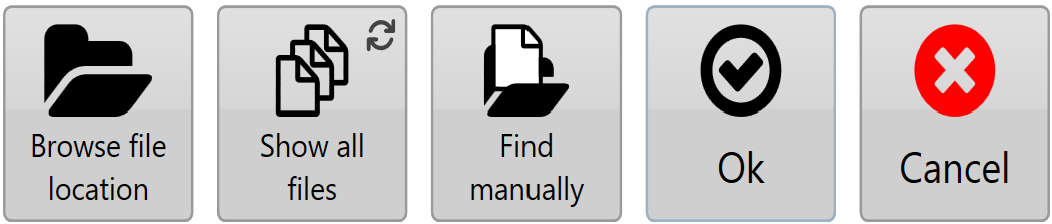
<span style="font-family: Helvetica,sans-serif;"><span style="font-size: 14pt; color: rgb(0, 0, 0); font-weight: 300;">Choosing '</span><span style="font-size: 14pt; color: rgb(0, 0, 0); font-weight: 400;">**Show all files**</span><span style="font-size: 14pt; color: rgb(0, 0, 0); font-weight: 300;">' will start a scan of your computer's C: drive. A list of the T3RRA Cutta project files will be populated once the scan has been finished.</span></span>

<span style="font-family: Helvetica,sans-serif;">  
</span>

<span style="font-family: Helvetica,sans-serif;"><span style="font-size: 14pt; color: rgb(0, 0, 0); font-weight: 300;">Entering text in ‘</span><span style="font-size: 14pt; color: rgb(0, 0, 0); font-weight: 400;">**Search**</span><span style="font-size: 14pt; color: rgb(0, 0, 0); font-weight: 300;">’ will limit the displayed projects to only with matching file names.</span></span>

<span style="font-family: Helvetica,sans-serif;">  
</span>

<span dir="ltr" style="font-family: Helvetica,sans-serif;">![](https://docs.t3rra.com/uploads/images/gallery/2025-03/scaled-1680-/w3lw9yll8ioomv3ksw8gmof8zjkk5t-cafzgg-png.png)</span>

<span style="font-family: Helvetica,sans-serif;"><span style="font-size: 14pt; color: rgb(0, 0, 0); font-weight: 300;">Progress bar in the lower right indicates scanning in progress </span></span>

<span style="font-family: Helvetica,sans-serif;"><span style="font-size: 14pt; color: rgb(0, 0, 0); font-weight: 300;">Once the desired file has been found in the list, select the file and press ‘</span><span style="font-size: 14pt; color: rgb(0, 0, 0); font-weight: 400;">**Ok**</span><span style="font-size: 14pt; color: rgb(0, 0, 0); font-weight: 300;">’.</span></span>

<span style="font-family: Helvetica,sans-serif;">  
</span>

<span style="font-family: Helvetica,sans-serif;"><span style="font-size: 14pt; color: rgb(0, 0, 0); font-weight: 300;">Once a file has been selected and loaded, the wizard page should appear and show the stage that the project is up to. If applicable, you can proceed directly to implementation.</span></span>

<span style="font-family: Helvetica,sans-serif;">![](https://docs.t3rra.com/uploads/images/gallery/2025-03/scaled-1680-/4r8mlcs9iwe2x8mut7xnxeinnp0envpe-oqdw-png.png)</span>

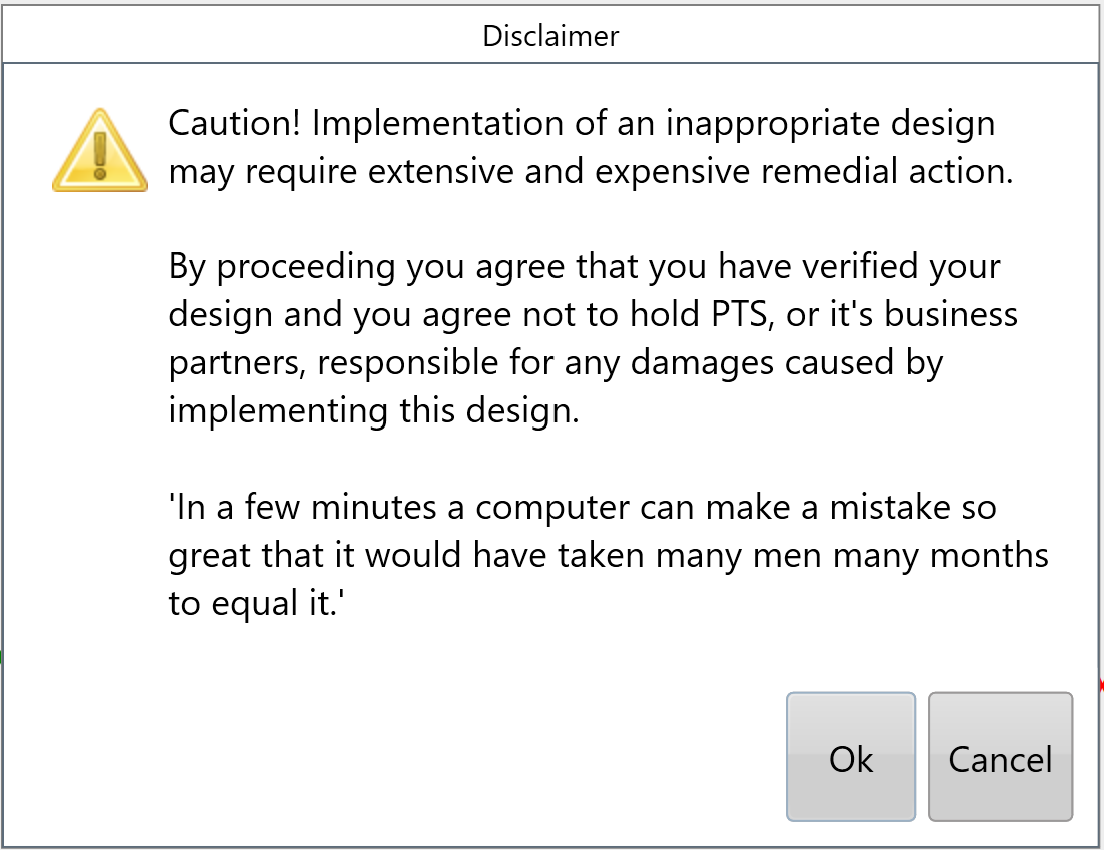
<span style="font-family: Helvetica,sans-serif;"><span style="font-size: 14pt; color: rgb(0, 0, 0); font-weight: 300;">When ready you should press '</span><span style="font-size: 14pt; color: rgb(0, 0, 0); font-weight: 400;">**Start**</span><span dir="ltr" style="font-size: 14pt; color: rgb(0, 0, 0); font-weight: 300;">' to implement your design. You will need to accept the Disclaimer to begin machine control. </span></span>
![](https://docs.t3rra.com/uploads/images/gallery/2025-03/scaled-1680-/JQB1ziexpj3xdvtjl7yp5-wghowolcg6j5ouw-png.png)