# Loading a Project

[![image.png](https://docs.t3rra.com/uploads/images/gallery/2026-08/scaled-1680-/fYbimage.png)](https://docs.t3rra.com/uploads/images/gallery/2026-08/fYbimage.png)

Select **Load proj.** to open an existing T3RRA project (`.tci`). Projects can be loaded from the standard T3RRA project structure, from another location on the tablet PC, or from external storage such as a USB drive.

To begin, select **Load proj.** from the Main Page.

## Loading from Grower/Farm/Field

Projects stored within the standard T3RRA file structure are organised using **Grower, Farm and Field** profiles.

Select the appropriate **Grower**, **Farm** and **Field**, then select the project you wish to open and press **OK**.

For more information about creating and managing Grower, Farm and Field profiles, refer to the relevant section later in this chapter.

<span dir="ltr" style="font-family: Helvetica, sans-serif;">![qDqdxd87ev-j3eoxjfz8tsxq6-apnlilth2wa-png.png](https://docs.t3rra.com/uploads/images/gallery/2025-03/scaled-1680-/qDqdxd87ev-j3eoxjfz8tsxq6-apnlilth2wa-png.png)</span>

## <span style="font-family: Helvetica, sans-serif;"><span style="font-size: 14pt; color: rgb(0,0,0); font-weight: 300;">![QC17sbmiv-xoyoqbdrdy-t-wl1wijewnf8ojq-png.png](https://docs.t3rra.com/uploads/images/gallery/2025-03/scaled-1680-/QC17sbmiv-xoyoqbdrdy-t-wl1wijewnf8ojq-png.png)</span></span>Managing Saved Projects

Three management buttons are displayed alongside each project:

<div class="group TyagGW_tableContainer" id="bkmrk-button-function-rena"><div class="TyagGW_tableWrapper flex flex-col-reverse w-fit" tabindex="-1"><table class="w-fit min-w-(--thread-content-width)" data-end="1471" data-start="1148" style="width: 100%;"><thead data-end="1169" data-start="1148"><tr data-end="1169" data-start="1148"><th class="last:pe-10" data-col-size="sm" data-end="1157" data-start="1148" style="width: 16.3218%;">Button</th><th class="last:pe-10" data-col-size="lg" data-end="1169" data-start="1157" style="width: 83.708%;">Function</th></tr></thead><tbody data-end="1471" data-start="1180"><tr data-end="1231" data-start="1180"><td data-col-size="sm" data-end="1193" data-start="1180" style="width: 16.3218%;">**Rename**</td><td data-col-size="lg" data-end="1231" data-start="1193" style="width: 83.708%;">Renames the selected project file.</td></tr><tr data-end="1330" data-start="1232"><td data-col-size="sm" data-end="1245" data-start="1232" style="width: 16.3218%;">**Delete**</td><td data-col-size="lg" data-end="1330" data-start="1245" style="width: 83.708%;">Deletes the selected project. Deleted files are moved to the Windows Recycle Bin.</td></tr><tr data-end="1471" data-start="1331"><td data-col-size="sm" data-end="1342" data-start="1331" style="width: 16.3218%;">**Move**</td><td data-col-size="lg" data-end="1471" data-start="1342" style="width: 83.708%;">Opens the project location window, allowing the selected project to be moved to another Grower, Farm, Field or file location.</td></tr></tbody></table>

</div></div>These controls allow existing project files to be organised without leaving T3RRA software.

## Finding a Project Manually

T3RRA project files are standard Windows files and are not required to be stored within the default T3RRA folder structure.

To open a project stored elsewhere, select **Find manually**.

![CE0yhrldvcpamd9ru-z1xogz0etku8vxfqlqw-png.png](https://docs.t3rra.com/uploads/images/gallery/2025-03/scaled-1680-/CE0yhrldvcpamd9ru-z1xogz0etku8vxfqlqw-png.png)

Use Windows File Explorer to browse to the required T3RRA project (`.tci`), select the file, then select **Open**.

![q0voumrw55i2tqqp5carwo0epfpeiuknppjmg-png.png](https://docs.t3rra.com/uploads/images/gallery/2025-03/scaled-1680-/q0voumrw55i2tqqp5carwo0epfpeiuknppjmg-png.png)

<p class="callout success">This option can also be used to open projects stored on external media such as a USB drive.</p>

## Finding All T3RRA Projects

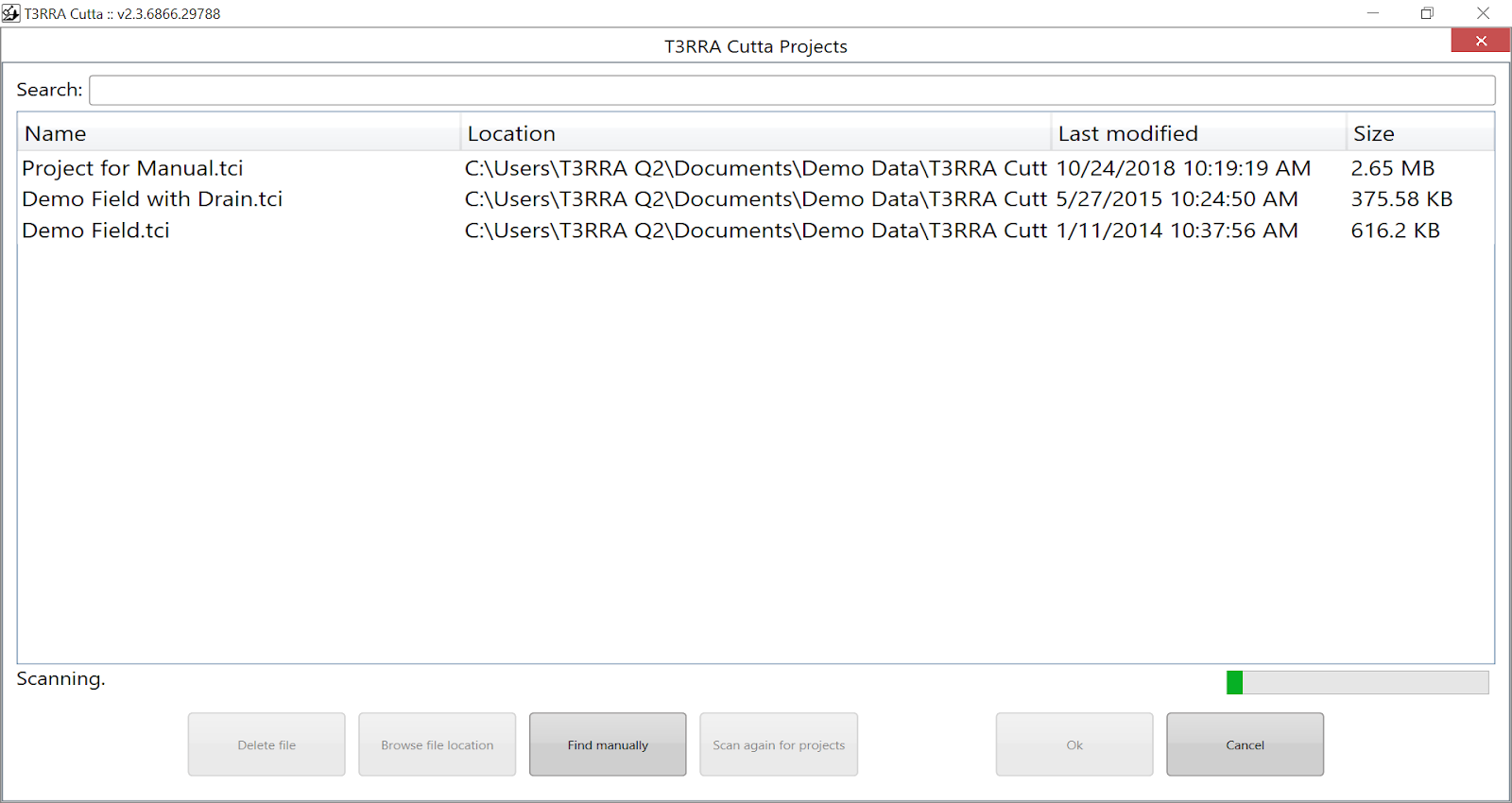
If you do not know where a project has been saved, select **Show all files**.

T3RRA will scan the computer's **C: drive** for compatible T3RRA project files and populate the project list as files are found. A progress bar in the lower-right corner indicates that the scan is still in progress.

Use the **Search** field to filter the results by project filename.
<span dir="ltr" style="font-family: Helvetica, sans-serif;">![w3lw9yll8ioomv3ksw8gmof8zjkk5t-cafzgg-png.png](https://docs.t3rra.com/uploads/images/gallery/2025-03/scaled-1680-/w3lw9yll8ioomv3ksw8gmof8zjkk5t-cafzgg-png.png)</span>

Once the required project has been located, select it and press **OK**.

## Continuing a Loaded Project

Once a project has been loaded, T3RRA will open the **Wizard** at the appropriate stage for that project. Existing project progress is retained, allowing you to continue from where the project was previously saved.

Where the project is ready for machine control, you can proceed directly to the **Apply** stage.

<span style="font-family: Helvetica, sans-serif;">![4r8mlcs9iwe2x8mut7xnxeinnp0envpe-oqdw-png.png](https://docs.t3rra.com/uploads/images/gallery/2025-03/scaled-1680-/4r8mlcs9iwe2x8mut7xnxeinnp0envpe-oqdw-png.png)</span>

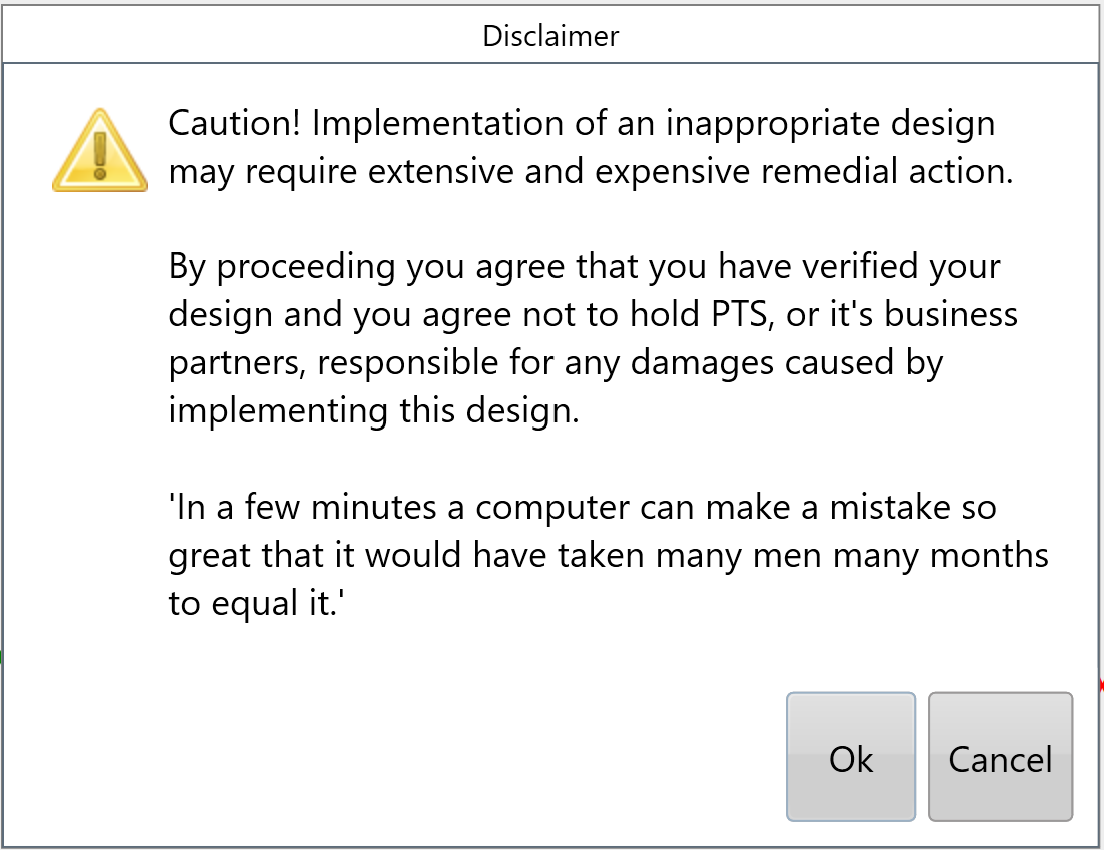
When ready to begin implementation, select **Start**. You will be required to accept the displayed **Disclaimer** before machine control can begin.
![JQB1ziexpj3xdvtjl7yp5-wghowolcg6j5ouw-png.png](https://docs.t3rra.com/uploads/images/gallery/2025-03/scaled-1680-/JQB1ziexpj3xdvtjl7yp5-wghowolcg6j5ouw-png.png)