# Levee Design

<span style="font-family: Helvetica,sans-serif;"><span dir="ltr" style="font-size: 14pt; color: rgb(0, 0, 0);">![](https://docs.t3rra.com/uploads/images/gallery/2025-03/scaled-1680-/jkiw9o3os1p6bz9r-rlbzm3r5w8dfemro6rfw-jpg.jpeg)'**Levees**</span><span style="font-size: 14pt; color: rgb(0, 0, 0); font-weight: 300;">' allows you to create repeating or singular levees at set elevations.</span></span>

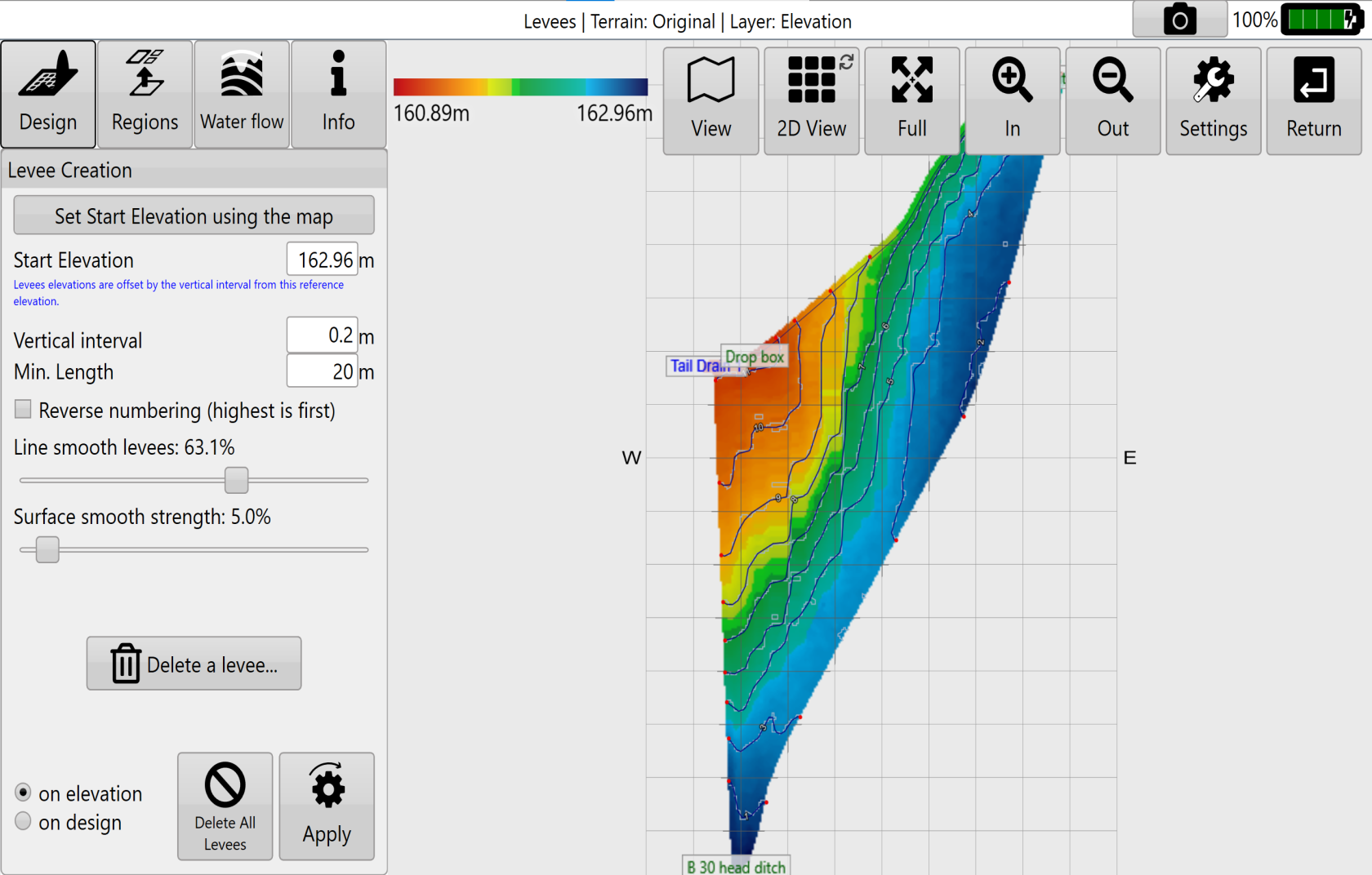
![](https://docs.t3rra.com/uploads/images/gallery/2025-03/scaled-1680-/oOmjl4zuzuvnqlv3y105rb4kaqr-d1zgnxyaw-png.png)

- <span style="font-family: Helvetica,sans-serif;"><span style="font-size: 14pt; color: rgb(0, 0, 0); font-weight: 300;">Levees can be added at set intervals.</span></span>
- <span style="font-family: Helvetica,sans-serif;"><span dir="ltr" style="font-size: 14pt; color: rgb(0, 0, 0); font-weight: 300;">Levees can be smoothed.</span></span>
- <span style="font-family: Helvetica,sans-serif;"><span style="font-size: 14pt; color: rgb(0, 0, 0); font-weight: 300;">Levees can be selectively deleted.</span></span>
- <span style="font-family: Helvetica,sans-serif;"><span style="font-size: 14pt; color: rgb(0, 0, 0); font-weight: 300;">Levees can be applied selectively to field regions.</span></span>
- <span style="font-family: Helvetica,sans-serif;"><span style="font-size: 14pt; color: rgb(0, 0, 0); font-weight: 300;">Levees can be exported as guidance curves for use with John Deere AutoTrac<span style="font-size: 0.6em;">™</span>.</span></span>

####   


#### <span style="font-family: Helvetica,sans-serif;"><span dir="ltr" style="font-size: 21pt; color: rgb(0, 0, 0); font-weight: 400;">**Levee Creation Parameters**</span></span>

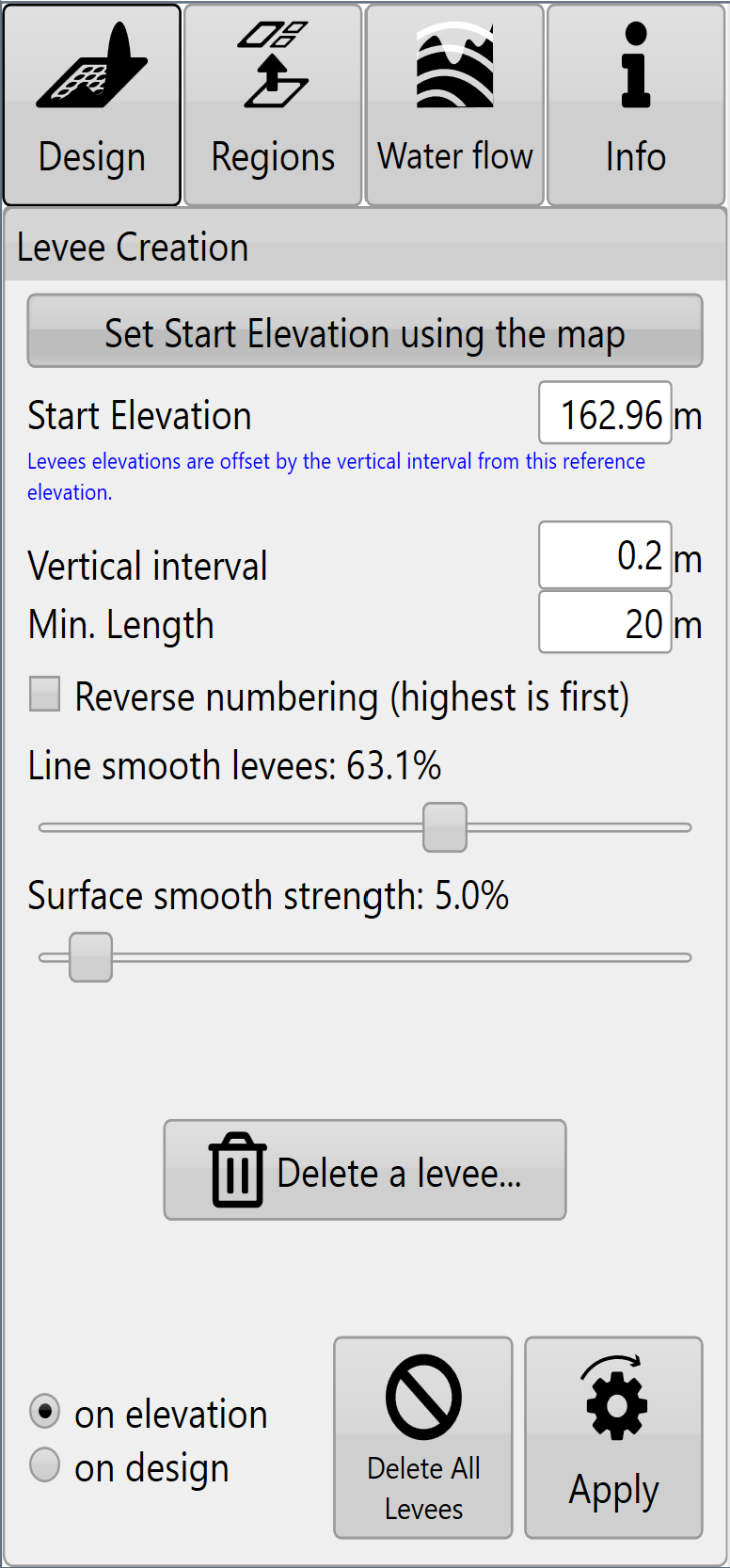
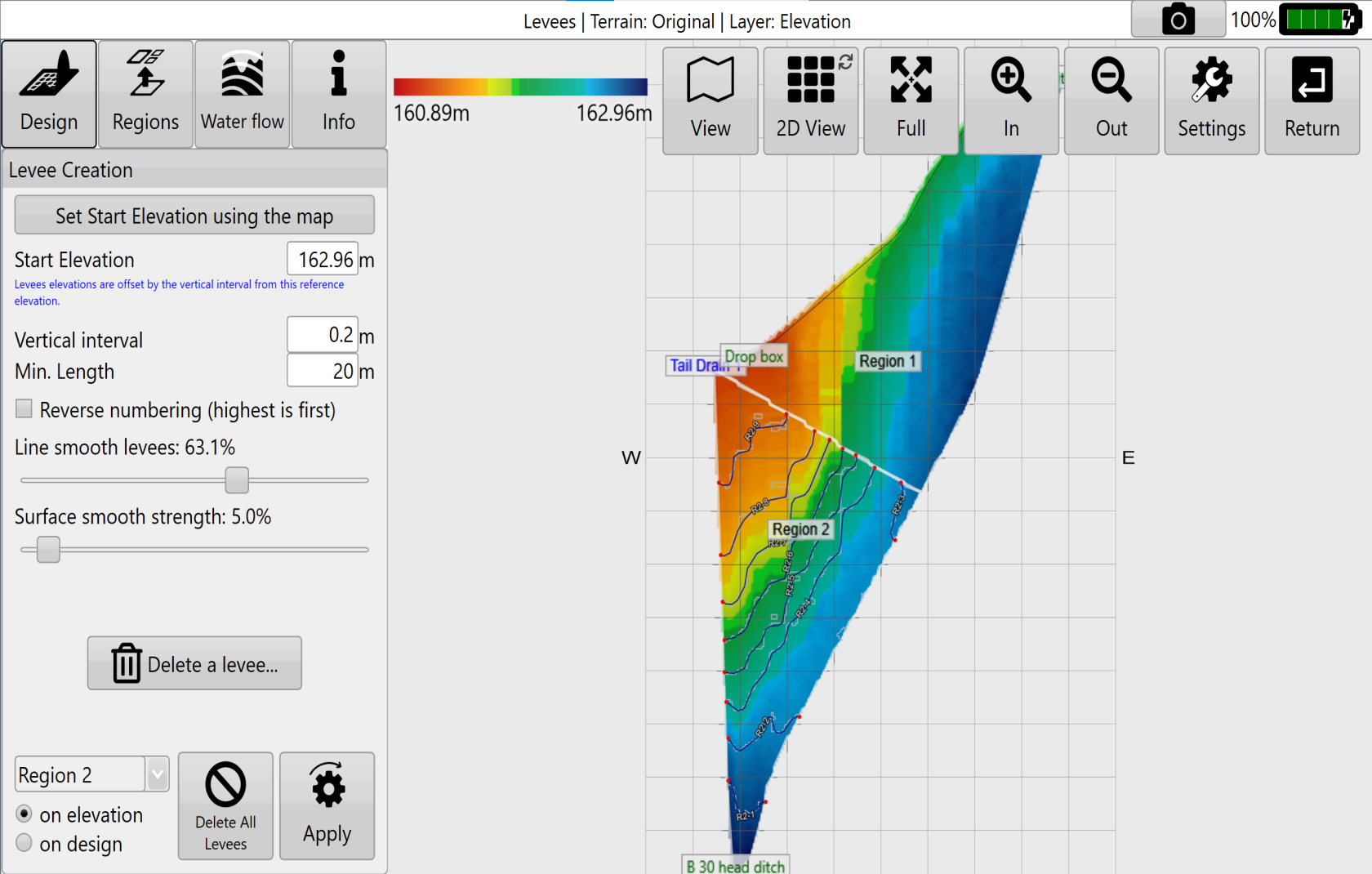
<span style="font-family: Helvetica,sans-serif;"><span dir="ltr" style="font-size: 14pt; color: rgb(0, 0, 0); font-weight: 300;">![](https://docs.t3rra.com/uploads/images/gallery/2025-03/scaled-1680-/ZOEj-f7gmpg13cuohsnpqg946aqxxqd3fleog-png.png)'</span><span style="font-size: 14pt; color: rgb(0, 0, 0); font-weight: 400;">**Start Elevation**</span><span style="font-size: 14pt; color: rgb(0, 0, 0); font-weight: 300;">' </span><span style="font-size: 14pt; color: rgb(60, 64, 67); font-weight: 300;">will be populated automatically. You can also choose the ‘Start Elevation’ by manually pressing on the ‘Start Elevation’ button and then touching the design map at the location you would like to start the levees from. Press Finish selecting to apply.</span></span>

<span style="font-family: Helvetica,sans-serif;">  
</span>

<span style="font-family: Helvetica,sans-serif;"><span style="font-size: 14pt; color: rgb(0, 0, 0); font-weight: 300;">'</span><span style="font-size: 14pt; color: rgb(0, 0, 0); font-weight: 400;">**Vertical interval**</span><span style="font-size: 14pt; color: rgb(0, 0, 0); font-weight: 300;">' tells T3RRA Cutta and T3RRA Ditch how much elevation change from the previous levee is needed before adding another levee.</span></span>

<span dir="ltr"><span style="color: rgb(0, 0, 0); font-family: Helvetica, sans-serif; font-size: 14pt; font-weight: 300;">'</span><span style="color: rgb(0, 0, 0); font-family: Helvetica, sans-serif; font-size: 14pt; font-weight: 400;">**Min. size**</span><span dir="ltr"><span style="font-family: Helvetica, sans-serif;"><span style="font-size: 14pt;">' determines the minimum length a levee must be before it is included as a drivable path. Levees that are shorter than this will appear </span><span style="font-size: 18.6667px;">greyed</span><span style="font-size: 14pt;"> out and not be available as paths.</span></span></span></span>

<span style="font-family: Helvetica,sans-serif;">  
</span>

<span style="font-family: Helvetica,sans-serif;"><span style="font-size: 14pt; color: rgb(0, 0, 0); font-weight: 300;">'</span><span style="font-size: 14pt; color: rgb(0, 0, 0); font-weight: 400;">**Reverse numbering**</span><span style="font-size: 14pt; color: rgb(0, 0, 0); font-weight: 300;">' – By default levees are numbered from highest elevation to lowest, reverse numbering switches it to count up from the lowest elevation.</span></span>

<span style="font-family: Helvetica,sans-serif;">  
</span>

<span style="font-family: Helvetica,sans-serif;"><span style="font-size: 14pt; color: rgb(0, 0, 0); font-weight: 400;">‘**Line smooth levees**’</span><span style="font-size: 14pt; color: rgb(0, 0, 0); font-weight: 300;"> adjusts how many sharp turns and how smoothly the levee lines will be created. The further to the right the slider is the more round the lines will be (with decreased sharp turns).</span></span>

<span style="font-family: Helvetica,sans-serif;">  
</span>

<span style="font-family: Helvetica,sans-serif;"><span style="font-size: 14pt; color: rgb(0, 0, 0); font-weight: 300;">‘</span><span style="font-size: 14pt; color: rgb(0, 0, 0); font-weight: 400;">**Surface smooth strength**</span><span dir="ltr" style="font-size: 14pt; color: rgb(0, 0, 0); font-weight: 300;">’ adjusts the surface by applying an averaging filter to the surface of the field to remove bumps and dips without creating a full field earthwork design.</span></span>

<span style="font-family: Helvetica,sans-serif;">  
</span>

<span style="font-family: Helvetica,sans-serif;"><span style="font-size: 14pt; color: rgb(0, 0, 0); font-weight: 300;">'</span><span style="font-size: 14pt; color: rgb(0, 0, 0); font-weight: 400;">**Delete a levee**</span><span style="font-size: 14pt; color: rgb(0, 0, 0); font-weight: 300;">' will bring up a window allowing you to enter the number associated with the levees you want to remove.</span></span>

<span style="font-family: Helvetica,sans-serif;">  
</span>

<span style="font-family: Helvetica,sans-serif;">  
</span>

<span style="font-family: Helvetica,sans-serif;"><span style="font-size: 14pt; color: rgb(0, 0, 0); font-weight: 300;">Like other design tools, Levees allows you to use either the original elevation surface, or a design surface as the basis for the calculations. It may be beneficial to perform a landforming operation on this field prior to putting in levees and then base the levees off the design surface. </span></span>

<span style="font-family: Helvetica,sans-serif;"><span dir="ltr" style="font-size: 14pt; color: rgb(0, 0, 0); font-weight: 300;">  
Even if you are not performing a landforming operation it can sometimes be useful to perform a smoothing design on the surface first before attempting to lay out levees (ie, to work around poor data). </span></span>

<span style="font-family: Helvetica,sans-serif;">  
</span>

<span style="font-family: Helvetica,sans-serif;"><span style="font-size: 14pt; color: rgb(0, 0, 0); font-weight: 300;">Press '</span><span style="font-size: 14pt; color: rgb(0, 0, 0); font-weight: 400;">**Apply**</span><span style="font-size: 14pt; color: rgb(0, 0, 0); font-weight: 300;">' (shown as the levees icon) after parameters are entered.</span></span>

<span style="font-family: Helvetica,sans-serif;">  
</span>

<span style="font-family: Helvetica,sans-serif;"><span style="font-size: 14pt; color: rgb(0, 0, 0); font-weight: 300;">Levees can be applied separately to individual regions. It may be advantageous to do this if you have differently spaced levees in different sections of a field. </span></span>

<span style="font-family: Helvetica,sans-serif;"><span dir="ltr" style="font-size: 14pt; color: rgb(0, 0, 0); font-weight: 300;">NOTE: Levees can be added to each region individually.</span></span>
<span style="font-family: Helvetica,sans-serif;">![](https://docs.t3rra.com/uploads/images/gallery/2025-03/scaled-1680-/oNB0yoi-rgopb9us2vghhqlrzeherszsgmpjw-png.png)</span>

<span style="font-family: Helvetica,sans-serif;">  
</span>

<span style="font-family: Helvetica,sans-serif;"><span style="font-size: 14pt; color: rgb(0, 0, 0); font-weight: 300;">Once you have finished designing your levees and are happy with them there are two options available:</span></span>

- <span style="font-family: Helvetica,sans-serif;"><span style="font-size: 14pt; color: rgb(0, 0, 0); font-weight: 300;">export levee paths as guidance lines.</span></span>
- <span style="font-family: Helvetica,sans-serif;"><span style="font-size: 14pt; color: rgb(0, 0, 0); font-weight: 300;">begin implementation.</span></span>

<span style="font-family: Helvetica,sans-serif;"><span dir="ltr" style="font-size: 14pt; color: rgb(0, 0, 0); font-weight: 300;">Exporting will allow the lines to be saved as guidance curves that can be loaded to John Deere’s guidance system.</span></span>

![](https://docs.t3rra.com/uploads/images/gallery/2025-03/scaled-1680-/wH75xuazthpsu5xj4jhicqtia0ucygpvf-wvg-png.png)

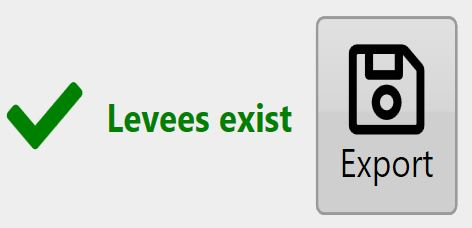
<span style="font-family: Helvetica,sans-serif;"><span style="font-size: 14pt; color: rgb(35, 31, 32); font-weight: 300;">Select the Export button on the main design page to save as guidance curves (John Deere AutoTrac<span style="font-size: 0.6em;">™</span> required).</span></span>

<span style="font-family: Helvetica,sans-serif;">  
</span>

<span style="font-family: Helvetica,sans-serif;"><span style="font-size: 14pt; color: rgb(0, 0, 0); font-weight: 300;">If you want to continue and manually implement the levee paths or just display current position on the map while pulling levees, you can follow the instructions to begin implementation on the following page.</span></span>

<span style="font-family: Helvetica,sans-serif;">  
</span>

<span style="font-family: Helvetica,sans-serif;"><span class="fr-video fr-deletable fr-fvc fr-dvb fr-draggable"><iframe allowfullscreen="allowfullscreen" class="fr-draggable align-center" frameborder="0" height="360" sandbox="allow-scripts allow-forms allow-same-origin allow-presentation" src="https://www.youtube.com/embed/V8NLmRCQEx0?&wmode=opaque" width="640"></iframe>

</span></span>