# Importing files

### <span dir="ltr" style="font-size: 14pt; font-family: Helvetica, sans-serif; color: rgb(0, 0, 0); font-weight: 300;">Because T3RRA software normally reads .tci “project” files, external files need to be imported using the '</span><span style="font-family: Helvetica,sans-serif;"><span style="font-size: 14pt; color: rgb(0, 0, 0); font-weight: 400;">**Import**</span><span style="font-size: 14pt; color: rgb(0, 0, 0); font-weight: 300;">' button on the initial screen. </span></span>

<span style="font-family: Helvetica,sans-serif;">  
</span>

<span style="font-family: Helvetica,sans-serif;"><span style="font-size: 14pt; color: rgb(255, 0, 0); font-weight: 300;">NOTE: T3RRA Design can be used to convert many other file types for use in T3RRA software</span></span>

<span style="font-family: Helvetica,sans-serif;">  
</span>

<span style="font-family: Helvetica,sans-serif;"><span style="font-size: 14pt; color: rgb(255, 0, 0); font-weight: 300;">NOTE: T3RRA Apply </span><span dir="ltr" style="font-size: 14pt; color: rgb(255, 0, 0); font-weight: 300;">is unable to import data, and can only work with designs from other T3RRA projects.</span></span>

<span dir="ltr" style="font-size: 14pt; font-family: Helvetica, sans-serif; color: rgb(0, 0, 0); font-weight: 300;">![](https://docs.t3rra.com/uploads/images/gallery/2025-03/scaled-1680-/Y7dhgy8lwwwytfe7leenhapu58e1dluofakoa-png.png)In T3RRA software we make a distinction between </span><span style="font-family: Helvetica,sans-serif;"><span style="font-size: 14pt; color: rgb(0, 0, 0);">*loading* a project, and *importing* data. When we refer to “loading” it concerns the opening of a native T3RRA .tci project file. When we refer to “importing” it refers to a 3rd party data file. Whereas a .tci file will *load* in a single step there are sometimes multiple steps to *importing* data as the data may need to be changed or altered during the import process, or there may need to be decisions made during the import in order to get the correct data.</span></span>

<span style="font-family: Helvetica,sans-serif;">  
</span>

<span style="font-family: Helvetica,sans-serif;"><span style="font-size: 14pt; color: rgb(0, 0, 0); font-weight: 300;">The following guide shows the steps required to successfully import a file.</span></span>

<span style="font-family: Helvetica,sans-serif;"><span dir="ltr" style="font-size: 14pt; color: rgb(0, 0, 0); font-weight: 300;">![](https://docs.t3rra.com/uploads/images/gallery/2025-03/scaled-1680-/2cQximvdebya84kdf3n5svztt15twnge-htwg-png.png) 1) To import a file from an external source first press the import button on the </span><span style="font-size: 14pt; color: rgb(0, 0, 0); font-weight: 400;">**Main Page** </span><span dir="ltr" style="font-size: 14pt; color: rgb(0, 0, 0); font-weight: 300;">or <span style="font-size: 14pt; color: rgb(0, 0, 0); font-weight: 300;">from the “Collect” step. You can import more data at any time. If you have a keyboard attached (e.g. Desktop</span><span dir="ltr" style="font-size: 14pt; color: rgb(0, 0, 0); font-weight: 300;"> in the office), press Ctrl+I.</span></span></span>

<span dir="ltr" style="font-family: Helvetica,sans-serif;"> </span>

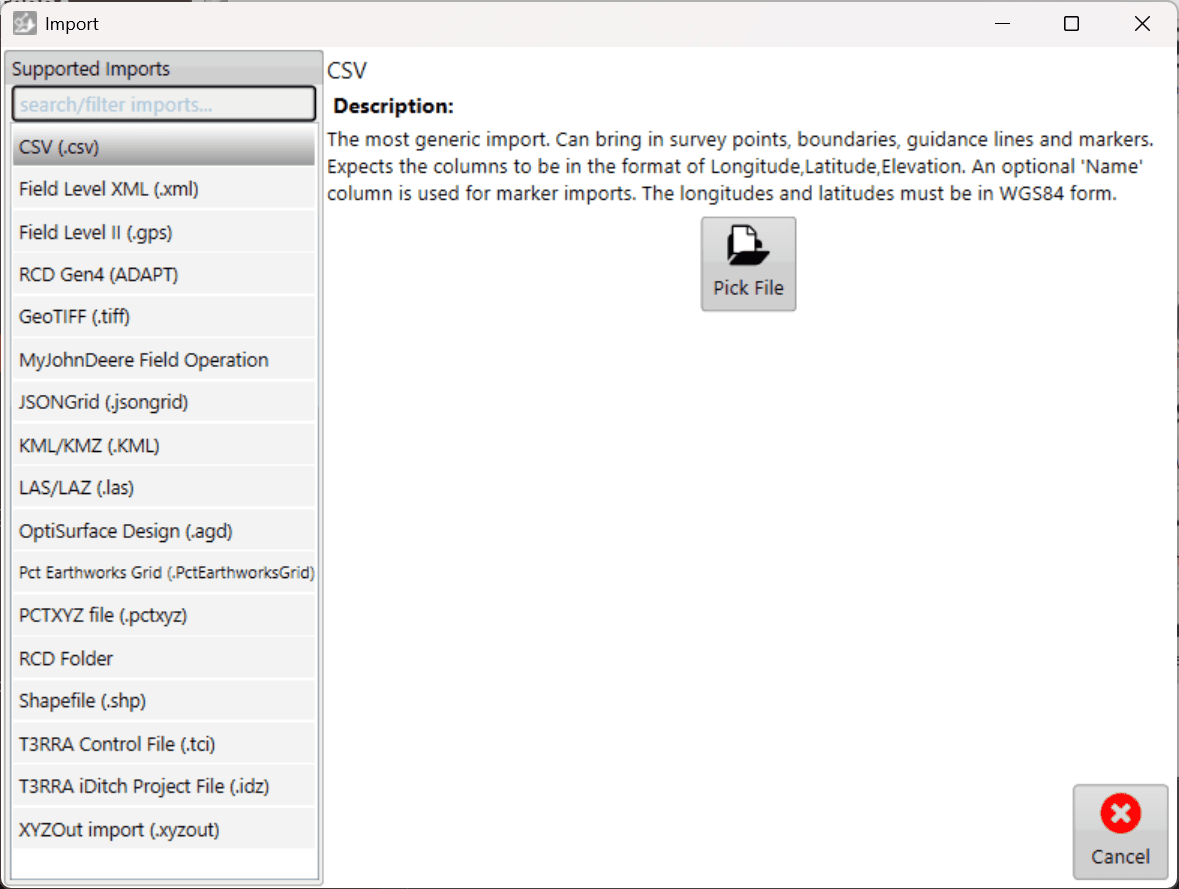
<span style="font-family: Helvetica,sans-serif;"><span dir="ltr" style="font-size: 14pt; color: rgb(0, 0, 0); font-weight: 300;"> 2) <span dir="ltr" style="font-size: 14pt; color: rgb(0, 0, 0); font-weight: 300;">Next press the button for the type of file you are trying to import on the left hand side, then click “Pick File” and select the file you wish to import.</span></span></span>

[![image.png](https://docs.t3rra.com/uploads/images/gallery/2026-04/scaled-1680-/pFw5zUByAuf4kdhE-image.png)](https://docs.t3rra.com/uploads/images/gallery/2026-04/pFw5zUByAuf4kdhE-image.png)

<span dir="ltr" style="font-size: 14pt; font-family: Helvetica, sans-serif; color: rgb(0, 0, 0); font-weight: 300;">3) <span dir="ltr" style="font-size: 14pt; color: rgb(0, 0, 0); font-weight: 300;">For some imports you might need to specify extra information, such as projection information. Once you’ve provided the required information, click “Read” in the bottom right corner.</span></span>

<p class="callout info"><span dir="ltr" style="font-size: 14pt; font-family: Helvetica, sans-serif; color: rgb(0, 0, 0); font-weight: 300;"><span dir="ltr" style="font-size: 14pt; color: rgb(0, 0, 0); font-weight: 300;">For CSV import, the longitude and latitude values must be in WGS84 form.</span></span></p>

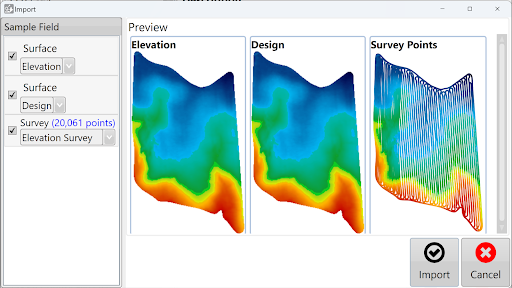
<span dir="ltr" style="font-size: 14pt; font-family: Helvetica, sans-serif; color: rgb(0, 0, 0); font-weight: 300;"><span dir="ltr" style="font-size: 14pt; color: rgb(0, 0, 0); font-weight: 300;">4</span><span dir="ltr" style="font-size: 14pt; color: rgb(0, 0, 0); font-weight: 300;">) </span><span style="font-size: 14pt; color: rgb(0, 0, 0); font-weight: 300;">You will now be able to select which data you wish to import. On the right is a preview of all the data to be imported.   
</span><span style="font-size: 14pt; color: rgb(0, 0, 0); font-weight: 400;">**NOTE: If the auto-detected data type is incorrect, you can change it using the drop downs.**</span><span style="font-size: 14pt; color: rgb(0, 0, 0); font-weight: 300;">  
</span><span dir="ltr" style="font-size: 14pt; color: rgb(0, 0, 0); font-weight: 300;">Click “Import” to start working with the imported data.</span></span><span dir="ltr" style="font-size: 14pt; font-family: Helvetica, sans-serif; color: rgb(0, 0, 0); font-weight: 300;"><span dir="ltr" style="font-size: 14pt; color: rgb(0, 0, 0); font-weight: 300;">![](https://docs.t3rra.com/uploads/images/gallery/2025-03/scaled-1680-/M0nfkryjyz5whro3iek8dvppnc1etq7ltoysg-png.png)</span></span>
<span dir="ltr" style="font-size: 14pt; font-family: Helvetica, sans-serif; color: rgb(0, 0, 0); font-weight: 300;">5) After data has been imported, surfacing and design options can be applied.</span>

![](https://docs.t3rra.com/uploads/images/gallery/2025-03/scaled-1680-/fdta7xdo6hifaktrjxx7okpmlw8izej2efzfw-png.png)

<span style="font-size: 14pt; font-family: Oswald, sans-serif; color: rgb(255, 0, 0); font-weight: 300;">NOTE: elevation survey point data that has been imported will have surfacing done automatically.</span>