# Choose Mode/Terrain/Layer

#### <span style="font-family: Helvetica,sans-serif;"><span style="font-size: 21pt; color: rgb(0, 0, 0); font-weight: 400;">**Mode**</span></span>

<span style="font-family: Helvetica,sans-serif;"><span dir="ltr" style="font-size: 14pt; color: rgb(0, 0, 0); font-weight: 400;">**2D View**</span><span dir="ltr" style="font-size: 14pt; color: rgb(0, 0, 0); font-weight: 300;"> - By default the map will be displayed in a 2D aerial view.</span></span>

<span style="font-family: Helvetica,sans-serif;"><span dir="ltr" style="font-size: 14pt; color: rgb(0, 0, 0); font-weight: 400;">**3D View** </span><span dir="ltr" style="font-size: 14pt; color: rgb(0, 0, 0); font-weight: 300;">- When switching to 3D view the map will show all the terrain as small hills and valleys. In this viewing mode if you press the vertical scale magnifier (shown here) it will increase the exaggeration of these hills and valleys so that they can be more easily identified. </span><span style="font-size: 14pt; color: rgb(0, 0, 0); font-weight: 300;">The focal point when viewing in 3D can be changed by quickly double tapping on a position.</span></span>

<table class="fr-no-borders" id="bkmrk--2" style="width: 84%; margin-right: calc(16%);"><tbody><tr><td style="width: 50.0000%;">![](https://docs.t3rra.com/uploads/images/gallery/2025-03/scaled-1680-/hFpg-i1by5regszd95dc-3k0urpwwcdz-3wxg-png.png)</td><td style="width: 50.0000%;">![](https://docs.t3rra.com/uploads/images/gallery/2025-03/scaled-1680-/Xnt81f-sw8euftr5cy2jvuapghnoywmi98h9a-png.png)</td></tr></tbody></table>

#### <span style="font-family: Helvetica,sans-serif;"><span style="font-size: 21pt; color: rgb(0, 0, 0); font-weight: 400;">**![](https://docs.t3rra.com/uploads/images/gallery/2025-03/scaled-1680-/mQD7k02cfbwoceinmwtmm7xv-ipeirsnk2t0q-png.png)View**</span></span>

<span dir="ltr" style="font-family: Helvetica,sans-serif;"><span style="color: rgb(0, 0, 0); font-family: Helvetica, sans-serif; font-size: 18.6667px; font-style: normal; font-variant-ligatures: normal; font-variant-caps: normal; font-weight: 300; letter-spacing: normal; orphans: 2; text-align: left; text-indent: 0px; text-transform: none; white-space: normal; widows: 2; word-spacing: 0px; -webkit-text-stroke-width: 0px; text-decoration-thickness: initial; text-decoration-style: initial; text-decoration-color: initial; display: inline !important; float: none;">When viewing a map you have a variety of display options.</span> </span>

#### <span style="font-family: Helvetica,sans-serif;"><span style="font-size: 21pt; color: rgb(0, 0, 0); font-weight: 400;">**Surface** </span></span>

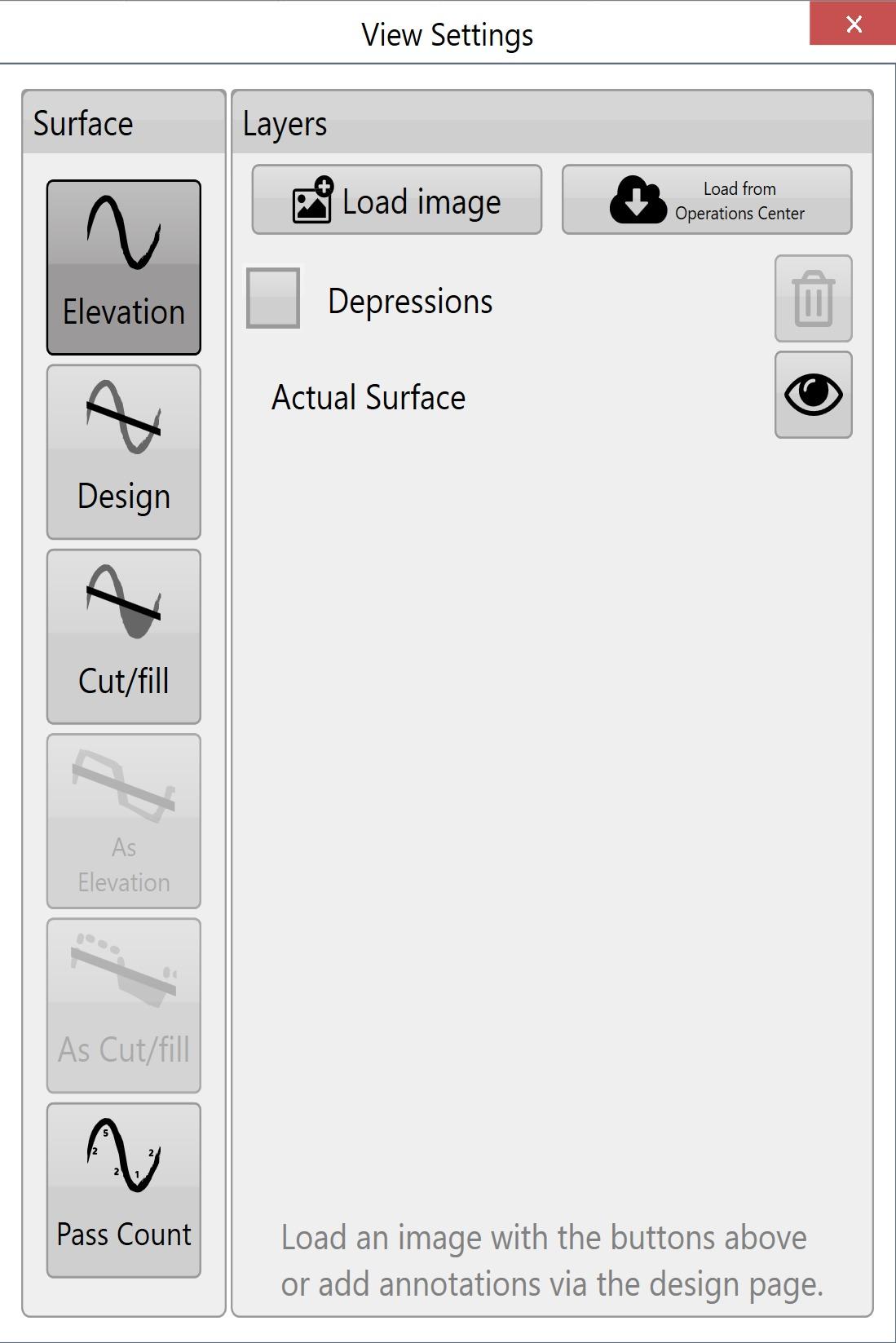
<span style="font-family: Helvetica,sans-serif;"><span dir="ltr" style="font-size: 14pt; color: rgb(0, 0, 0); font-weight: 300;">![](https://docs.t3rra.com/uploads/images/gallery/2025-03/scaled-1680-/Vlgfm2alezcu3ly9y77mgsdu9qdezzirtiurq-jpeg.jpeg)This refers to the source for the 3D topography and coloring of the map. There are 6 options:</span></span>

<span style="font-family: Helvetica,sans-serif;">  
</span>

<span style="font-family: Helvetica,sans-serif;"><span style="font-size: 14pt; color: rgb(0, 0, 0); font-weight: 400;">**Elevation** </span><span dir="ltr" style="font-size: 14pt; color: rgb(0, 0, 0); font-weight: 300;">- This terrain viewing mode shows the map as the original surface prior to any dirt being moved. Displays the map in a Red to Blue gradient scale with Red being low areas and Blue being high areas.</span></span>

<span style="font-family: Helvetica,sans-serif;">  
</span>

<span style="font-family: Helvetica,sans-serif;"><span style="font-size: 14pt; color: rgb(0, 0, 0); font-weight: 400;">**Design** </span><span dir="ltr" style="font-size: 14pt; color: rgb(0, 0, 0); font-weight: 300;">- This viewing mode shows the design that has been applied. This is the surface that you are attempting to reach at the end of the dirt moving process. Has the same color scheme as Elevation.</span></span>

<span style="font-family: Helvetica,sans-serif;"><span style="font-size: 14pt; color: rgb(0, 0, 0); font-weight: 400;">**Cut/Fill** </span><span dir="ltr" style="font-size: 14pt; color: rgb(0, 0, 0); font-weight: 300;">- Shows where the design will be taking dirt from and where it will be putting it. Coloring of this layer depends on the current Cut/Fill color scheme (Settings &gt; Application).</span></span>

<span style="font-family: Helvetica,sans-serif;">  
</span>

<span style="font-family: Helvetica,sans-serif;"><span style="font-size: 14pt; color: rgb(0, 0, 0); font-weight: 400;">**As applied** </span><span dir="ltr" style="font-size: 14pt; color: rgb(0, 0, 0); font-weight: 300;">- Displaying the map using this method shows changes as they occur. It shows a real-time representation of progress as work progresses. Has the same color scheme as Elevation. </span><span dir="ltr" style="font-size: 14pt; color: rgb(255, 0, 0); font-weight: 300;">This terrain is only available if ‘</span><span style="font-size: 14pt; color: rgb(255, 0, 0); font-weight: 400;">**As Applied**</span><span dir="ltr" style="font-size: 14pt; color: rgb(255, 0, 0); font-weight: 300;">’ mapping has been enabled in the machine tab of ‘</span><span style="font-size: 14pt; color: rgb(255, 0, 0); font-weight: 400;">**Settings**</span><span dir="ltr" style="font-size: 14pt; color: rgb(255, 0, 0); font-weight: 300;">’.</span>  
</span>

<span style="font-family: Helvetica,sans-serif;">  
</span>

<span style="font-family: Helvetica,sans-serif;"><span style="font-size: 14pt; color: rgb(0, 0, 0); font-weight: 400;">**As Cut/Fill** </span><span dir="ltr" style="font-size: 14pt; color: rgb(0, 0, 0); font-weight: 300;">- Shows where the design will be taking dirt from and where it will be putting it. Coloring of this layer depends on the current Cut/Fill color scheme (Settings &gt; Application).</span></span>

<span style="font-family: Helvetica,sans-serif;">  
</span>

<span style="font-family: Helvetica,sans-serif;"><span style="font-size: 14pt; color: rgb(0, 0, 0); font-weight: 400;">**Pass Count** </span><span style="font-size: 14pt; color: rgb(0, 0, 0); font-weight: 300;">- This layer displays how many passes you have done over an area. </span><span dir="ltr" style="font-size: 14pt; color: rgb(255, 0, 0); font-weight: 300;">This layer is only available once pass count tracking has been enabled in Settings &gt; Machine:</span><span dir="ltr" style="font-size: 14pt; color: rgb(255, 0, 0); font-weight: 300;">![](https://docs.t3rra.com/uploads/images/gallery/2025-03/scaled-1680-/xKih4-ngk659mpypfn2sefmf5yjdjxpn7yywa-png.png)</span></span>

#### <span style="box-sizing: border-box; font-family: Helvetica, sans-serif;"><span style="box-sizing: border-box; font-size: 21pt; color: rgb(0, 0, 0); font-weight: 400;">**Layers**</span></span>

<span style="box-sizing: border-box; font-family: Helvetica, sans-serif;"><span style="box-sizing: border-box; font-size: 21pt; color: rgb(0, 0, 0); font-weight: 400;">**<span dir="ltr" style="color: rgb(0, 0, 0); font-family: Helvetica, sans-serif; font-size: 18.6667px; font-style: normal; font-variant-ligatures: normal; font-variant-caps: normal; font-weight: 300; letter-spacing: normal; orphans: 2; text-align: left; text-indent: 0px; text-transform: none; widows: 2; word-spacing: 0px; -webkit-text-stroke-width: 0px; white-space: normal; text-decoration-thickness: initial; text-decoration-style: initial; text-decoration-color: initial; display: inline !important; float: none;">Various defined layers can be turned on and off here. This includes the current surface (see above), depressions, drains, linework, and overlays such as KML that have been loaded. The buttons at the top allow you to load and clear layers, and beside each layer is a transparency toggle button. Click the button to change its transparency.</span>**</span></span>

<span style="box-sizing: border-box; font-family: Helvetica, sans-serif;"><span style="box-sizing: border-box; font-size: 21pt; color: rgb(0, 0, 0); font-weight: 400;">**<span dir="ltr" style="color: rgb(0, 0, 0); font-family: Helvetica, sans-serif; font-size: 18.6667px; font-style: normal; font-variant-ligatures: normal; font-variant-caps: normal; font-weight: 300; letter-spacing: normal; orphans: 2; text-align: left; text-indent: 0px; text-transform: none; widows: 2; word-spacing: 0px; -webkit-text-stroke-width: 0px; white-space: normal; text-decoration-thickness: initial; text-decoration-style: initial; text-decoration-color: initial; display: inline !important; float: none;"><span style="border: none; display: inline-block; overflow: hidden; width: 50px; height: 48px;">![](https://docs.t3rra.com/uploads/images/gallery/2025-03/scaled-1680-/TeCtwwn1pdkjnfainohxhov-jdh7zyxwbyspg-png.png)</span></span>**</span></span>

<span style="box-sizing: border-box; font-family: Helvetica, sans-serif;"><span style="box-sizing: border-box; font-size: 21pt; color: rgb(255, 0, 0); font-weight: 400;">**<span dir="ltr" style="font-family: Helvetica, sans-serif; font-size: 18.6667px; font-style: normal; font-variant-ligatures: normal; font-variant-caps: normal; font-weight: 300; letter-spacing: normal; orphans: 2; text-align: left; text-indent: 0px; text-transform: none; widows: 2; word-spacing: 0px; -webkit-text-stroke-width: 0px; white-space: normal; text-decoration-thickness: initial; text-decoration-style: initial; text-decoration-color: initial; float: none; display: inline !important;">NOTE: The depressions layer is not shown if the project only has drains (and no elevation surface).</span>**</span></span>

<span style="font-family: Helvetica,sans-serif;"><span class="fr-video fr-deletable fr-fvc fr-dvb fr-draggable"><iframe allowfullscreen="allowfullscreen" class="fr-draggable align-center" frameborder="0" height="360" sandbox="allow-scripts allow-forms allow-same-origin allow-presentation" src="https://www.youtube.com/embed/x5FrylWjpfk?&wmode=opaque" width="640"></iframe>

</span></span>