# 7.8 | Smooth Design
![Smooth design tool icon](https://docs.t3rra.com/uploads/images/gallery/2025-03/scaled-1680-/huGz5bp6jbg899mspzlrcupqrzbpgffk8b6jq-png.png) <span style="font-weight: 300;">Select the '</span><span style="font-weight: 400;">**Smooth**</span><span style="font-weight: 300;">' button to create a more regular surface with fewer and more gradual hummocks and dips. The smoothing strength can be adjusted to produce a stronger or lesser effect as needed.</span>

<span class="fr-video fr-deletable fr-fvc fr-dvb fr-draggable"><iframe class="fr-draggable align-center" height="360" src="https://www.youtube.com/embed/kwWrap5bqNY?&wmode=opaque" style="border: 0;" title="Watch a Smooth Design video on YouTube" width="640"></iframe>

</span>

[Watch a Smooth Design video on YouTube](https://www.youtube.com/watch?v=kwWrap5bqNY)

## <span style="font-weight: 400;">**Regular Smoothing**</span>

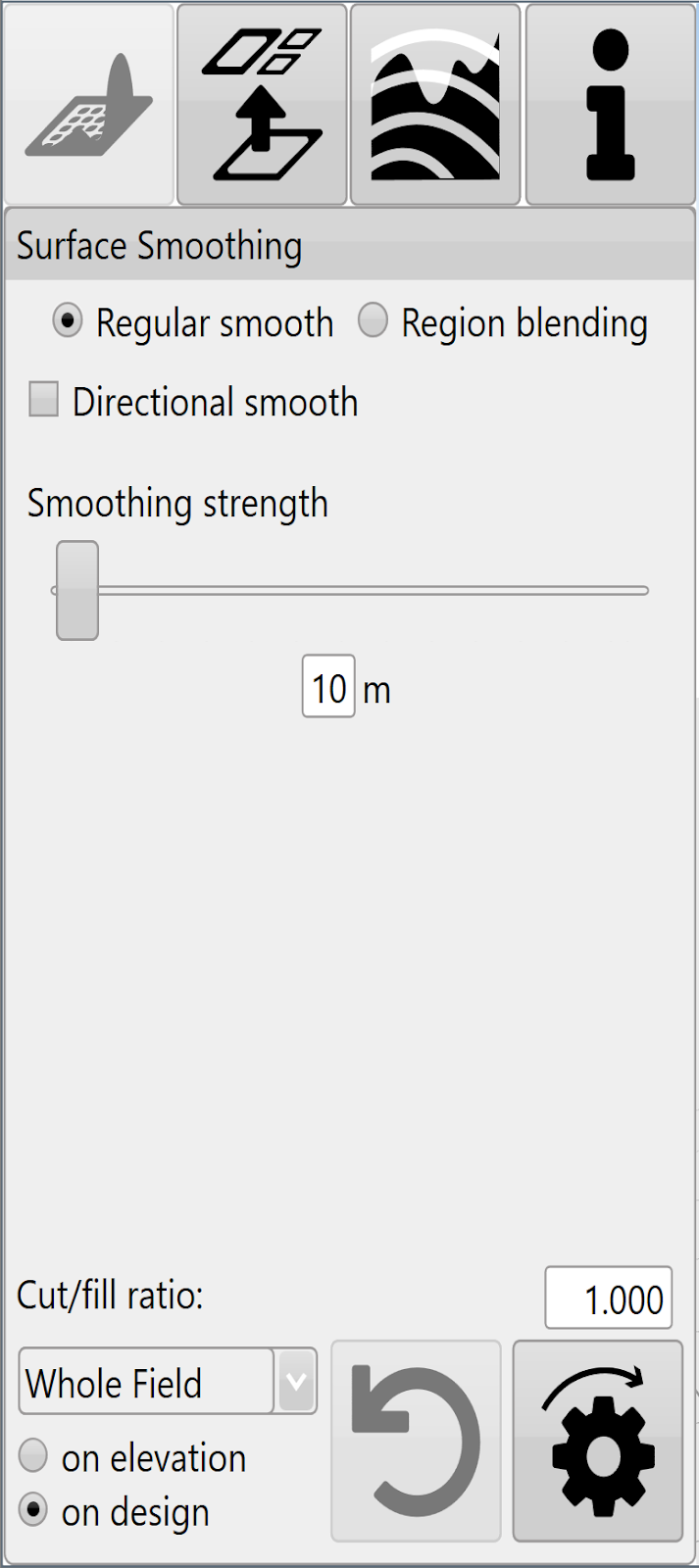
![Surface Smoothing panel with Regular smooth selected and smoothing strength control](https://docs.t3rra.com/uploads/images/gallery/2025-03/scaled-1680-/s0lz9zj9j9jcuhz-vuugdbpt1tu7k-yidtkwq-png.png)

<span style="font-weight: 300;">Regular smoothing applies an averaging filter to the surface of the field to remove bumps and dips. </span>

<span style="font-weight: 300;">The ‘</span><span style="font-weight: 400;">**Smoothing strength**</span><span style="font-weight: 300;">’ slide bar controls how smooth it is by increasing the radius that is used in calculations. The smaller the slider value, the less of an effect the smoothing will have. </span>

<span style="font-weight: 300;">Smoothing can be applied to the whole field, or to individual regions. It can be applied to the original surface, or to an existing design.</span>

## <span style="font-weight: 400;">**Directional Smoothing**</span>

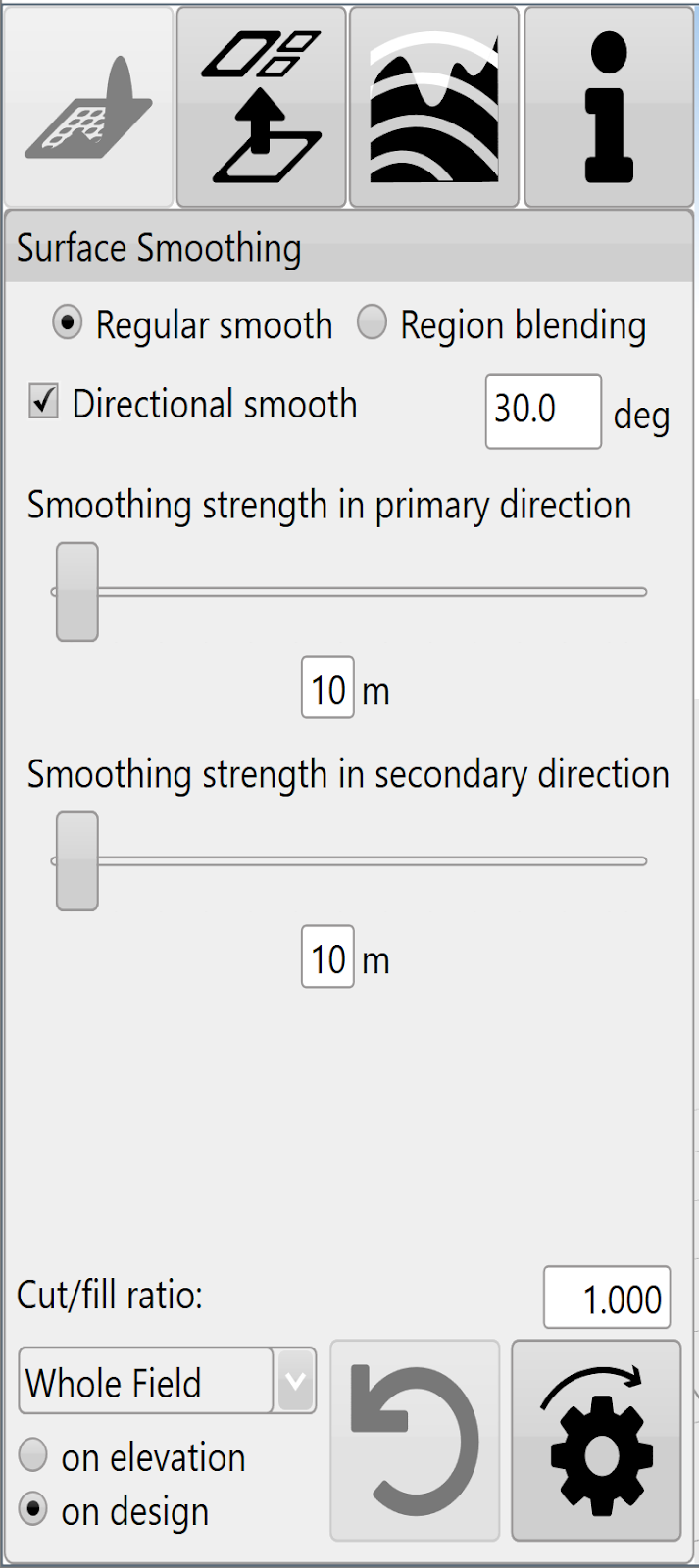
![Directional smooth controls showing direction and primary and secondary smoothing strengths](https://docs.t3rra.com/uploads/images/gallery/2025-03/scaled-1680-/SIEkdgl-ghd5qzde43sdtmriwg1tnxbkpurfg-png.png)

<span style="font-weight: 300;">'</span><span style="font-weight: 400;">**Directional smooth**</span><span style="font-weight: 300;">' is a check box just below regular smoothing. </span>

<span style="font-weight: 300;">Directional smoothing causes the smoothing effect to be stronger in a particular direction and weaker in the perpendicular direction.</span>

<span style="font-weight: 300;">Enter the primary smoothing direction in the provided text box.</span>

<span style="font-weight: 300;">'</span><span style="font-weight: 400;">**Smoothing strength in the primary direction**</span><span style="font-weight: 300;">' allows you to set the influence radius in that direction.</span>

<span style="font-weight: 300;">  
'</span><span style="font-weight: 400;">**Smoothing strength in the secondary direction**</span><span style="font-weight: 300;">' controls the influence radius at a 90 degree angle to the primary direction.</span>

## <span style="font-weight: 400;">**Region Blending**</span>

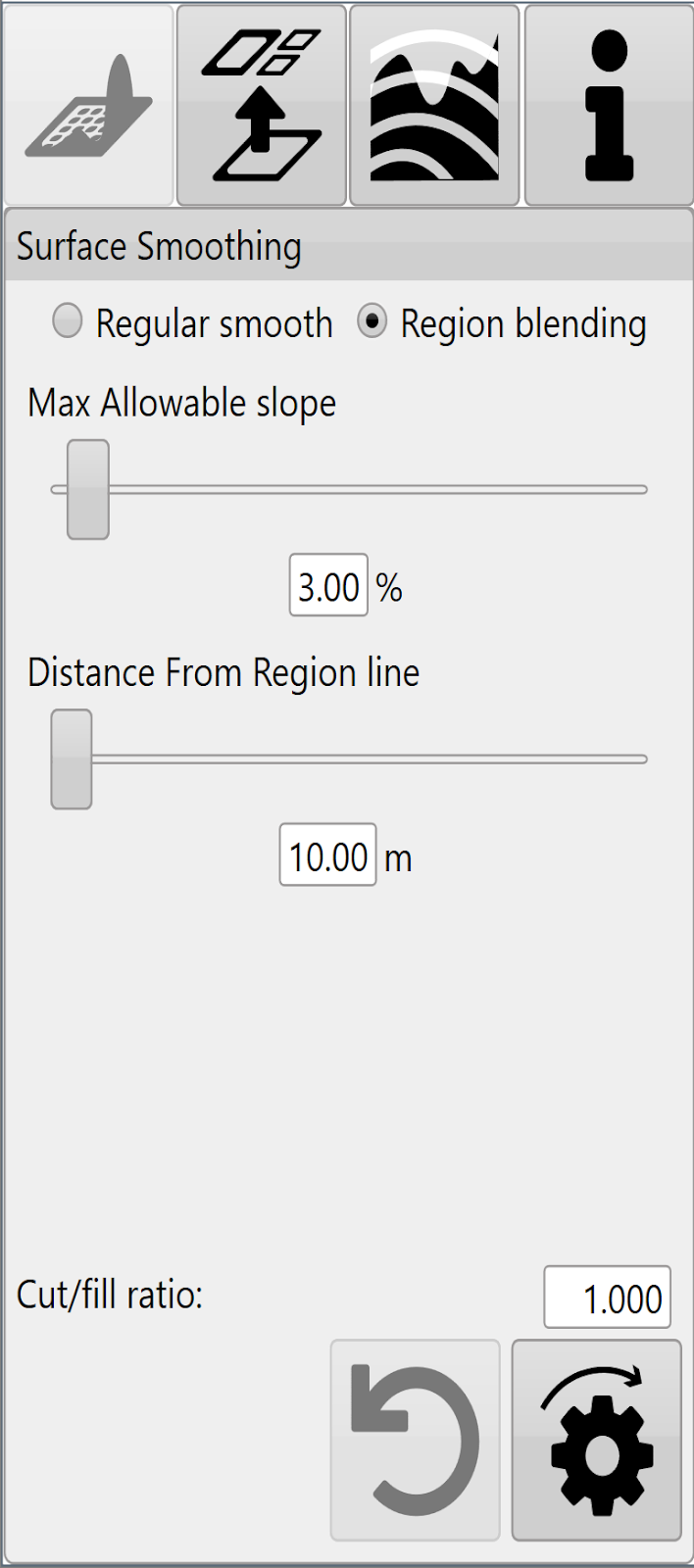
![Region blending controls for maximum allowable slope and distance from region line](https://docs.t3rra.com/uploads/images/gallery/2025-03/scaled-1680-/ODy9wi1gffqgfnzlzprfzkeqselbqghpp6brq-png.png)

<span style="font-weight: 300;">Region blending allows you to “feather” the edges of regions to allow for smooth transitions between regions.</span>

<span style="font-weight: 400;">'**Max Allowable slope**'</span><span style="font-weight: 300;"> lets you set the maximum steepness that can be used to achieve a region blend.</span>

<span style="font-weight: 400;">'**Distance from Region line**' </span><span style="font-weight: 300;">limits how far into each region the blend can go, in order to help make sure that other design elements are not affected.</span>

<p class="callout info">NOTE: changes made with region blending may not be obvious in 2D view but can be much more prominent in 3D view, or in the cut/fill map.</p>

<span style="font-weight: 300;">Press '</span><span style="font-weight: 400;">**Apply**</span><span style="font-weight: 300;">' after parameters are entered in order to see effects.</span>

<span style="font-weight: 300;">Once you are happy with the design follow the steps in the '</span>[<span style="font-weight: 300;">completing your design</span>](https://t3rra-help.freshdesk.com/en/support/solutions/articles/51000330106-completing-your-design)<span style="font-weight: 300;">' section.</span> [Watch another Smooth Design video on YouTube](https://www.youtube.com/watch?v=4Ww5kLBfN2U)

  
<span class="fr-video fr-deletable fr-fvc fr-dvb fr-draggable"><iframe class="fr-draggable" height="360" src="https://www.youtube.com/embed/4Ww5kLBfN2U?&wmode=opaque" style="border: 0;" title="Watch another Smooth Design video on YouTube" width="640"></iframe>

</span>