# 7.6 | Best-fit Design

![NEEctzdzq4ssemarlmk-ud9l3-f5-mm0dhl7w-png.png](https://docs.t3rra.com/uploads/images/gallery/2025-03/scaled-1680-/NEEctzdzq4ssemarlmk-ud9l3-f5-mm0dhl7w-png.png) <span style="font-weight: 300;">Select the '</span><span style="font-weight: 400;">Best-fit</span><span style="font-weight: 300;">' button to create a plane of best fit for a field.</span>

<span class="fr-video fr-deletable fr-fvc fr-dvb fr-draggable"><iframe class="fr-draggable align-center" height="360" src="https://www.youtube.com/embed/hmSVJCpsIns?&wmode=opaque" style="border: 0;" width="640"></iframe>

</span>

Video: [Watch the Best-fit Design video on YouTube.](https://www.youtube.com/watch?v=hmSVJCpsIns)

![BCKlhugpvnhrl9reo5aqk-rd9ggkhx4odpfa-png.png](https://docs.t3rra.com/uploads/images/gallery/2025-03/scaled-1680-/BCKlhugpvnhrl9reo5aqk-rd9ggkhx4odpfa-png.png)

- <span style="font-weight: 300;">A Best-fit design provides a single plane that most accurately fits the existing topography. Using a Best-fit plane ensures that you move the least amount of dirt possible to create a single plane for a field. Note that this can still result in large amounts of dirt being moved.</span>

- <span style="font-weight: 300;">Tip: Dividing the field into regions, then fitting single planes to each region can help to decrease dirt volumes.</span>

<span style="font-weight: 300;">Enter design details to create a plane, or instruct the T3RRA software to auto-calculate your design details.</span>

![5LUfhv-bsjuuqdav6xdgmpxlgjwretu3vyprg-png.png](https://docs.t3rra.com/uploads/images/gallery/2025-03/scaled-1680-/5LUfhv-bsjuuqdav6xdgmpxlgjwretu3vyprg-png.png)

## <span style="font-weight: 400;">**Setting slope parameters**</span>

<span style="font-weight: 300;">The software will try to find the most appropriate line of best fit, however the primary and secondary slopes can also be manually set.</span>

<p class="callout warning"><span style="font-weight: 300;">(It is recommended that only users with a good understanding of Laser Plane systems use manual settings) </span></p>

<span style="font-weight: 300;">To manually set the primary slope direction check the box labeled '</span><span style="font-weight: 400;">**Manually set primary slope direction**</span><span style="font-weight: 300;">'.   
</span>

<p class="callout warning"><span style="font-weight: 300;">When in doubt, consult an irrigation engineer. </span></p>

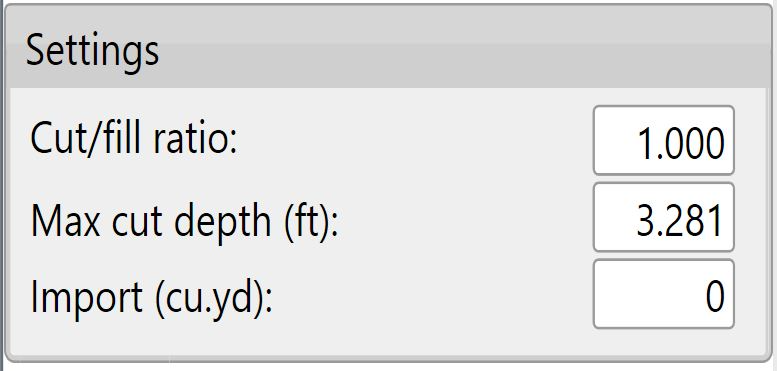
<span style="font-weight: 300;">Cut/fill ratio, Max cut depth, &amp; Import can be set in 2 locations. The defaults that will be applied to new projects can be set in the Project tab of settings (see section B) or in the lower left corner of the Best-Fit (and Multi-Fit) page.</span>

![eJ5icmcifp2s0nntolkxv-yehwacwh7loxtpg-png.png](https://docs.t3rra.com/uploads/images/gallery/2025-03/scaled-1680-/eJ5icmcifp2s0nntolkxv-yehwacwh7loxtpg-png.png)

<span style="font-weight: 300;">The '</span><span style="font-weight: 400;">**Cut/fill ratio**</span><span style="font-weight: 300;">' is determined by the type of material being moved and how much of it will “settle” or “shrink” once compacted. This value depends on soil characteristics.</span>

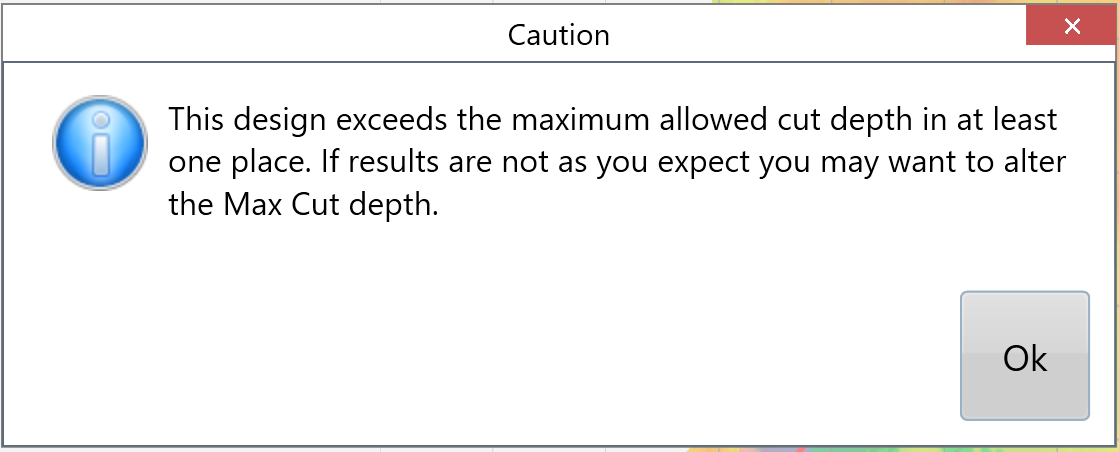
<span style="font-weight: 300;">Enter a '</span><span style="font-weight: 400;">**Max cut**</span><span style="font-weight: 300;">' for the maximum allowed cut depth. The following warning will appear to notify you if any points on the map exceed the max cut depth. adjustments may be required.</span>

<span style="font-weight: 300;">![zQUtzayjsvxitcrbkiajbk0tkr-cwvmerthyg-png.png](https://docs.t3rra.com/uploads/images/gallery/2025-03/scaled-1680-/zQUtzayjsvxitcrbkiajbk0tkr-cwvmerthyg-png.png) </span>

<span style="font-weight: 300;">The '</span><span style="font-weight: 400;">**Import**</span><span style="font-weight: 300;">' section is used when you need to bring in dirt from a stockpile or export dirt from the field to another area. Change the amount to a negative value for exporting.</span>

<span style="font-weight: 300;">Once you are happy with the design follow the steps in the '</span>[<span style="font-weight: 300;">completing your design</span>](https://t3rra-help.freshdesk.com/en/support/solutions/articles/51000330106-completing-your-design)<span style="font-weight: 300;">' </span><span style="font-weight: 300;">section</span><span style="font-weight: 300;">.</span>