# 7.15 | Exporting Guidance lines from T3RRA and importing into AutoTrac.

<span style="font-weight: 400;">**Remember that guidance lines are only available for Drains and Levees.**</span>

<span style="font-weight: 300;">Should you wish to export guidance lines from T3RRA software for use with AutoTrac™ be sure to follow the following steps to be sure that the process is successful.</span>

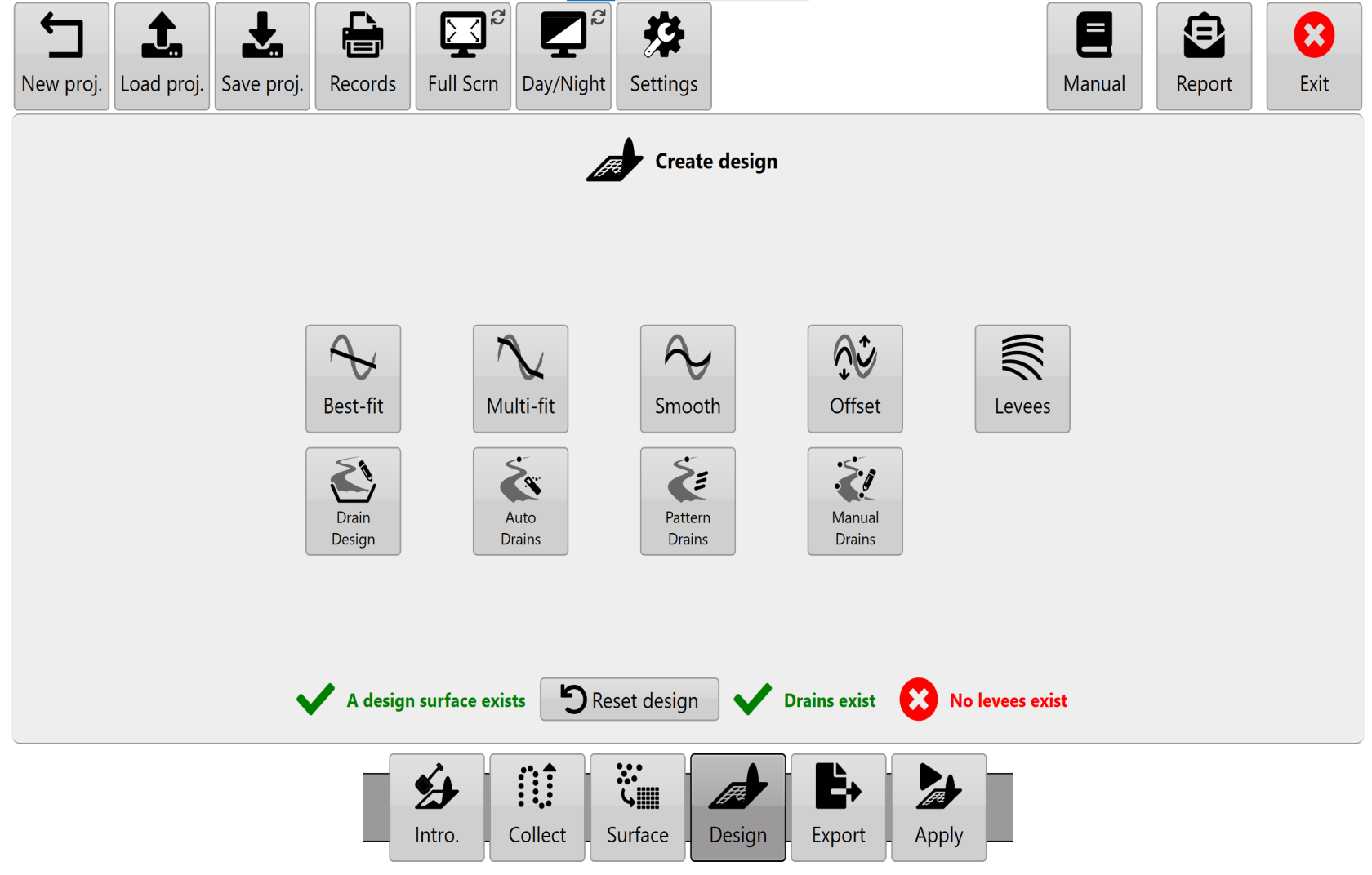
<span style="font-weight: 300;">Exporting begins by pressing the export button next to the information that you want to export that appears once that data is present at the bottom on the ‘Design” home screen.</span>

<table class="fr-no-borders" id="bkmrk--1" style="width: 100%;"><tbody><tr><td style="width: 50%;">![BDWvdqz4vy9ffggarqfxx995eacp4wrwl2upw-png.png](https://docs.t3rra.com/uploads/images/gallery/2025-03/scaled-1680-/BDWvdqz4vy9ffggarqfxx995eacp4wrwl2upw-png.png)</td><td dir="ltr" style="width: 50%;">![rXc4zhs4wwn2vi2dyq11fbbxk8ty2wkfxzrsg-png.png](https://docs.t3rra.com/uploads/images/gallery/2025-03/scaled-1680-/rXc4zhs4wwn2vi2dyq11fbbxk8ty2wkfxzrsg-png.png)</td></tr></tbody></table>

## <span style="font-weight: 400;">**How to export guidance lines from T3RRA**</span>

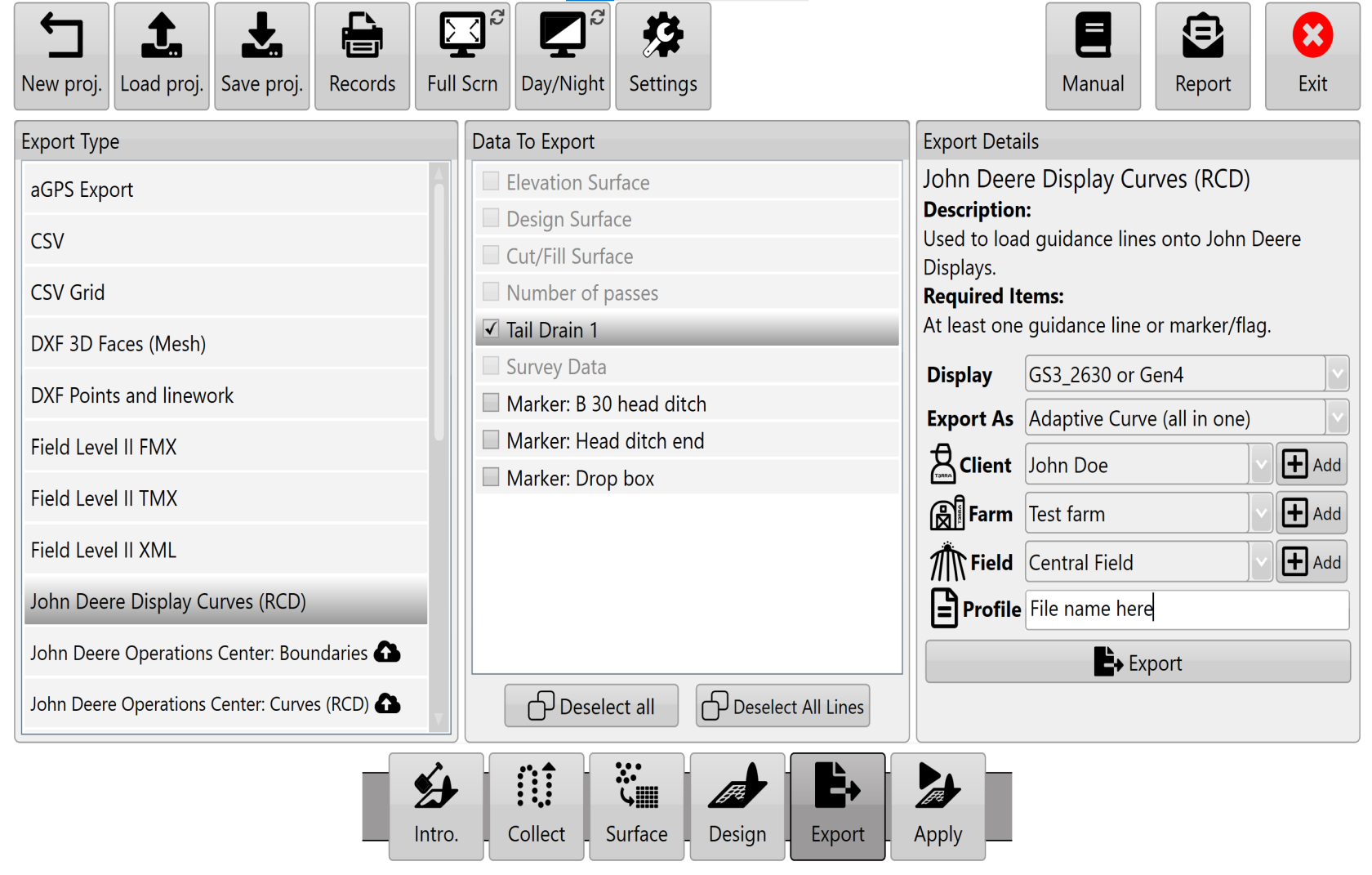
1. **<span style="font-weight: 300;">A window should appear similar to the image to the right when you select ‘Export’.</span>**
2. **<span style="font-weight: 300;">Select curve type.</span>**
3. **<span style="font-weight: 300;">Set the display to the model number of the John Deere display you will be using.</span>**
4. **<span style="font-weight: 300;">Input project information into client, farm, field and profile.</span>**
5. **<span style="font-weight: 300;">Press “Save” and a file with your guidance lines will be saved in the set location.</span>**
6. **<span style="font-weight: 300;">Press “Upload” and a file will be uploaded to JDOC where it can be assigned to equipment.</span>**

## **How to transfer guidance lines to a John Deere display**

**<span style="font-weight: 300;">(Instructions given are for the GS3 2630 Display, steps for other displays may vary: refer to the appropriate display manual)</span>**

1. **<span style="font-weight: 300;">Insert USB with guidance lines saved on it into John Deere Greenstar display. (The display will automatically detect the USB and display the available options.)</span>**
2. **<span style="font-weight: 300;">Select “Import Guidance Lines” which should be the bottom option.</span>**  
    ![oDQtnkkp-ga1mtcyxmfeosuxm-elno8gkdheq-png.png](https://docs.t3rra.com/uploads/images/gallery/2025-03/scaled-1680-/oDQtnkkp-ga1mtcyxmfeosuxm-elno8gkdheq-png.png)
3. **<span style="font-weight: 300;">Select the desired profile and press “Begin Transfer”.</span>**  
    **<span style="font-weight: 300;"> ![zfDjxts7kxabthkay28edxvij9lcpjxbxqm6g-png.png](https://docs.t3rra.com/uploads/images/gallery/2025-03/scaled-1680-/zfDjxts7kxabthkay28edxvij9lcpjxbxqm6g-png.png)</span>**
4. **<span style="font-weight: 300;">On this screen select which client, farm, field and tracking option of the file you want to import and press “Accept”. (The tracking option should be set to adaptive curves.</span> ![TQVix-qpclc2nvpcwjcoi5ftwtraunl00vga-png.png](https://docs.t3rra.com/uploads/images/gallery/2025-03/scaled-1680-/TQVix-qpclc2nvpcwjcoi5ftwtraunl00vga-png.png)**

5. **<span style="font-weight: 300;">Make sure the correct line/s you want to import are ticked and press “Accept”.</span><span style="font-weight: 300;">![hHfco9ytpsvsok9sinv0mpshepihygllg1lva-png.png](https://docs.t3rra.com/uploads/images/gallery/2025-03/scaled-1680-/hHfco9ytpsvsok9sinv0mpshepihygllg1lva-png.png)</span>**
6. **<span style="font-weight: 300;">A loading bar should appear, if everything has been successful the Data Transfer Complete screen should appear and you will be able to press “Accept”.</span><span style="font-weight: 300;">![xves12tvkxceldl-wuyl7em3pojeue-jzk7rw-png.png](https://docs.t3rra.com/uploads/images/gallery/2025-03/scaled-1680-/xves12tvkxceldl-wuyl7em3pojeue-jzk7rw-png.png)</span>**
7. **<span style="font-weight: 300;">Your guidance lines have been imported to your John Deere Greenstar display and are now ready to be used with Autotrac™</span><span style="font-weight: 300;">.</span>**