# 7. Blade and Tractor Indicators

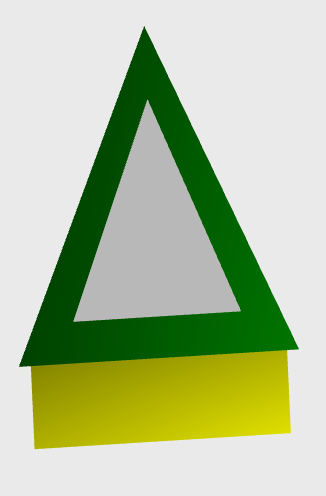
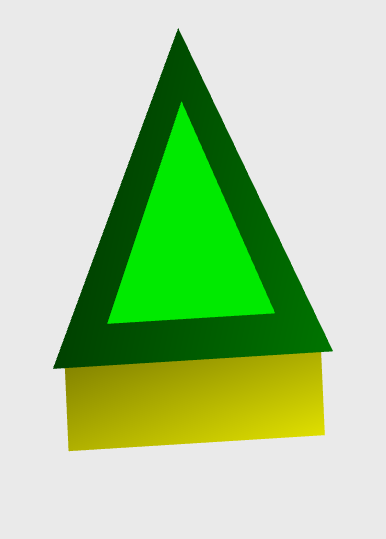
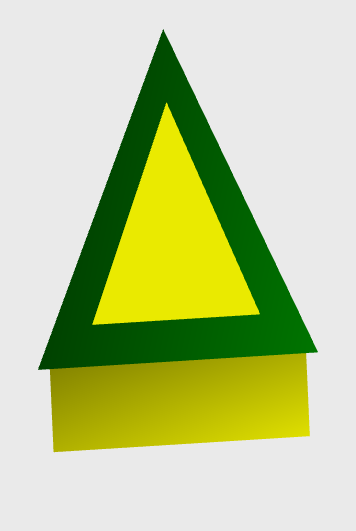
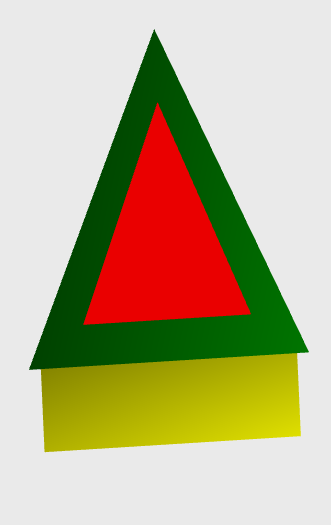
<span dir="ltr" style="font-size: 14pt; font-family: Helvetica, sans-serif; color: rgb(0, 0, 0); font-weight: 300;">When you are implementing a design, each implement will appear as a triangle pointing towards your current heading much like it did in surveying. The tractor is not displayed. The triangle indicators display GPS statuses with color changes. The inner triangle of the indicator shows the current VDOP status, while the outer edge shows the Fix Quality status. The inner VDOP status triangle changes color:</span>

- <span style="font-family: Helvetica,sans-serif;"><span dir="ltr" style="font-size: 14pt; color: rgb(0, 0, 0); font-weight: 300;">Grey - VDOP reading of 0</span></span>
- <span style="font-family: Helvetica,sans-serif;"><span dir="ltr" style="font-size: 14pt; color: rgb(0, 0, 0); font-weight: 300;">Green - VDOP reading between 0 and 1.5</span></span>
- <span style="font-family: Helvetica,sans-serif;"><span dir="ltr" style="font-size: 14pt; color: rgb(0, 0, 0); font-weight: 300;">Yellow - VDOP reading between 1.5 and 2</span></span>
- <span style="font-family: Helvetica,sans-serif;"><span style="font-size: 14pt; color: rgb(0, 0, 0); font-weight: 300;">Red - VDOP reading is higher than 2</span></span>

<span style="font-family: Helvetica,sans-serif;"><span dir="ltr" style="font-size: 14pt; color: rgb(0, 0, 0); font-weight: 300;">These readings are independent from the VDOP threshold set in the GPS info screen.</span></span>

<table class="fr-no-borders" id="bkmrk-" style="width: 100%;"><tbody><tr><td dir="ltr" style="width: 25.0000%;">![](https://docs.t3rra.com/uploads/images/gallery/2025-03/scaled-1680-/IqU9dpciyqglo62tl9v0smesrbexx9dulv6ww-png.png)</td><td dir="ltr" style="width: 25.0000%;">![](https://docs.t3rra.com/uploads/images/gallery/2025-03/scaled-1680-/hlydillk3p3y1396uuef2soxrgkvndqadr-a-png.png)</td><td dir="ltr" style="width: 25.0000%;">![](https://docs.t3rra.com/uploads/images/gallery/2025-03/scaled-1680-/ovJxmarvynw4hnrkhkophrydtxnem6h9yrhhw-png.png)</td><td dir="ltr" style="width: 25.0000%;">![](https://docs.t3rra.com/uploads/images/gallery/2025-03/scaled-1680-/NNBjudv0swb9phbl9f3qd0-7x-5rw9axu8fg-png.png)</td></tr></tbody></table>

<span style="font-family: Helvetica,sans-serif;"><span dir="ltr" style="font-size: 14pt; color: rgb(0, 0, 0); font-weight: 300;">The outside edge of the triangle indicator shows the status of Fix Quality (normally only applicable to Plane and Survey).</span></span>

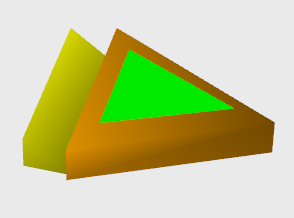
<span style="font-family: Helvetica,sans-serif;"><span dir="ltr" style="font-size: 14pt; color: rgb(0, 0, 0); font-weight: 300;">In T3RRA Plane the Fix Quality may change depending on what is available. Depending on the type of fix quality the outside triangle will change to one of four colors:</span></span>

- <span style="font-family: Helvetica,sans-serif;"><span dir="ltr" style="font-size: 14pt; color: rgb(0, 0, 0); font-weight: 300;">Red - No fix is being made. (T3RRA Cutta and Ditch will only display this if something is wrong.)</span></span>
- <span style="font-family: Helvetica,sans-serif;"><span dir="ltr" style="font-size: 14pt; color: rgb(0, 0, 0); font-weight: 300;">Green - Fixed RTK (T3RRA Cutta and Ditch should only display this.)</span></span>
- <span style="font-family: Helvetica,sans-serif;"><span dir="ltr" style="font-size: 14pt; color: rgb(0, 0, 0); font-weight: 300;">Yellow - Float RTK</span></span>
- <span style="font-family: Helvetica,sans-serif;"><span dir="ltr" style="font-size: 14pt; color: rgb(0, 0, 0); font-weight: 300;">Orange - Differential GPS</span></span>

<table class="fr-no-borders" id="bkmrk-%C2%A0" style="width: 100%;"><tbody><tr><td dir="ltr" style="width: 25.0000%;">![](https://docs.t3rra.com/uploads/images/gallery/2025-03/scaled-1680-/1aMworqv1gwfkgnwjhubokppxwvturctmjs0a-png.png)</td><td dir="ltr" style="width: 25.0000%;">![](https://docs.t3rra.com/uploads/images/gallery/2025-03/scaled-1680-/pcw6lrz5eidxjbgvfvjy1pstllhq4xbn-ps2q-png.png)</td><td dir="ltr" style="width: 25.0000%;">![](https://docs.t3rra.com/uploads/images/gallery/2025-03/scaled-1680-/hLer5cf8bisp-9fizcmc80dw-vshk7pt8qnw-png.png)</td><td dir="ltr" style="width: 25.0000%;">![](https://docs.t3rra.com/uploads/images/gallery/2025-03/scaled-1680-/Jhbsamdw4lpo1rfemsmhn-haymgic9gqg0vea-png.png) </td></tr></tbody></table>

<span style="font-family: Helvetica,sans-serif;"><span style="font-size: 14pt; color: rgb(0, 0, 0); font-weight: 300;">Behind the triangle is a “blade bar” that shows the location of the blade. The width of this bar corresponds to the width of the cutting edge as entered in the ‘</span><span style="font-size: 14pt; color: rgb(0, 0, 0); font-weight: 400;">Settings</span><span style="font-size: 14pt; color: rgb(0, 0, 0); font-weight: 300;">’ window. The exact position of the GPS is at the center of the rear edge of the triangle (or the center of the front edge of the blade bar).</span></span>

<span style="font-family: Helvetica,sans-serif;">![](https://docs.t3rra.com/uploads/images/gallery/2025-03/scaled-1680-/kqL96is9xfu8oaz5vb79upc90f7c6nh7rtz4a-png.png)</span>

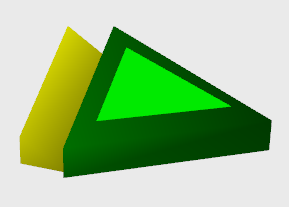
<span style="font-family: Helvetica,sans-serif;"><span dir="ltr" style="font-size: 14pt; color: rgb(0, 0, 0); font-weight: 300;">In 3D the T3RRA software will show the GPS position of the blade as the center of the front edge of the blade bar.</span></span>

<span style="font-family: Helvetica,sans-serif;"><span dir="ltr" style="font-size: 14pt; color: rgb(0, 0, 0); font-weight: 300;">![](https://docs.t3rra.com/uploads/images/gallery/2025-03/scaled-1680-/2k3di842j2obct0u8mcqemyzg-tnek0o8y5a-png.png)</span></span>