# 6. Surfacing

# Surfacing

<span style="font-family: Helvetica,sans-serif;">  
</span>

<span dir="ltr" style="font-family: Helvetica,sans-serif;">![](https://docs.t3rra.com/uploads/images/gallery/2025-03/scaled-1680-/CGprftr0dofpbh73gyn0b-zchmrhn6bfa-yna-png.png)</span>

<span dir="ltr" style="font-family: Helvetica,sans-serif;"><span dir="ltr" style="font-size: 14pt; color: rgb(0, 0, 0); font-weight: 300;">"**Surfacing**" is a term used to describe the process of creating a continuous map (i.e., a “surface”) from all the discrete elevation data points collected in the '</span><span style="font-size: 14pt; color: rgb(0, 0, 0); font-weight: 400;">**Collect**</span><span dir="ltr" style="font-size: 14pt; color: rgb(0, 0, 0); font-weight: 300;">' wizard step. </span></span>

<span dir="ltr" style="font-family: Helvetica,sans-serif;"><span dir="ltr" style="font-size: 14pt; color: rgb(0, 0, 0); font-weight: 300;">This is done so that every location in the field (or work area) has an elevation point associated with it, not just the places where GPS data was physically collected. The software estimates values in all the blank areas between the survey dots. </span></span>

<span dir="ltr" style="font-family: Helvetica,sans-serif;"><span dir="ltr" style="font-size: 14pt; color: rgb(0, 0, 0); font-weight: 300;">For every blank position on the map it looks a set distance in every direction to find actual surveyed points. This distance is called the ‘</span><span style="font-size: 14pt; color: rgb(0, 0, 0); font-weight: 400;">**Search radius**</span><span style="font-size: 14pt; color: rgb(0, 0, 0); font-weight: 300;">’. Once it finds enough points it will estimate the blank location based on these points.</span></span>

<span style="font-family: Helvetica,sans-serif;">  
</span>

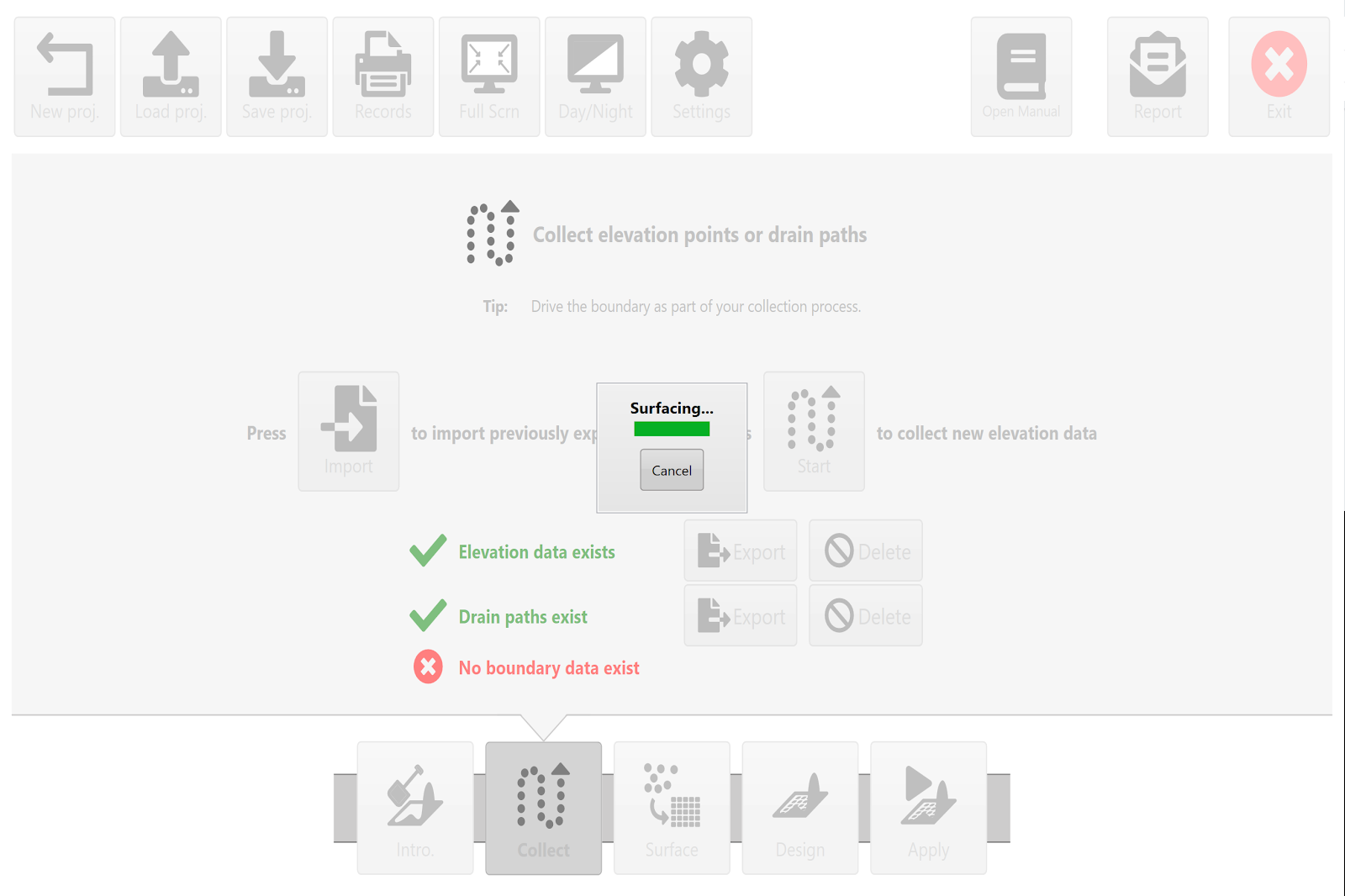
<span style="font-family: Helvetica,sans-serif;"><span style="font-size: 14pt; color: rgb(0, 0, 0); font-weight: 300;">Upon exiting the '</span><span style="font-size: 14pt; color: rgb(0, 0, 0); font-weight: 400;">**Collect**</span><span style="font-size: 14pt; color: rgb(0, 0, 0); font-weight: 300;">' step, T3RRA will attempt to automatically calculate the best search radius and create a surface from the collected data. If you wish to view the surfaced data before going to the ‘</span><span style="font-size: 14pt; color: rgb(0, 0, 0); font-weight: 400;">**Design**</span><span style="font-size: 14pt; color: rgb(0, 0, 0); font-weight: 300;">’ wizard step, pressing the '</span><span style="font-size: 14pt; color: rgb(0, 0, 0); font-weight: 400;">**Surface**</span><span style="font-size: 14pt; color: rgb(0, 0, 0); font-weight: 300;">' wizard button (at screen bottom) will allow you to both view it and make manual changes (if it does not match your expectations). </span></span>

<span style="font-family: Helvetica,sans-serif;"><span dir="ltr" style="font-size: 14pt; color: rgb(0, 0, 0); font-weight: 300;">**NOTE**: If you make a change to the collected elevation points (for example: by deleting a drain) you should re-run the surfacing step.</span></span>

![](https://docs.t3rra.com/uploads/images/gallery/2025-03/scaled-1680-/QO4ezhk29xgk1ntijdq0p0hujcozfnj7sfnha-png.png)

# Setting the Search Radius Manually

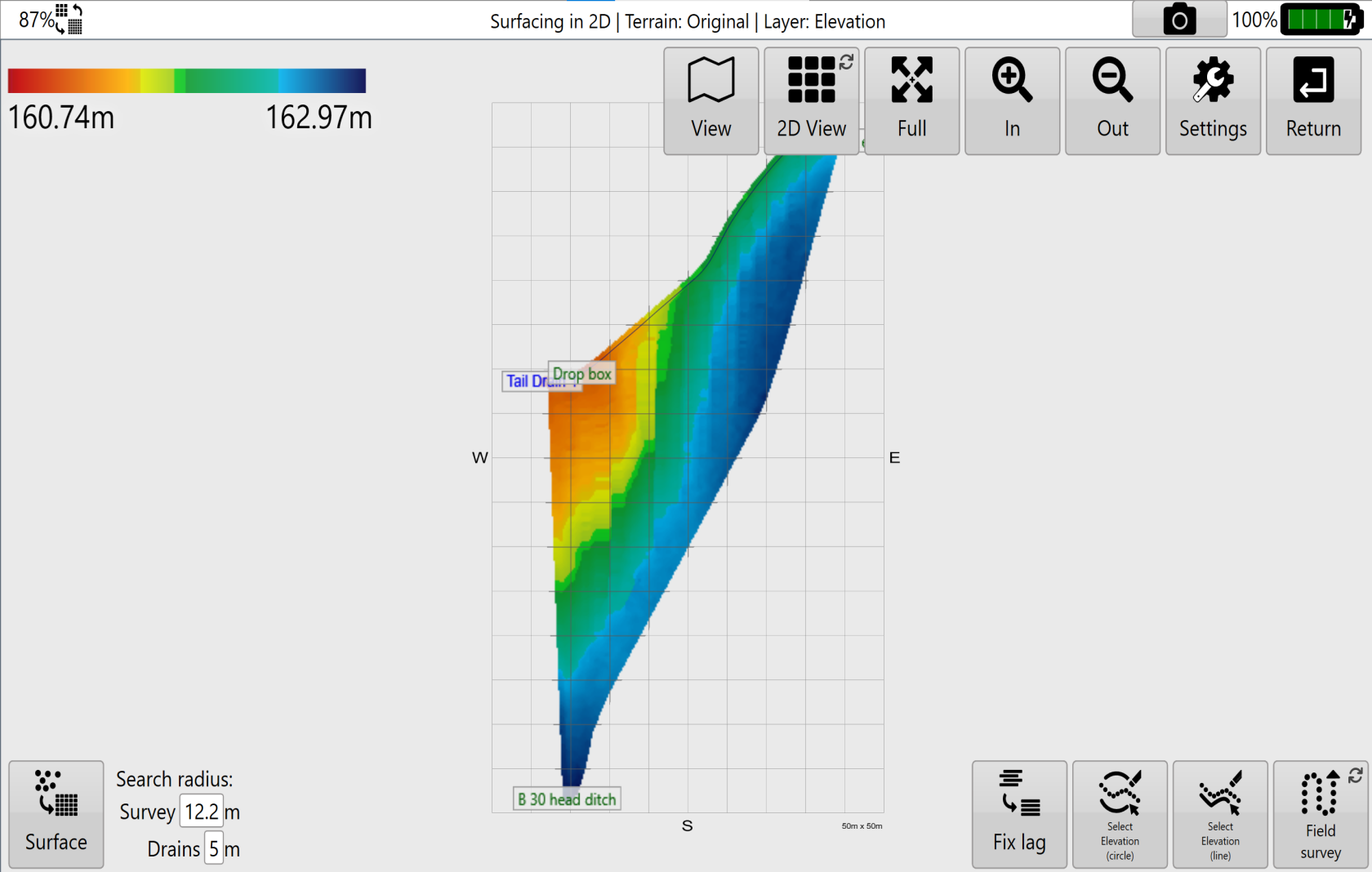
<span dir="ltr" style="font-size: 14pt; font-family: Helvetica, sans-serif; color: rgb(0, 0, 0); font-weight: 300;">If the automatically generated search radius does not achieve what you expect it is possible to manually adjust the search radius in the bottom left corner of the surfacing page. There are a few things to take into account when manually adjusting the search radius.</span>

<span style="font-family: Helvetica,sans-serif;">  
</span>

<span style="font-family: Helvetica,sans-serif;"><span style="font-size: 14pt; color: rgb(0, 0, 0); font-weight: 300;">When converting discrete elevation points into a continuous surface, a ‘</span><span style="font-size: 14pt; color: rgb(0, 0, 0); font-weight: 400;">**Search radius**</span><span style="font-size: 14pt; color: rgb(0, 0, 0); font-weight: 300;">’ is required. To estimate the elevation at any point on the surface which was not directly measured, we look at the surrounding measured points. The distance the surfacing algorithm will look for surrounding points is determined by the search radius.</span></span>

<span style="font-family: Helvetica,sans-serif;">  
</span>

<span style="font-family: Helvetica,sans-serif;"><span dir="ltr" style="font-size: 14pt; color: rgb(0, 0, 0); font-weight: 300;">Gaps will appear on the surface if the search radius is smaller than required. There is normally no visible effect on the resultant surface if the search radius is larger than required (although the surfacing will take longer to complete). In some instances surface artifacts will occur where the surface bridges across sections of the field where you would not expect it to. Examples might be a pond in a field, or the inside corner of an “L” shaped field. You can sometimes remove these areas by choosing a smaller search radius. Normally the effect of these artifacts is not great, although they can have impacts on your area and dirt volume records.</span></span>
<span style="font-family: Helvetica,sans-serif;">![](https://docs.t3rra.com/uploads/images/gallery/2025-03/scaled-1680-/eZml-d-63o941w-cf6cbwm7n0fq61e47wuiyq-png.png)</span>

<span style="font-family: Helvetica, sans-serif;"><span style="font-size: 14pt; color: rgb(0, 0, 0); font-weight: 300;">In general, a search radius should be about 2 times the swath width at which the data was collected. This sizing should ensure that the time it takes to apply the surface is still short but that as much data as possible is used to generate a representative map.</span></span>

# Inline Offset

![](https://docs.t3rra.com/uploads/images/gallery/2025-03/scaled-1680-/5jcygdf9jsyiekqfxlfxobaoq8tdfb1ojiqdq-png.png)<span style="font-family: Helvetica,sans-serif;"><span dir="ltr" style="font-size: 14pt; color: rgb(0, 0, 0); font-weight: 300;">'**Inline Offset**', also known as **'Fix Lag'**, is a surfacing tool that assists in making corrections to elevation data that is imported from other sources.</span></span>

<span style="font-family: Helvetica,sans-serif;"><span style="font-size: 14pt; color: rgb(0, 0, 0); font-weight: 300;">To access this tool press the ‘**Fix Lag**’ button located at the left end of the tools at the bottom of the screen. Pressing this button will open a pop-up window that will provide you with the options to correct elevation alignment. </span></span>

<span style="font-family: Helvetica,sans-serif;"><span class="fr-video fr-deletable fr-fvc fr-dvb fr-draggable"><iframe allowfullscreen="allowfullscreen" class="fr-draggable align-center" frameborder="0" height="360" sandbox="allow-scripts allow-forms allow-same-origin allow-presentation" src="https://www.youtube.com/embed/O9Sgkx-DffM?&wmode=opaque" width="640"></iframe>

</span>  
</span>

<span style="font-family: Helvetica,sans-serif;"><span dir="ltr" style="font-size: 14pt; color: rgb(0, 0, 0); font-weight: 300;">When correcting elevation data adjustments will be updated in real time on the map. </span></span>

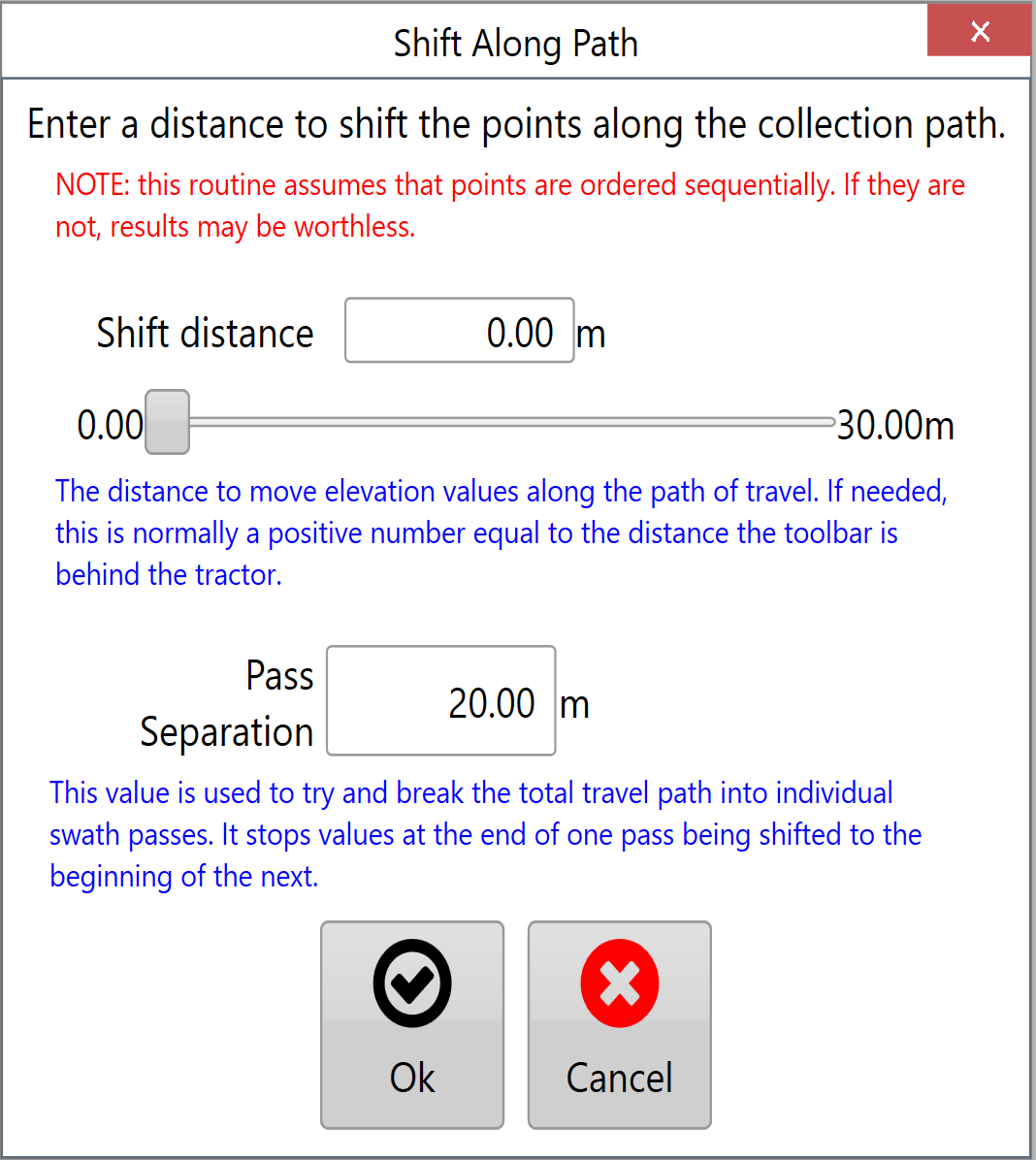
<span style="font-family: Helvetica,sans-serif;"><span dir="ltr" style="font-size: 14pt; color: rgb(0, 0, 0); font-weight: 300;">This will help to make sure that the changes you are making are correct before accepting them. </span></span><span style="font-family: Helvetica,sans-serif;"><span dir="ltr" style="font-size: 14pt; color: rgb(0, 0, 0); font-weight: 300;">![](https://docs.t3rra.com/uploads/images/gallery/2025-03/scaled-1680-/wiqu11ljb7vq6jntgsr11odwfeeqmm4kjnzya-png.png)There are 2 settings that control the correction of elevation data. </span></span>
<span style="font-family: Helvetica,sans-serif;">  
</span>

<span style="font-family: Helvetica,sans-serif;"><span dir="ltr" style="font-size: 14pt; color: rgb(0, 0, 0); font-weight: 300;">'**Shift distance**' moves the data points along the recorded path and can only adjust data to a maximum distance of 30m/100ft. The distance can be manually set or adjusted using the slider.</span></span>

<span style="font-family: Helvetica,sans-serif;">  
</span>

<span style="font-family: Helvetica,sans-serif;"><span dir="ltr" style="font-size: 14pt; color: rgb(0, 0, 0); font-weight: 300;">'**Pass Separation**' is how far must be between any point and the next point along before it is considered to be a new segment. There is no limit to this distance.</span></span>

<span style="font-family: Helvetica,sans-serif;"><span dir="ltr" style="font-size: 14pt; color: rgb(0, 0, 0); font-weight: 300;">When making changes to the data in the inline offset window they will be reflected on the surface on the map - Check that your change has the desired effect before accepting.</span></span>

# Surfacing a Survey also creates a design

<span dir="ltr" style="font-size: 14pt; font-family: Helvetica, sans-serif; color: rgb(0, 0, 0); font-weight: 300;">This is a concept that can be confusing at first. When you surface a set of collected survey points you create a terrain model of the original elevation in the field. This is expected. But T3RRA software also automatically creates a design surface for you as well. This design surface is an exact duplicate of the original elevation surface.</span>

<span style="font-family: Helvetica,sans-serif;">  
</span>

<span style="font-family: Helvetica,sans-serif;"><span style="font-size: 14pt; color: rgb(0, 0, 0); font-weight: 300;">Because T3RRA software allows you to create design surfaces in separate regions of a field, and also create design surfaces based on existing design surfaces, it makes sense to always have a base layer to work off. And this base layer is an exact duplicate of the original surface.</span></span>

<span style="font-family: Helvetica,sans-serif;">  
</span>

<span dir="ltr" style="font-size: 14pt; font-family: Helvetica, sans-serif; color: rgb(0, 0, 0); font-weight: 300;">A side effect of this automatic creation of design layers is that you can go straight to implementation after surfacing even if you have not specifically created a design (surfacing is normally automatic, so really you can usually skip directly to implementing directly after collecting!). A design surface does exist, it’s just that the cut/fill map is made up of 0 values for the whole field.</span>

# Survey point edit controls

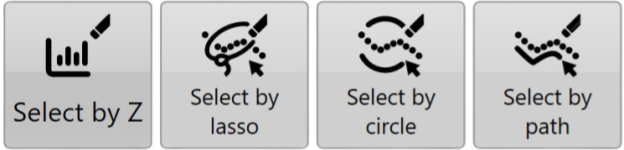
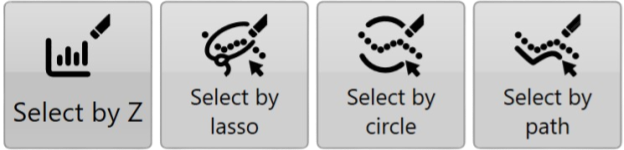
<span class="c7" dir="ltr">During surveying and surfacing, there are various different ways to edit/remove drain and survey points.</span><span class="c0" dir="ltr"> Field survey points are small circles, and drain survey points are small squares. The available tools include selecting by Z (indicated with a histogram), select by lasso, select by circle, and select by path:</span>
<span style="overflow: hidden; display: inline-block; margin: 0.00px 0.00px; border: 0.00px solid #000000; transform: rotate(0.00rad) translateZ(0px); -webkit-transform: rotate(0.00rad) translateZ(0px); width: 624.00px; height: 152.17px;">![](https://docs.t3rra.com/uploads/images/gallery/2025-03/scaled-1680-/0ASwlhhclspwsibxre6cwxd1iewkq2r8y-3ra-png.png)</span>

<span class="c0" dir="ltr">Most of the “Select by” tools operate in very similar ways. Press down on the screen at a starting position and then drag away from that position to define the extent of the deleted area.</span>

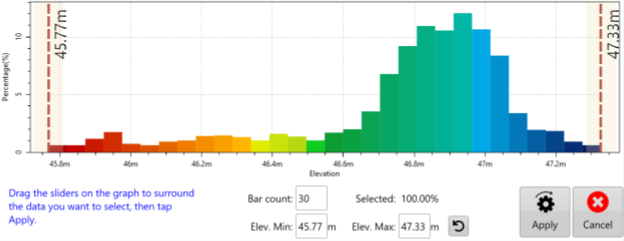
<span class="c7" dir="ltr">**'**</span><span class="c24">**Select by Z’** </span><span class="c0">allows you select elevation points by their height. After you click on it, you’ll see a graph of all your elevation data. Choose the data you want to select by clicking on the two dashed lines and using them to ‘wrap’ the data you want to select. When you click “Apply” you will be able to see the selection on the map, the selected points will be black.</span>
<span style="overflow: hidden; display: inline-block; margin: 0.00px 0.00px; border: 0.00px solid #000000; transform: rotate(0.00rad) translateZ(0px); -webkit-transform: rotate(0.00rad) translateZ(0px); width: 624.00px; height: 242.55px;">![](https://docs.t3rra.com/uploads/images/gallery/2025-03/scaled-1680-/CBozdaxroxvuj2atty2mzvial4hbthfhpsp1a-png.png)</span>

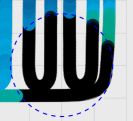
<span class="c7">**'**</span>**<span class="c24">Select by circle</span>**<span class="c0" dir="ltr">**'** will select everything within the circumference of the drawn circle. Press down at the center of the circle and then drag outwards. A blue dotted line will show what you are about to select. The data will be selected when you release your finger.</span>
<span class="c0" dir="ltr">![](https://docs.t3rra.com/uploads/images/gallery/2025-03/scaled-1680-/If0gbcy4w7gnpyi0w4qkoh0bld-tk3yhiik0a-png.png) </span>

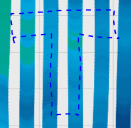
<span class="c24" dir="ltr">**‘Select by lasso’** </span><span class="c0" dir="ltr">allows a freeform selection. Click on the map and drag your finger to draw around the data you wish to edit. A blue dotted line will show what you are about to select. The data will be selected when you release your finger.</span>

<span class="c7" dir="ltr">'</span><span class="c24">Select by path</span><span class="c0" dir="ltr">' will delete all consecutive points between point A and point B. Press down on the point where you would like to start, drag the point to an end point. All points that had been collected on that path between these two points will be selected. The data will be selected when you release your finger.</span>
<span class="c0" dir="ltr">![](https://docs.t3rra.com/uploads/images/gallery/2025-03/scaled-1680-/Jwlfiq3qufeqdaubfsukdyg2z5hy6lngwhuna-png.png) </span>

<span class="c0" dir="ltr">While these functions are in use their buttons will display large red circles on them. This indicates that deleting is active. This is to help make sure you do not accidentally select things while trying to perform other tasks such as moving the screen or zooming. Pressing the buttons will cancel selection.</span>
<span class="c0" dir="ltr">![](https://docs.t3rra.com/uploads/images/gallery/2025-03/scaled-1680-/GsAgfnq45r04dz2yxsscetxky3lq3yksco3pa-png.png)</span>

---

<span class="c0">Once selections have been made you have two options.</span>

<span style="overflow: hidden; display: inline-block; margin: 0.00px 0.00px; border: 0.00px solid #000000; transform: rotate(0.00rad) translateZ(0px); -webkit-transform: rotate(0.00rad) translateZ(0px); width: 54.75px; height: 55.05px;">![](https://docs.t3rra.com/uploads/images/gallery/2025-03/scaled-1680-/MrBdbvectnej1jztea7gojnhx5wxczbnvsina-png.png)</span>

#### <span class="c36">Deleting Survey/Drain Points</span>

<span class="c46">Click on the “Delete” button that appears after selecting points. This will immediately delete the selected points. It’s recommended to save before doing this as the change is permanent.</span>

<span style="overflow: hidden; display: inline-block; margin: 0.00px 0.00px; border: 0.00px solid #000000; transform: rotate(0.00rad) translateZ(0px); -webkit-transform: rotate(0.00rad) translateZ(0px); width: 54.75px; height: 56.00px;">![](https://docs.t3rra.com/uploads/images/gallery/2025-03/scaled-1680-/9Tpmcdbdsm8fhidfi99y3ldfokyimrokzznmw-png.png)</span>

#### <span class="c36">Changing height of Survey/Drain Points</span>

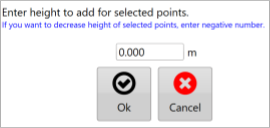
<span class="c46">Click on the “Modify Elevation button” and you will then see the below screen. Enter the amount to change the elevation by and click “Apply”. Your data will immediately be updated and you will be able to see the change on screen. It’s recommended to save before doing this as the change is permanent.</span>
<span style="overflow: hidden; display: inline-block; margin: 0.00px 0.00px; border: 0.00px solid #000000; transform: rotate(0.00rad) translateZ(0px); -webkit-transform: rotate(0.00rad) translateZ(0px); width: 270.25px; height: 129.00px;">![](https://docs.t3rra.com/uploads/images/gallery/2025-03/scaled-1680-/eXoo7b1sklpnadht36dcabayyp-yf-qigasaa-png.png)</span>

# Survey Point edit controls

<span data-identifyelement="186" dir="ltr">During surveying and surfacing, there are various different ways to edit/remove drain and survey points.</span>
<span data-identifyelement="189" style="overflow: hidden; display: inline-block; margin: 0.00px 0.00px; border: 0.00px solid #000000; transform: rotate(0.00rad) translateZ(0px); -webkit-transform: rotate(0.00rad) translateZ(0px); width: 624.00px; height: 152.17px;">![](https://docs.t3rra.com/uploads/images/gallery/2025-03/scaled-1680-/YP29k6idc5jx0qpotceaa8ohjnjsly8c-rgiw-png.png)</span>

<span data-identifyelement="194" dir="ltr">**<span style="font-size: 16px;">'</span>**</span><span data-identifyelement="196">**<span style="font-size: 16px;">Select by Z’</span>** </span><span data-identifyelement="198">allows you select elevation points by their height. After you click on it, you’ll see a graph of all your elevation data. Choose the data you want to select by clicking on the two dashed lines and using them to ‘wrap’ the data you want to select. When you click “Apply” you will be able to see the selection on the map, the selected points will be black.</span>

<span data-identifyelement="200" style="overflow: hidden; display: inline-block; margin: 0.00px 0.00px; border: 0.00px solid #000000; transform: rotate(0.00rad) translateZ(0px); -webkit-transform: rotate(0.00rad) translateZ(0px); width: 624.00px; height: 242.55px;">![](https://docs.t3rra.com/uploads/images/gallery/2025-03/scaled-1680-/HZaiuul7vrlynnafkohqgul2ipf4ldju7ysfq-png.png)</span>

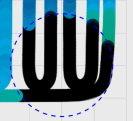
<span data-identifyelement="203">**<span style="font-size: 16px;">'</span>**</span><span style="font-size: 16px;">**<span data-identifyelement="206">Select by circle</span>**</span><span data-identifyelement="207" dir="ltr"><span style="font-size: 16px;">**'**</span> will select everything within the circumference of the drawn circle. Press down at the center of the circle and then drag outwards. A blue dotted line will show what you are about to select. The data will be selected when you release your finger. <span data-identifyelement="210" dir="ltr">![](https://docs.t3rra.com/uploads/images/gallery/2025-03/scaled-1680-/CL0woh2dvu2fvtrytiskwfdkh3sse2prvbm8w-png.png)</span>   
</span>

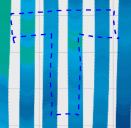
<span data-identifyelement="217" dir="ltr">**<span style="font-size: 16px;">‘Select by lasso’</span>**<span style="font-size: 14px;"> </span></span><span style="font-size: 13px;"><span data-identifyelement="219" dir="ltr">allows a freeform selection. Click on the map and drag your finger to draw around the data you wish to edit. A blue dotted line will show what you are about to select. The data will be selected when you release your finger.</span></span>

<span data-identifyelement="221" dir="ltr">'</span><span data-identifyelement="222">Select by path</span><span data-identifyelement="223" dir="ltr">' will delete all consecutive points between point A and point B. Press down on the point where you would like to start, drag the point to an end point. All points that had been collected on that path between these two points will be selected. The data will be selected when you release your finger.</span>
<span data-identifyelement="184" data-test-id="article-description" style="cursor: auto; position: relative; display: block;"><span data-identifyelement="225" dir="ltr">![](https://docs.t3rra.com/uploads/images/gallery/2025-03/scaled-1680-/jr02hs8-bx6z-tu-ar2stsvirrihrpgzhzpmg-png.png)</span></span>

<span data-identifyelement="232" dir="ltr">While these functions are in use their buttons will display large red circles on them. This indicates that deleting is active. This is to help make sure you do not accidentally select things while trying to perform other tasks such as moving the screen or zooming. Pressing the buttons will cancel selection.</span>
<span data-identifyelement="234" dir="ltr">![](https://docs.t3rra.com/uploads/images/gallery/2025-03/scaled-1680-/6lijpx0mrc1p7ck91vkafnrvk0ibmilc-x4yq-png.png)</span>

<span data-identifyelement="241" dir="ltr">Once selections have been made you have two options.</span>

<span data-identifyelement="243" style="overflow: hidden; display: inline-block; margin: 0.00px 0.00px; border: 0.00px solid #000000; transform: rotate(0.00rad) translateZ(0px); -webkit-transform: rotate(0.00rad) translateZ(0px); width: 54.75px; height: 55.05px;">![](https://docs.t3rra.com/uploads/images/gallery/2025-03/scaled-1680-/ncdxlyd7tlrm3zhs9s0rwqraqk6eyygrvhpuq-png.png)</span>

#### <span data-identifyelement="246">**Deleting Survey/Drain Points**</span>

<span data-identifyelement="248">Click on the “Delete” button that appears after selecting points. This will immediately delete the selected points. It’s recommended to save before doing this as the change is permanent.</span>

<span data-identifyelement="250" style="overflow: hidden; display: inline-block; margin: 0.00px 0.00px; border: 0.00px solid #000000; transform: rotate(0.00rad) translateZ(0px); -webkit-transform: rotate(0.00rad) translateZ(0px); width: 54.75px; height: 56.00px;">![](https://docs.t3rra.com/uploads/images/gallery/2025-03/scaled-1680-/ouacq-54xnsuvqebwnoryyd0wlii5gu0ppv1q-png.png)</span>

#### <span data-identifyelement="253">**Changing height of Survey/Drain Points**</span>

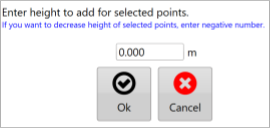
<span data-identifyelement="255" dir="ltr">Click on the “Modify Elevation button” and you will then see the below screen. Enter the amount to change the elevation by and click “Apply”. Your data will immediately be updated and you will be able to see the change on screen. It’s recommended to save before doing this as the change is permanent.</span>
<span data-identifyelement="256" style="overflow: hidden; display: inline-block; margin: 0.00px 0.00px; border: 0.00px solid #000000; transform: rotate(0.00rad) translateZ(0px); -webkit-transform: rotate(0.00rad) translateZ(0px); width: 270.25px; height: 129.00px;">![](https://docs.t3rra.com/uploads/images/gallery/2025-03/scaled-1680-/iiQh4-d-updimkkaujd1nuj2nldsar3qvj2ma-png.png)</span>

#### <span class="fr-video fr-deletable fr-fvc fr-dvb fr-draggable fr-active"><iframe allowfullscreen="allowfullscreen" class="fr-draggable align-center" frameborder="0" height="360" sandbox="allow-scripts allow-forms allow-same-origin allow-presentation" src="https://www.youtube.com/embed/Q0581DSU7j4?&wmode=opaque" width="640"></iframe>

</span>