# Removing Bad Data Points

<span style="font-size: 16px;">**Symptoms:**</span>

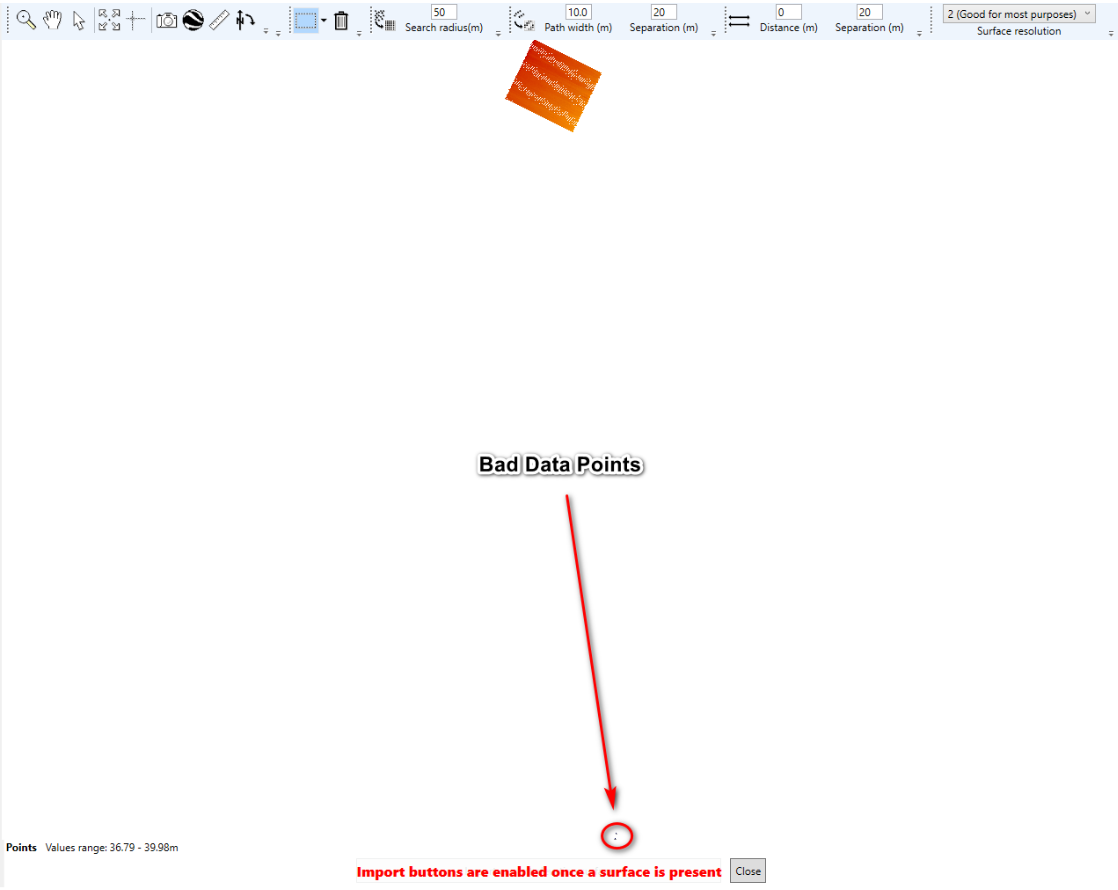
- <span style="font-size: 16px;">Imported field elevation data is all one color.</span>
- <span style="font-size: 16px;">Field is also not centered on the import screen.</span>

<span style="font-size: 16px;">![](https://docs.t3rra.com/uploads/images/gallery/2025-03/scaled-1680-/lgw3m-vikvtjjiylnjcfslf-lsqeur6fa-png.png)</span>

<span style="font-size: 16px;">  
</span>

<span style="font-size: 16px;">**Cause:**</span>

<span style="font-size: 16px;">There are many ways in which a system can collect bad data points. This could be due to the tractor being parked at the shed with the linkage down. When the tractor is started and the recording source is set to the linkage. The system will record a couple of points at the location. You will not know that at the time but when you bring that data into T3RRA Design Plus you will see the field to be all one color.</span>

<span style="font-size: 16px;">  
</span>

<span style="font-size: 16px;">**Solution:**</span>

1. <span style="font-size: 16px;">Import elevation data for the John Deere display into T3RRA Design Plus and edit the bad points.</span>
2. <span style="font-size: 16px;">If you are using the John Deere Operation Center and have documented a task you could also use our on-line tool T3RRA 3D.</span>

<span style="font-size: 16px;">  
</span>

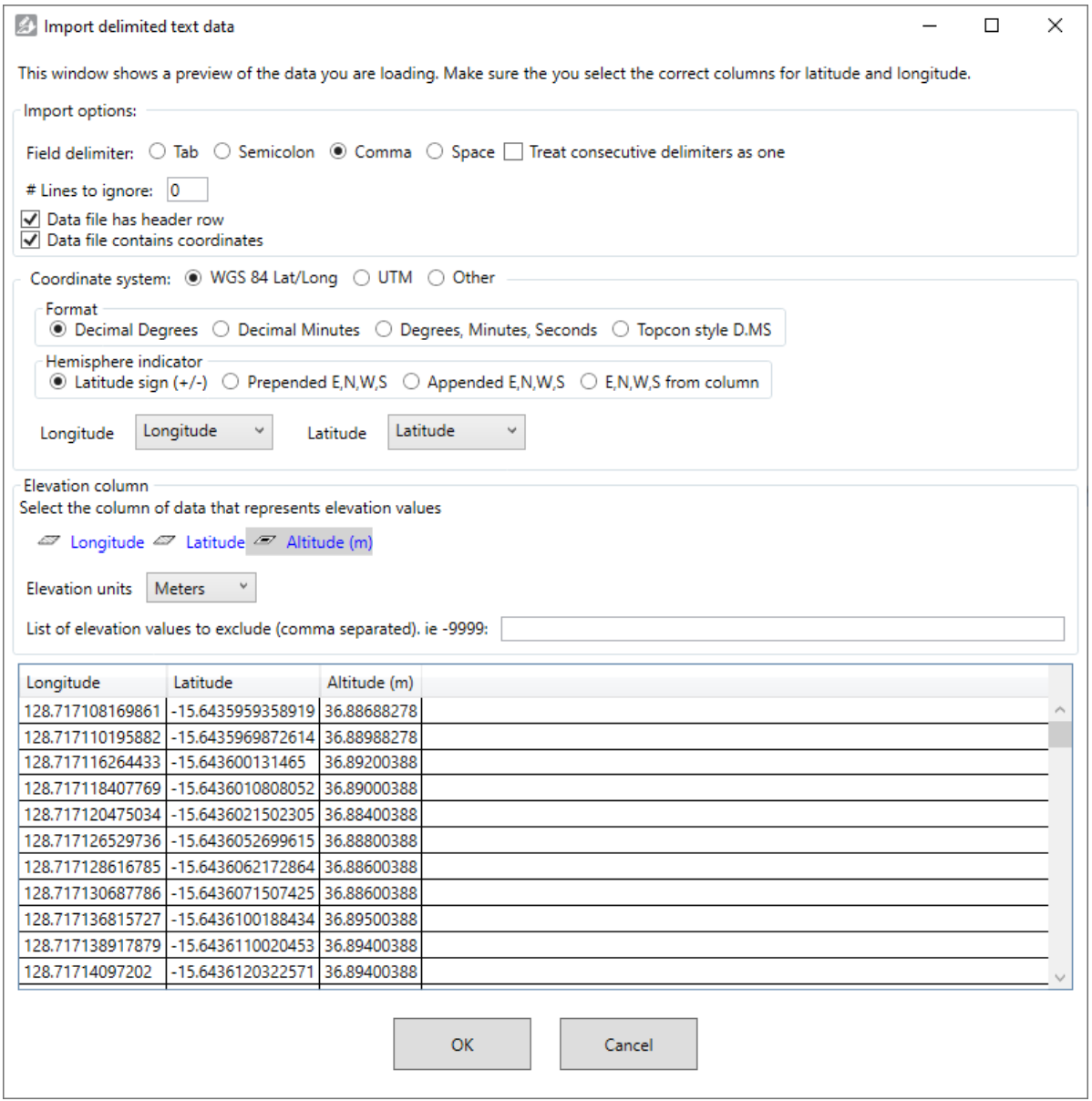
<span style="font-size: 16px;">Import your data from your display into T3RRA Design Plus, select OK.</span>

<span style="font-size: 16px;">![](https://docs.t3rra.com/uploads/images/gallery/2025-03/scaled-1680-/bg-sebjs5hzapxna4xregzujrhcf-7i5w-png.png)</span>

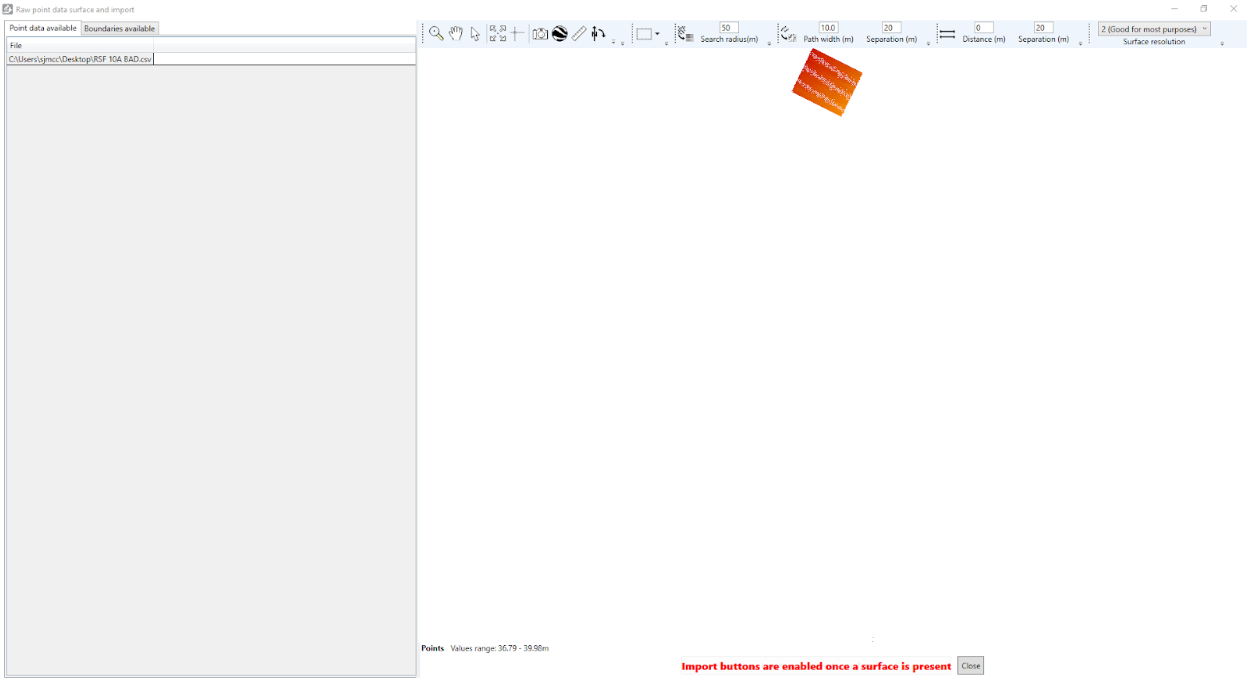
<span style="font-size: 16px;">Raw point data surface and import window will open.</span>

<span style="font-size: 16px;">![](https://docs.t3rra.com/uploads/images/gallery/2025-03/scaled-1680-/djhnuwbyhffs54icaw-awhpnxcf01jsnqa-png.png)</span>

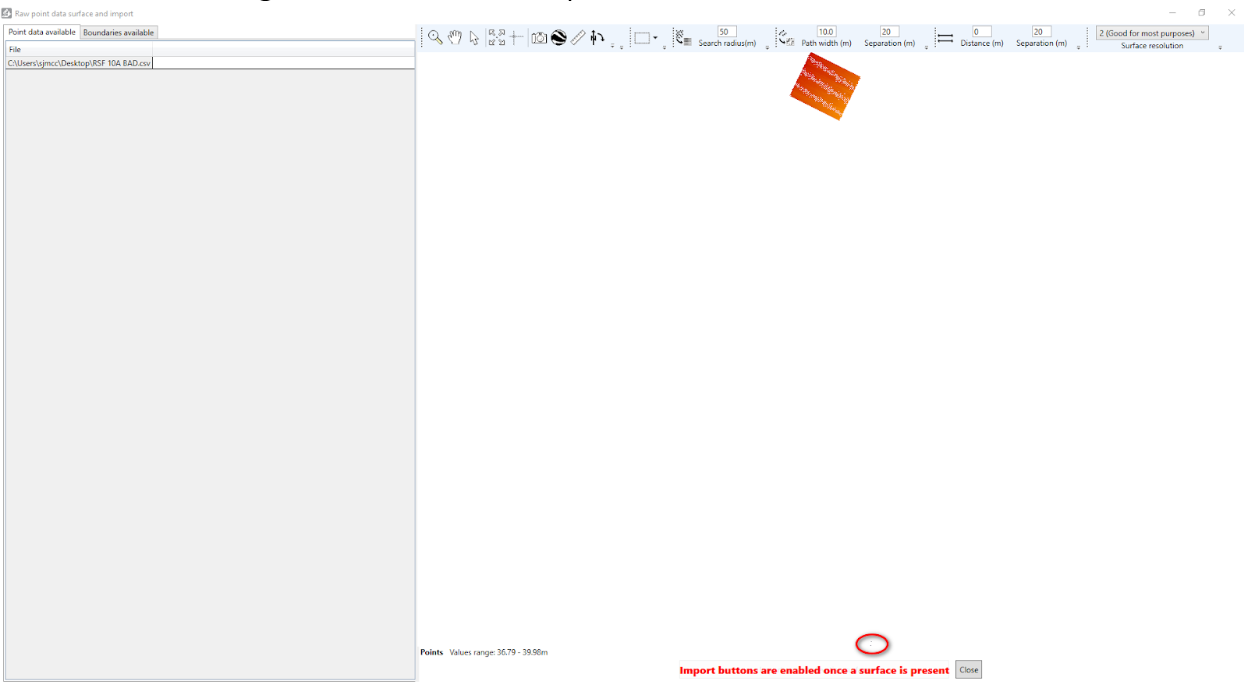
<span style="font-size: 16px;">If you look hard enough you will see bad data points.</span>

<span style="font-size: 16px;">![](https://docs.t3rra.com/uploads/images/gallery/2025-03/scaled-1680-/pryguh2ocvowietrzqctjwvnclqgisarhg-png.png)</span>

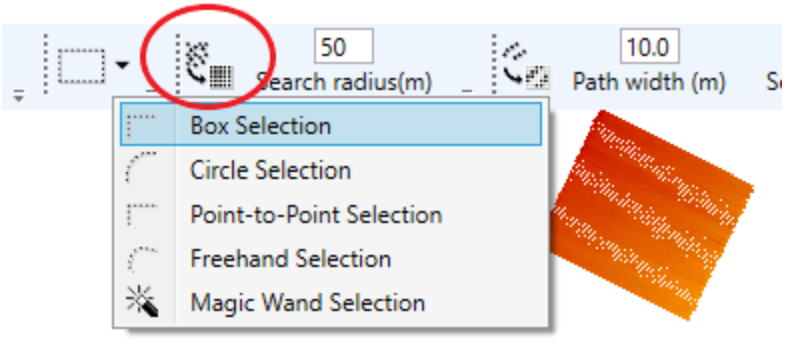
<span style="font-size: 16px;">You can use the “Points selection Tools” to select the unwanted points.</span>

<span style="font-size: 16px;">![](https://docs.t3rra.com/uploads/images/gallery/2025-03/scaled-1680-/al1pw8untvnez2ikqwoavs60i6ksxc1giw-png.png)</span>

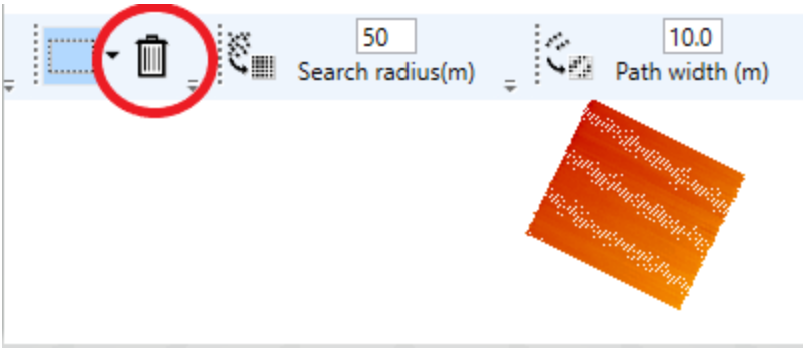
<span style="font-size: 16px;">Once you have, select the bad points with your mouse. Then use the “Trash” icon to remove the points.</span>

<span style="font-size: 16px;">![](https://docs.t3rra.com/uploads/images/gallery/2025-03/scaled-1680-/vn7-7dlahse0jd4c3bjhlsbgptimrwvnha-png.png)</span>

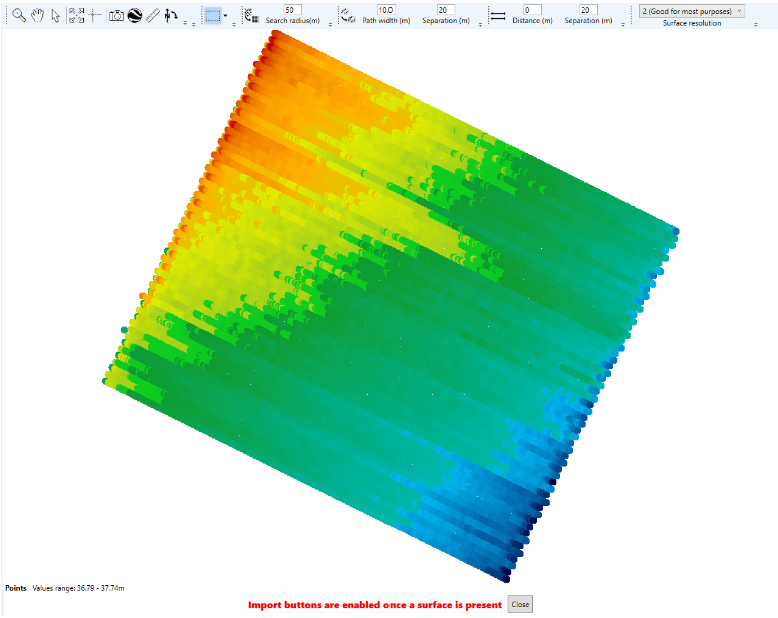
<span style="font-size: 16px;">Once the bad points have been removed your map should look like the screenshot below.</span>

![](https://docs.t3rra.com/uploads/images/gallery/2025-03/scaled-1680-/ynfdgyburxgr46rzc6eeximm142b7-m9pq-png.png)