# Get Remote Support
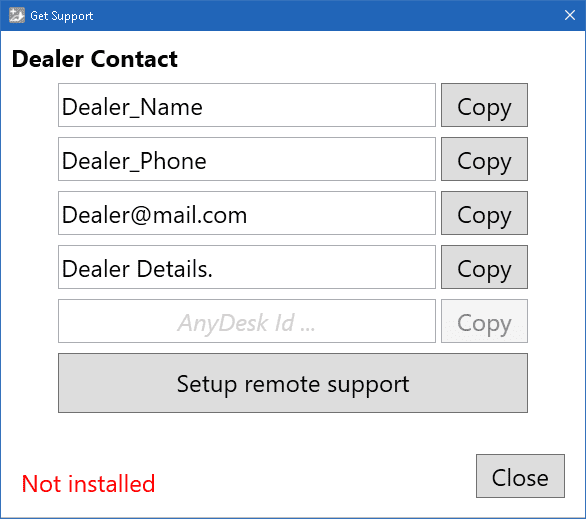
When the manual isn’t quite enough, and you just need some flesh and blood assistance, we’ve got your back. Call your support person and in T3RRA Design, press Help > Remote Support.
[](https://docs.t3rra.com/uploads/images/gallery/2026-04/TvtRoJhfqR62pBuF-t3d-getsupport-notinstalled.png)
Click "Setup remote support" button.
[](https://docs.t3rra.com/uploads/images/gallery/2026-04/tCCfG5sOnHgVjpXs-t3d-getsupport-installed.png)
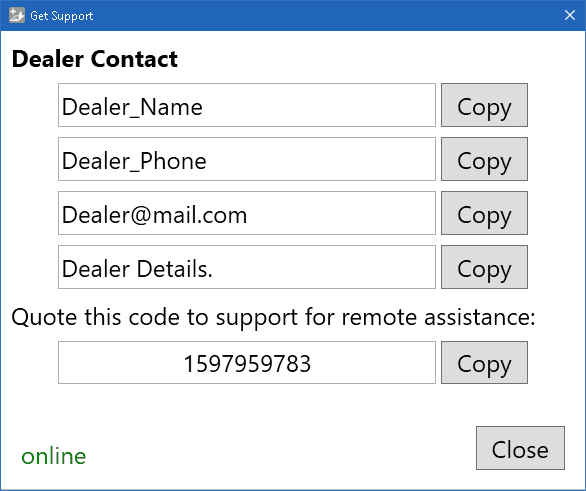
After installation, It will show a code. Your support person can use the code to connect to your computer and help get you going again. When they do, AnyDesk will open a confirmation window. Click the green \[Accept\] button to accept their help.