# T3RRA Design Plus Troubleshooting guide
# Troubleshooting guide
# Error Reporter
This window is shown when an unexpected error is detected. To help us out, please answer the questions in the lower half of the window and send the report by clicking the \[Send Report\] button. Even if the problem seems obvious, taking the time to provide some context can save days of investigation.
# Get Remote Support
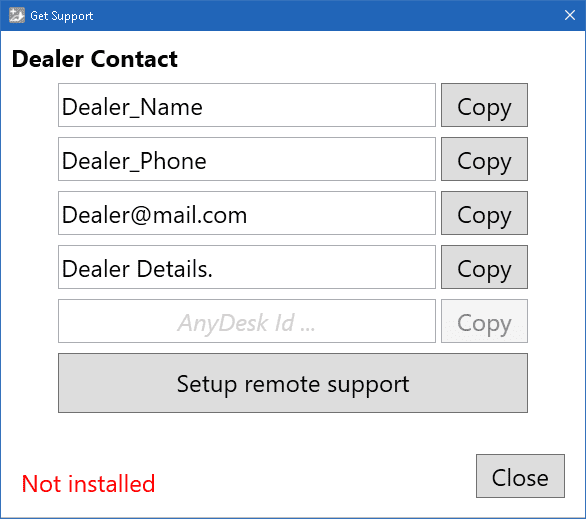
When the manual isn’t quite enough, and you just need some flesh and blood assistance, we’ve got your back. Call your support person and in T3RRA Design, press Help > Remote Support.
[](https://docs.t3rra.com/uploads/images/gallery/2026-04/TvtRoJhfqR62pBuF-t3d-getsupport-notinstalled.png)
Click "Setup remote support" button.
[](https://docs.t3rra.com/uploads/images/gallery/2026-04/tCCfG5sOnHgVjpXs-t3d-getsupport-installed.png)
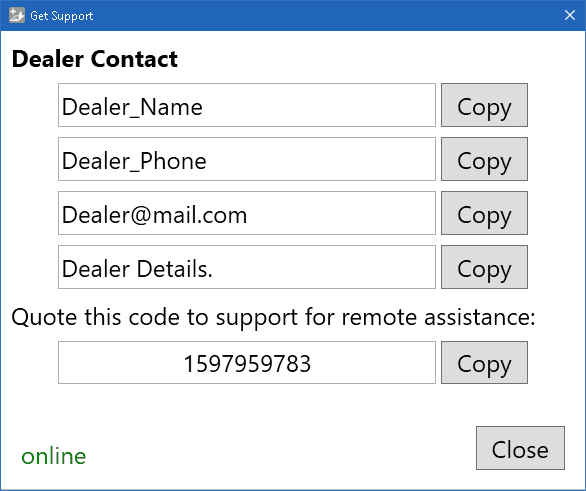
After installation, It will show a code. Your support person can use the code to connect to your computer and help get you going again. When they do, AnyDesk will open a confirmation window. Click the green \[Accept\] button to accept their help.
# Antivirus Software
# Software fails to start
Symptoms:
T3RRA Design Plus will not start, or the T3RRA Design Plus update does not work after downloading a new version.
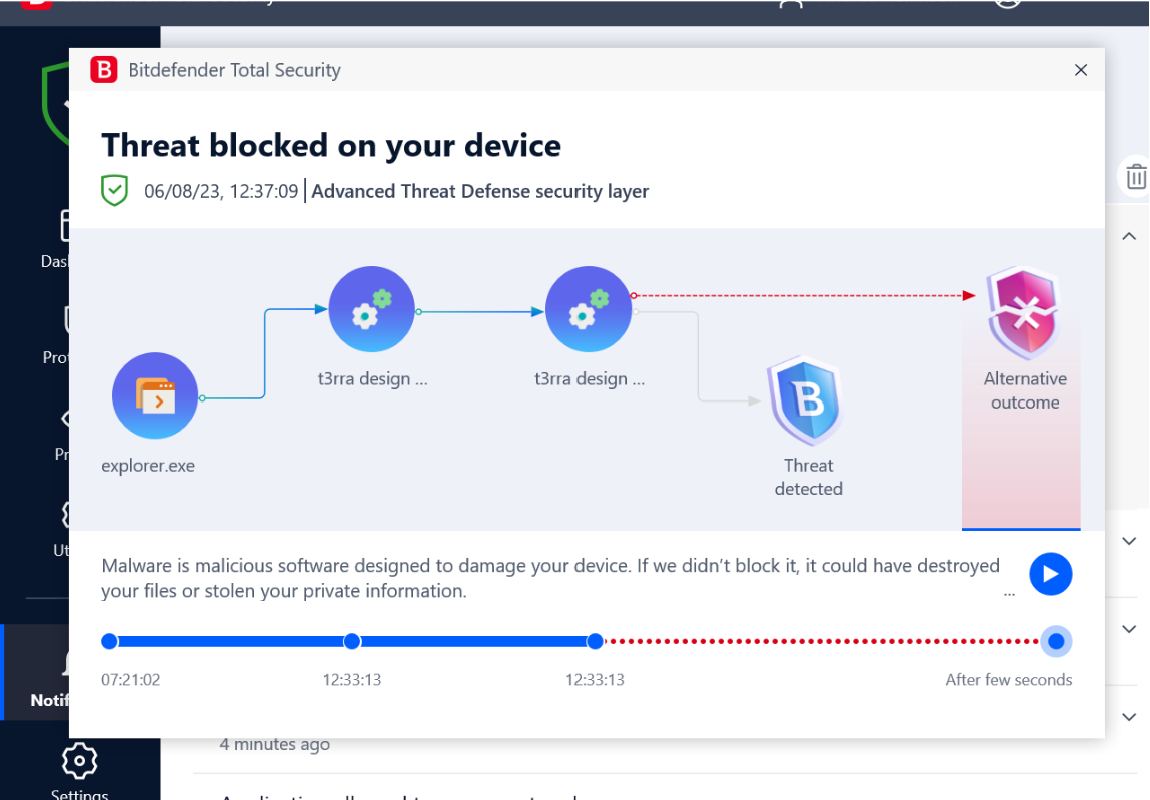
Cause:
Solutions:
It may be necessary to switch to another version of antivirus software, or to add an exclusion for the T3RRA Design Plus folder. Most reputable antivirus software providers provide instructions on how to add an exclusion.
Follow the below links if you use one of these antivirus software:
Bitedefender
AVG AntiVirus
Malwarebytes
When adding an exclusion, the path to exclude is:
%LOCALAPPDATA%\\T3RRADesignPlus
(e.g. C:\\Users\\YourUserName\\AppData\\Local\\T3RRADesignPlus)
# Saved projects are missing / not present due to Antivirus Software
**Symptoms**:
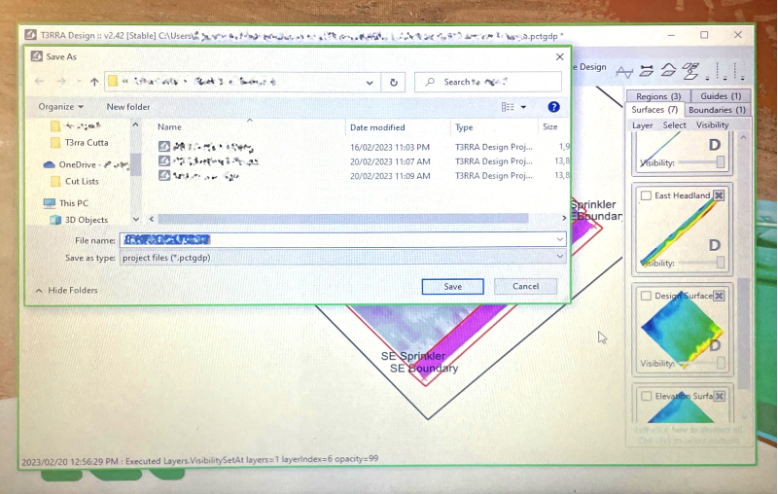You can import, design and save, and T3RRA Design Plus appears to save successfully, but the save file is not present when you check the save location. In addition, the T3RRA Design Plus windows are surrounded by a green border.
**Cause**:
Comodo Antivirus is sandboxing T3RRA Design.
**Solutions**:
It may be necessary to switch to another version of antivirus software, or to add an exclusion for the T3RRA Design Plus folder. Most reputable antivirus software providers provide instructions on how to add an exclusion. See the links in the previous entry for more information.
# Can’t Connect to the internet and unable to unlock
T3RRA Design requires access to the internet to verify the license status. Some antivirus software is a bit enthusiastic and will prevent access which will result in the inability to apply a new unlock code, or for an extended license period to apply. You must add an explicit exception for T3RRA Design. Below is an example for Bitdefender Firewall which had this problem in the past.
The path you need to apply the exception for is C:\\Users\\YourUserName\\AppData\\Local\\T3RRADesignPlus
NOTE: Be sure to replace “YourUserName” with your actual user name.
# Importing
# DXF import failure
Symptoms:
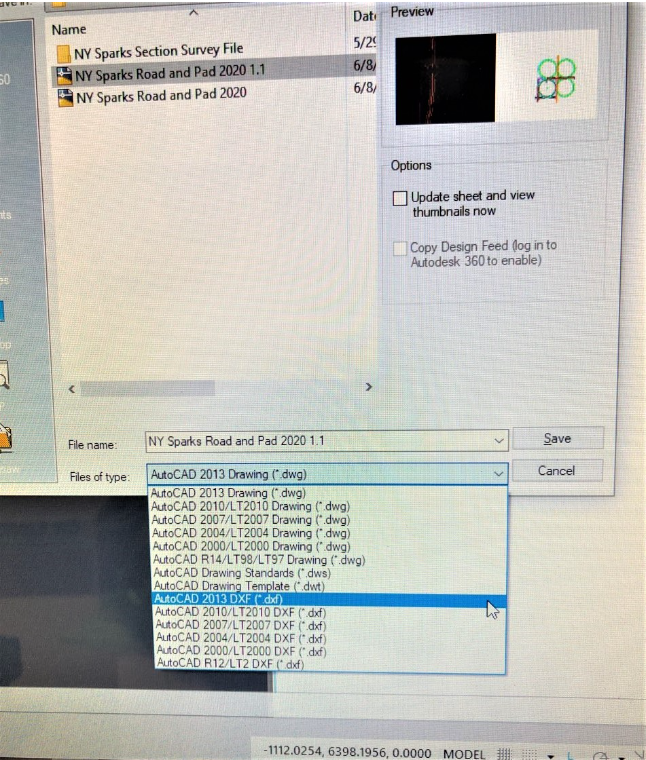
DXF file import is unsuccessful. Error message "DXF linework import has failed: Object reference not set to an instance of an object" when importing DXF into T3D.
Cause:
DWG saved as R12/LT2 DXF.
Solutions:
DWG saved as 2013 DXF.
# DXF import into T3RRA Design Plus
**Symptoms**
Importing a DXF data into T3RRA Design Plus and when you use the Google earth tool to view the surface it’s not in the correct location.
**Cause**
There could be many factors that impact importing third party data into T3RRA Design Plus, the most common is the data not being in the correct coordinates format or datum. This data can also be in a localized local format. Always ask for data in latitude and longitude or UTM.
**Solution**
Below is a template that can be used for customers wanting to import DXF or third party data into T3RRA Design Plus.
- Original surface survey in DXF 3D Faces,
- Design surface in DXF 3D Faces,
- Any earthworks control points, markers and feature points in DXF (these require lat long and elevations)
- Any design linework you would like displayed over the map, in DXF also, (things like the top of batters bottom of batters, change of grade and roads etc,)
- Any lines you would like made into guidance lines for steering also in DXF,
- With all of these, we need to know the alignment or any "localized" information please.
NOTE: It is preferential that anyone using JD iGrade have a surveyor provide them with a pegged location to place their base over. Enter the lat and long of the peg manually as an absolute base.
# Removing Bad Data Points
**Symptoms:**
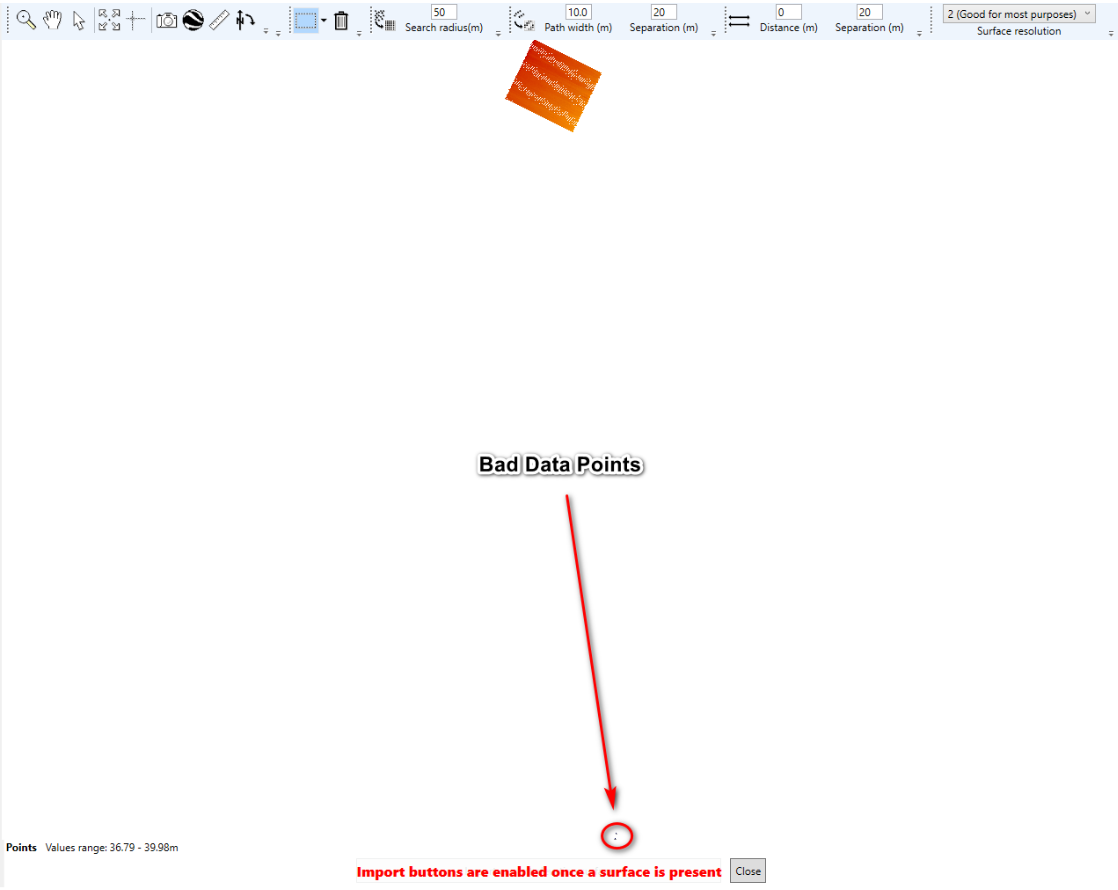
- Imported field elevation data is all one color.
- Field is also not centered on the import screen.
**Cause:**
There are many ways in which a system can collect bad data points. This could be due to the tractor being parked at the shed with the linkage down. When the tractor is started and the recording source is set to the linkage. The system will record a couple of points at the location. You will not know that at the time but when you bring that data into T3RRA Design Plus you will see the field to be all one color.
**Solution:**
1. Import elevation data for the John Deere display into T3RRA Design Plus and edit the bad points.
2. If you are using the John Deere Operation Center and have documented a task you could also use our on-line tool T3RRA 3D.
Import your data from your display into T3RRA Design Plus, select OK.
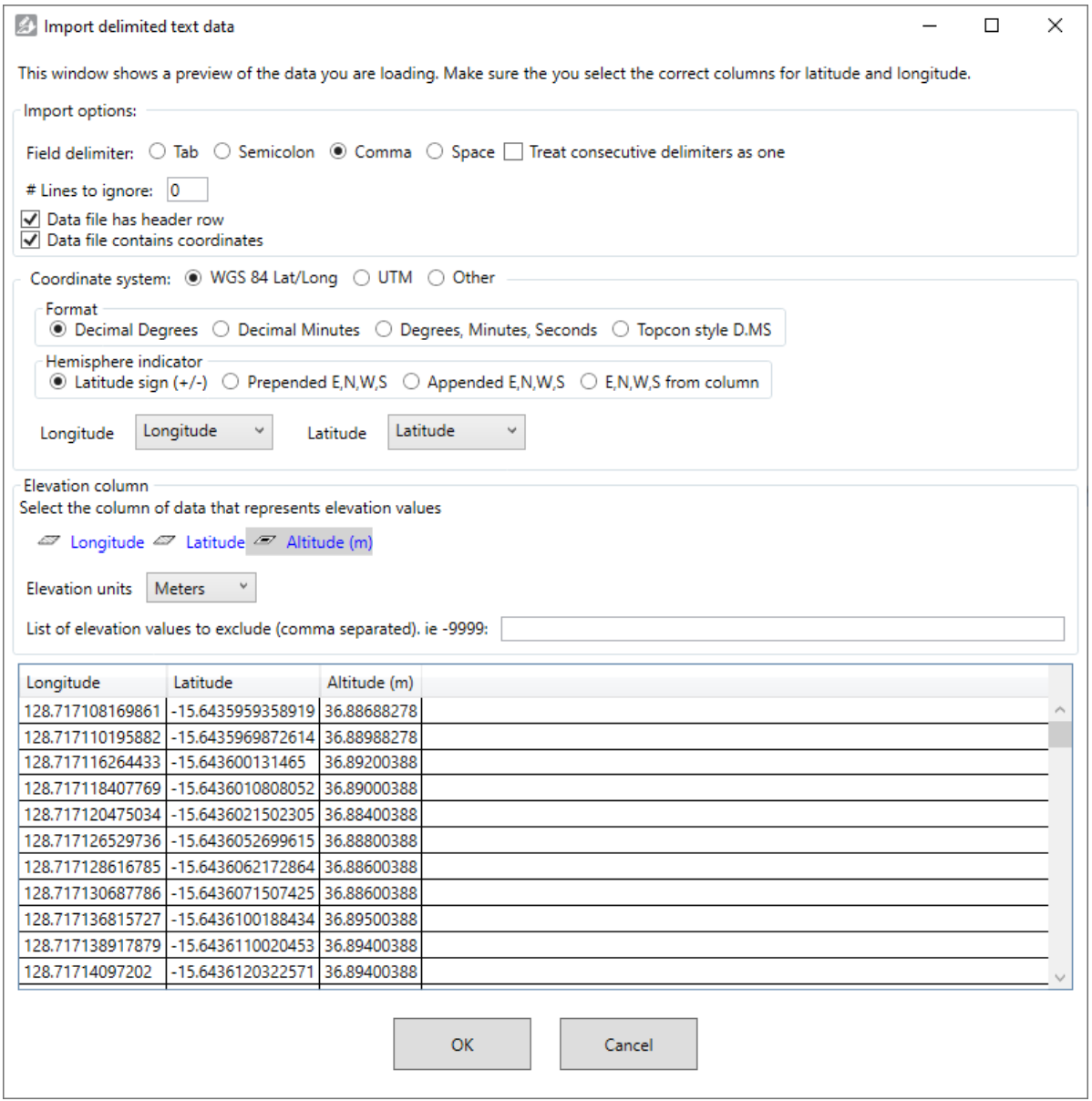
Raw point data surface and import window will open.
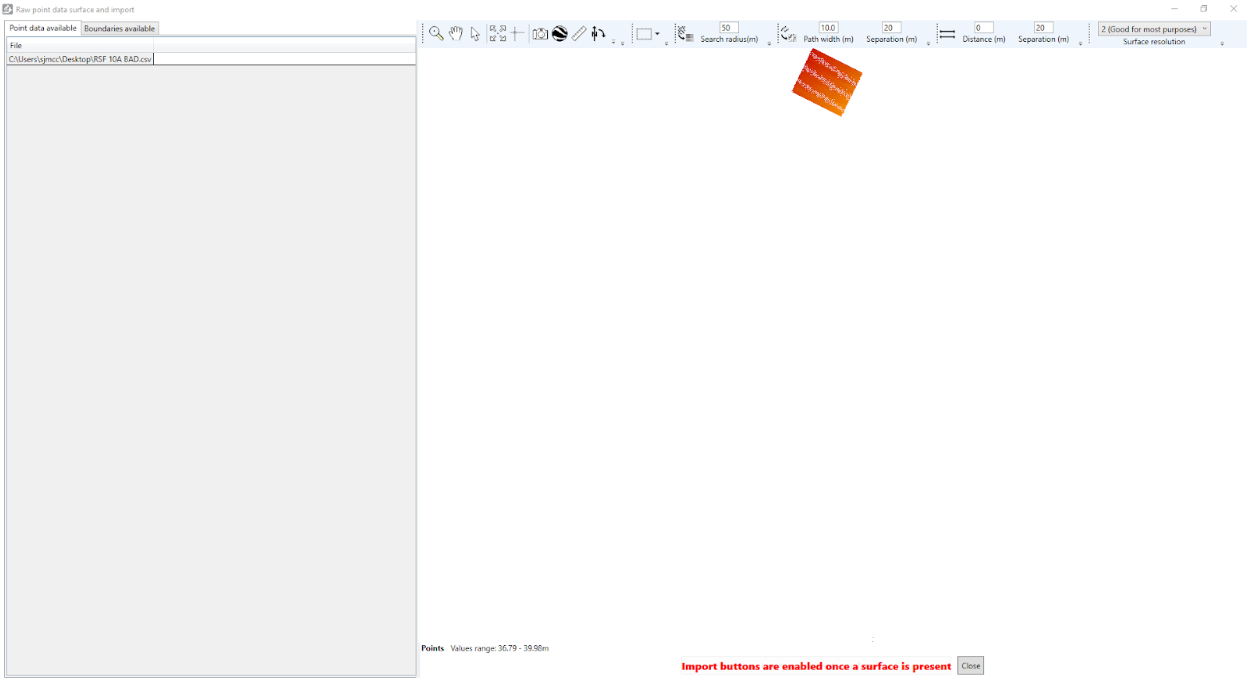
If you look hard enough you will see bad data points.
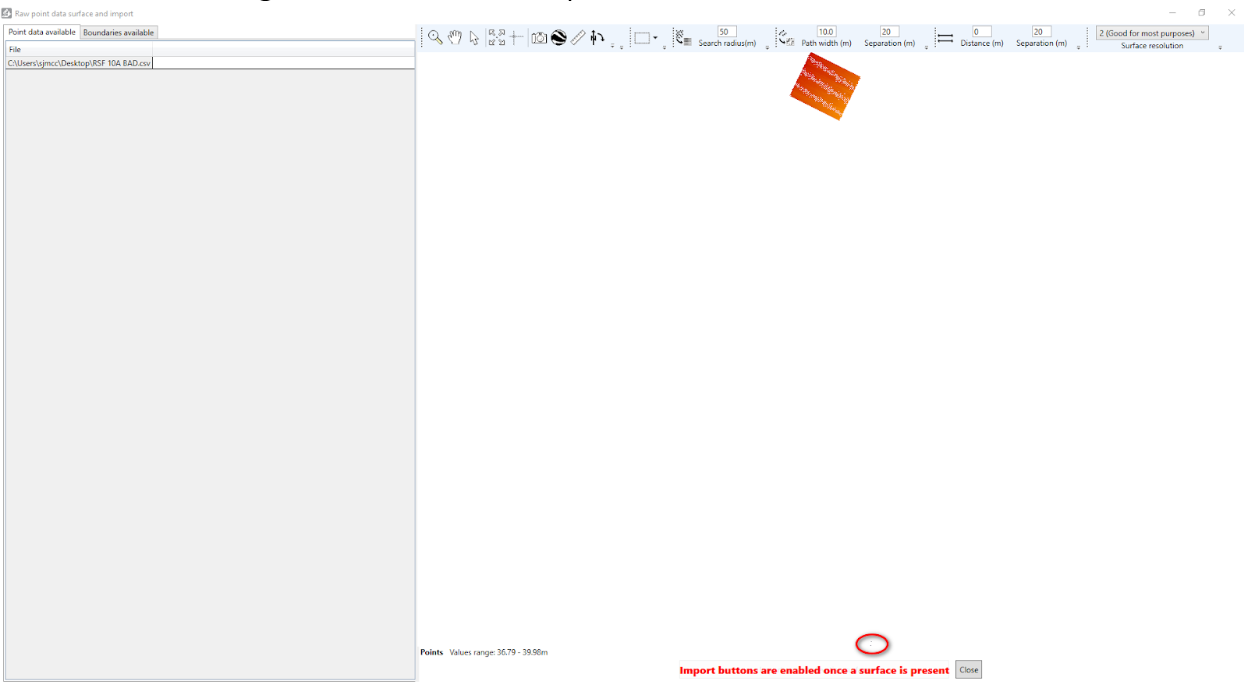
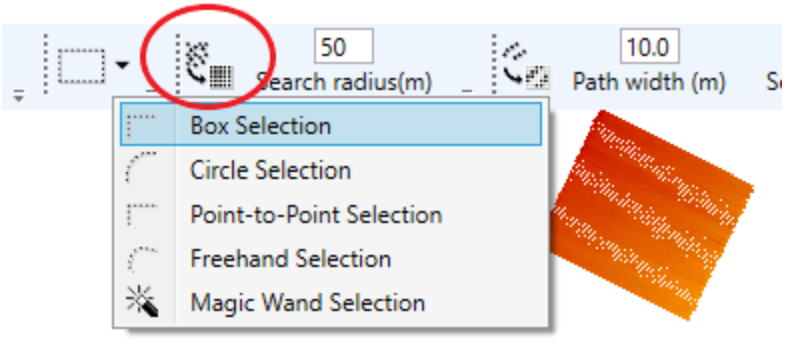
You can use the “Points selection Tools” to select the unwanted points.
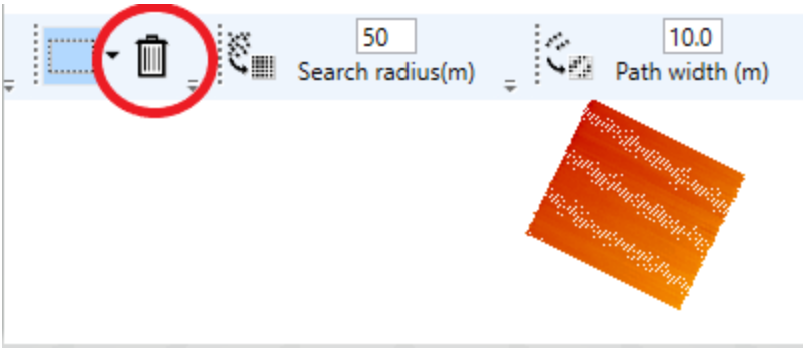
Once you have, select the bad points with your mouse. Then use the “Trash” icon to remove the points.
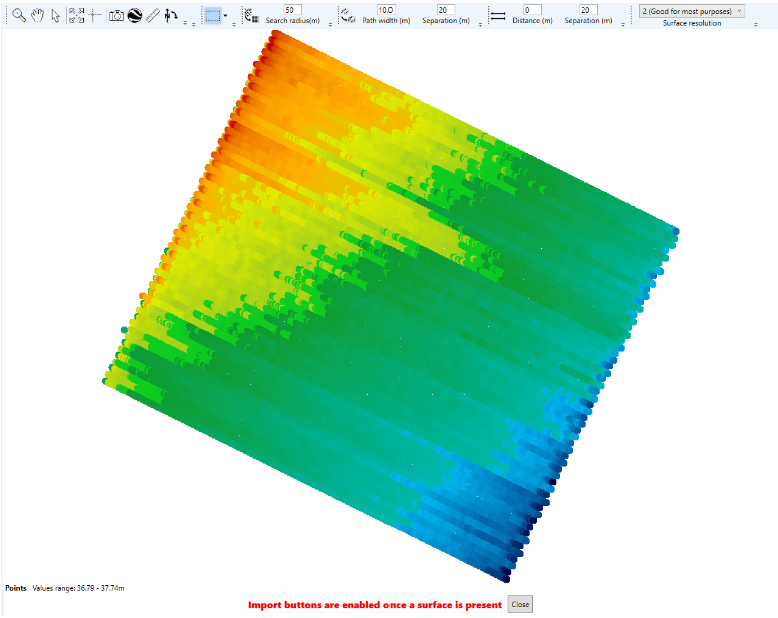
Once the bad points have been removed your map should look like the screenshot below.
# Exporting
# Printing to PDF - Logo is upside down
**Symptoms:**
The logo is upside down when a design is printed to PDF.
**Cause:**
Using a custom Print to PDF tool. For example, Foxit PDF Printer.
**Solutions:**
Use the built in “Microsoft Print to PDF” printer. This one is free and provided with Windows.
# Export to *.gps control file does not load/display properly
**Symptoms:**
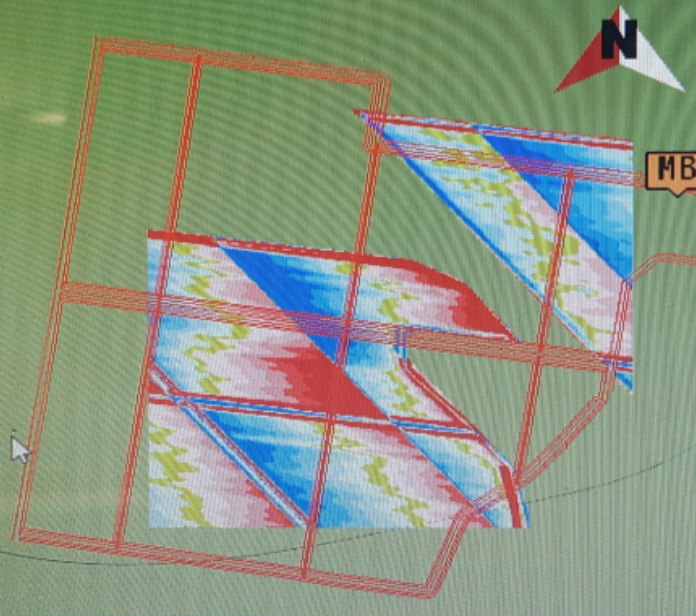
When the .gps file is loaded into the display, the map is in the wrong place, part of it is missing, and/or the scale is wrong. For example, note the linework to surface mismatch on the right.
**Cause:**
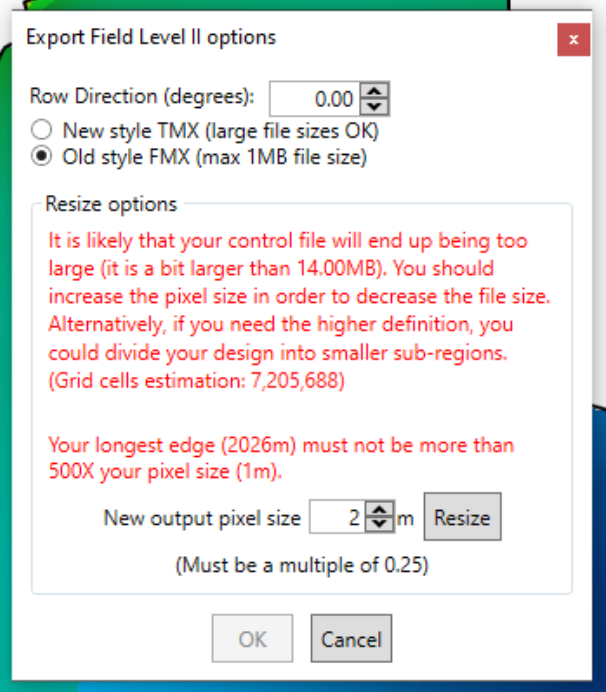
Trimble FMX and TMX displays can only display a certain size file. \*.gps files larger than 1MB or with too many pixels will not load correctly in FMX displays due to memory limitations.
**Solutions:**
Export again with a smaller file size. This can be done during export by simplifying to a larger pixel size. When selecting FMX, the limitations are more clearly shown, and you can resize to a larger pixel size in the export dialog:
You can also export a smaller size without increasing pixel size if you split the field into subsections. It may help to still have some overlap.
# View in Google Earth, does not open
**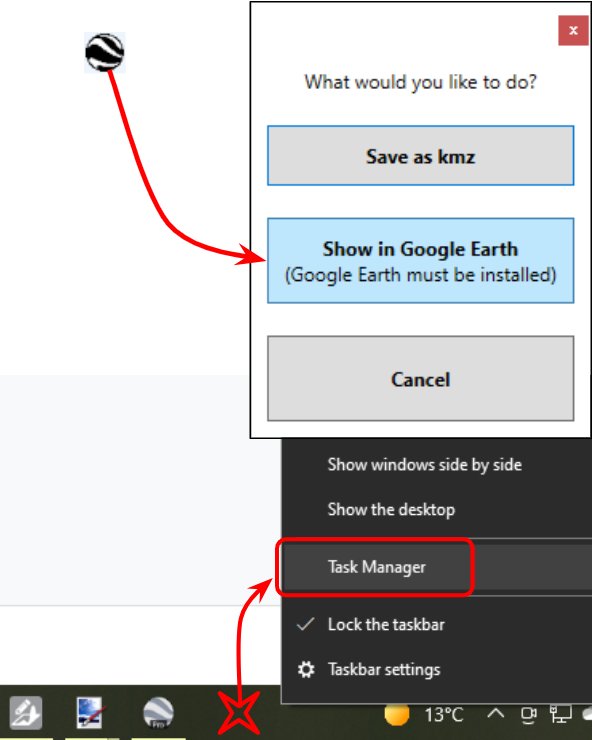Symptoms:**
Clicking the Show in Google Earth button doesn’t work.
Opening Google Earth doesn’t work either.
**Cause:**
Google Earth has stalled and is not responding.
**Solutions:**
Restart your computer.
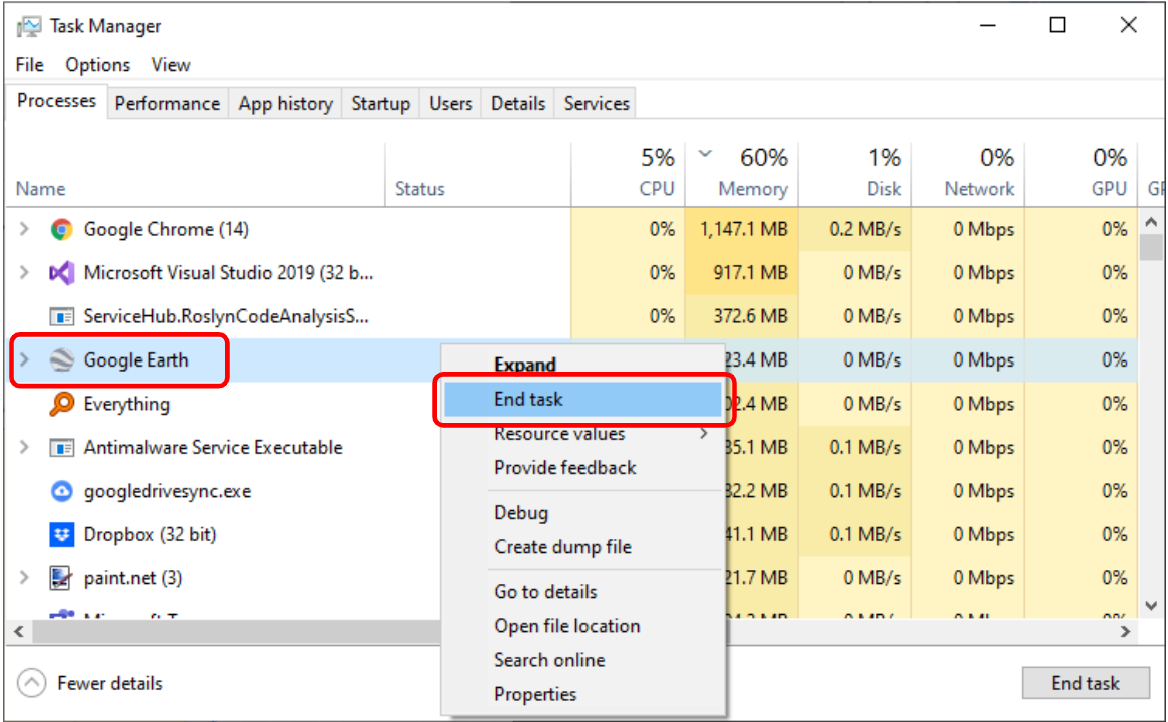
To avoid having to restart your computer, open Task Manager by right-clicking a blank part of the taskbar (usually at the bottom of the screen) and selecting Task Manager.
Then, under the Processes tab, right-click on Google Earth and choose End task. Then Google Earth should start up successfully the next time you try.
# Export to *.gps control file is too far from benchmark
**Symptoms:**
When the .gps file is loaded into the display, the system complains that the field is too far from the benchmark.
**Cause:**
When the previous design's field is left selected in the display, it will try to use the previous benchmark, which may be too far away.
**Solutions:**
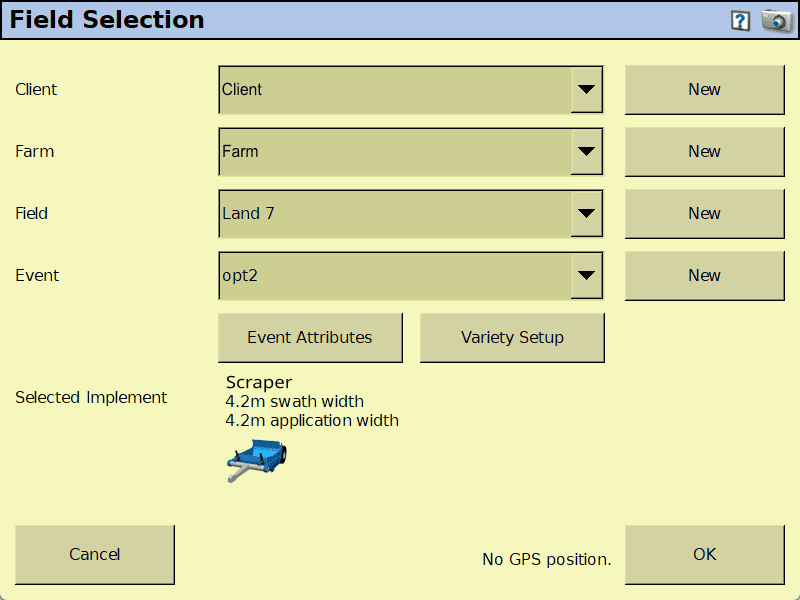
Select the correct Client, Farm, and Field. You may need to create a new field to load the design into.
[](https://docs.t3rra.com/uploads/images/gallery/2026-02/bXWwrbcCwyK2ZpQU-field-selection.png)
# Updating Software
# Downloading updates seems to have no effect
**Symptoms:**
T3RRA Design Plus indicates that a new version is available. You successfully download the new version using the normal “File\\Check for updates” method. However, upon restarting software T3RRA Design Plus has the same version number as before and is indicating that a new version is available.
**Cause:**
T3RRA Design Plus is not started directly. To start it you normally must execute a bootstrapping program which in turns selects the version of T3RRA Design Plus to run. If your shortcut is linked to a specific version of the software, this version will always run, even where there are newer versions installed on your machine.
**Solution:**
Browse to ‘C:\\Users\\<your user>\\AppData\\Local\\T3RRA\\T3RRA Design Plus’. There you should find a file named ‘T3D Bootstrap.exe’ . Depending on your settings, the file extension may or may not show. The folder ‘‘C:\\Users\\<your user>\\AppData’ is normally a hidden folder so you may have to reveal it using “Show hidden file and folders” on your system. Alternatively, simply type in the path in the Windows Explorer location bar. ‘T3D Bootstrap.exe’ is the file you want to execute whenever you run T3RRA Design Plus (v0.1). Create a shortcut on your desktop pointing to this file.
# Contour Designer
# Contour has no batter
**Symptoms:**
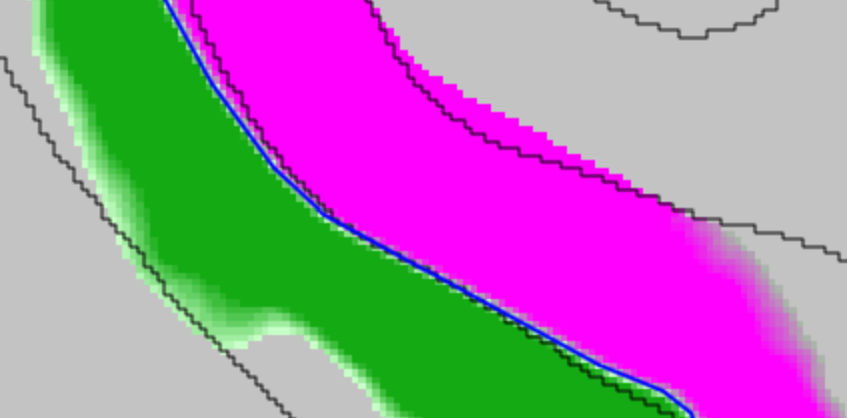
A contour is designed, but the cut/fill stops without a batter. In a cut/fill overlay, it will go from (e.g.) bright pink to gray without a transition.
**Cause:**
The batter is not steep enough. In the case shown above, the hill and the batter both had ~5% slope. That’s why it tried to cut forever.
**Solution:**
Add a section or two around the problem location to avoid changing the whole contour. Then for the affected section, increase the batter a bit above the prevailing slope. Preview cut/fill to verify.