# Importing
# DXF import failure
Symptoms:
DXF file import is unsuccessful. Error message "DXF linework import has failed: Object reference not set to an instance of an object" when importing DXF into T3D.
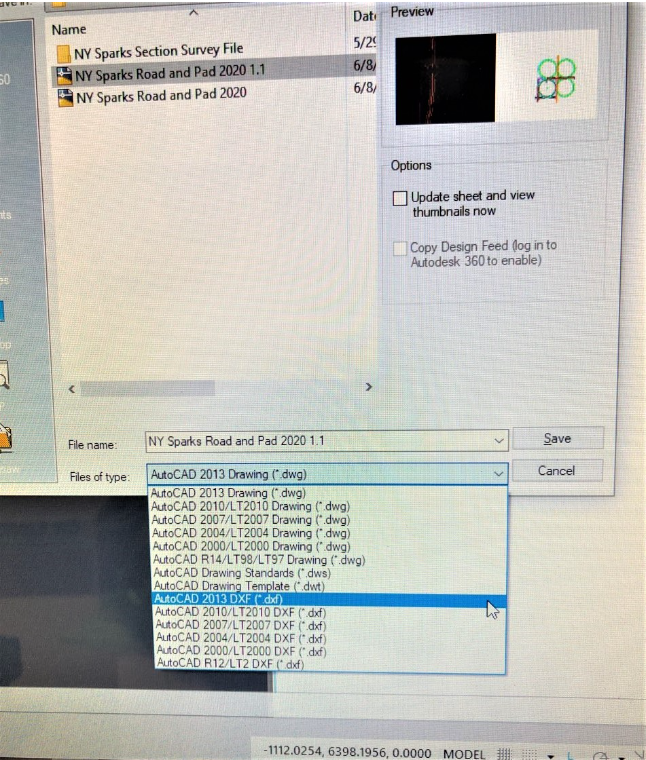
Cause:
DWG saved as R12/LT2 DXF.
Solutions:
DWG saved as 2013 DXF.
# DXF import into T3RRA Design Plus
**Symptoms**
Importing a DXF data into T3RRA Design Plus and when you use the Google earth tool to view the surface it’s not in the correct location.
**Cause**
There could be many factors that impact importing third party data into T3RRA Design Plus, the most common is the data not being in the correct coordinates format or datum. This data can also be in a localized local format. Always ask for data in latitude and longitude or UTM.
**Solution**
Below is a template that can be used for customers wanting to import DXF or third party data into T3RRA Design Plus.
- Original surface survey in DXF 3D Faces,
- Design surface in DXF 3D Faces,
- Any earthworks control points, markers and feature points in DXF (these require lat long and elevations)
- Any design linework you would like displayed over the map, in DXF also, (things like the top of batters bottom of batters, change of grade and roads etc,)
- Any lines you would like made into guidance lines for steering also in DXF,
- With all of these, we need to know the alignment or any "localized" information please.
NOTE: It is preferential that anyone using JD iGrade have a surveyor provide them with a pegged location to place their base over. Enter the lat and long of the peg manually as an absolute base.
# Removing Bad Data Points
**Symptoms:**
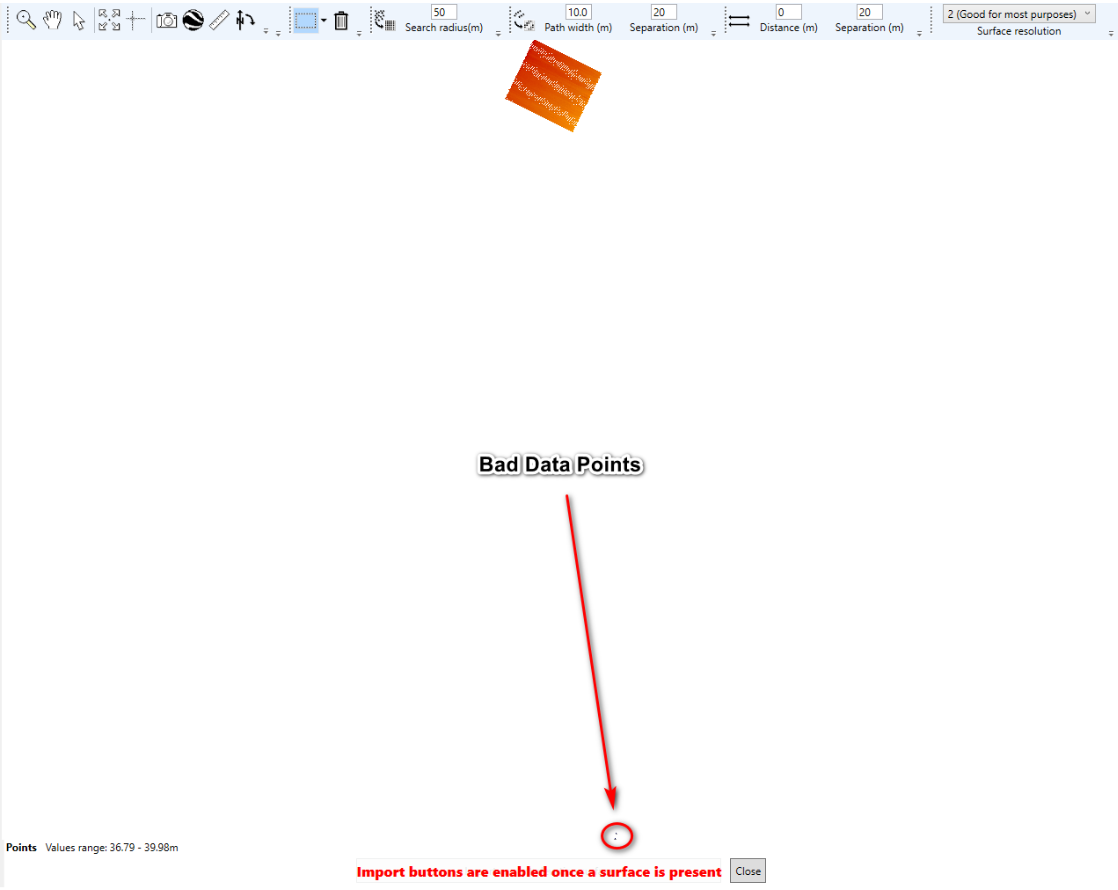
- Imported field elevation data is all one color.
- Field is also not centered on the import screen.
**Cause:**
There are many ways in which a system can collect bad data points. This could be due to the tractor being parked at the shed with the linkage down. When the tractor is started and the recording source is set to the linkage. The system will record a couple of points at the location. You will not know that at the time but when you bring that data into T3RRA Design Plus you will see the field to be all one color.
**Solution:**
1. Import elevation data for the John Deere display into T3RRA Design Plus and edit the bad points.
2. If you are using the John Deere Operation Center and have documented a task you could also use our on-line tool T3RRA 3D.
Import your data from your display into T3RRA Design Plus, select OK.
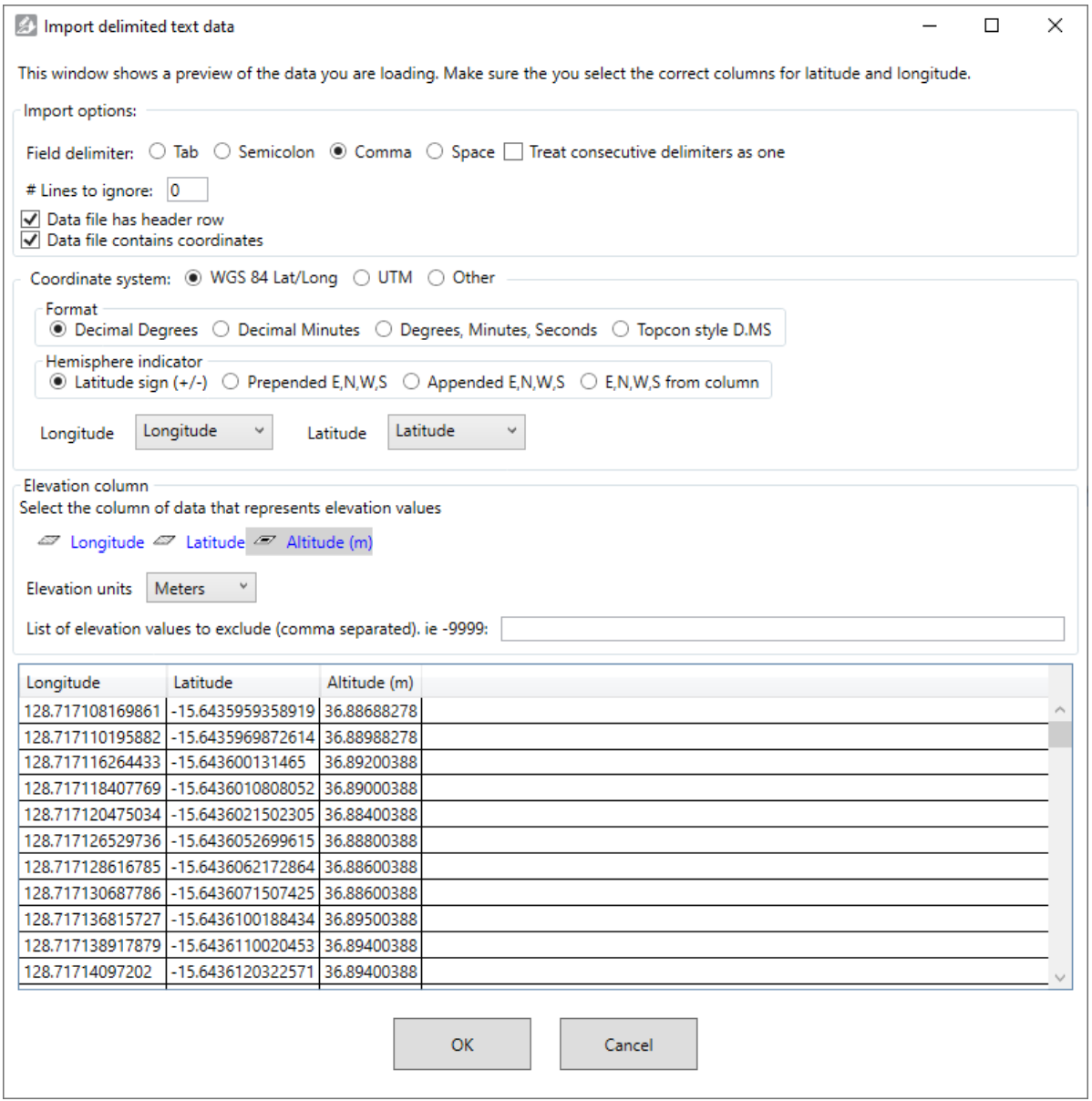
Raw point data surface and import window will open.
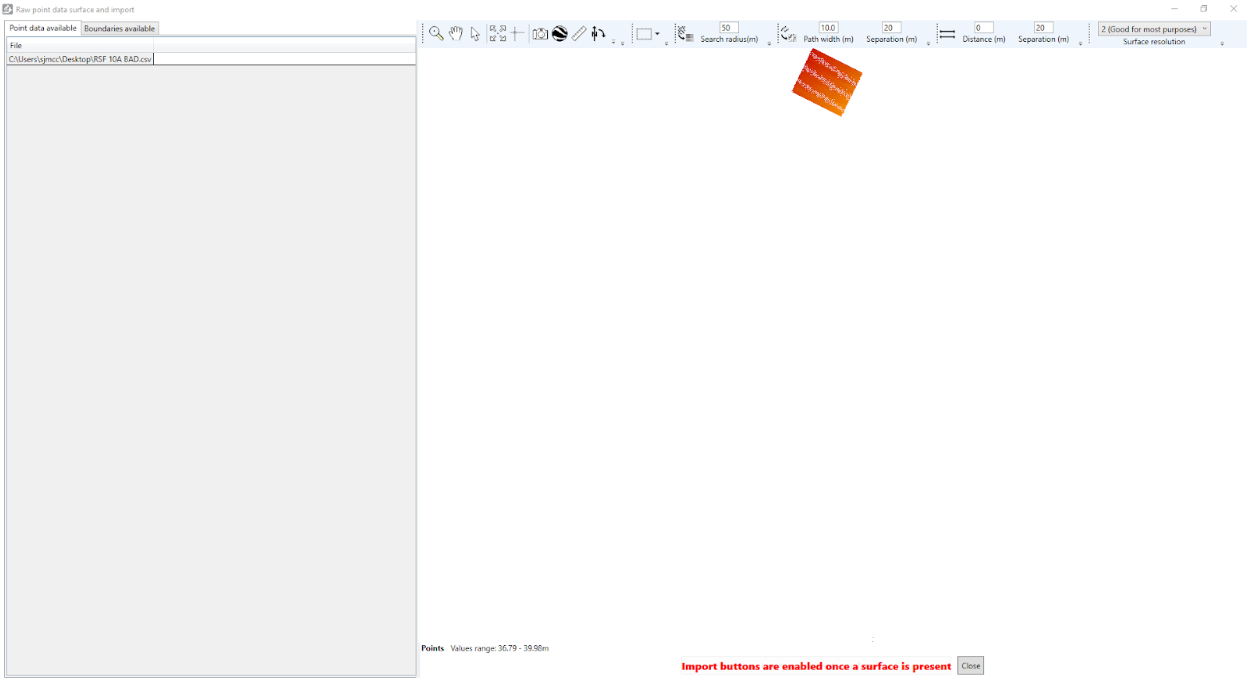
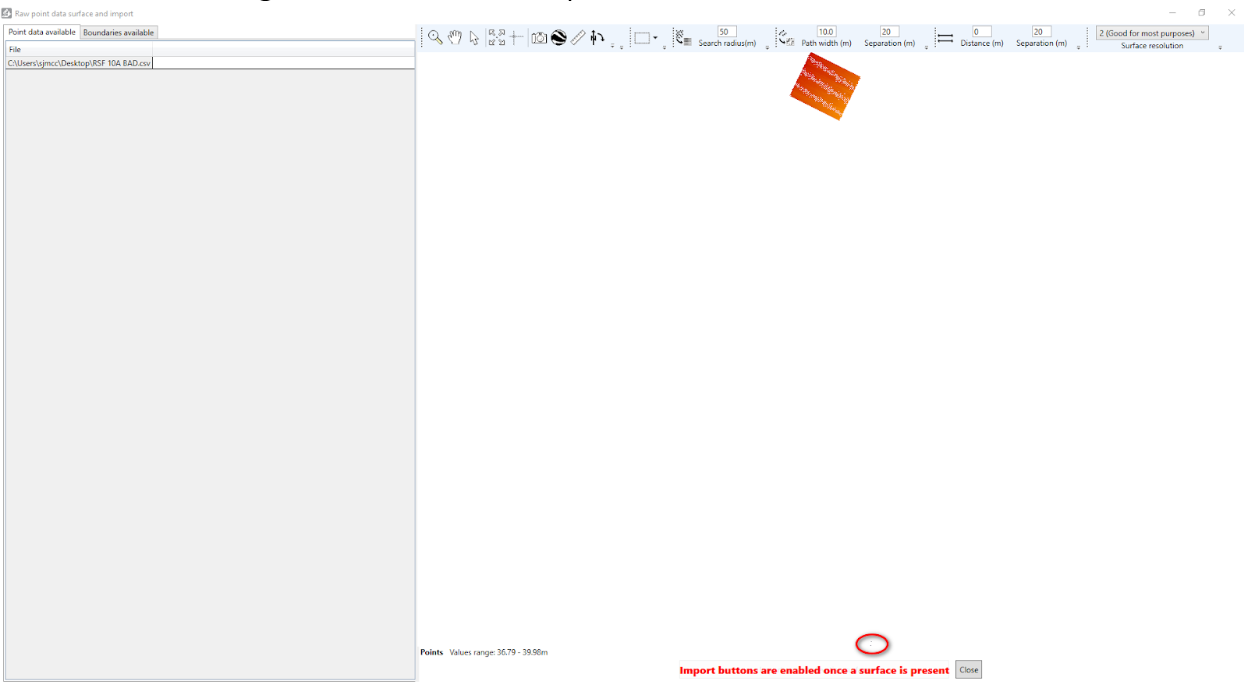
If you look hard enough you will see bad data points.
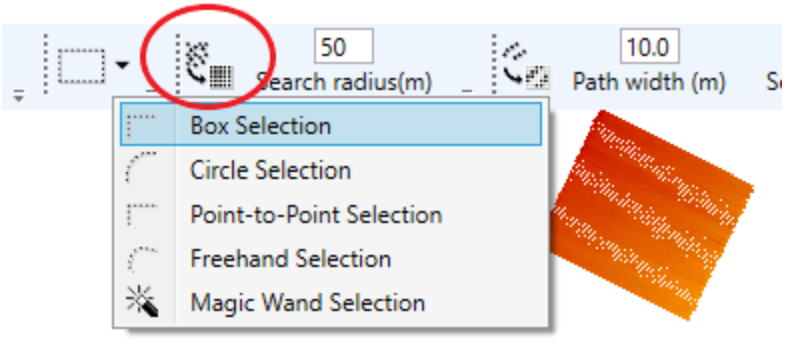
You can use the “Points selection Tools” to select the unwanted points.
Once you have, select the bad points with your mouse. Then use the “Trash” icon to remove the points.
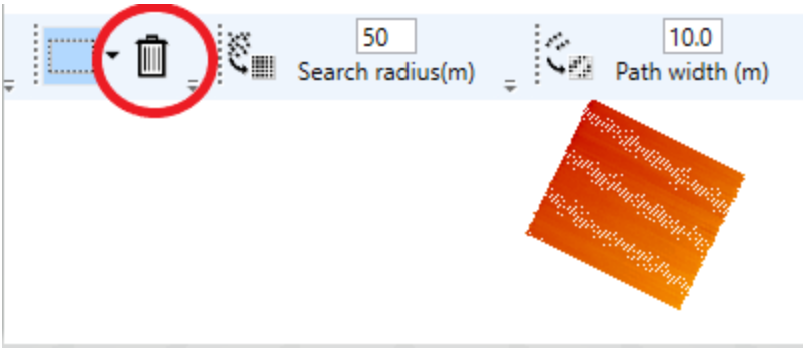
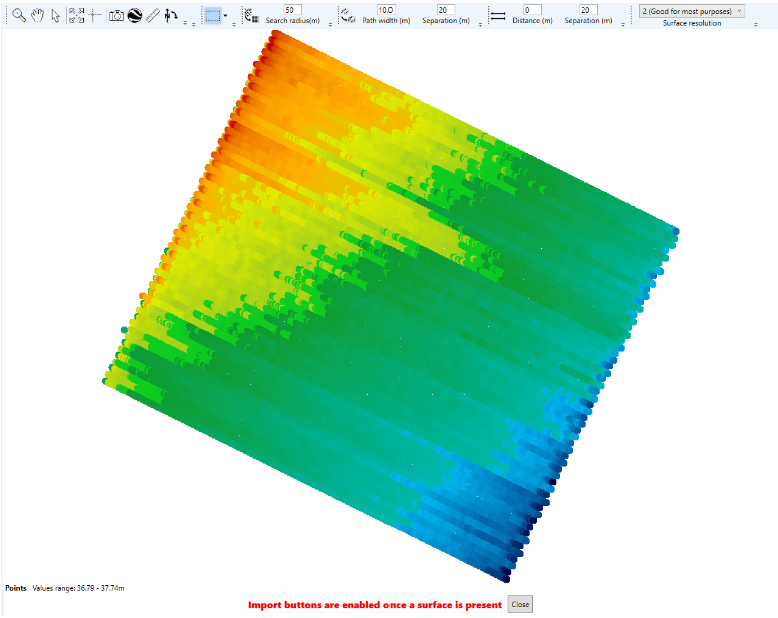
Once the bad points have been removed your map should look like the screenshot below.