# Split Region using Cut line
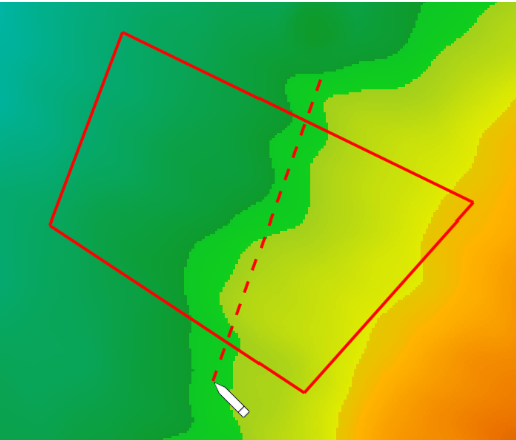The ‘Cut line’ tool allows you to place a line to split a single region into two. This is useful when you wish to create different designs on different sections of the surface.
To use this tool ensure that you have an existing region selected in the layer selection.
To make a cut, left-click at one end of where you would like to cut and move the cursor to the other side. A red dotted line will appear along where the line will be cut. Make sure that this line intersects with at least two other lines of the existing region. When you are sure about the placement of the line left-click on the ending point to cut the region. Right-click to cancel the region cut.