# Layer Menu
- 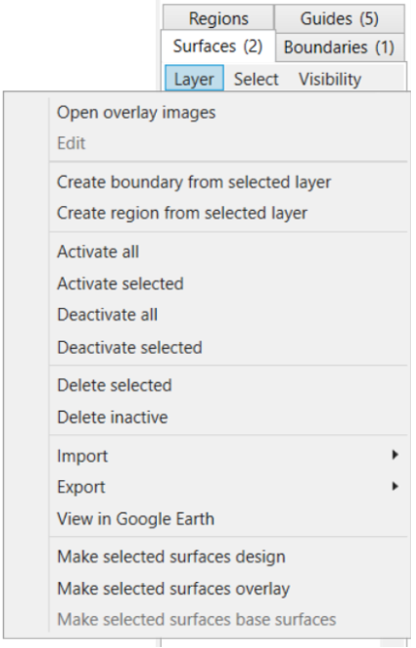Open overlay images - this allows layers (such as yields, or imagery etc) to be draped over the elevation layers. These layers are not used in any elevation related calculations and are denoted by the letter ‘O’ (overlay)
- Edit
- Create boundary from selected layer - this will draw a boundary around the most outer points of the selected surface and will populate a new boundary in the Boundary tab
- Create region from selected layer - this will draw a region around the most outer points of the selected surface and will populate a new region in the Region tab
- Activate all - this will activate the surface so it is now visible on the Working Area. This is shown by the checkbox being selected.
- Activate selected - this will activate the surface which you selected (shown by the tile having a blue highlight around it) so it is now visible on the Working Area. This is shown by the checkbox being selected.
- Deactivate all - this will deactivate all surfaces
- Deactivate selected - this will deactivate the surface which you currently have selected (shown by the tile having a blue highlight around it)
- Delete selected - deletes the surface you have currently have selected (shown by the tile having a blue highlight around it)
- Delete inactive - deletes all inactive surfaces (i.e. those without a tick in the checkbox)
- Import >
- T3RRA Cutta elevations (\*.tci) - see Importing elevations from T3RRA Cutta (.tci) in section: Importing and Exporting in T3RRA Design Plus
- From existing elevation surface - see Importing a Surface from an Existing Elevation Surface in section: Importing and Exporting in T3RRA Design Plus
- From raw data points (Deere RCD, CSV, etc) - see Importing a Surface from Raw Data Points in section: Importing and Exporting in T3RRA Design Plus
- View in Google Earth - this will open the selected surface in Google Earth
NOTE: You must have Google Earth Pro installed on your PC for this to work.
- Make selected surfaces design - this will change either a ‘base’ or ‘overlay’ surface/s to a ‘design’ surface and will be denoted by the letter ‘D’ on the surface/s tile
- Make selected surfaces overlay - this will change either a ‘base’ or ‘design’ surface/s to a ‘overlay’ surface and will be denoted by the letter ‘O’ on the surface/s tile
- Make selected surfaces base surfaces - this will change either a ‘design’ or ‘overlay’ surface/s to a ‘base’ surface