# Importing and Creating Surfaces
There are many different file types which can be used to import or create surfaces in T3RRA Design Plus. This will generally need to be done to start a new project.
The file type that you will be working with will depend on how you acquired your data. That is, if you are a T3RRA Cutta user or a John Deere operator, you will have different types of data available for import.
NOTE: Import elevation data into an existing nearby project to ensure the same UTM Zone.
Regardless of file type, these can all be accessed as follows:
1. Select the import icon on the left hand side of the menu bar

2. This will open the below pop-up window
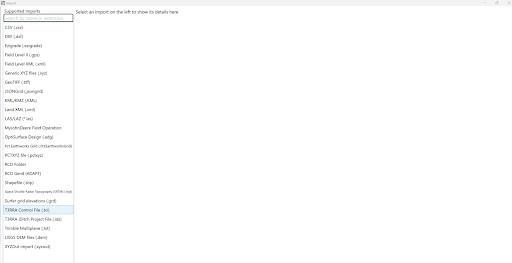
3. Select the relevant file type (either directly from the list on the left hand side or by typing in the search bar).