# Flow direction guide
The ‘Flow direction’ guides creates a grid on the field with arrows at each junction that point in the direction that water is expected to flow. When the tool is selected the cursor will change into a cross, and left-clicking in the working area will create a grid centered where you clicked.
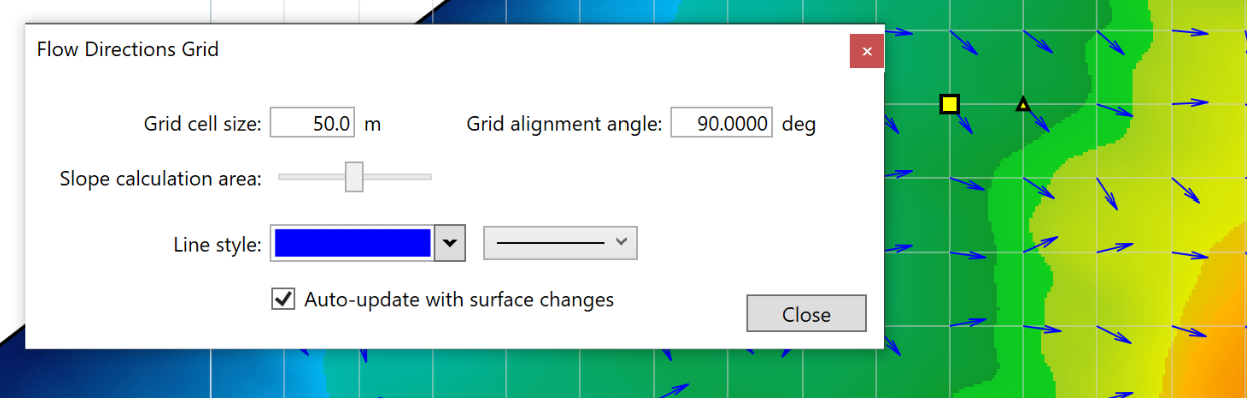
- ‘Grid cell size’. Adjusting this value will make the individual squares of the grid larger or smaller.
- ‘Grid alignment angle’. This option allows you to change the direction of the grid.The direction is set as the position of the yellow circle in relation to the yellow square.
- ‘Slope calculation area’. The further to the right that the slider is, the larger the area that T3RRA Design Plus takes as a sample to find the water flow direction.
- ‘Line style’. The left drop down allows you to change the color of the arrows on the field. The drop down menu on the right allows you to adjust the thickness of the arrows.
- ‘Auto-update with surface changes’. When this option is selected, the grid will automatically update when the surface layer changes.