# File Menu
Under the File tab you will find the following options:
- 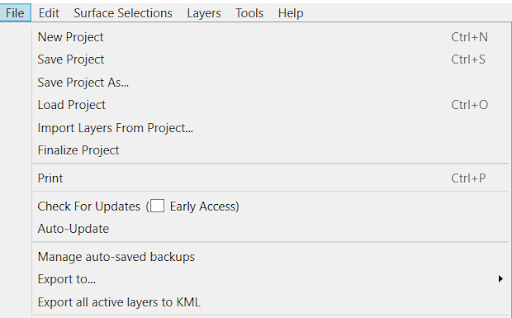New Project - Create a new blank project.
- Save Project - Save your project. If it is the first time saving, you will be prompted to select a location and file name.
- Save Project As - Either rename an existing project or save a replica project in a different location.
- Load Project - Load a previously saved project .pctgdp or .project.
- 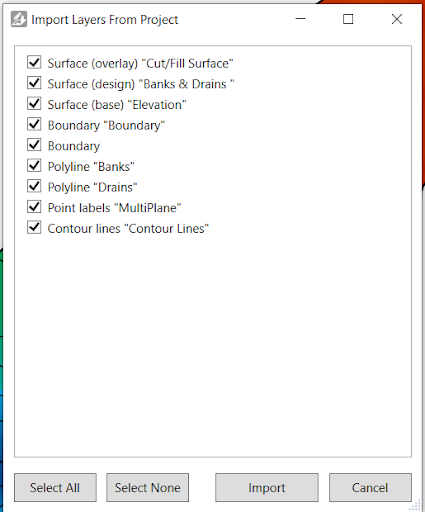Import Layers from project - Allows you to import numerous or single layers from previous projects:
- Select the project that you would like to import layers from.
- This window will pop up on screen (see below), allowing you to manually select which layers you want to import. You can also ‘Select All’ or ‘Select None’
- Once your selection is correct, press ‘Import’.
- Finalize Project - Lock project so no edits can be made. You won’t be able to save this project again without giving it a new name.
- 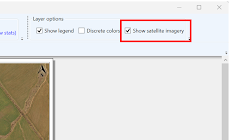Print - Opens a print preview window from which you can print the project.As well as other options available when printing the project - you can now choose to ‘Show satellite imagery’. For this to be successful, you must have satellite imagery enabled by checking Edit > Show Satellite Background.
NOTE: When printing to PDF, we recommend using the built in Microsoft Print to PDF. Some other print-to-PDF tools produce unexpected output (e.g. Foxit PDF Printer).
- Check For Updates Online - Downloads new updates to T3RRA Design Plus. Check the box to get early access versions (see section: Updating your Software).
- Auto-Update - When selected, T3RRA Design Plus will automatically check for new updates.
- Manage auto-saved backups - Reopens the list of auto-saves so you can open or delete them.
- Export to…
- T3RRA Cutta (\*.tci)
- Field Level II for FMX/TMX (\*.gps)
- SGB SmartProfiler Shapes (\*.shp)
- Comma separated values (\*.csv)
- Ezigrade (\*.ezigrade)
- Field level XML (\*.xml)
- DXF 3D faces (\*.dxf)
This allows all visible (selected) data to be exported to the selected file type
- Export all active layers to KML - Export visible data to a format that can be loaded by Google Earth.
- Exit - Closes T3RRA Design Plus.