# Expand/contract surface
The ‘Expand/contract surface’ tool allows you to make a surface larger or smaller.
To expand the surface:
Enter a positive value into the “Expand or contract” field. When making a surface larger, it takes the available information and makes an estimate to try to create the area outside the existing elevations. You can choose between these expansion methods:
- Flat: Simply uses the closest elevation point and extends based on that data
- Trend 1: Each new pixel is calculated from just the original elevation surface pixels. Pixels close to the edge use near elevations. Pixels further from the edge use existing elevations in a wider range.
- 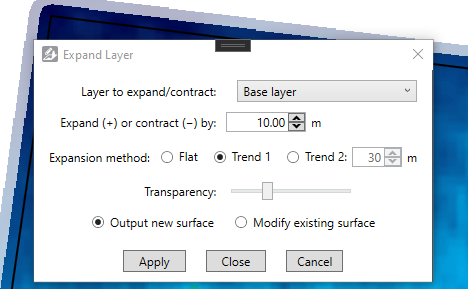Trend 2: Expands the field iteratively, in pixel layers out from the existing edge. An additional parameter is available for this method. It allows you to modify how far the pixel by pixel expansion of Trend 2 will look for elevations. A larger number will lead to a smoother expanded surface.
NOTE: Expanding a surface is by nature an estimate or guess. It will not be accurate.
To shrink the surface, enter a negative value into the “Expand or contract” field. When shrinking, elevation points will be deleted.
The option is also available to either create a new surface or to modify the existing surface. Select the appropriate button for this.
To calculate and apply the expanded or contracted surface, click the Apply button. Once it has been calculated, you may modify its transparency with the slider. To keep your new/changed surface, click the Close button.