# Create a cut/fill overlay
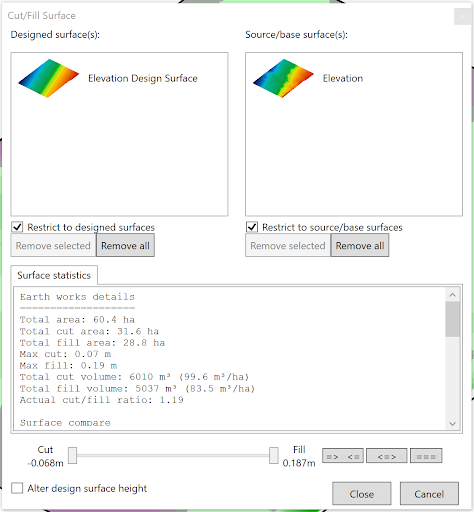‘Create a cut/fill surface’ creates a surface layer that shows how much soil must be moved to and from areas to reach the design surface.
- To create a cut/fill map start by selecting a design surface and dragging it into the left side box, and drag an original elevation surface into the right box.
- ‘Surface statistics’ displays the earth moving details between the 2 layers.
- The slider allows you to adjust the point of the largest fill and deepest cut and set whether the Cut/Fill surface should display heights equal to and within this range, equal to the slider points and outside the range or just everything equal to the range found.