# Boundaries Tools - Layer Menu
- 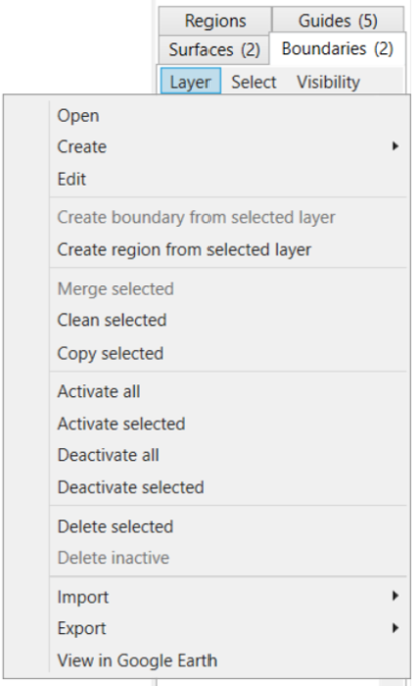Open
- Create
- Edit
- Create boundary from selected layer
- Create region from selected layer - this will draw a region around the most outer points of the selected surface and will populate a new region in the Region tab
- Merge selected - (ensuring you have 2 or more boundaries selected) this will create a combined boundary, removing the initial boundaries
- Clean Selected
- Copy selected - this will duplicate the selected boundary
- Activate all - this will activate all the boundaries so they are visible on the Working Area. This is shown by the checkbox being selected.
- Activate selected - this will activate the boundary which is selected (shown by the tile having a blue highlight around it) so it is now visible on the Working Area. This is shown by the checkbox being selected.
- Deactivate all - this will deactivate all boundaries
- Deactivate selected - this will deactivate the boundary which you currently have selected (shown by the tile having a blue highlight around it)
- Delete selected - deletes the boundary that is selected (shown by the tile having a blue highlight around it)
- Delete inactive - deletes all inactive surfaces (i.e. those without a tick in the checkbox)
- Import >
- Import Shapefile
- Import KML
- Import Multiplane Boundary
- Import DXF points/linework
- Export >
- Export selected to Shapefile
- Export selected to KML
- Export selected to Text Columns (CSV, TSV, etc)
- View in Google Earth - this will open the selected surface in Google Earth
NOTE: You must have Google Earth Pro installed on your PC for this to work.