# Toolbars
# Navigation Tools
**The magnifying glass** allows you to zoom in or out on a selected point of a surface. Left clicking will zoom in, right clicking will zoom out. Clicking and dragging the left mouse button will zoom in on an area of interest.**The grab tool** allows you to move the surface on the screen by clicking and holding, then dragging. This is most useful with large surfaces or when zoomed into a single section of the surface.**The pointer tool** switches the cursor back to selection mode.**Zoom to full extent** will change the zoom level to fit the entire surface on the screen.**The crosshairs** will toggle on and off the display of a crosshair at the mouse’s position on the working area.**The camera** captures the surface as a geo-image with latitude and longitude or UTM (easting and northing), in multiple standard image types. **Google Earth** will capture the current display area and overlay it on a satellite image of the field location. NOTE: You must have Google Earth Pro installed on your computer for this to work.**The ruler** is used to measure the distance along a selected origin point and the current cursor position. Left-click to add points, and right-click to start measuring a new line. The tool measures the total length of the line and the area enclosed by the line will also be displayed.**Rotate** will cause the surface to rotate 90° to the right with each click. There is no option to change rotation direction or degrees it will rotate by.
# Selection Tools
There are several selection tool options available.
To access more selection tools, left click on the arrow next to the currently selected tool in the toolbar at the top of the screen.
**'Box Selection'** allows you to select everything within a rectangular space. To make a selection hold down the left mouse button and drag until desired size then release the button to select and activate the selection.
**'Circle Selection'** selects everything within the circumference of the circle. To make a selection with this tool hold down the left mouse button starting at your desired center point, drag the mouse away to increase the size of the circle releasing the button once the desired size has been reached.
**'Point-to-Point Selection'** allows you to make rigid non-linear shapes. Click at each desired point and double-click to finalize your selection.
**'Freehand Selection'** allows you to make free form shape selection. Press and hold the left mouse button to trace around an area.
**‘Magic Wand Selection’** allows you to left click on any space to select all adjacent spaces that fall within the selected height range.
# Surface profile tool
The **Surface profile tool** presents a cross-section of the field along the line or path you specify. It samples and plots the elevation of one or two surfaces at evenly spaced points along the line. The distance between samples is specified in meters. It can also calculate slope. 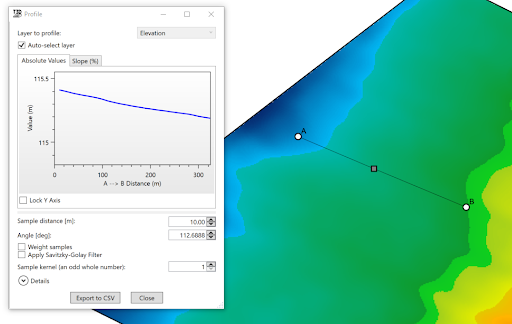When using the ‘**Surface profile tool**’, a window will open, displaying a plot of elevation along the sample line. The sample line has three handles that can be dragged to manipulate the line as desired.More points may be added to the sample line to create a non-linear path by left-clicking on a red node. Red nodes appear when the mouse is in close proximity to a line. The red node will turn white when clicked to show it can be moved to the desired location.
# Visualization Tools
The ‘**Visualization tools**’ are used to view surfaces in different ways. The options available are 3D Viewer, Simulated waterflow, and Wetting front. **3D Viewer**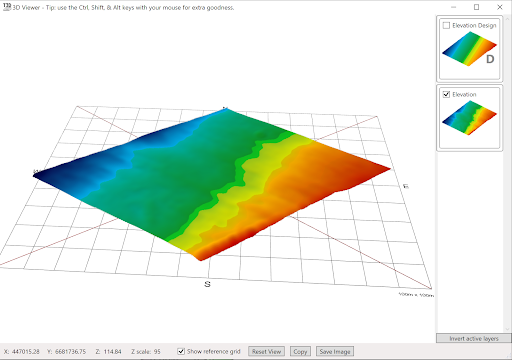When using the ‘**3D viewer**’, a window will appear that displays the field as a 3D model (shown below), this view can be controlled with the mouse. All selected surfaces will be displayed
- By left clicking and dragging on the surface the model can be rotated, allowing for viewing from multiple angles.
- The 3D focal point is indicated by the point where all 4 of the red lines meet. These lines can be seen by holding the left mouse button down anywhere on the viewer surface. Holding left-click and moving the mouse will also allow you to change the viewing angle.
- Holding the <Shift> key while left clicking and dragging allows you to shift the focal point of the terrain model. This allows you to rotate around different parts of the model and zooming in on the exact point of interest. Holding down the <Alt> key while left clicking will cause the focal point to shift up or down only.
- Scrolling the mouse wheel will zoom in and out (based on the model’s current focal point).
- Holding the <CTRL> key while scrolling will alter the vertical scale of the terrain model. This controls exaggeration of the surface features and can be helpful to understand small local height differences.
- Overlays can be added to the 3D Viewer by dragging the layer from the surface display on the right of the screen onto the 3D Viewer surface. *How does this tool help?*There are multiple ways in which the 3D viewing tool can be implemented to make design work easier:
- Swapping between surfaces - Multiple surface layers can be added into the 3D viewer. In the main window, activate (tick) just the base and final design surfaces in your project, to show just two surfaces in 3D. Then by turning one off in the 3D viewer and pressing the ‘Invert active layers’ button you are able to switch between them to identify where the biggest changes were made.
- Edge matching regions - Sometimes the design surface is divided into multiple regions to allow custom designs on each part. For example, you may apply Multi-Fit to two sides of a drain. This will often lead to vertical jumps or ‘cliffs’ between regions. The 3D Viewer tool allows for a more detailed view that is updated at the same time as adjustments to the surface are made. This can help you line up the edges of the design.**Adding Overlays to the 3D Viewer**You can drag any number of overlays and guides right onto the 3D Viewer window. This can really help you understand the design. For example, you can add a cut/fill overlay, or a drain line. If you drag in the wrong overlays, click the Clear Overlays button and start again. If you just want to see the overlays, and not the surface elevation-based coloring, check the “Only overlays” box.**Simulated Surface Flow**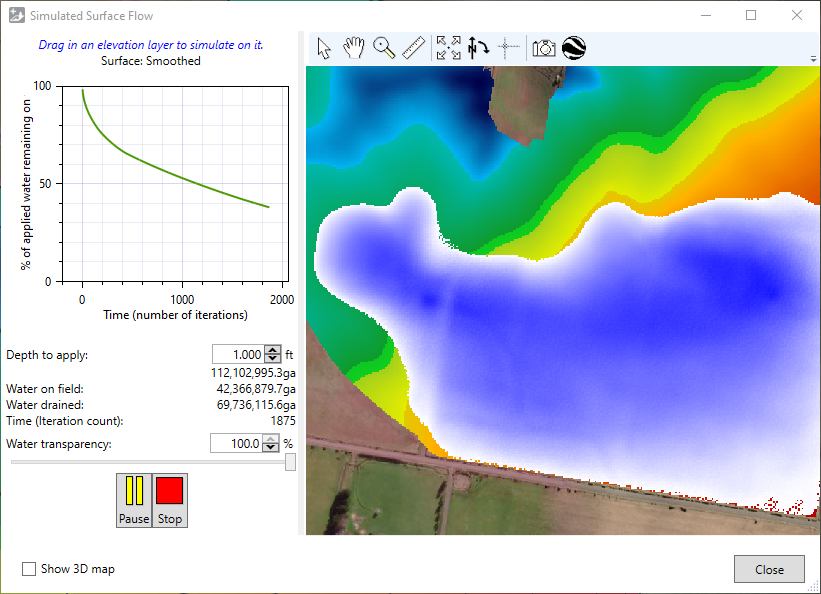The ‘**Simulated Surface Flow**’ tool opens a window to display a simulation of water flow across the selected layer. The water simulator helps understand how water will flow, both on an existing field surface, and on a surface with a design applied to it.
- To simulate water on a different elevation surface, drag it from the main window into the surface flow window.
- The graph shows the percentage of water remaining on the field over time. It is not populated until the simulation is started.
- ‘Depth to apply’ is a setting for the amount of water to be applied to the field.
- A larger initial depth of application will cause the field to take longer to drain
- Differences in initial depth may cause different issues to become apparent - for instance a large application may cause banks to overtop and different water flow paths to become apparent.
- ‘Water on field’ displays how much water is currently on the field.
- ‘Water drained’ shows how much water has been drained from.
- ‘Time (iteration count)’ is an indicator of how much time has elapsed since the model started running.
- Click the green play button in the lower left to start the simulation.Points to consider:
1. Time in the simulation is not any set measurement of seconds or minutes. The passage of time is tracked with a counter called ‘iterations’.
2. The simulation should only be used as an estimate because the simulation does not take soil qualities into account and treats the surface like a concrete slab.**Wetting Front**‘**Wetting Front**’ is a tool that allows you to visualize how a field will react with certain depths of static water on the field. 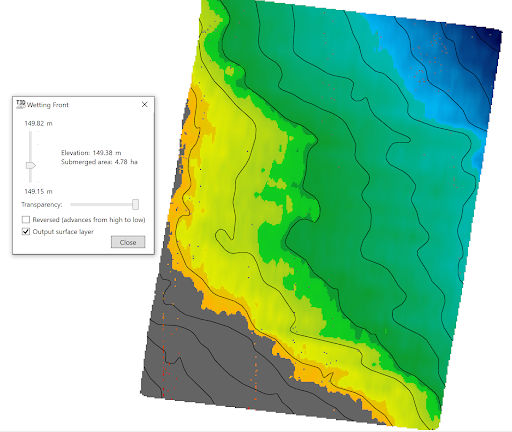The pop-up window for this tool has 2 sliders that control the water appearance on the field.
- The vertical slider controls depth of water displayed on the field, the sliders minimum and maximum values are based on the elevations of the field.
- Right of the vertical slider is the current ‘Elevation’ , as well as ‘Submerged area’.
- The horizontal slider controls ‘Transparency’, the further to the left that this slider is the fainter the submerged area will appear. If the slider is at its left most position the overlay will not be visible.There are 2 checkboxes:
1. ‘**Reversed**’ will reverse how the overlay is generated on the field moving from the highest point to the lowest.
2. ‘**Output surface layer**’ will create a surface overlay layer of the submersion data that is being displayed when the tool is closed.