# Importing and Exporting Files

# Importing and Creating Surfaces

<span style="font-size: 16px;">There are many different file types which can be used to import or create surfaces in T3RRA Design Plus. This will generally need to be done to start a new project. </span>

<span style="font-size: 16px;">The file type that you will be working with will depend on how you acquired your data. That is, if you are a T3RRA Cutta user or a John Deere operator, you will have different types of data available for import.</span>

<span style="font-size: 16px; color: rgb(226, 80, 65);">NOTE: Import elevation data into an existing nearby project to ensure the same UTM Zone.</span>

<span style="font-size: 16px;">  
</span>

<span style="font-size: 16px;">Regardless of file type, these can all be accessed as follows:</span>

1. <span style="font-size: 16px;">Select the ‘import’ icon on the left hand side of the menu bar   

    ![](https://docs.t3rra.com/uploads/images/gallery/2025-03/scaled-1680-/yLGla7g-w0nb5tyrv-ojyqad4crpiqx7kruta-png.png)</span>
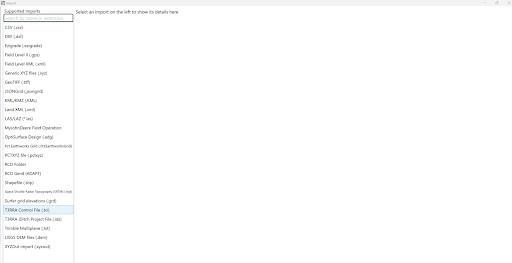
2. <span style="font-size: 16px;">This will open the below pop-up window  
    ![](https://docs.t3rra.com/uploads/images/gallery/2025-03/scaled-1680-/QFqtsdwkrndqpsa0ogkdx8t8a76to-ukpombg-png.png)</span>
3. <span style="font-size: 16px;">Select the relevant file type (either directly from the list on the left hand side or by typing in the search bar).</span>

# File types

<span dir="ltr" style="font-size: 16px;">Here is the list of available file types for import (instructions of how to use some files types are linked below):</span>

- <span style="font-size: 16px;">**CSV (.csv)** - the most generic import. Can bring in survey points, boundaries, guidance lines and markers. Expects the columns to be in the format of Longitude, Latitude, Elevation. An optional ‘Name’ column is used for the marker imports</span>
- <span style="font-size: 16px;">**DXF (.dxf)** - Drawing Interchange Format, or Drawing Exchange Format) is a CAD data file format developed by Autodesk for enabling data interoperability between AutoCAD and other programs. </span>
- <span style="font-size: 16px;">**Ezigrade (.ezigrade)** - imports an Ezigrade file</span>
- <span style="font-size: 16px;">**Field Level II (.gps)** - Imports a Field Level II .gps file. Supports bringing in survey data, boundary data, section lines and markers. </span>
- <span style="font-size: 16px;">**Field Level XML (.xml)** - Imports a Field Level II .xml file. Supports bringing in survey data, boundary data, section lines and markers. </span>
- <span style="font-size: 16px;">**Generic XYZ Files (.xyz)**</span>
- <span style="font-size: 16px;">**GeoTIFF (.tiff)**</span>
- <span style="font-size: 16px;">**JSONGrid (.jsongrid)**</span>
- <span style="font-size: 16px;">**KML/KMZ (.kml)**</span>
- <span style="font-size: 16px;">**Land XML (.xml)**</span>
- <span style="font-size: 16px;">**LAS/LAZ (.las)**</span>
- <span style="font-size: 16px;">**MyJohnDeere Field Operation** - Allows downloading shapefile data from John Deere Operations Centre</span>
- <span style="font-size: 16px;">**OptiSurface Design (.adg)**</span>
- <span style="font-size: 16px;">**Pct Earthworks Grid (.PctEarthworksGrid)**</span>
- <span style="font-size: 16px;">**PCTXYZ file (.pctxyz)**</span>
- <span style="font-size: 16px;">**RCD Folder** - Used by John Deere Displays to store field data, including guidance lines.</span>
- <span style="font-size: 16px;">**RCD Gen4 (ADAPT)**</span>
- <span style="font-size: 16px;">**Shapefile (.shp)**</span>
- <span style="font-size: 16px;">**Space Shuttle Radar Topography (SRTM) (.hgt)**</span>
- <span style="font-size: 16px;">**Surfer grid elevations (\*.grd)**</span>
- <span style="font-size: 16px;">**T3RRA Control File (.tci)**</span>
- <span style="font-size: 16px;">**T3RRA iDitch Project File (.idz)**</span>
- <span style="font-size: 16px;">**Trimble Multiplane (.txt)**</span>
- <span style="font-size: 16px;">**USGS DEM elevations (\*.dem)**</span>
- <span style="font-size: 16px;">**XYZOut import (.xyzout)**</span>

<span style="font-size: 16px;">  
</span>

<span style="font-size: 16px;">**File Type: T3RRA Control File (.tci)**</span>

<span style="font-size: 16px;">If you are a T3RRA Cutta user, you can easily import a surface from T3RRA Cutta into T3RRA Design Plus</span>

1. <span style="font-size: 16px;">Select the ‘import’ icon on the left hand side of the menu bar.</span>
2. <span style="font-size: 16px;">Select T3RRA Control File (.tci) from the list on the left hand side. This will show all available \*.tci files on your device.</span>
3. <span dir="ltr" style="font-size: 16px;">Select relevant .tci file</span>
4. <span style="font-size: 16px;">This will open up a pop up window, select relevant .tci file here and press OK</span>
5. <span style="font-size: 16px;">Once a file has been selected, press the open button and after a conversion process the elevation surface and identified design surfaces will appear in the working area and the layer selection area.</span>

<span style="font-size: 16px;">  
</span>

<span style="font-size: 16px;">To import surveyed points from a .tci file and surface within T3RRA Design Plus, from the top Layers menu, choose Surfaces &gt; Layer &gt; Import &gt; From raw data points (Deere RCD, CSV, etc) &gt; T3RRA Software Survey Points (\*.tci) and follow the prompts.</span>

# Importing Elevations if you are a  John Deere Operator

<span style="font-size: 16px;">T3RRA Design Plus can import elevation data from three separate John Deere sources. These are:</span>

- <span style="font-size: 16px;">John Deere RCD logs</span>  
    <span dir="ltr" style="font-size: 16px;">These are from Gen3 and earlier John Deere displays (such as the 2630). You would normally download the data from your display using a thumb drive and then copy it to the computer running T3RRA Design Plus. Be sure to copy the entire folder structure, not simply individual files.</span>
- <span style="font-size: 16px;">John Deere RCD SWM Survey logs </span>  
    <span dir="ltr" style="font-size: 16px;">Deere customers who have ‘Surface Water Pro’ may have data in this format. These logs are collected specifically in the tractor as elevation surveys.</span>
- <span style="font-size: 16px;">John Deere Gen4 (ADAPT) logs</span>  
    <span dir="ltr" style="font-size: 16px;">These are from Gen4 John Deere displays (such as the 4640). You would normally download the data from your display using a thumb drive and then copy it to the computer running T3RRA Design Plus. Be sure to copy the entire folder structure, not simply individual files.</span>

<span style="font-size: 16px;">**Importing Elevations from John Deere RCD logs**</span>

<span style="font-size: 16px; color: rgb(226, 80, 65);">NOTE: You must have a folder named RCD on your computer for this to work</span>

1. <span style="font-size: 16px;">Select the RCD button on the left hand side of the menu bar</span>  
    <span style="font-size: 16px;">![](https://docs.t3rra.com/uploads/images/gallery/2025-03/scaled-1680-/mCgv-b5mzlrz8plbnbozul4pzribzxt227uwq-png.png)</span>
2. <span style="font-size: 16px;">This will pop up a window, select relevant RCD file and press OK</span><span dir="ltr" style="font-size: 16px;">![](https://docs.t3rra.com/uploads/images/gallery/2025-03/scaled-1680-/1Bpvmwtq8x33peslmpdkxqpq2ov9ui2-cptrw-png.png)</span>
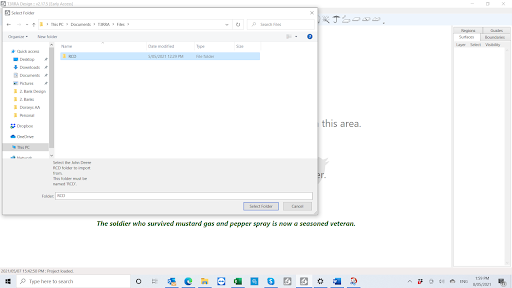
3. <span dir="ltr" style="font-size: 16px;"><span style="font-size: 16px;"> Once a file has been selected, press the open button and after a conversion process the elevation surface and identified design surfaces will appear in the working area and the layer selection area.</span>  
    </span>

# Importing a Surface from an Existing Elevation Surface

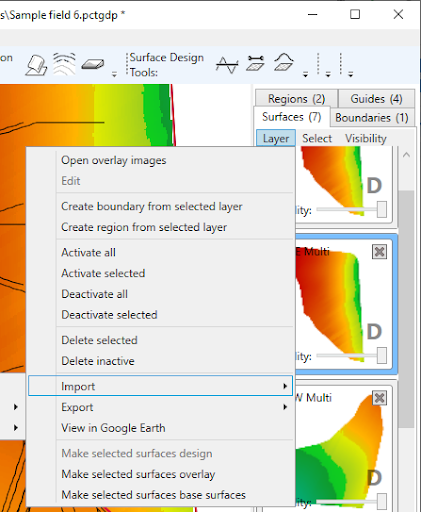
<span style="font-size: 16px;">By working in the Surface Tab in the Layers Panel, select: Layer &gt; Import &gt; From existing elevation surface:</span>

- <span style="font-size: 16px;">![](https://docs.t3rra.com/uploads/images/gallery/2025-03/scaled-1680-/sbhux6-6ngn9jkxuzzga4naeaxn7b15oohtcq-png.png)PCT Image elevations (\*.pcti)</span>
- <span style="font-size: 16px;">USGS DEM elevations (\*.dem)</span>
- <span style="font-size: 16px;">Space Shuttle Radar Topography</span>
    - <span dir="ltr" style="font-size: 16px;">SRTM1 elevations (\*.hgt)</span>
    - <span dir="ltr" style="font-size: 16px;">SRTM3 elevations (\*hgt)</span>
    - <span dir="ltr" style="font-size: 16px;">SRTM30 elevations (\*.dem)</span>
- <span style="font-size: 16px;">Generic XYZ elevations (\*.xyz)</span>
- <span style="font-size: 16px;">DXF (\*.dxf)</span>
    - <span dir="ltr" style="font-size: 16px;">Gridded DXF elevation points (\*dxf)</span>
    - <span dir="ltr" style="font-size: 16px;">DXF 3d Faces (\*.dxf)</span>
    - <span dir="ltr" style="font-size: 16px;">DXF PolyFaceMesh (\*dxf)</span>
- <span style="font-size: 16px;">LandXML surface (\*.xml)</span>
- <span style="font-size: 16px;">JSONGrid elevations (\*jsongrid)</span>
- <span style="font-size: 16px;">Surfer grid elevations (\*.grd)</span>
- <span style="font-size: 16px;">Esri ASCII elevations (\*.asc)</span>
- <span style="font-size: 16px;">UK LIDAR (OSGB 1936 / British National Grid (\*.asc)</span>
- <span style="font-size: 16px;">Trimble Field Level II (\*.gps)</span>
- <span style="font-size: 16px;">Ezigrade surfaces (\*.ezigrade)</span>

<span style="font-size: 16px;">  
</span>

<span style="font-size: 16px;">  
</span>

<span style="font-size: 16px;">**Examples of Importing a Surface from an Existing Elevation Surface**</span>

<span style="font-size: 16px;">***File Type: DXF Surface***</span>

<span style="font-size: 16px;">  
</span>

<span style="font-size: 16px;">DXF files are a standard format used by civil designers, with file names that end in “.dxf”. They can contain all manner of drawings and text in 2D and 3D. Because of this, they are not georeferenced and require you to know the georeference information. They can be exported from all civil CAD programs. We support importing surfaces from DXF, but also linework and markers.</span>

<span style="font-size: 16px;">  
</span>

<span style="font-size: 16px; color: rgb(226, 80, 65);">NOTE: DWG is a file format related to DXF. If you encounter a DWG, we recommend you request your designer to re-export it as a DXF. It is possible to convert most DWG to DXF with free tools like “DWG DXF Converter” by ‪AnyDWG Software (available in the Windows Store). However, the quality of the conversion is not guaranteed.</span>

<span style="font-size: 16px;">  
</span>

<span style="font-size: 16px;">  
</span>

<span style="font-size: 16px;">*To Import a DXF Surface:*</span>

<span dir="ltr" style="font-size: 16px;">From the Surface Tab in the Layers Panel, select: Layer &gt; Import &gt; From existing elevation surface &gt; DXF (\*.dxf)</span>

<span style="font-size: 16px;">Select the relevant option from the below list:</span>

- <span style="font-size: 16px;">DXF 3D Faces (\*.dxf)</span>
    - <span dir="ltr" style="font-size: 16px; color: rgb(226, 80, 65);">NOTE: If you are not sure, choose this, as it is the most common option.</span>
    - <span dir="ltr" style="font-size: 16px;">It is when you have triangulated points to create an elevation surface.</span>
- <span style="font-size: 16px;">Gridded DXF elevation points (\*.dxf)</span>
    - <span dir="ltr" style="font-size: 16px;">Is a grid of regularly spaced points with no triangles between them.</span>
- <span style="font-size: 16px;">DXF PolyFaceMesh (\*.dxf)</span>
    - <span dir="ltr" style="font-size: 16px;">This is an uncommon alternative mesh format, usually with a mesh composed of squares.</span>

<span style="font-size: 16px;">  
</span>

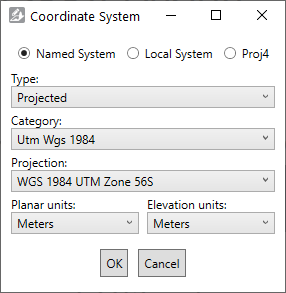
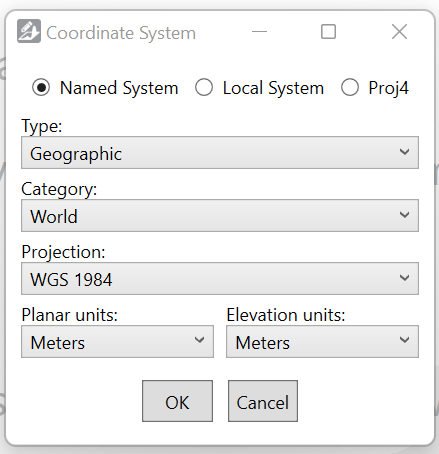
<span style="font-size: 16px;">![](https://docs.t3rra.com/uploads/images/gallery/2025-03/scaled-1680-/rdcmw-zvpc5fib6omvwkjoujlvmtuvvplwhew-png.png)This coordinate system selection window will then appear. Since projection information is not included in DXF files, you will need to select it now. This tells the importer how to correctly interpret the X, Y and Z coordinates as locations on the Earth.</span>

<span style="font-size: 16px;">  
</span>

<span style="font-size: 16px;">Common selections include:</span>

- <span style="font-size: 16px;">WGS84 (longitudes and latitudes) is under:</span>  
    <span dir="ltr" style="font-size: 16px;">? Named System</span>  
    <span dir="ltr" style="font-size: 16px;"> &gt; Type: Geographic</span>  
    <span dir="ltr" style="font-size: 16px;"> &gt; Category: World</span>  
    <span dir="ltr" style="font-size: 16px;"> &gt; Projection: WGS 1984.</span>
- <span style="font-size: 16px;">UTM Zone projections are (see screen capture for an example):</span>  
    <span dir="ltr" style="font-size: 16px;">? Named System</span>  
    <span dir="ltr" style="font-size: 16px;"> &gt; Type: Projected</span>  
    <span dir="ltr" style="font-size: 16px;"> &gt; Category: UTM Wgs 1984.</span>
- <span style="font-size: 16px;">Map Grid of Australia projections are under:</span>  
    <span dir="ltr" style="font-size: 16px;">? Named System</span>  
    <span dir="ltr" style="font-size: 16px;"> &gt; Type: Projected</span>  
    <span dir="ltr" style="font-size: 16px;"> &gt; Category: National Grids Australia.</span>
- <span style="font-size: 16px;">State Planes are under:</span>  
    <span dir="ltr" style="font-size: 16px;">? Named System</span>  
    <span dir="ltr" style="font-size: 16px;"> &gt; Type: Projected</span>  
    <span dir="ltr" style="font-size: 16px;"> &gt; Categories like State Plane Nad 1983 Feet.</span>

<span style="font-size: 16px;">  
</span>

<span style="font-size: 16px; color: rgb(226, 80, 65);">NOTE: Be sure to select the correct planar and elevation units from the dropdown menus for your data too.</span>

<span style="font-size: 16px;">  
</span>

<span style="font-size: 16px;">A local system is a custom coordinate system, and you will need the reference longitude and latitude, the location of the reference point locally, and the local system type (e.g. Orthographic).</span>

<span style="font-size: 16px;">  
</span>

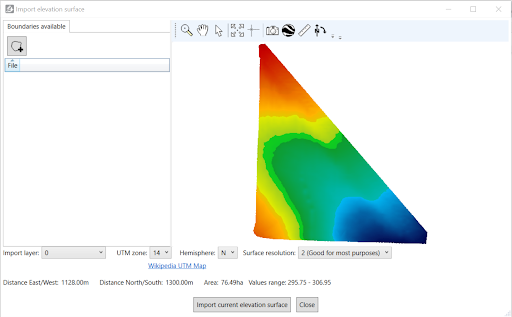
<span style="font-size: 16px;">After selecting ‘OK’, the ‘Import elevation surface’ screen will pop up. Ensure you select the appropriate pixel size (in the lower right of the window) for the type of work you are doing, but remember that smaller pixel sizes produce larger files that take longer to process. If there are multiple layers in the file, you can select them with the drop-down in the lower left of the window.</span>

<span dir="ltr" style="font-size: 16px;">![](https://docs.t3rra.com/uploads/images/gallery/2025-03/scaled-1680-/p7Fkudio6jvxna0iv7fh8oodgz4yrx3wp9fgw-png.png)</span>

<span style="font-size: 16px;">At this point, it is recommended that you verify the projection was correct by opening it in Google Earth. </span>

<span style="font-size: 16px; color: rgb(226, 80, 65);">NOTE: You must have Google Earth Pro installed on your computer to do this.</span>

<span style="font-size: 16px;">To export it to Google Earth: </span>

<span dir="ltr" style="font-size: 16px;"> &gt; Select the Google Earth icon in the toolbar. </span>

<span style="font-size: 16px;"> &gt; Enter a name and click OK</span>

<span dir="ltr" style="font-size: 16px;"> &gt; Compare the elevation map’s location to the satellite imagery. If the projection is correct, it should line up pretty well with field boundaries and landmarks.</span>

<span style="font-size: 16px;">In the ‘Import elevation surface’ window there are several options:</span>

- <span style="font-size: 16px;">Import boundary - This allows you to import only a part of the field. You can draw a boundary polygon in Google Earth, export it as KML, then import it here. Note that a path (like a polyline) is not a valid boundary - it has to be a polygon.</span>
- <span style="font-size: 16px;">Import layer - Select which layers to import. Some files contain more than one surface layer.</span>
- <span style="font-size: 16px;">UTM zone and Hemisphere - For new projects, when your field crosses a UTM boundary or hemisphere, you can choose which UTM Zone it is imported into.</span>
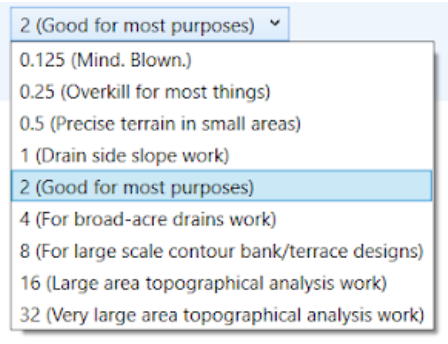
- <span style="font-size: 16px;">Surface resolution - Read the descriptions for each pixel size to help you choose appropriately.</span>

<span style="font-size: 16px; color: rgb(226, 80, 65);">NOTE: The lower the surface resolution, the longer the import will take to complete. </span>

<span style="font-size: 16px;">***File Type: LandXML Surfaces (\*.xml)***</span>

<span style="font-size: 16px;">LandXML is a non-proprietary file format created in 2000 to facilitate the interchange and archival of elevation models and other related survey and civil engineering data. </span>

<span style="font-size: 16px;">  
</span>

<span style="font-size: 16px;">*To Import a .XML Surface:*</span>

<span dir="ltr" style="font-size: 16px;"> &gt; From the Surface Tab in the Layers Panel, select: Layer &gt; Import &gt; From existing elevation surface &gt; LandXML Surfaces (\*.xml) &gt; Select the relevant file</span>

<span style="font-size: 16px;">  
</span>

<span style="font-size: 16px;">A ‘Coordinate System’ pop-up box will appear. (Is this information pre-populated based on the file or will changes need to be made?)</span>

<span style="font-size: 16px;">![](https://docs.t3rra.com/uploads/images/gallery/2025-03/scaled-1680-/lZix57ixvjqw-0ohnwbf7u-nrd65ya-nbdmxw-png.png)</span>

<span style="font-size: 16px;">Once you select the relevant details in the pop-up window above, select ‘OK. </span>

<span style="font-size: 16px;">Here you will see a ‘Import elevation surface’ pop-up window. There will be instructions (shown in RED) to choose the hemisphere for this data. Once selected, you will also need to select the UTM zone as well. </span>
<span style="font-size: 16px;">![](https://docs.t3rra.com/uploads/images/gallery/2025-03/scaled-1680-/A0iqvvmg7s9ei84wackghjkv2l3quygi6tlvw-png.png)</span>

<span dir="ltr" style="font-size: 16px;">  
</span>

<span style="font-size: 16px;">***File Type: Trimble Field Level II (\*.gps)***</span>

<span style="font-size: 16px;">.gps files are used in Trimble FMX and TMX displays</span>

<span style="font-size: 16px;">  
</span>

<span style="font-size: 16px;">*To Import a .GPS Surface:*</span>

<span dir="ltr" style="font-size: 16px;"> &gt; From the Surface Tab in the Layers Panel, select: Layer &gt; Import &gt; From existing elevation surface &gt; Trimble Field Level II (\*.gps) &gt; Select the relevant file</span>

<span style="font-size: 16px;">![](https://docs.t3rra.com/uploads/images/gallery/2025-03/scaled-1680-/0KBcviqiyt3csqnchy-9ks8uqm46bajwg9upa-png.png)</span>

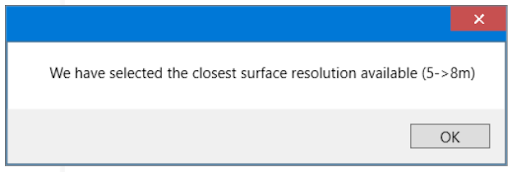
<span dir="ltr" style="font-size: 16px;">A box will appear stating which surface resolution has been selected based on the file you are importing. </span>

<span style="font-size: 16px;">  
</span>

<span style="font-size: 16px;">At this point, it is recommended that you verify the projection was correct by opening it in Google Earth. </span>

<span style="font-size: 16px; color: rgb(226, 80, 65);">NOTE: You must have Google Earth Pro installed on your computer to do this.</span>

<span style="font-size: 16px;">To export it to Google Earth: </span>

<span dir="ltr" style="font-size: 16px;"> &gt; Select the Google Earth icon in the toolbar</span>

<span style="font-size: 16px;"> &gt; Enter a name and click OK</span>

<span dir="ltr" style="font-size: 16px;"> &gt; Compare the elevation map’s location to the satellite imagery. If the projection is correct, it should line up pretty well with field boundaries and landmarks.</span>

<span style="font-size: 16px;">In the ‘Import elevation surface’ window there are several options:</span>

- <span style="font-size: 16px;">Import boundary - This allows you to import only a part of the field. You can draw a boundary polygon in Google Earth, export it as KML, then import it here.</span>
- <span style="font-size: 16px;">Import layer - Select which layers to import. Some files contain more than one surface layer.</span>
- <span style="font-size: 16px;">UTM zone and Hemisphere - For new projects, when your field crosses a UTM boundary or hemisphere, you can choose which UTM Zone it is imported into.</span>
- <span style="font-size: 16px;">Surface resolution - This will be preselected (see above) during the import process.</span>

<span style="font-size: 16px; color: rgb(226, 80, 65);">NOTE: The lower the surface resolution, the longer the import will take to complete.</span>

<span style="font-size: 16px;">  
</span>

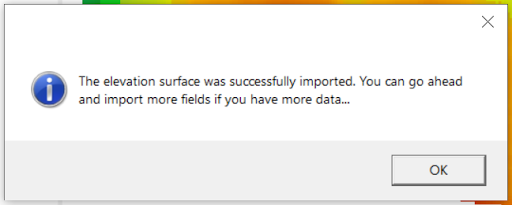
<span style="font-size: 16px;">![](https://docs.t3rra.com/uploads/images/gallery/2025-03/scaled-1680-/lkmnk-phgg1op4hh3jf117gqtrtj8zds8hq7a-png.png)Once you are happy with the above surface and selections, press ‘Import current elevation surface’. A pop up window will appear:</span>

<span style="font-size: 16px;">  
</span>

<span style="font-size: 16px;">This then imports that surface into the working area of T3RRA Design Plus, while still keeping the ‘importer’ running. You can either close out of the Importer or import more surfaces if required. It will also import the linework and master benchmark (MB) into Guides. These can be included in a .gps export to ensure it has the same reference point.</span>

# Importing a Surface from Raw Data Points

<span style="font-size: 16px;">By working in the Surface Tab in the Layers Panel, select: Layer &gt; Import &gt; From raw data points (Deere RCD, CSV, etc.):</span>

- <span style="font-size: 16px;">T3RRA Software Survey Points (\*.tci)</span>
- <span style="font-size: 16px;">John Deere Gen4 (ADAPT) logs</span>
- <span style="font-size: 16px;">John Deere RCD logs</span>
- <span style="font-size: 16px;">John Deere RCD SWM survey logs</span>
- <span style="font-size: 16px;">Raw CSV Data Points (\*.csv) - can thin points to be more manageable</span>
- <span style="font-size: 16px;">Raw shapefile data points (\*.shp)</span>
- <span style="font-size: 16px;">Multiplane data points (\*.txt)</span>
- <span style="font-size: 16px;">FieldLevel XML survey points (\*.xml)</span>
- <span style="font-size: 16px;">APRS LASer file format (\*.las/z) - can thin points to be more manageable</span>

<span style="font-size: 16px;">***Examples of Importing a Surface from Raw Data Points***</span>

<span style="font-size: 16px;">***File Type: Multiplane data points (\*.txt)***</span>

<span style="font-size: 16px;">To Import:</span>

<span dir="ltr" style="font-size: 16px;"> &gt; From the Surface Tab in the Layers Panel, select: Layer &gt; Import &gt; From raw data points (John Deere RCD, CSV, etc) &gt; Select relevant Multiplane (\*.txt) file.</span>

<span dir="ltr" style="font-size: 16px;">Once you have selected the relevant file to import, the following pop ups will appear:</span>

<span style="font-size: 16px;">  
</span>

<span style="font-size: 16px;">![](https://docs.t3rra.com/uploads/images/gallery/2025-03/scaled-1680-/iPBnmwsnmikrs6mxmmtwzwa-k-ke1mzvb9utq-png.png)</span>

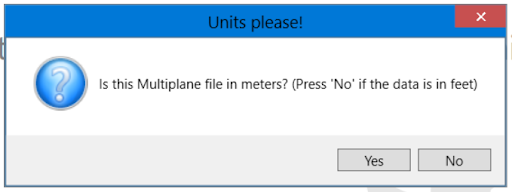
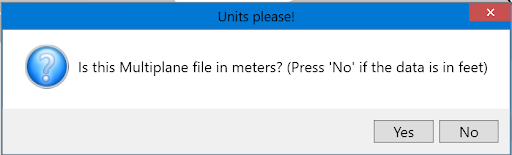
<span style="font-size: 16px;">Select ‘YES’ if the Multiplane file is in meters or ‘NO’ if it is in feet.</span>

<span style="font-size: 16px;">  
</span>

<span style="font-size: 16px;">  
</span>

<span style="font-size: 16px;">  
</span>

<span style="font-size: 16px;">  
</span>

<span style="font-size: 16px;">![](https://docs.t3rra.com/uploads/images/gallery/2025-03/scaled-1680-/hUI0clm-gqsydi5crcpfauqkitc-yjg3fsrhw-png.png)</span>

The next pop-up will be: <span style="font-size: 16px;">  
</span>

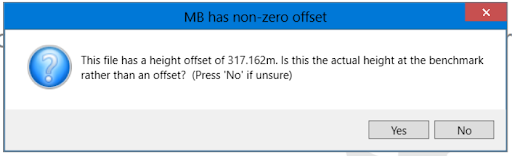
<span style="font-size: 16px;">Sometimes the master benchmark has a separate offset, but it is actually the elevation there. </span>

<span style="font-size: 16px;">This is a somewhat unusual variation, so you’re advised to press ‘No’ if you’re not sure. If you will be exporting your design to a Multiplane file, a .gps file or a FieldLevel.xml file, the height mentioned here can be used for your Master Benchmark (MB) in those exports. In that case, import the MB from the same Multiplane file by going to the Guides Tab in the Layers Panel and selecting: Layer &gt; Import &gt; Import benchmarks from Multiplane file. The same pop ups will appear.</span>

<span style="font-size: 16px;">  
</span>

<span style="font-size: 16px;">  
</span>

<span style="font-size: 16px;">***Raw point data surface and Import***</span>

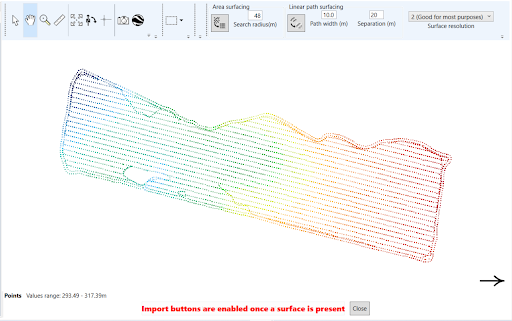
<span style="font-size: 16px;">Continuing on, a new import screen will appear, Raw point data surface and Import. Here there will be many of the same tools which can be found on the standard T3RRA Design Plus screen. These tools include:</span>

- <span dir="ltr" style="font-size: 16px;">Navigation Tools</span>
    - <span dir="ltr" style="font-size: 16px;">The Pointer Tool</span>
    - <span dir="ltr" style="font-size: 16px;">The grab tool</span>
    - <span dir="ltr" style="font-size: 16px;">The magnifying glass</span>
    - <span dir="ltr" style="font-size: 16px;">The ruler</span>
    - <span dir="ltr" style="font-size: 16px;">Zoom to full extent</span>
    - <span dir="ltr" style="font-size: 16px;">Rotate</span>
    - <span dir="ltr" style="font-size: 16px;">The crosshairs</span>
    - <span dir="ltr" style="font-size: 16px;">The camera</span>
    - <span dir="ltr" style="font-size: 16px;">Google Earth </span>

<span style="font-size: 16px;">To find out more about the above tools go to <span style="color: rgb(226, 80, 65);">Navigation Tools</span></span>

- <span style="font-size: 16px;">Selection Tools are always available in a drop-down list. To find out more about these tools, go to <span style="color: rgb(226, 80, 65);">Selection Tools</span>.</span>

<span style="font-size: 16px;">![](https://docs.t3rra.com/uploads/images/gallery/2025-03/scaled-1680-/6cxacy-n3joe341jcv1kh81ziam-qebaathjw-png.png)</span>

<span style="font-size: 16px;">  
</span>

<span style="font-size: 16px;">*Area surfacing*</span>

<span style="font-size: 16px;">![](https://docs.t3rra.com/uploads/images/gallery/2025-03/scaled-1680-/Z5dgttna0nvtbkhfcigqbd6fzcv24pfs9uzw-png.png)The search radius (m) is pre populated based on the data set that has been imported. This figure can be changed to to achieve a different surface outcome. </span>

<span dir="ltr" style="font-size: 16px;">![](https://docs.t3rra.com/uploads/images/gallery/2025-03/scaled-1680-/3k8fzdw9awxochdidvwsh05nu6g6eojn-z3ha-png.png)</span>

To surface all points, click this icon<span style="font-size: 16px;">  
</span>

<span style="font-size: 16px; color: rgb(226, 80, 65);">NOTE: Depending on the size of the surface, this can sometimes take some time to process.</span>

<span style="color: rgb(226, 80, 65);"><span style="font-size: 16px;">![](https://docs.t3rra.com/uploads/images/gallery/2025-03/scaled-1680-/9ROh6zem7jhy14gsk2wugn3sajp7cgav3pd-g-png.png)NOTE: If your surface is not complete (i.e. there are areas of white), you will need to ‘remove surface’ by clicking the icon on the right and increasing the search radius.</span></span>

<span style="font-size: 16px;">  
</span>

<span style="font-size: 16px;">  
</span>

<span style="font-size: 16px;">*![](https://docs.t3rra.com/uploads/images/gallery/2025-03/scaled-1680-/PZgbfvqoyer1opgka5poopntqe1qnhkzh663q-png.png)*</span>

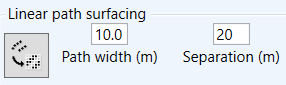
*Linear Surfacing*<span dir="ltr" style="font-size: 16px;">  
</span>

<span style="font-size: 16px;">Linear path surfacing is for when you have a single string of survey points. Since it is a single line, this method does not triangulate between nearby points - it sets the elevation of each pixel to the closest survey point. Linear path surfacing is the same as surfacing drains in T3RRA Cutta.</span>

<span style="font-size: 16px;">  
</span>

<span style="font-size: 16px;">*![](https://docs.t3rra.com/uploads/images/gallery/2025-03/scaled-1680-/3IXdge4s-dgyzte0rp6y1qhierqhnn6oorqa-png.png)Surface Resolution*</span>

<span style="font-size: 16px;">This setting allows you to select the pixel size for the surface that you are creating. Smaller pixels are good for precision drainage work, larger pixels are good for wide scale leveling.</span>

<span style="font-size: 16px;">  
</span>

<span style="font-size: 16px;">  
</span>

<span style="font-size: 16px;">  
</span>

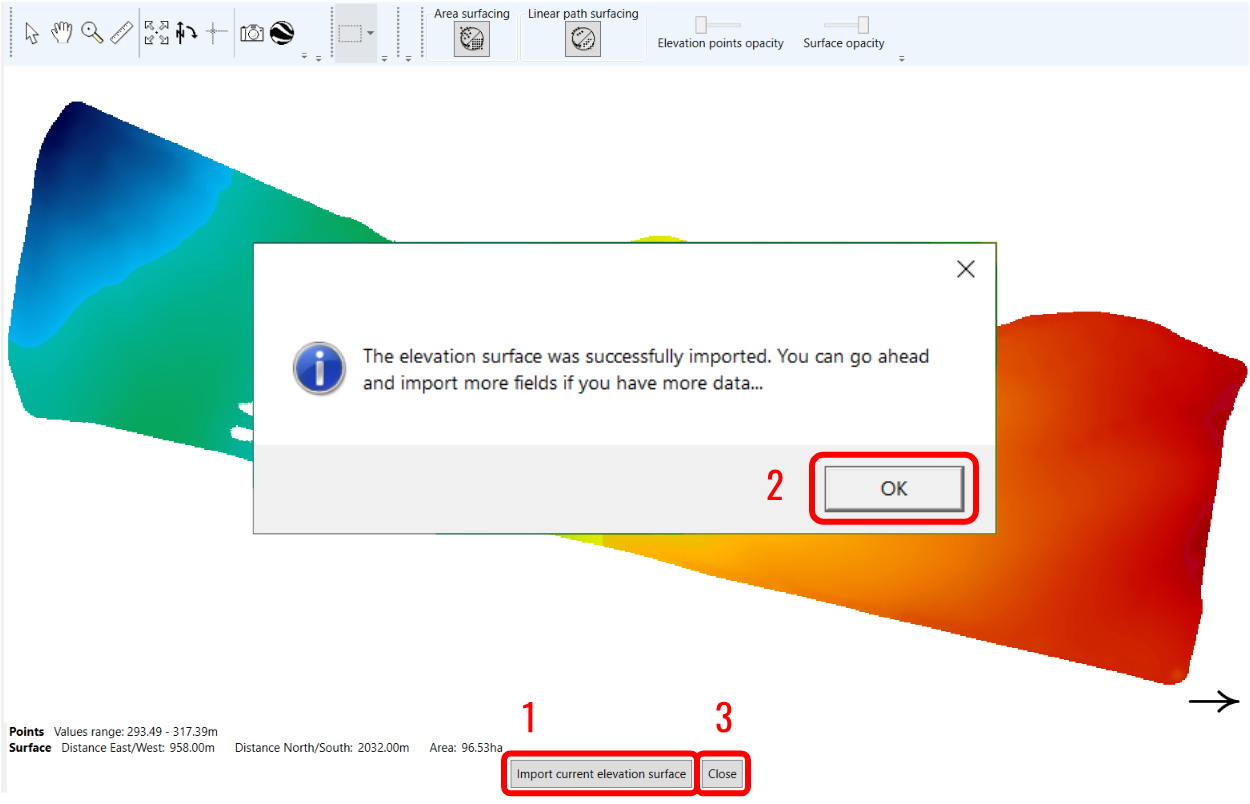
<span style="font-size: 16px;">Once you’ve surfaced and are happy with the results, click the “Import current elevation surface” (1) button at the bottom of the window (see below). Click OK on the prompt that comes up (2), and then click “Close” (3) to get back to T3RRA Design Plus and work with your new surface.</span>

<span style="font-size: 16px;">![](https://docs.t3rra.com/uploads/images/gallery/2025-03/scaled-1680-/f8Hjgalrxc0oikem7ghjd8v5o1blie7-g03ha-png.png)</span>

<span style="font-size: 16px;">  
</span>

<span style="font-size: 16px;">***File Type: Raw CSV data points (\*.csv)***</span>

<span style="font-size: 16px;">To Import:</span>

<span style="font-size: 16px;"> &gt; From the Surface Tab in the Layers Panel, select: Layer &gt; Import &gt; From raw data points (John Deere RCD, CSV, etc) &gt; Select Raw CSV data points (\*.csv) &gt; Select the relevant file</span>

<span style="font-size: 16px;">  
</span>

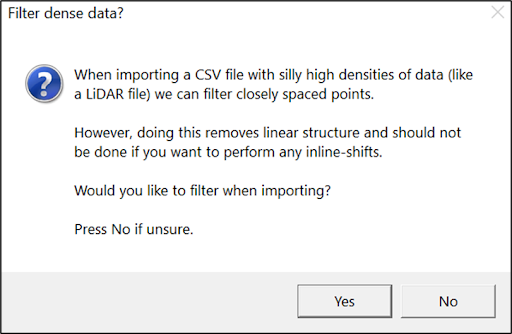
<span style="font-size: 16px;">![](https://docs.t3rra.com/uploads/images/gallery/2025-03/scaled-1680-/uCQakn8ucw8gk8vyrvstbx37hvoxeejdvnwsg-png.png)Once the relevant file has been selected, this pop up will appear. If you choose yes, points that are very close together are filtered out. This can improve the performance of the next steps when there are many points in the file. If you choose no, all points are imported without any filtering. If you are unsure, press No. </span>

<span style="font-size: 16px;">After selecting either Yes or No, you will be taken to the following screen ‘Import delimited text data’ (partial screen grab shown here). </span>

<span style="font-size: 16px;">  
</span>

<span style="font-size: 16px;">This screen is broken into four sections. These are explained in more detail below:</span>

1. <span style="font-size: 16px;">Import options</span>
2. <span style="font-size: 16px;">Coordinate system</span>
3. <span style="font-size: 16px;">Elevation column</span>
4. <span style="font-size: 16px;">Data set</span>

<span style="font-size: 16px;">  
</span>

<span style="font-size: 16px;">  
</span>

<span style="font-size: 16px;">*Import Delimited Text Data Screen Explained*</span>

1. <span style="font-size: 16px;">Import options: </span>  
    <span dir="ltr" style="font-size: 16px;">**![](https://docs.t3rra.com/uploads/images/gallery/2025-03/scaled-1680-/us6rvhhdq-8ypktugjnnfxh8xr5pmuj3aotja-png.png)Field delimiter:** This should be pre-populated by scanning the selected file. It is the character that separates data fields. CSV means Comma Separated Values, so usually Comma will be selected.</span>  
    <span dir="ltr" style="font-size: 16px;">**Decimal separator:** This should be pre-populated by scanning the selected file. It is the character that separates the whole number from the fractional part. It is usually Period, however, in other cultures, it is sometimes Comma. When Comma is selected, choose something else for the Field delimiter.</span>  
    <span dir="ltr" style="font-size: 16px;">**\# Lines to ignore:** Some CSV files have extra lines/rows at the top that are not header or data. Increase this number to ignore them.</span>  
    <span dir="ltr" style="font-size: 16px;">**Data file has header row:** This should be pre-populated by scanning the selected file. If selected, the names from the header row will be used to refer to the columns.</span><span style="font-size: 16px;">  
      
    </span>
2. <span style="font-size: 16px;">Coordinate system:</span><span dir="ltr" style="font-size: 16px;">![](https://docs.t3rra.com/uploads/images/gallery/2025-03/scaled-1680-/nmje3dbq7utfyklto-s-zvjfdfsgnczluqkg-png.png)The coordinate system controls the X and Y placement of your data. Update the fields here to match the data in the import file.</span>  
    <span style="font-size: 16px;">  
    </span>
3. <span style="font-size: 16px;">Elevation column:</span>  
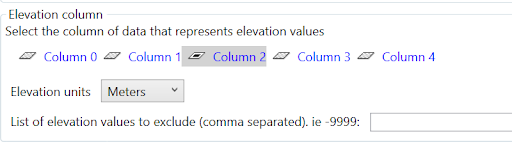
    <span style="font-size: 16px;">![](https://docs.t3rra.com/uploads/images/gallery/2025-03/scaled-1680-/H4u48jjpk-z-g8alk9yccsybthgrpg9gejfw-png.png)</span><span dir="ltr" style="font-size: 16px;">Which column contains the elevation data? Click on the column and select the appropriate units. If there is a value that indicates that there is no elevation at a point, enter it into the last text box.</span>  
    <span style="font-size: 16px;">  
    </span>
4. <span dir="ltr" style="font-size: 16px;">Data set: </span>  
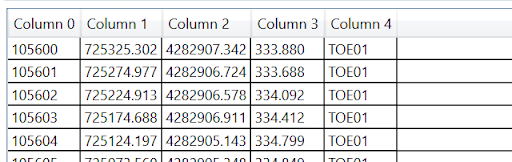
    <span dir="ltr" style="font-size: 16px;">Extract as an example only. This is a preview of the information in your file. Having this in view can help you choose the right options above.![](https://docs.t3rra.com/uploads/images/gallery/2025-03/scaled-1680-/Xevj-3npwzcujzjtqdknxxape7ro6pxitwm8a-png.png)</span>
<span style="font-size: 16px;">  
</span>

<span style="font-size: 16px;">Once you are satisfied with your selections, select ‘OK’. You will then be taken to the Raw point data surface and Import, which is explained in detail here. </span>

  
<span style="font-size: 16px;">***File Type: Raw shapefile data points (\*.shp)***</span>

<span style="font-size: 16px;">To Import:</span>

<span style="font-size: 16px;"> &gt; From the Surface Tab in the Layers Panel, select: Layer &gt; Import &gt; From raw data points (John Deere RCD, CSV, etc) &gt; Select Raw shapefile data points (\*.shp).</span>

<span style="font-size: 16px;">  
</span>

<span style="font-size: 16px; color: rgb(226, 80, 65);">NOTE: Shapefiles have three required sub-files to import successfully. There needs to be, as a minimum, the following raw elevation points to import:</span>

- <span style="color: rgb(226, 80, 65);"><span style="font-size: 16px;">.shp - shape format; the feature geometry itself {content-type: x-gis/x-shapefile}</span></span>
- <span style="color: rgb(226, 80, 65);"><span style="font-size: 16px;">.shx - shape index format; a positional index of the feature geometry to allow seeking forwards and backwards quickly {context-type: x-gis/x-shapefile}</span></span>
- <span style="color: rgb(226, 80, 65);"><span style="font-size: 16px;">.dbf - attribute format; columnar attributes for each shape, in dBase IV format {content-type: application/octet-stream OR text/plan}</span></span>

<span style="font-size: 16px;">  
</span>

<span style="font-size: 16px;">Once you have selected the relevant file to import, the process will continue as for importing raw CSV data, found <span style="color: rgb(226, 80, 65);">here</span>.</span>

# Importing Annotations to T3RRA Design Plus

<span style="font-size: 16px;">Depending on your available data, there are many annotations which can be imported into your project. These could further help with the accuracy and detail of the design. </span>

<span style="font-size: 16px;">***Importing Multiplane Boundaries***</span>

<span style="font-size: 16px;">![](https://docs.t3rra.com/uploads/images/gallery/2025-03/scaled-1680-/Ahxxpobsthe8any9uvoos0rx6cclhkzegxbaw-png.png)A simple way to import Multiplane Boundaries: </span>

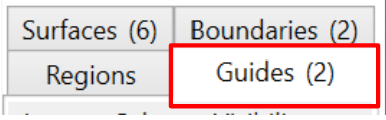
<span style="font-size: 16px;">Select ‘Guides’ from the tabs on the right hand side of the screen.</span>

<span style="font-size: 16px;"> &gt; Select Layer &gt; Import &gt; Import Multiplane boundary</span>

<span style="font-size: 16px;"> Select the required Multiplane.txt file</span>

<span style="font-size: 16px;">  
</span>

<span style="font-size: 16px;">![](https://docs.t3rra.com/uploads/images/gallery/2025-03/scaled-1680-/pgzwrxsihwsxjrtjssnmyrq5xkfhm-mtppbvq-png.png)</span>

The following ‘Units please!’ window will appear. If the file is in meters, select Yes. If in feet, select No. <span style="font-size: 16px;">  
</span>

<span style="font-size: 16px;">![](https://docs.t3rra.com/uploads/images/gallery/2025-03/scaled-1680-/Bc4djcoorlyfrovzrbcid4rosprdchh5ct7dg-png.png)</span>

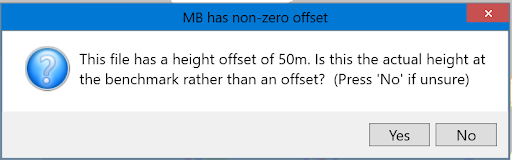
Continuing on, a ‘MB has non-zero offset’ window will open. Sometimes, a Multiplane.txt file will contain a file elevation offset in the master benchmark. If this is the case, click Yes. Most of the time, click No. If the elevations are not what you expect, then simply re-import and click the other option.

<span style="font-size: 16px;">  
</span>

<span dir="ltr" style="font-size: 16px;">![](https://docs.t3rra.com/uploads/images/gallery/2025-03/scaled-1680-/vygzi2azzwiqw-eok2rffet2nsri-tyhlniyg-png.png)There will now be a new tile in the Guides Tab and the boundary will be present on the project. This can be edited by selecting , in the top menu bar.</span>

# Exporting Files from T3RRA Design Plus

<span dir="ltr" style="font-size:16px;line-height:115%;font-family:"Segoe UI",sans-serif;color:black;">There is a lot of flexibility when exporting from T3RRA Design Plus. This includes control files and overlays. Export individual layers or several into a folder. To get started, load a project and click the export button. Alternatively, choose File &gt; Export Data.</span>

<span dir="ltr" style="font-size:16px;line-height:115%;font-family:"Segoe UI",sans-serif;color:black;">Exporting a control file is how you get your design into a tractor or bulldozer with T3RRA Cutta (.tci), or produce a Trimble FMX/TMX compatible file (.gps). You can either create a control file with an individual layer or by combining many layers, such as surfaces, guides, regions and boundaries, etc.</span>

<span dir="ltr" style="font-size:16px;line-height:115%;font-family:"Segoe UI",sans-serif;color:black;">Once the export window is opened, you will be able to select the export type from the left menu. The options include:</span>

- <span dir="ltr" style="font-size:16px;line-height:115%;font-family:"Segoe UI",sans-serif;color:black;">[T3RRA Cutta](https://t3rra-help.freshdesk.com/a/solutions/articles/51000379213) (\*.tci, our preferred control file format. Works well with T3RRA Cutta, funnily enough)</span>
- <span dir="ltr" style="font-size:16px;line-height:115%;font-family:"Segoe UI",sans-serif;color:black;"><span dir="ltr" style="font-size:16px;line-height:115%;font-family:"Segoe UI",sans-serif;color:black;">[Field Level II for FMX/TMX](https://t3rra-help.freshdesk.com/a/solutions/articles/51000379217) (\*.gps)</span></span>
- <span dir="ltr" style="font-size:16px;line-height:115%;font-family:"Segoe UI",sans-serif;color:black;"><span dir="ltr" style="font-size:16px;line-height:115%;font-family:"Segoe UI",sans-serif;color:black;"><span dir="ltr" style="font-size:16px;line-height:115%;font-family:"Segoe UI",sans-serif;color:black;">Shapefile (\*.shp)</span></span></span>
- <span dir="ltr" style="font-size:16px;line-height:115%;font-family:"Segoe UI",sans-serif;color:black;"><span dir="ltr" style="font-size:16px;line-height:115%;font-family:"Segoe UI",sans-serif;color:black;"><span dir="ltr" style="font-size:16px;line-height:115%;font-family:"Segoe UI",sans-serif;color:black;"><span dir="ltr" style="font-size:16px;line-height:115%;font-family:"Segoe UI",sans-serif;color:black;">Comma Separated Values (\*.csv)</span></span></span></span>
- <span dir="ltr" style="font-size:16px;line-height:115%;font-family:"Segoe UI",sans-serif;color:black;"><span dir="ltr" style="font-size:16px;line-height:115%;font-family:"Segoe UI",sans-serif;color:black;"><span dir="ltr" style="font-size:16px;line-height:115%;font-family:"Segoe UI",sans-serif;color:black;"><span dir="ltr" style="font-size:16px;line-height:115%;font-family:"Segoe UI",sans-serif;color:black;"><span dir="ltr" style="font-size:16px;line-height:115%;font-family:"Segoe UI",sans-serif;color:black;">Ezigrade (\*.ezigrade)</span></span></span></span></span>
- <span dir="ltr" style="font-size:16px;line-height:115%;font-family:"Segoe UI",sans-serif;color:black;"><span dir="ltr" style="font-size:16px;line-height:115%;font-family:"Segoe UI",sans-serif;color:black;"><span dir="ltr" style="font-size:16px;line-height:115%;font-family:"Segoe UI",sans-serif;color:black;"><span dir="ltr" style="font-size:16px;line-height:115%;font-family:"Segoe UI",sans-serif;color:black;"><span dir="ltr" style="font-size:16px;line-height:115%;font-family:"Segoe UI",sans-serif;color:black;"><span dir="ltr" style="font-size:16px;line-height:115%;font-family:"Segoe UI",sans-serif;color:black;">[DXF 3D Faces](https://t3rra-help.freshdesk.com/a/solutions/articles/51000379215) (\*.dxf, a great format for most CAD packages like AutoCAD, QGIS, Magnet and BricsCAD)</span></span></span></span></span></span>
- <span dir="ltr" style="font-size:16px;line-height:115%;font-family:"Segoe UI",sans-serif;color:black;"><span dir="ltr" style="font-size:16px;line-height:115%;font-family:"Segoe UI",sans-serif;color:black;"><span dir="ltr" style="font-size:16px;line-height:115%;font-family:"Segoe UI",sans-serif;color:black;"><span dir="ltr" style="font-size:16px;line-height:115%;font-family:"Segoe UI",sans-serif;color:black;"><span dir="ltr" style="font-size:16px;line-height:115%;font-family:"Segoe UI",sans-serif;color:black;"><span dir="ltr" style="font-size:16px;line-height:115%;font-family:"Segoe UI",sans-serif;color:black;"><span dir="ltr" style="font-size:16px;line-height:115%;font-family:"Segoe UI",sans-serif;color:black;">Land XML (\*.xml, a great format for interoperability)</span></span></span></span></span></span></span>

<span dir="ltr" style="font-size:16px;line-height:115%;font-family:"Segoe UI",sans-serif;color:black;">After the export file type has been selected, you can remove and add layers to the central column of the export window. To remove layers, click the X button on the right of an item. To add layers, drag them in from the layers panel on the right of the main window.</span>

<span dir="ltr" style="font-size:16px;line-height:115%;font-family:"Segoe UI",sans-serif;color:black;">See also [exporting a T3RRA Cutta file](https://t3rra-help.freshdesk.com/a/solutions/articles/51000379213), [exporting a DXF file](https://t3rra-help.freshdesk.com/a/solutions/articles/51000379215), and exporting a [Field Level II FMX/TMX file](https://t3rra-help.freshdesk.com/a/solutions/articles/51000379217).</span>

# Exporting Files - Control File

<span style="font-size: 16px;">It is also possible to export a Control File from T3RRA Design Plus. This is how you get your design into a tractor or bulldozer with T3RRA Cutta (.tci), or produce a Trimble FMX/TMX compatible file (.gps). You can either create a control file with an individual layer or by combining many layers, such as surfaces, guides, regions and boundaries, etc. </span>

<span style="font-size: 16px;">  
</span>

<span style="font-size: 16px;">To export a control file, simply select the below icon on the menu bar at the top:</span>

<span style="font-size: 16px;">![](https://docs.t3rra.com/uploads/images/gallery/2025-03/scaled-1680-/dRkdwr3vgqssa9ndf6d6nbclfz1ysodielvxq-png.png)</span>

<span style="font-size: 16px;">![](https://docs.t3rra.com/uploads/images/gallery/2025-03/scaled-1680-/Mnro5-zu-nyqu0szbhtszfxirrtkiat5k9gig-png.png)</span>

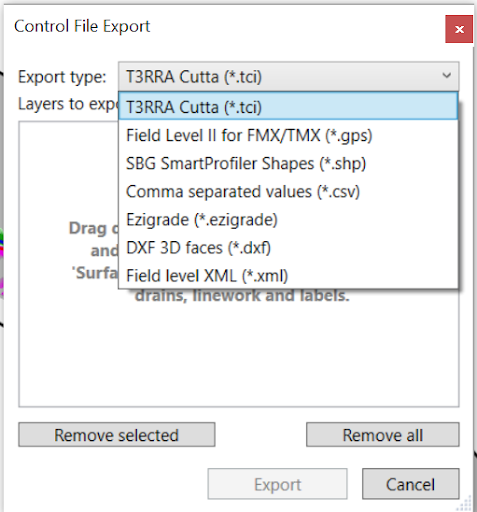
<span style="font-size: 16px;">Once selected, a box will pop up. You will then be able to select from a drop down menu, which file type you are wanting to export. The options are:</span>

- <span style="font-size: 16px;">T3RRA Cutta (\*.tci)</span>
- <span style="font-size: 16px;">Field Level II for FMX/TMX (\*.gps)</span>
- <span style="font-size: 16px;">SBG SmartProfiler Shapes (\*.shp)</span>
- <span style="font-size: 16px;">Comma Separated Values (\*.csv)</span>
- <span style="font-size: 16px;">Ezigrade (\*.ezigrade)</span>
- <span style="font-size: 16px;">DXF 3D Faces (\*.dxf)</span>
- <span style="font-size: 16px;">Field Level XML (\*.xml)</span>

<span style="font-size: 16px;">  
</span>

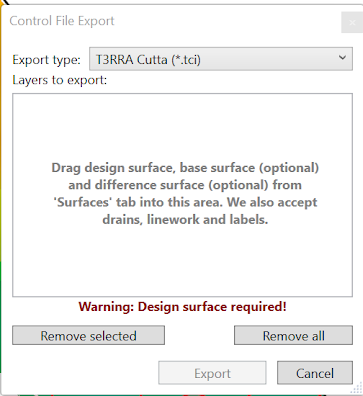
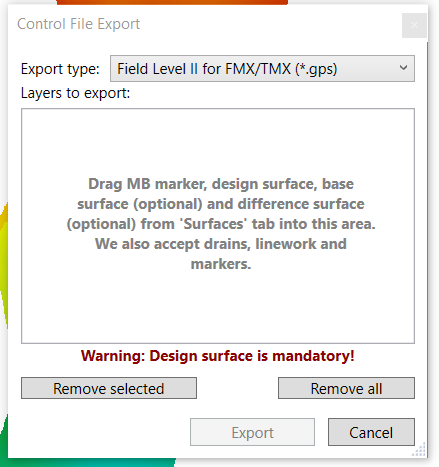
<span style="font-size: 16px;">After the export file type has been selected, you need to drag layers from the ‘Layer Type Selection Panel’. </span>

<span style="font-size: 16px;">From the Surface Tab, these will (could) include: </span>

- <span style="font-size: 16px;">Design surface</span>
- <span style="font-size: 16px;">Base surface (optional)</span>
- <span style="font-size: 16px;">Difference surface (optional)</span>

<span style="font-size: 16px;">You can also drag in several other layers, like from the Guides Tab, including Drains, Linework, and Labels (e.g. a Master Bench). To remove layers, select them and click ‘Remove Selected’. You can also remove all layers as well. </span>

<span style="font-size: 16px;">  
</span>

<span style="font-size: 16px; color: rgb(226, 80, 65);">NOTE: The ‘Export’ button will remain inactive until you have included the minimum layers needed for that export file type</span>

<span style="font-size: 16px;">  
</span>

<span style="font-size: 16px;">***Exporting a T3RRA Cutta (\*.tci) Control File***</span>

<span style="font-size: 16px;">![](https://docs.t3rra.com/uploads/images/gallery/2025-03/scaled-1680-/TTQfzz69jwdqkc8azykninr8gp4aslqyy6x4w-png.png)This is our preferred control file format. It works very well with T3RRA Cutta, funnily enough.</span>

1. <span style="font-size: 16px;">Open the Control File Export window as described above.</span>
2. <span style="font-size: 16px;">Select T3RRA Cutta (\*.tci) from the Export type drop down list.</span>
3. <span style="font-size: 16px;">Drag and drop required design surface layer.</span>
4. <span style="font-size: 16px;">Drag in any drains, linework and markers. When you drag in drains and linework, you can choose whether T3RRA Cutta treats them as just linework or as drains. Treating them as drains will enable profile views for them in T3RRA Cutta.</span>
5. <span style="font-size: 16px;">Select Export.</span>

<span style="font-size: 16px;">  
</span>

<span style="font-size: 16px;">  
</span>

<span dir="ltr" style="font-size: 16px;">  
</span>

<span style="font-size: 16px;">***Exporting a DXF Control File***</span>

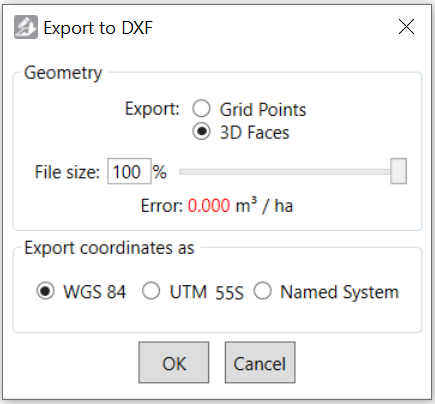
<span style="font-size: 16px;">The DXF file type is a common interchange format used by civil designers.![](https://docs.t3rra.com/uploads/images/gallery/2025-03/scaled-1680-/tnbglukmq9fgvmichhjualjavzpmmlocalvow-png.png) We support exporting a DXF file of a surface. It may be exported as 3D faces or a grid of points. A 3D faces file contains a collection of triangles that define the surface. To export this type of file:</span>
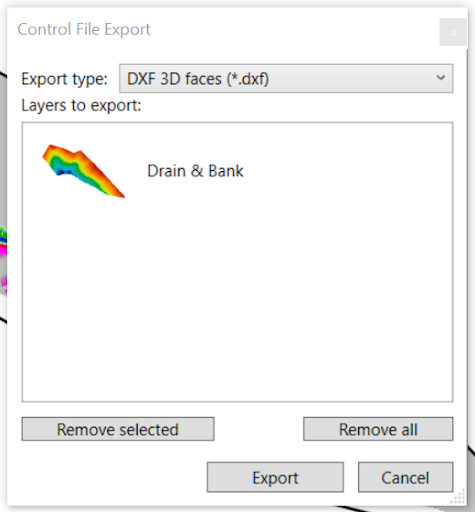
1. <span style="font-size: 16px;">Open the Control File Export window as described above.</span>
2. <span style="font-size: 16px;">Select DXF 3D faces (\*.dxf) from the Export type drop down list.</span>
3. <span style="font-size: 16px;">Drag and drop required design surface layer.</span>
4. <span style="font-size: 16px;">Select Export.</span>
5. <span style="font-size: 16px;">Then a few more options will appear. Choose your export type, file size, and coordinate system. A lower file size is achieved by intelligently simplifying the triangles that are output.</span>
6. <span dir="ltr" style="font-size: 16px;">Ensure you record which coordinate system and give this information to whoever will be using the DXF file.</span>
7. <span dir="ltr" style="font-size: 16px;">When you have specified each option, click OK.</span>

<span style="font-size: 16px;">![](https://docs.t3rra.com/uploads/images/gallery/2025-03/scaled-1680-/4z9heg7arr-nnepustzch9xkar4gi1rjuh6va-png.png)</span>

<span style="font-size: 16px;">  
</span>

<span style="font-size: 16px;">  
</span>

<span style="font-size: 16px;">  
</span>

<span style="font-size: 16px;">  
</span>

<span style="font-size: 16px;">  
</span>

<span dir="ltr" style="font-size: 16px;">  
</span>

<span style="font-size: 16px;">***Exporting a Field Level II for FMX/TMX (\*gps) display***</span>

<span style="font-size: 16px;">![](https://docs.t3rra.com/uploads/images/gallery/2025-03/scaled-1680-/Uz9siyofdclqf49nkp5bn4a0thwflcmz1sogw-png.png)The .gps file is used in Trimble displays. We support exporting files for these systems with a design surface, a base surface, linework, and markers. To export this type of file:</span>

1. <span style="font-size: 16px;">Open the Control File Export window as described above.</span>
2. <span style="font-size: 16px;">Select Field Level II for FMX/TMX (\*.gps) from the Export type drop down list</span>
3. <span style="font-size: 16px;">Drop and drag the design surface, the cut/fill or elevation surface, and other layers. Ensure you include a marker with the name MB that has your master benchmark elevation set.</span>
4. <span style="font-size: 16px;">When you have finished selecting layers, click OK.</span>

<span style="font-size: 16px; color: rgb(226, 80, 65);">NOTE: The older FMX displays require files to be exactly 1010 KB, so you may be prompted to resize the surface.</span>

# Exporting a PDF

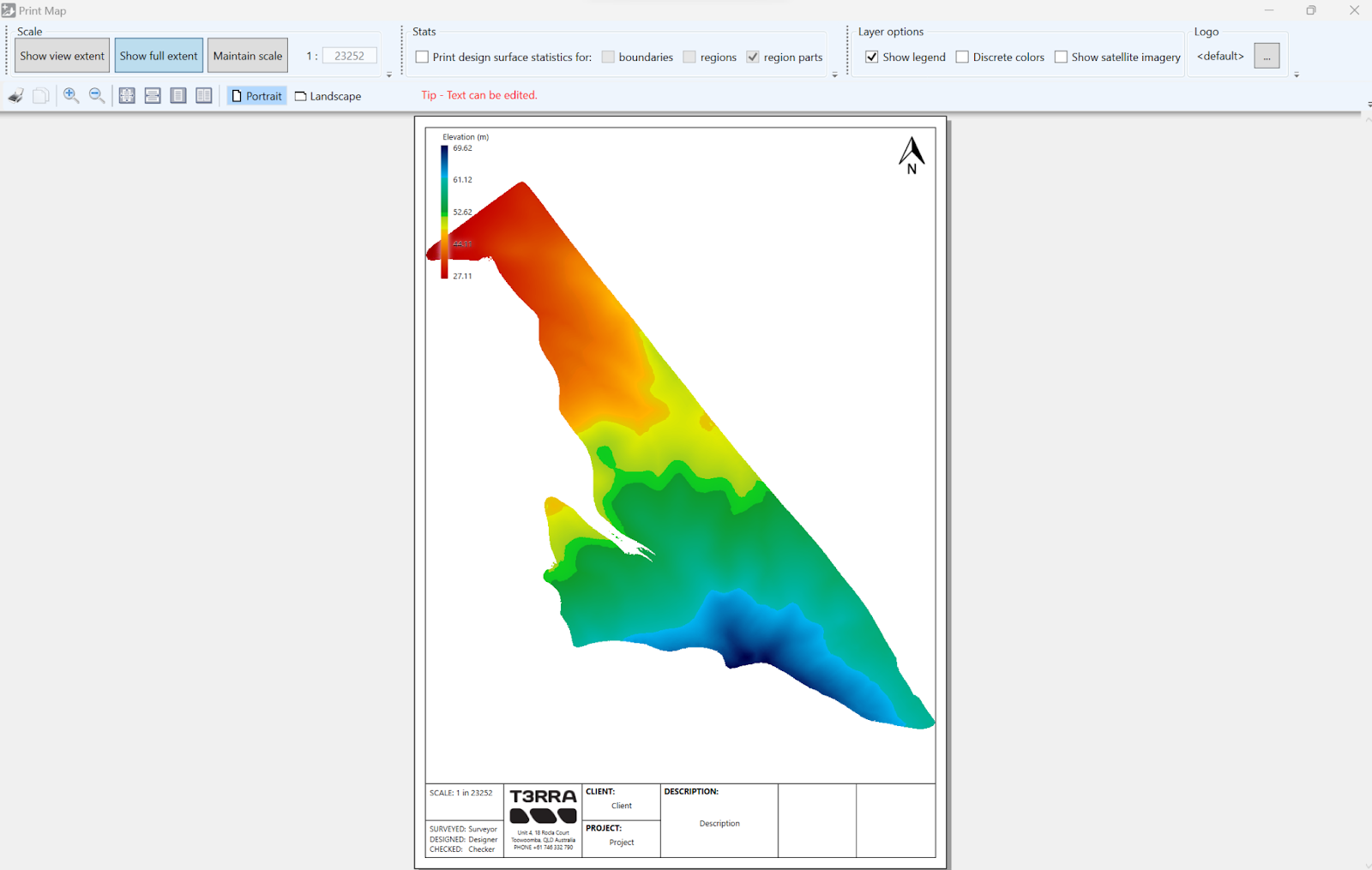
<span dir="ltr" style="font-size: 16px; font-family: "Helvetica Neue"; color: rgb(0, 0, 0); font-weight: 300;">It is possible to download your design file as a PDF, either to share or to print. </span>

<span style="font-family: Helvetica Neue;"><span style="font-size: 16px; font-family: "Helvetica Neue";"><span style="color: rgb(0, 0, 0); font-weight: 300; font-family: "Helvetica Neue";">This is done by secting:</span></span></span>

<span style="font-family: Helvetica Neue;"><span style="font-size: 16px; font-family: "Helvetica Neue";"><span style="color: rgb(0, 0, 0); font-weight: 300; font-family: "Helvetica Neue";">File &gt; Print.<span style="border: none; display: inline-block; overflow: hidden; width: 468px; height: 297px; font-family: "Helvetica Neue";">![](https://docs.t3rra.com/uploads/images/gallery/2025-03/scaled-1680-/pRQ9rv7ewyye0wwc6srj82seothfri9-o00aa-png.png)</span></span></span></span>

<span style="font-family: Helvetica Neue;"><span style="font-size: 16px; font-family: "Helvetica Neue";"><span style="color: rgb(0, 0, 0); font-weight: 300; font-family: "Helvetica Neue";">This will bring up this pop up screen. </span></span></span>

- <span style="font-family: Helvetica Neue;"><span style="font-size: 16px; font-family: "Helvetica Neue";"><span style="color: rgb(0, 0, 0); font-weight: 300; font-family: "Helvetica Neue";">Scale: There will be options to edit the scale of the image.</span></span></span>
- <span style="font-family: Helvetica Neue;"><span style="font-size: 16px; font-family: "Helvetica Neue";"><span style="color: rgb(0, 0, 0); font-weight: 300; font-family: "Helvetica Neue";">Stats - allows you to edit the text in the lower boxes of the page</span></span></span>
- <span style="font-family: Helvetica Neue;"><span style="font-size: 16px; font-family: "Helvetica Neue";"><span style="color: rgb(0, 0, 0); font-weight: 300; font-family: "Helvetica Neue";">Layer Options:</span></span></span>
    
    
    - <span style="font-family: Helvetica Neue;"><span style="font-size: 16px; font-family: "Helvetica Neue";"><span style="color: rgb(0, 0, 0); font-weight: 300; font-family: "Helvetica Neue";">Show legend </span></span></span>
    - <span style="font-family: Helvetica Neue;"><span style="font-size: 16px; font-family: "Helvetica Neue";"><span style="color: rgb(0, 0, 0); font-weight: 300; font-family: "Helvetica Neue";">Discrete colors </span></span></span>
    - <span style="font-family: Helvetica Neue;"><span style="font-size: 16px; font-family: "Helvetica Neue";"><span style="color: rgb(0, 0, 0); font-weight: 300; font-family: "Helvetica Neue";">Show satellite imagery - you must first have the satellite imagery selected (found in the Edit Menu) for this option to be available. </span></span></span>
- <span dir="ltr" style="font-size: 16px; font-family: "Helvetica Neue"; color: rgb(0, 0, 0); font-weight: 300;">Logo - upload your own logo onto the PDF document</span>

# Exporting a T3RRA Cutta (*.tci) control file

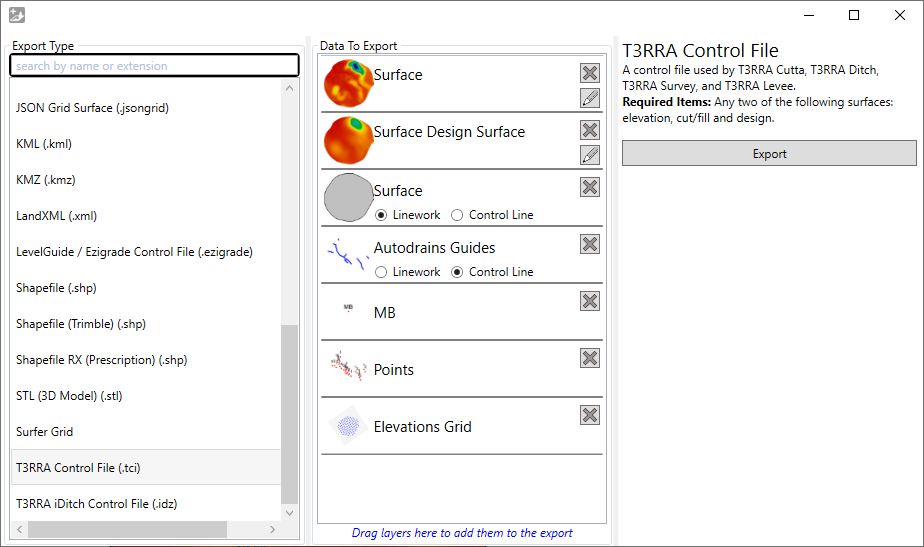
<span style="font-size:16px;line-height:115%;font-family:"Segoe UI",sans-serif;color:black;">This is our preferred control file format. It works very well with T3RRA Cutta, funnily enough.</span>

1. <span dir="ltr" style="font-size:16px;line-height:115%;font-family:"Segoe UI",sans-serif;color:black;">Open the Export window as described [here](https://t3rra-help.freshdesk.com/a/solutions/articles/51000362054).</span>
2. <span style="font-size:16px;line-height:115%;font-family:"Segoe UI",sans-serif;color:black;">Select T3RRA Cutta (\*.tci) from the Export Type list.</span>
3. <span style="font-size:16px;line-height:115%;font-family:"Segoe UI",sans-serif;color:black;">Remove any excess surfaces from the list in the center.</span>
4. <span dir="ltr" style="font-size:16px;line-height:115%;font-family:"Segoe UI",sans-serif;color:black;">For the drains and linework, choose whether T3RRA Cutta treats them as just linework or control lines (i.e. drains). Treating them as drains will enable profile views for them in T3RRA Cutta.</span>
5. <span dir="ltr" style="font-size:16px;line-height:115%;font-family:"Segoe UI",sans-serif;color:black;">Click the \[Export\] button and choose a location and file name.</span>

<span dir="ltr" style="font-size:16px;line-height:115%;font-family:"Segoe UI",sans-serif;color:black;"><span style="border:none;display:inline-block;overflow:hidden;width:482px;height:285px;">![](https://docs.t3rra.com/uploads/images/gallery/2025-03/scaled-1680-/lXQtv8bfubn5jnudmzqnqbl6luyd7rehu2epg-png.png)</span>  
</span>

# Exporting a DXF file

<span style="font-size:16px;line-height:115%;font-family:"Segoe UI",sans-serif;color:black;">The DXF file type is a common interchange format used by civil designers. We support exporting a DXF file of a surface. It may be exported as 3D faces. A 3D faces file contains a collection of triangles that define the surface. To export this type of file:</span>

1. <span dir="ltr" style="font-size:16px;line-height:115%;font-family:"Segoe UI",sans-serif;color:black;">Open the Export window as described [here](https://t3rra-help.freshdesk.com/a/solutions/articles/51000362054).</span>
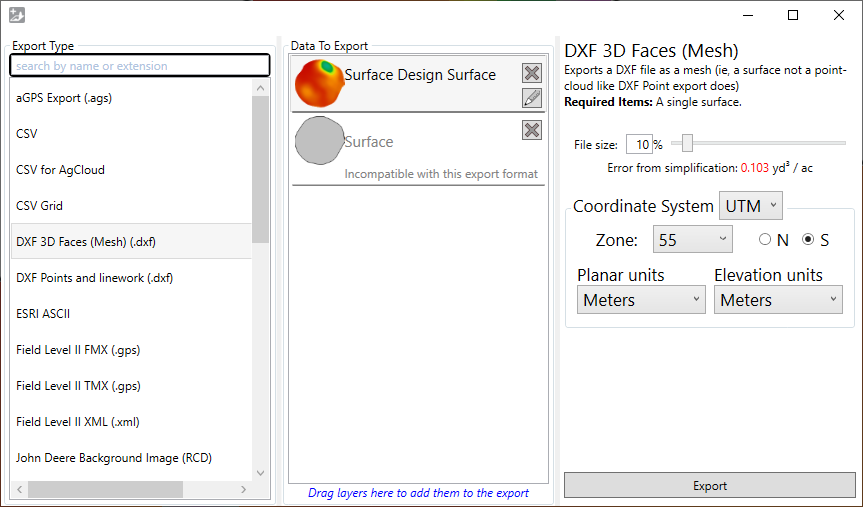
2. <span style="font-size:16px;line-height:115%;font-family:"Segoe UI",sans-serif;color:black;">Select DXF 3D faces (Mesh) (\*.dxf) from the Export Type list.</span>
3. <span style="font-size:16px;line-height:115%;font-family:"Segoe UI",sans-serif;color:black;">Remove all but the desired design surface.</span>
4. <span style="font-size:16px;line-height:115%;font-family:"Segoe UI",sans-serif;color:black;">On the right, choose your file size and coordinate system. A lower file size is achieved by intelligently simplifying the triangles that are output.</span>
5. <span style="font-size:16px;line-height:115%;font-family:"Segoe UI",sans-serif;color:black;">Ensure you record the chosen coordinate system (ideally in the file name you choose in the next step) and give this information to whoever will be using the DXF file.</span>
6. <span dir="ltr" style="font-size:16px;line-height:115%;font-family:"Segoe UI",sans-serif;color:black;">Click Export and choose a folder and file name.</span>

<span dir="ltr" style="font-size:16px;line-height:115%;font-family:"Segoe UI",sans-serif;color:black;"><span style="border:none;display:inline-block;overflow:hidden;width:408px;height:240px;">![](https://docs.t3rra.com/uploads/images/gallery/2025-03/scaled-1680-/Aw30dv5o5z6mg0orghdfwsrcjfqa9390kqpgw-png.png)</span>  
</span>

# Exporting a Field Level II for FMX/TMX (*gps) display

<span style="font-size:16px;line-height:115%;font-family:"Segoe UI",sans-serif;color:black;">The .gps file is used in Trimble displays. We support exporting files for these systems with a design surface, a base surface, linework, and markers. To export this type of file:</span>

1. <span dir="ltr" style="font-size:16px;line-height:115%;font-family:"Segoe UI",sans-serif;color:black;">Open the Export window as described [here](https://t3rra-help.freshdesk.com/a/solutions/articles/51000362054).</span>
2. <span dir="ltr" style="font-size:16px;line-height:115%;font-family:"Segoe UI",sans-serif;color:black;">Select Field Level II FMX or TMX (\*.gps) from the Export list.</span>
3. <span dir="ltr" style="font-size:16px;line-height:115%;font-family:"Segoe UI",sans-serif;color:black;">Remove any excess surfaces and other layers. Ensure you include a marker with the name MB that has your master benchmark elevation set.</span>
4. <span dir="ltr" style="font-size:16px;line-height:115%;font-family:"Segoe UI",sans-serif;color:black;">When you have finished adding/removing layers, click OK.</span>

<span dir="ltr" style="font-size: 16px; line-height: 115%; font-family: "Segoe UI", sans-serif; color: rgb(184, 49, 47);">NOTE: The older FMX displays require files to be exactly 1010 KB, so you may be prompted to resize the surface.</span>

# Exporting T3RRA Control File to JD Ops Center

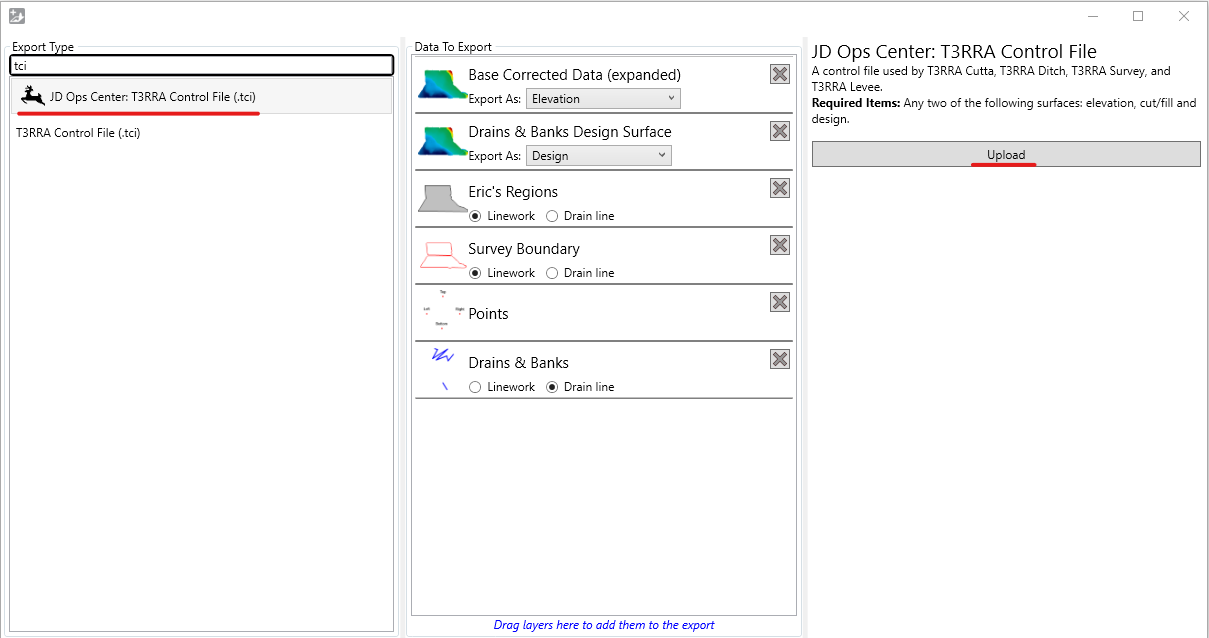
1. <span dir="ltr" style="box-sizing: border-box; font-size: 16px; line-height: 18.4px; font-family: "Segoe UI", sans-serif; color: black;">Open the Export window.</span>
2. Choose "JD Ops Center: T3RRA Control File(.tci)", choose data to export and select Upload. If this is the first time you have attempted to transfer files to JD Ops Center, you will be prompted to sign in to your MyJohnDeere account.  
    ![](https://docs.t3rra.com/uploads/images/gallery/2025-03/scaled-1680-/dFEyp8azsheobytzldoeqqxbdibiosi-5ypiw-png.png)
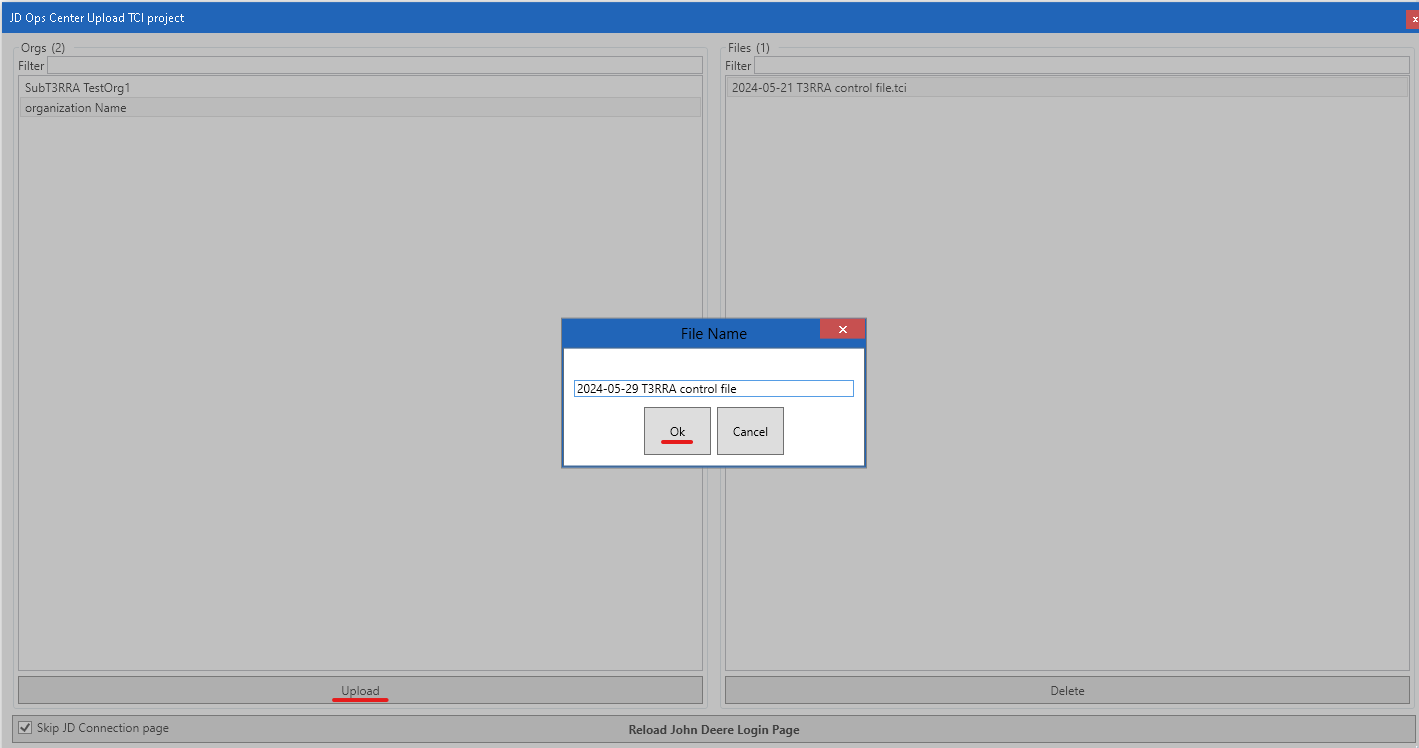
3. When prompted, choose your Ops Center organization and hit Upload. Edit the file name if desired.  
    ![](https://docs.t3rra.com/uploads/images/gallery/2025-03/scaled-1680-/ZcNxffvve6ehdi9d-y-iql4rwk9minvlizjxa-png.png)
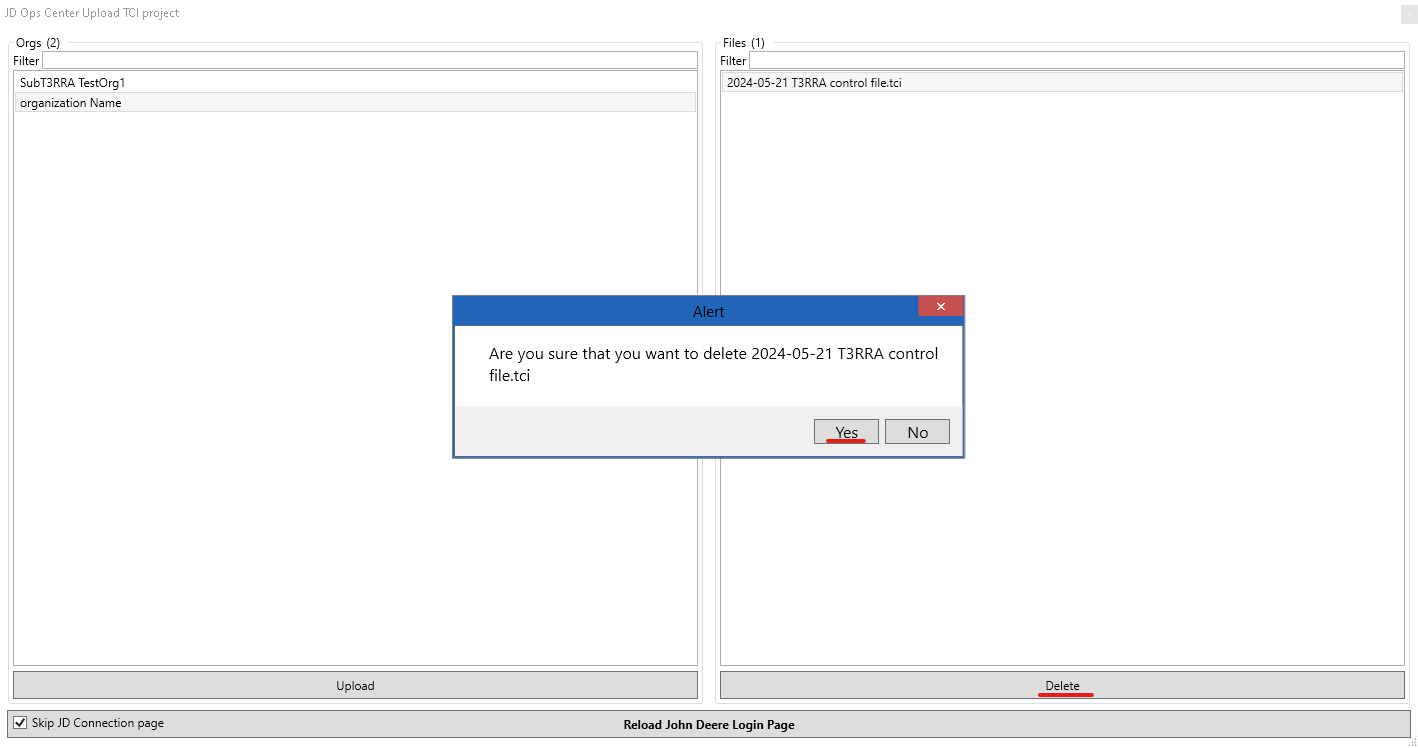
4. If you want to remove uploaded T3RRA Control File. Select uploaded file in the list and click "Delete" button.  
    ![](https://docs.t3rra.com/uploads/images/gallery/2025-03/scaled-1680-/LIWe28zm6kbun2krnrp-op1efm7ounra9tzra-png.png)
5. You can import uploaded TCI file from import window.

# Importing T3RRA Control File from JD Ops Center

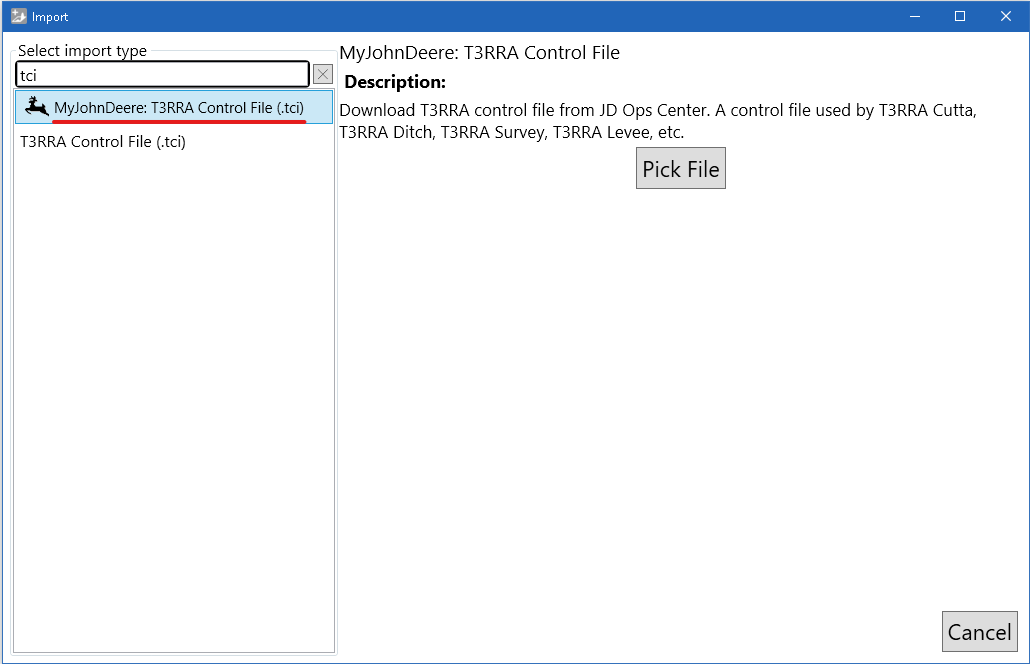
1. <span dir="ltr" style="box-sizing: border-box; font-size: 16px; line-height: 18.4px; font-family: "Segoe UI", sans-serif; color: black;">Open the Import window and select T3RRA Control File(tci).</span>  
    <span dir="ltr" style="box-sizing: border-box; font-size: 16px; line-height: 18.4px; font-family: "Segoe UI", sans-serif; color: black;">![](https://docs.t3rra.com/uploads/images/gallery/2025-03/scaled-1680-/IEW5ghjyz658emrhqql3f3zuedxhi0fj6h3tw-png.png)</span>
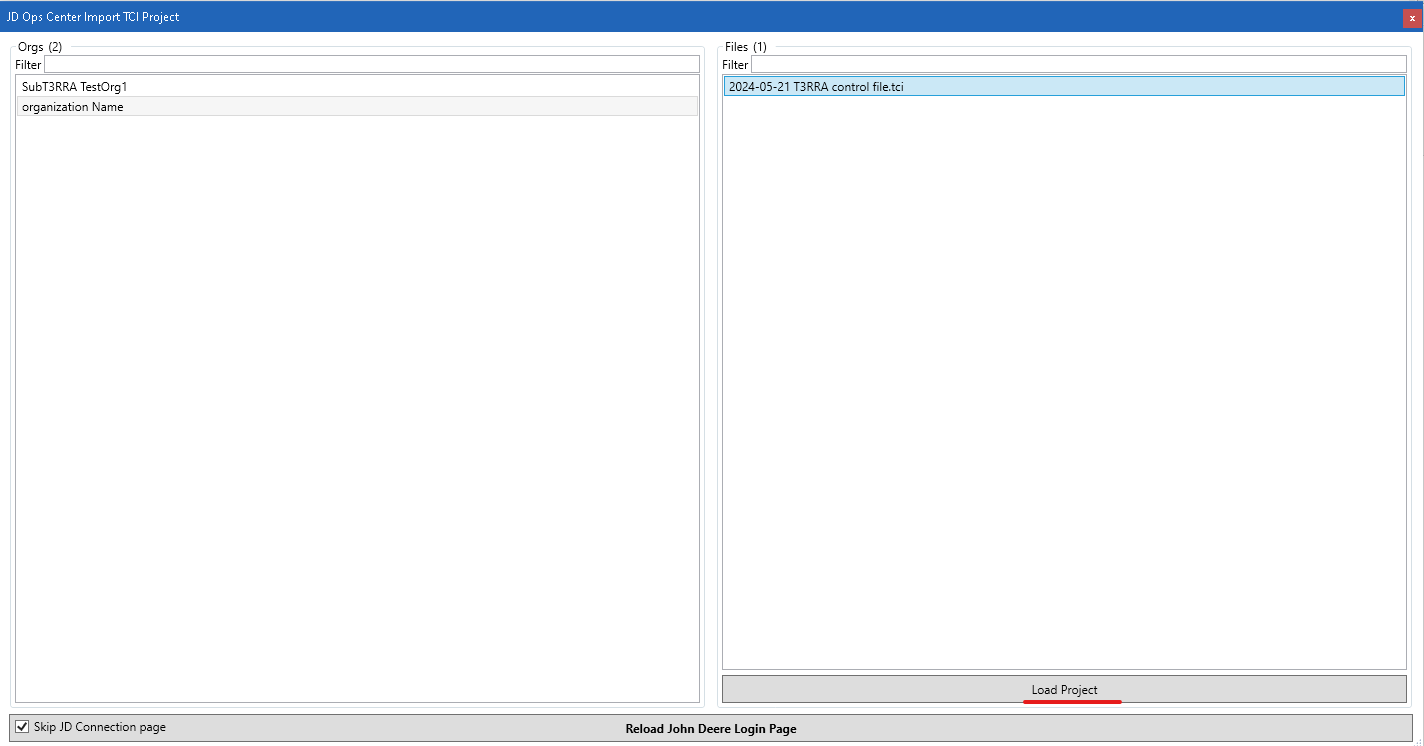
2. <span dir="ltr" style="box-sizing: border-box; font-size: 16px; line-height: 18.4px; font-family: "Segoe UI", sans-serif; color: black;">Clicking 'Pick File' button will open JD Ops Center browser to show projects in JD Ops Center.</span>
3. <span dir="ltr" style="box-sizing: border-box; font-size: 16px; line-height: 18.4px; font-family: "Segoe UI", sans-serif; color: black;">Select file you want to import and hit "Load Porject" button.</span>  
    <span dir="ltr" style="box-sizing: border-box; font-size: 16px; line-height: 18.4px; font-family: "Segoe UI", sans-serif; color: black;">![](https://docs.t3rra.com/uploads/images/gallery/2025-03/scaled-1680-/AaPbiakhdipokihdn6iqty2c6hkxh4ep15wua-png.png)</span>
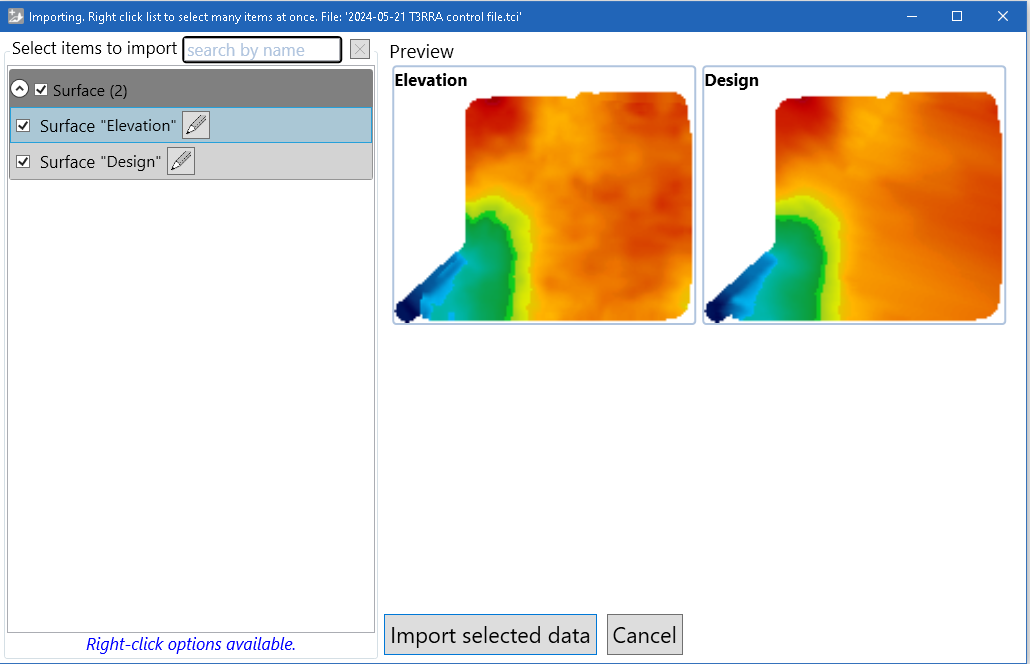
4. <span dir="ltr" style="box-sizing: border-box; font-size: 16px; line-height: 18.4px; font-family: "Segoe UI", sans-serif; color: black;">Once the selected file downloaded, the second import page should appear and show the data in the T3RRA Control File. Choose data you want to import and click "Import selected data" button.</span>  
    <span dir="ltr" style="box-sizing: border-box; font-size: 16px; line-height: 18.4px; font-family: "Segoe UI", sans-serif; color: black;">![](https://docs.t3rra.com/uploads/images/gallery/2025-03/scaled-1680-/QmZxjftgqn8k5hrxnnajem6ljariywi5oswq-png.png)</span>