# Drainage Tools
# Fill Depressions
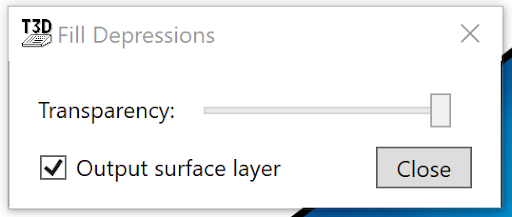‘Fill Depressions’ creates a design surface with the largest indentations in the field filled in. A pop-up window will appear allowing you to change how transparent the fills are on the field as well as a checkbox that will allow you to select whether you would like a surface layer to be created from this tool or not.NOTE: To find total depression area, fill depressions, then create a cut/fill surface, with the new filled depression surface and the original. In the stats part of the cut/fill window, it will tell you the total area and the fill area - that’s all you need!
# Breach Depressions
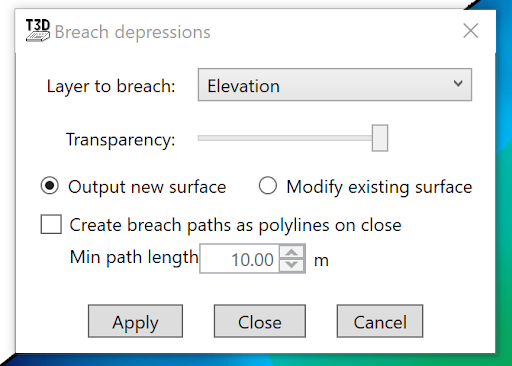‘Breach Depressions’ allows you to break through a depression and allow water to flow out.
- ’Layer to breach’ selects which surface layer the breaching should be applied to.
- ‘Transparency’ of the design can be altered using the slider.
- ‘Output new surface’ will create a new design layer.
- ‘Modify existing surface’ will make breaching changes to the selected surface.
- ‘Create breach paths as polylines on close’ by selecting this option polylines will be generated according to the ‘Min path length’.
# Bust Gilgais
‘Bust Gilgais’ breaches and evens out depressions (also known as melon holes or gilgais) in the field while moving as little dirt as possible. It is a blend between breach depressions and fill depressions.
- ‘Layer to drain’ lets you choose the elevations to use. It lists the layers in the Surface tab.
- ‘Target cut/fill ratio’ lets you adjust how the design balances dirt with compression/compaction of cuts.
- ‘Min drain slope’ sets the target slope that can be used in drain lines to drain gilgais. The resulting slope may be less to fit the target cut/fill ratio.
- ‘Max slope change’ controls the smoothness of the surface. Decreasing this can increase trafficability, but will increase the time it takes for the tool to complete.
- ‘Drainage Shape’ will set an ideal cross section for how the gilgais should be drained. The system will try to ensure that each breach matches these settings as closely as possible. Widening the drainage shape will also help make the design more trafficable.
Helpful tip: If you know where a lot of melon holes are, try placing a drain nearby in the design before using this tool. This will straighten the busting lines that converge on the drain.
# Dam Creator
The ‘Dam creator’ tool provides a simple process of creating a dam on any selected space on the field surface. This tool is able to make two types of dam, ‘Full Cut’ dams and ‘Borrow Pit’ Dams. So what are the differences and benefits for these dam types? **‘Full Cut’ dams** take the earth needed to build the walls/banks from the center of the dam. The advantage of this type of dam is that it maximizes the amount of water that can be stored. The disadvantage is that the earth needs to be moved a greater distance. This makes it better suited to smaller diameter designs.**‘Borrow Pit’ dams** take the earth they need from the inner edge of the dam to build the bank. The benefit of this style of dam is that it is faster to make and the earth needed is not moved as far, the disadvantage is that it has less water storage capacity compared to the full cut design.
1. 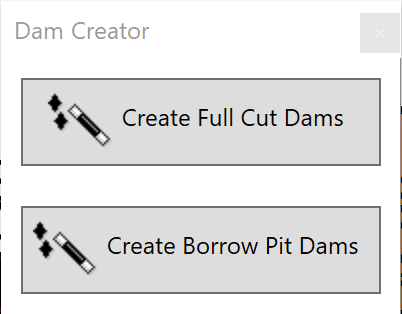Select the tool.
2. The cursor will change into a crosshair used to place the dam centerline. Click on the map to add points to the dam outline. Double-click the last point to finalize the outline. More points can be inserted later.
3. After creating the outline, a pop up window will appear, showing 2 design options. ‘Create Full Cut Dams’ or ‘Create Borrow Pit Dams’
- The ‘Full Cut Dam’ creates a default wall with outer and inner slopes, height, and width.
- The ‘Borrow Pit Dam’ creates a default cross section with both bank (i.e. wall) and channel (i.e. borrow pit) slopes, heights, and widths.
4. Once you have chosen a dam type, you will be able to further customize your dam.NOTE: If you wish to edit a dam that has already been made, first switch to Guides layers in the right panel. Next find the guidelines for the dam, select them and left-click on the ‘Edit guides’ tool.***Design***Design contains all the settings required for making dams in T3RRA Design Plus.
- ‘Profile’ is the cross section of the dam. Multiple profiles can be added by pressing the ‘+’ button.
- When using multiple profiles, all settings are made from the “origin” point which is a red node on one of the corners.
- A profile can be moved around the dam wall by setting its ‘Distance from start’.
- When you have more than one profile, the dam wall blends the profiles between them. To create a length of the dam wall with a constant cross section, put the same profile on each side of the length. Hint: Right-click in a blank part of the cross section plot to save and/or load a specific cross section shape.
- Template is the settings for the dam profile. By clicking the ‘Edit cross section directly’ button, the cross section can be changed manually. Simply click and drag the blue and green markers.
- ‘Dam Bottom Height’ is the grouping of settings for the inside bottom of the dam.
- ‘Dam Bottom Shape/Drainage’ is a group of settings that also control the bottom of the dam, however they differ from height by controlling slope and heading to allow for specific outlet points to be made.
- ‘Surface layer’ selects which layer the dam design changes will be made to.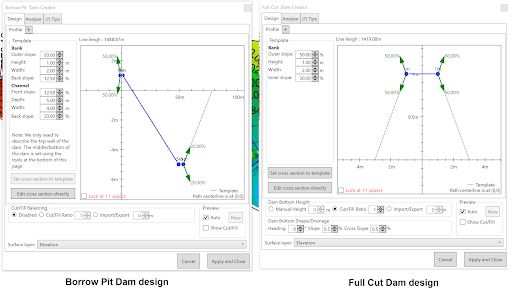***Analyze***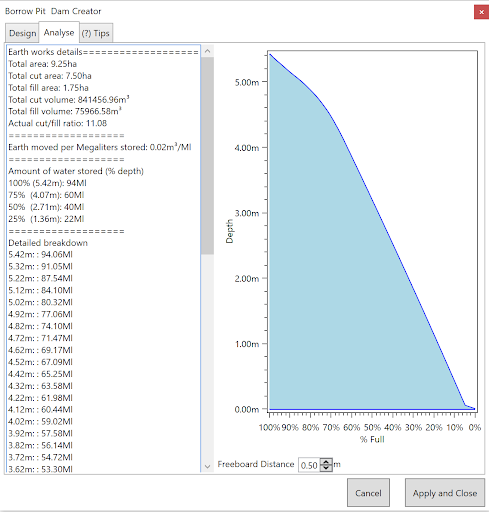The analysis page displays a summary of earth moving and water capacity. This includes a graph of water volumes by depth. The freeboard distance can be set at the bottom of the window to adjust the water capacity details.***Tips***The ‘Tips’ page provides some quick notes on the use of the dam creation tool.
# Drains and Banks Tool
The drains and banks tool is great for planning drains, ditches, channels, and troughs. Also roads, banks, ridges, levees and embankments. It also lets you plan more complex structures, like roads with drains on each side, custom contours - even whole shed pads and feeding lots. The key attribute is that you can create these structures by extruding a cross section design along a line (or lines). If you can describe your cross section and the path it should follow, then you can design drains, roads, pads, borrow-pits and contours. The tool requires three inputs - paths, longitudinal design, and cross sections. They can be edited independently while using this tool, although the line must exist to edit the longitudinal design.***Create the path***When you first open the tool, define the path by clicking on the surface at its starting point, any midpoints and finally the endpoint. The points can be dragged around to move them, and right-clicked to delete them.Tip: Shift+click to add points to the beginning rather than the end.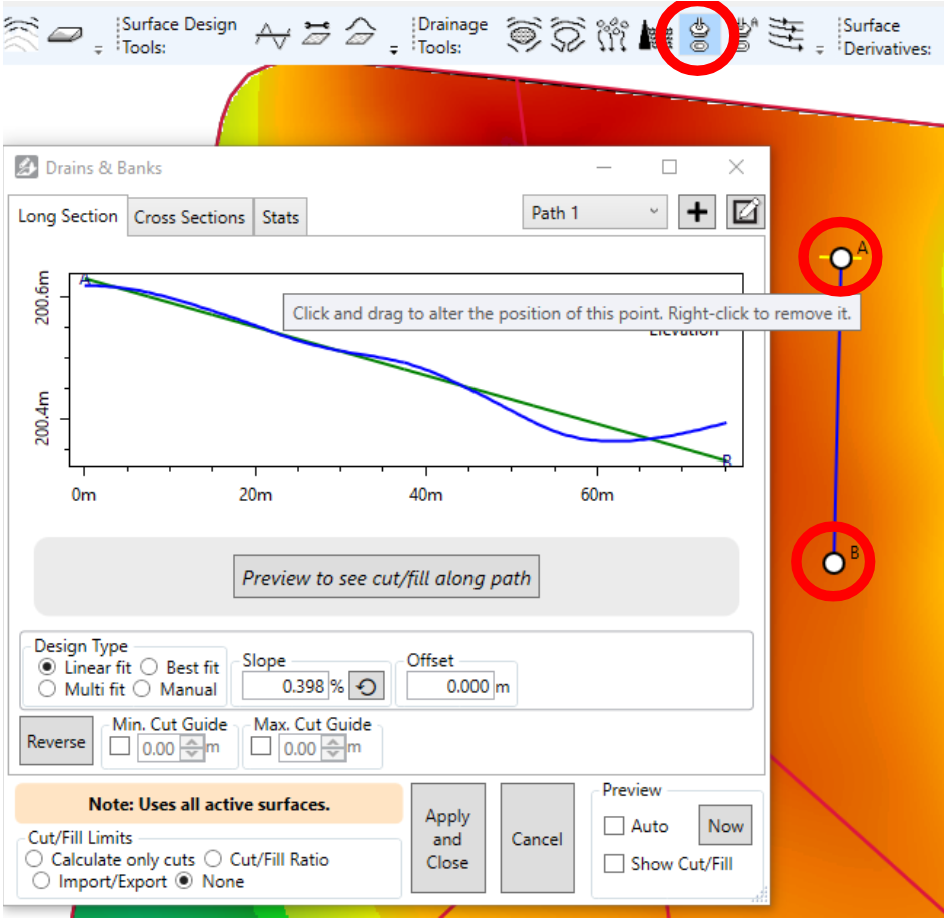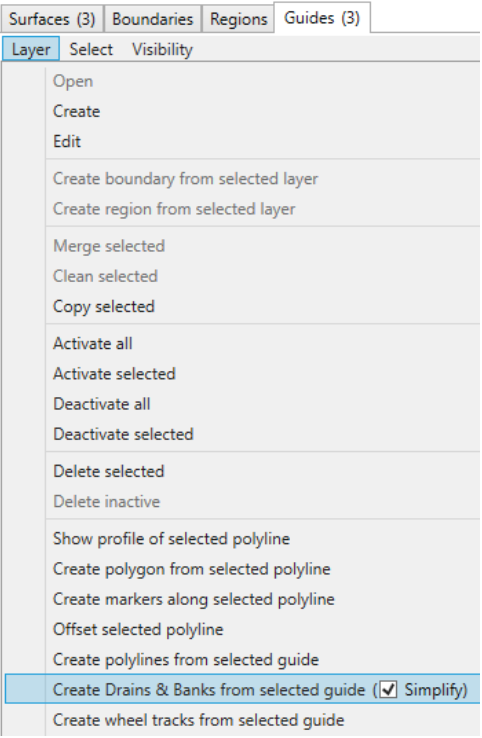A single drain layer can contain multiple paths. To add more paths, use the buttons in the top right corner: If you’ve already got your path in an existing guide, then you can create a drain from it. To do so, select the layer in guides and then in the Layers menu, click “Create Drains and Banks from selected guide”. The simplify option is recommended, as it removes any points that don’t contribute to the shape of the path. This makes designing easier and quicker to run.***Design your path’s elevations (long section)***With a path chosen and shown on the map, there are two more things to design - the longitudinal (aka long section) and the cross section. The longitudinal design defines how the elevations/depths vary as you travel from the path’s start to end.***Edit Cross Sections***The cross sections define the shape to extrude along the chosen path, following the elevations/depths from the long section design. 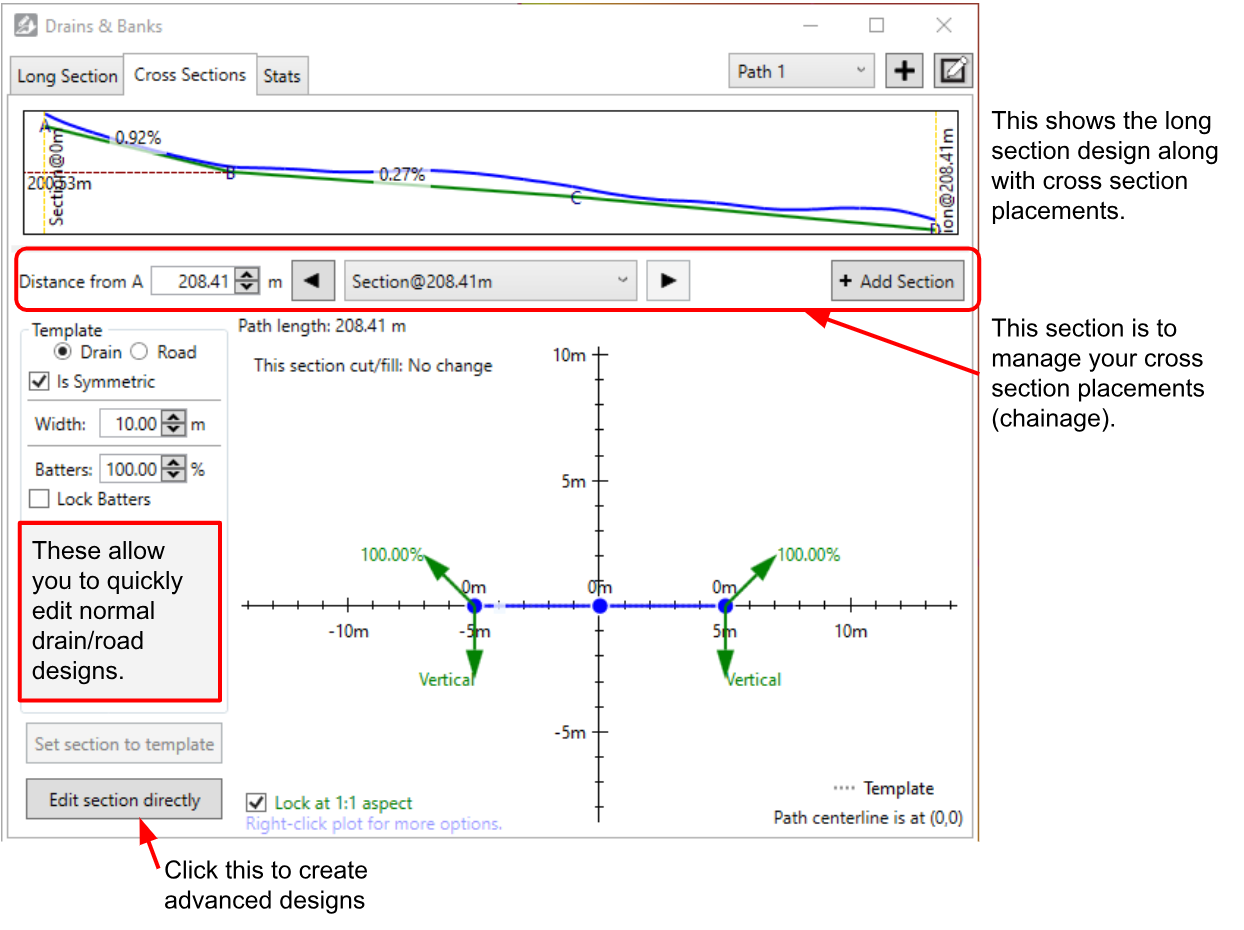A game-changing feature of this tool is the ability to set multiple profiles along the path. This allows you to create a drain that has a small width at the head and then progressively gets wider all the way to the end. This can dramatically reduce the earthworks to implement. You can add as many sections as you want, and it will smoothly transition between each of them.NOTE: The green batter arrows on the end indicate that the algorithm will follow that angle until it reaches the surface - going at a constant slope until it does.***Working with advanced cross section designs***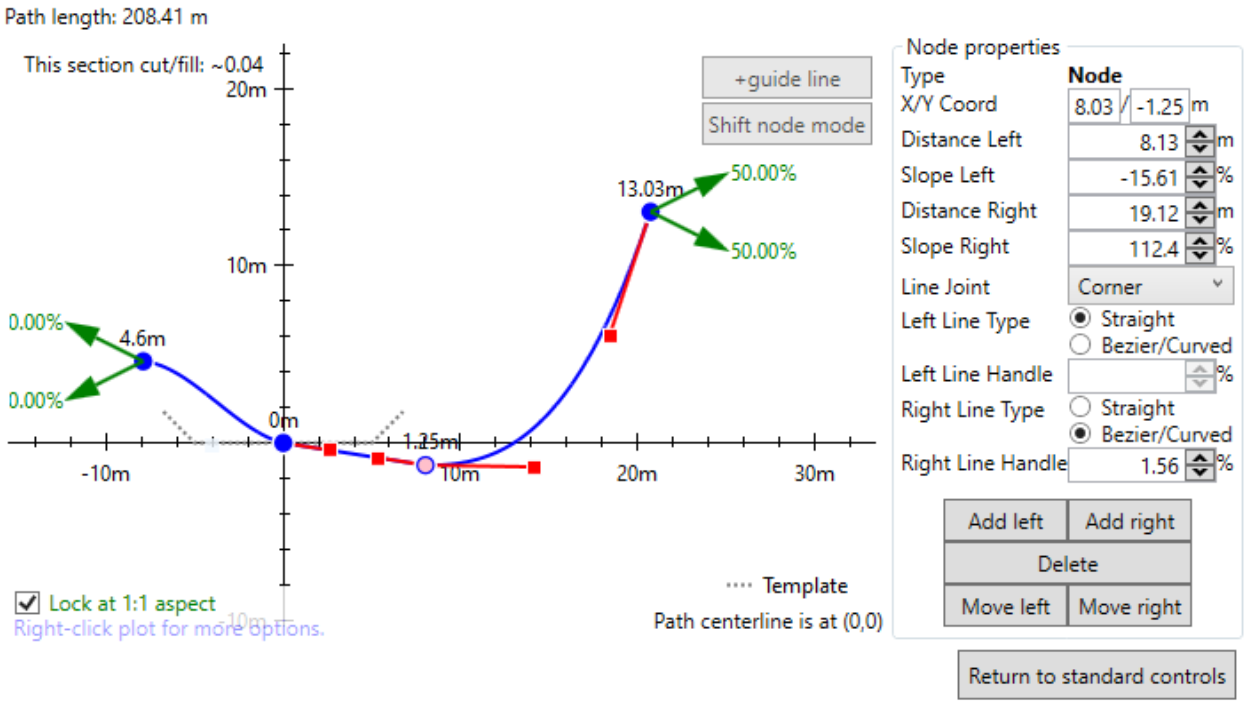Advanced cross section designs allow you to create custom profiles, but take a bit more work. The plot shows where the profile is relative to the longitudinal line. The longitudinal line’s position is at 0,0 (where the two black axes meet).A VERY important concept is that 0,0 (where the two plot axes meet) is the same elevation as the longitudinal design (green line). If you don’t go through 0,0 then you will be effectively modifying the long section design. This is very useful in some circumstances, however, it can bite you (if you raise one cross section too high, it may make the drain go uphill for a bit and pool water). ***How to edit advanced cross sections***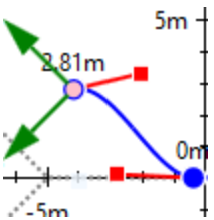You can either create your profile by just clicking and dragging the cross section line around, or you can use the properties tab on the right. The selected node appears pink so you can easily identify it. The clicking UI is the same as other places you edit lines. Click on the line to add drag handles, right-click to remove handles, click and drag to move handles. Cross sections can be linear or curved. Curved segments are created with curves called beziers. To use them, click on a point and two red drag handles will appear. The red lines with handles show the tangent of their attached node, allowing you to set up a smooth (or not!) transition. This feature can really help when implementing with a T3RRA-enabled bulldozer (where you mainly push across cross sections rather than longitudinally).***Adding guide lines***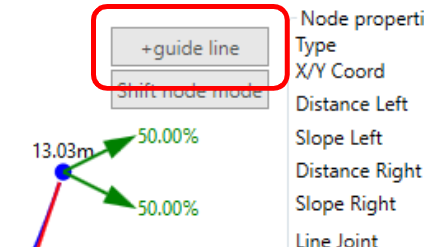Guide lines were added so you can export guidance lines (e.g. as John Deere Adaptive Curves). To create guide lines, you must be in in the advanced design tools, and then you can click the “+guide lines” button. It will add a vertical line that you can drag left and right to position. To remove a guide line, right-click on it.If you have created multiple cross sections, add guide lines to each cross section. If you have the same number of guide lines in each cross section, they will join up. That way you can vary the sideways position of your guide lines along the drain (e.g. for finishing). Below is an example of going from 20m between the guide lines at the South end to 100m at the North end.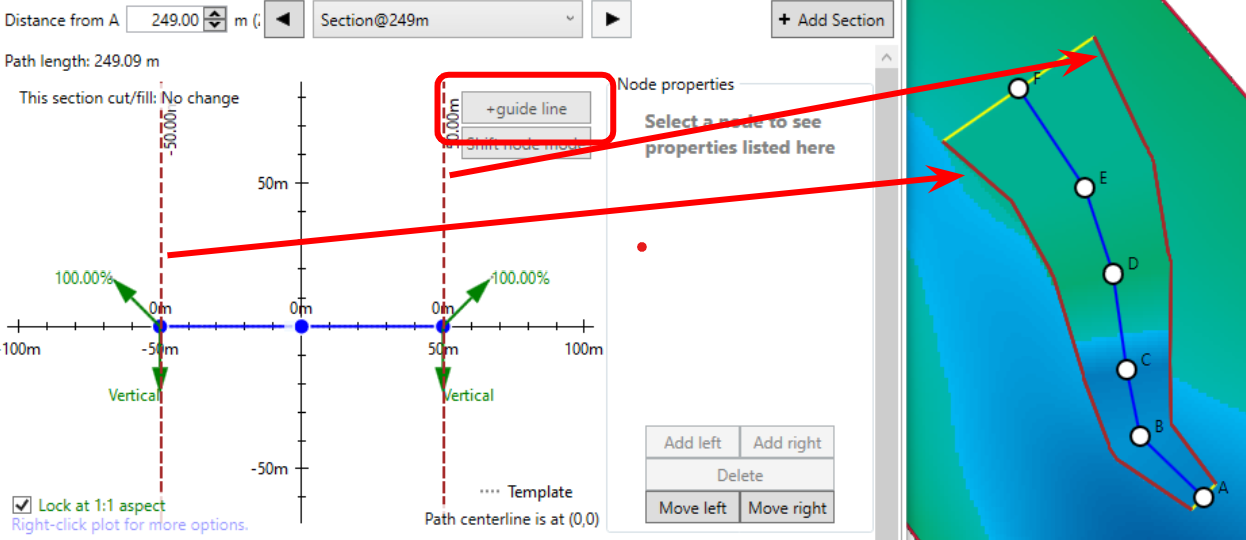***Cross section batters***A concept that is a bit confusing is the batters on the sides of the cross section (the green arrows). They tell the algorithm how to join up with the existing surface. If the profile would end beneath the surface, it will follow the angle shown in the upwards facing arrow, and the opposite is true if it ends above the surface. This means that you can easily design a profile that is both cutting and filling, with the batters allowing it to smoothly transition in either case.***Positioning nodes relative to the surface - Fixed width batters***Sometimes when designing a drain or road, the available width is limited by adjacent fields or structures. In these cases, a traditional batter (with a constant grade) is inappropriate. Rather than a fixed slope batter, a fixed width batter would be fitting. This can be achieved with a new feature; Nodes in a cross section can now set their elevation relative to the surface instead of the long section (as previously). This facilitates more design possibilities than just fixed width batters - such as covering over divots and depressions at an angle, feathering regions edges, and having roads with drains at a fixed distance from them.To use surface-relative nodes to create a cross section with a ‘fixed width batter’, add a node at the start of the batter and a node at the end of the batter (where the cross section should meet the surface). Select the node at the end of the batter and change the “Y relative to” drop down to Surface. When “Surface” is selected, the Y value should be zero. Changing the Y value from zero will make the cross section go to above (positive) or below (negative) the surface.Because nodes relative to the surface require a surface to determine their elevation, a drain may not apply as you expect near the edge of a surface. If this happens to you, you may want to expand the surface, or switch back to Long Section temporarily and update the Y value there (make sure you switch back to being relative to the Surface).NOTE: Any bumps and anomalies in the surface where the surface-nodes go over will translate into ‘frills’ or oscillations in the applied drain surface that look like washboarding. We recommend applying a design or light smooth over the affected areas to reduce these variations.***Working with multiple paths***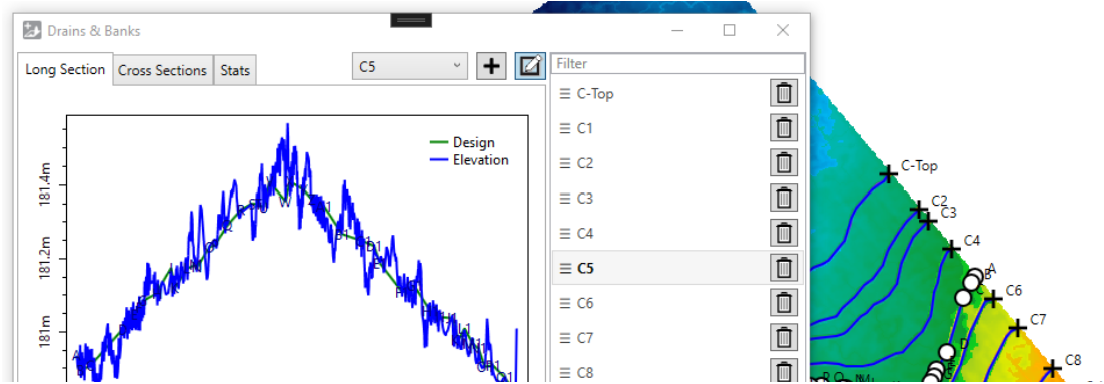The section at the top right of the window allows you to change the working path. Click the “+” button to add a new line. Clicking the edit button on the far right will let you rename and reorder the paths so you can more easily understand which is which. The names of the paths are depicted on the map image, further making it easier to determine which path is which. All the tabs apply to just the selected path, so when you’re working on multiple paths you will need to make sure you design all paths one by one.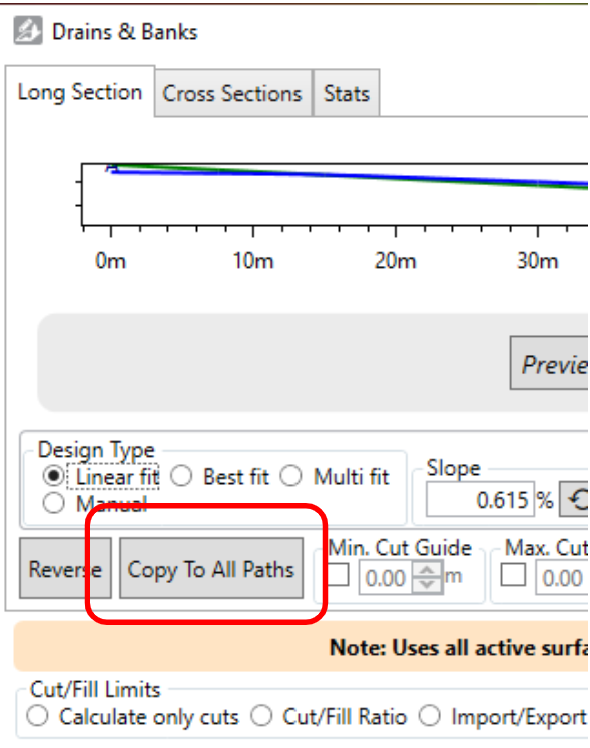NOTE: If you want to copy your current design (both long section and profiles) you can click “Copy To All Paths”. This copies design parameters (except for manual elevation edits), and cross sections to the other paths.
# Autodrains Tool
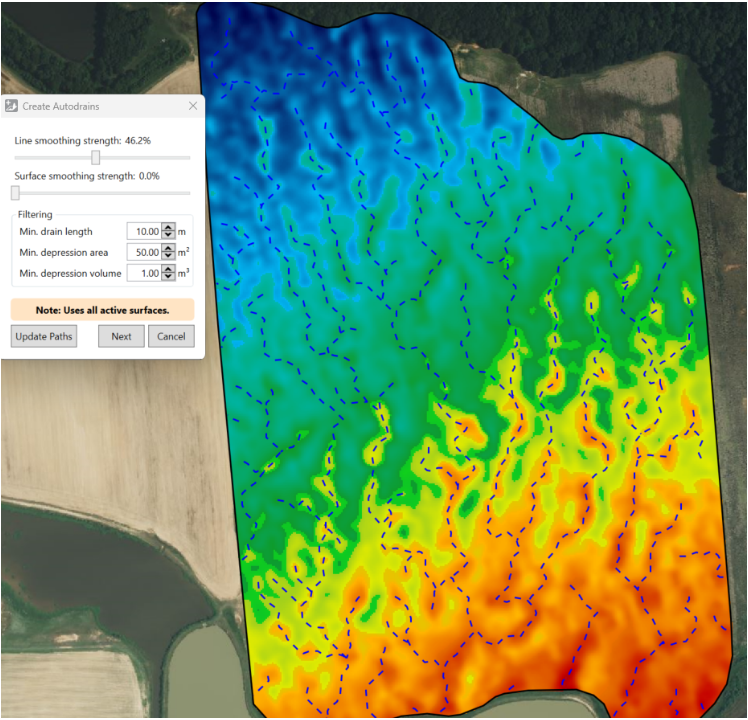This tool is used to quickly place drains that will ensure water doesn’t stay on the field for long. Once you’ve placed the drains, you can design them as normal with the Drains and Banks Tool.There are a few options when creating auto drains:
- ‘Line smoothing strength’ smooths small kinks from the paths created.
- ‘Surface smoothing strength’ …
- ‘Min drain length’ …
- …After making changes, click ‘Update Paths’ to view the effect, and click ‘Next’ when you’re happy with the results.
# Add contour banks (T3D+)
This tool is used to add contour banks/terraces. To begin creating a new set of contour banks/terraces click on the ‘Add new contour bank / terrace set’ button in the pop-up window. When creating contour banks/terraces a blue line in the working area is used to control the placement, point A on the line will act as the starting/reference point when generating the design lines.The Contour design window can be broken into top and bottom sections:The Top section
- ‘Contour bank grade (%)’ allows you to control the slope of the contour banks
- ‘Sample Distance (m)’ will control how often T3RRA Design Plus will look at the lines to make sure they are at the desired slope.
- Contour banks/terraces can be set to run to the left, right or both sides of the start line, by selecting the option you would like. The ‘Both’ option is linked to a checkbox allowing you to reverse the grade of the contour banks/terraces.
- ‘Add contour: Vertical/Horizontal distance from A = X m’ this button will display a distance from the starting point. If the checkbox for ‘Starting point distances measured horizontally’ is selected this distance will rise by 50 meters horizontally each time the button is pressed and a new line added. If the checkbox is left unselected, the distance will rise by 2 meters vertically each time the button is pressed and a new line added. These distances from the start point can be altered manually by clicking on the distance value where each line appears in the box on the top left hand side and typing in the new value.***Tab 1: Sections***There are many values to tweak on the left in the ‘Template’ section. They are broadly grouped into two sections depending on whether they affect the channel or the bank. Try changing a few values to see how they affect the cross section shown on the right. They include:
- Height and depth. Use these to balance cut and fill while setting your desired total contour height. The capacity of the contour is affected by the sum of these two. A high bank increases capacity, but can lead to water backing up onto the nearby field.
- Width. A wider contour can carry more water without it getting too fast, but this can lead to increased earthworks in steeper areas. Increase width for sections where more water is expected. You can adjust the width of the bank to balance cut and fill.
- Slopes. These control how quickly your contour transitions between the natural surface, the bank, and the channel. Flatter slopes are better for trafficability, but can lead to more earthmoving. Steeper slopes reduce earthmoving, but can cause extra erosion.Contour cross sections can be highly customized. Just click on the \[Edit section directly\] button to get started. You can even save your custom cross sections for later reuse. Simply right-click on a clear part of the plot (when editing directly) and click Save. Load, and some other handy tools, are also in the same menu. If you have made a mess (why not try clicking around and editing things for a while) and want to go back to the simpler template based section, just click on \[Return to standard controls\] in the bottom right, then click on \[Set section to template\] in the bottom left.Cross-Section Diagram Explained:Here is the excerpt from the above image. This diagram shows the cross section of the contour which has been designed by completing the details to the left.
- Slope Range: shows the range of the prevailing slopes along the contour nearest to this section. Doing this will help you position the contour to minimize the earthworks of the design.
- Existing Slope: The current slope of that cross-section
- Template: The newly designed slope***Tab 2: Water Flow***Here you can enable water flow estimates for your contours. This helps you choose an appropriate size for your contours at various points. To start working with water flow in contours, you should start by deciding on a rainfall event, a surface roughness, and maximum desired water flow speed.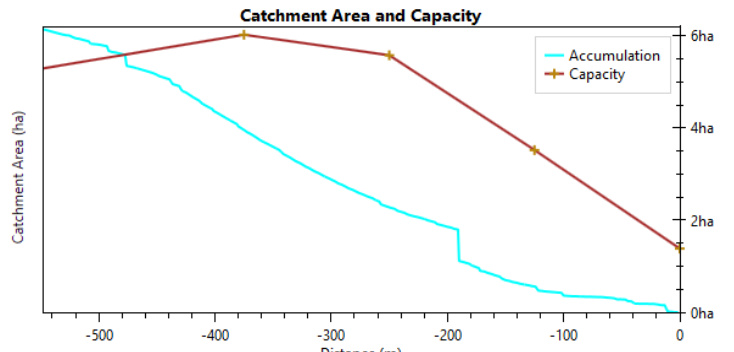The water flow estimates are just estimates, and can only be as good as your inputs. There are various tips in this section to help you choose conservative values, but we take no responsibility for breached contours - this is just a guide to help with on-site planning and adjustments.Once water flow is enabled, the designer starts to calculate the accumulated water flow. Once that is complete, a series of water flow plots appear in this tab, and each cross section profile displays the estimated water level. The map and designer will also highlight sections of each contour that may breach or erode (see right).NOTE: Contour capacity will vary depending on the shape of the contour and the prevailing slope. A contour through very flat country will carry extra water across the uphill slope.***Tab 3: Dirt Balance***This tab displays the dirt balance along the length of the selected contour. This is very helpful for avoiding long-distance movement of dirt. If the dirt balance has been minimized, implementing the design with a bulldozer (or bucket scraper) can be a lot more efficient.***Tab 4: Stats***Various statistics for the current contour are displayed here. For more information, including earthmoving, water flow details (and more), click on the ‘Stats…’ button at the bottom of the window.***Using the Contour tool***With all the functions that we’ve managed to put into the contours tool it can be confusing on where to start. Here is a helpful guide on creating a contour/levee design.***Step 1: Initial setup of paths***Move the pop-up window so you can see the surface. Adjust the start line so that it follows a ridge (ideally with A at the higher end). You can also position the start line going down a valley (if you do, you may want to set a negative contour grade later). Place the Point A at the location you want to start your first contour. Now press the ‘Add contour’ button to add a bank at the start line’s Point A. Then select the contour’s direction, the contour grade, and apply any required path smoothing to remove kinks. Contour direction is relative to the start line, looking from A to B.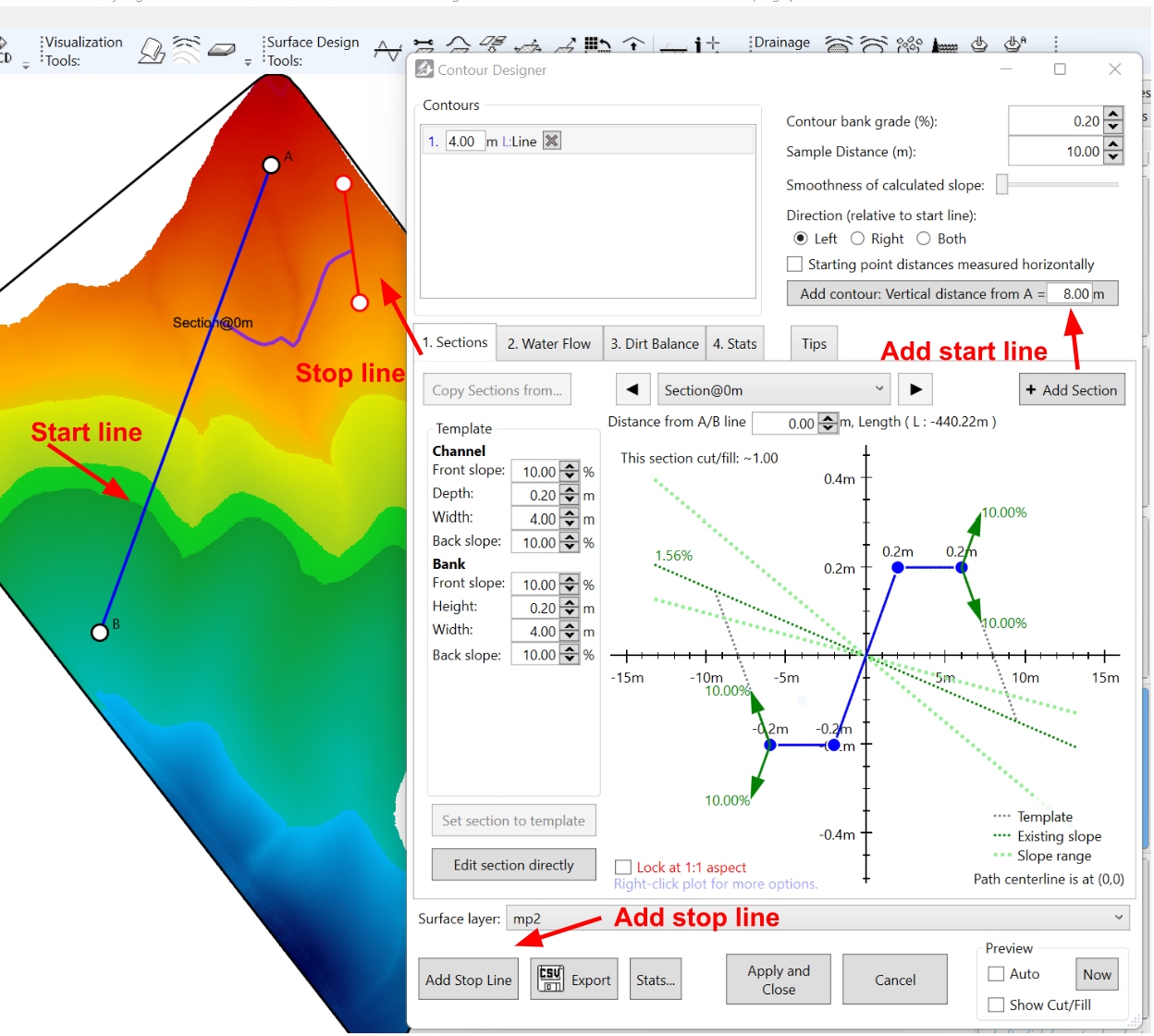To avoid flooding the next field over, put a stop line in the contour’s path so it drains at a planned location.NOTE: If the banks appear to be on the wrong side of their paths, it may be because the elevations of the A and B ends of the line are misleading. Move A or B till their elevations are the other way around (usually so that A is at a higher elevation than B).***Step 2: Refine your contour with water flow***Once you are satisfied with the contour’s location, refine your contour’s shape with the template settings in the Sections tab. Pressing the ‘Edit section directly’ button gives you full control over the cross section: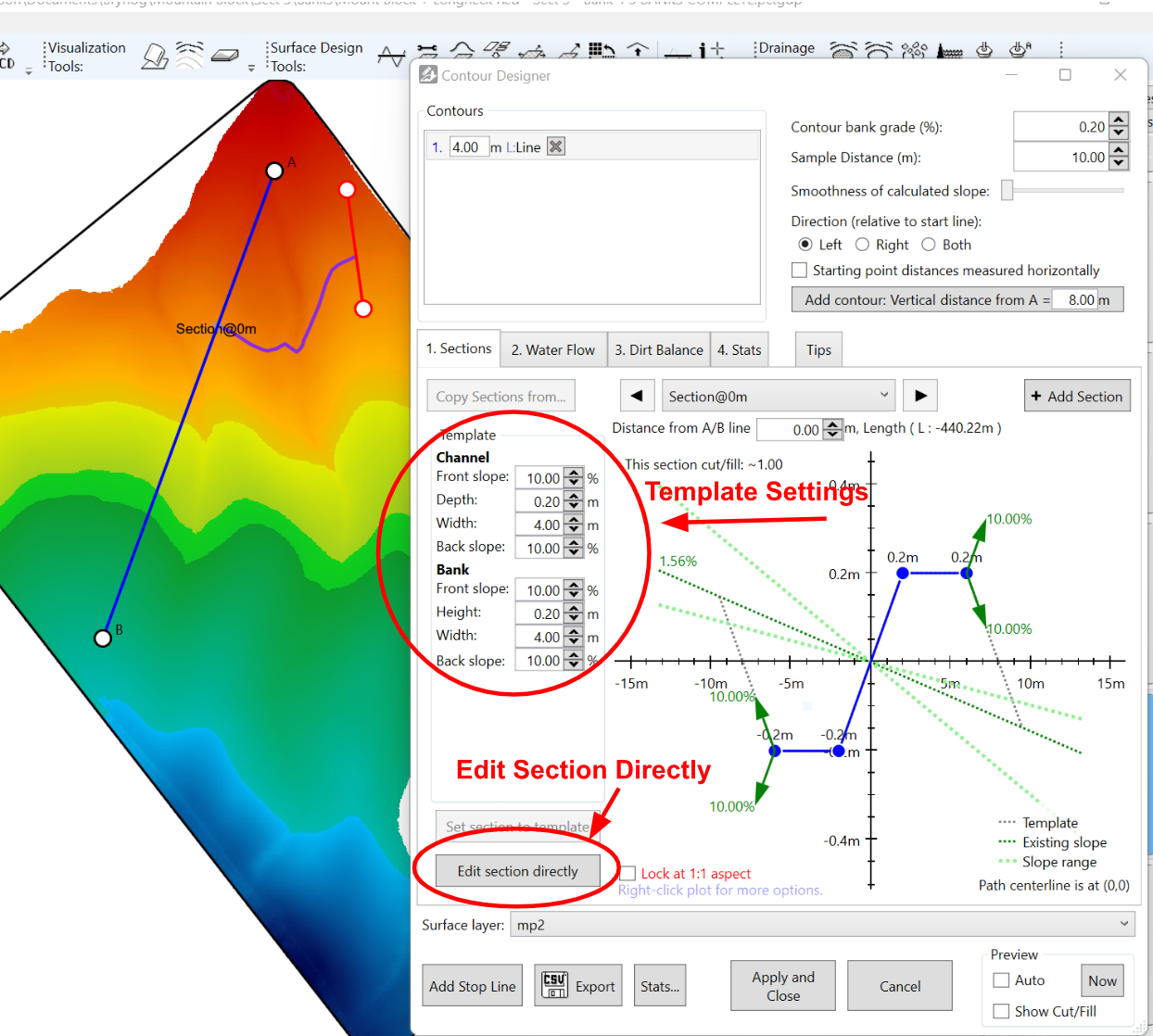Making a contour the same size along the whole length works, but involves moving a lot of dirt. A 2/3rds reduction in dirt volume can be achieved by matching the bank capacity to the actual water volume predicted at each point along the bank. To taper the contour, add multiple sections with the ‘Add Section’ button and position them by editing the ‘Distance from A/B line’ field. You can now smoothly vary the size and shape of the contour:To help guide your adjustments, turn on water estimates with the ‘Enable water’ button. Enter details for a heavy rainfall event and some soil settings in the window that appears: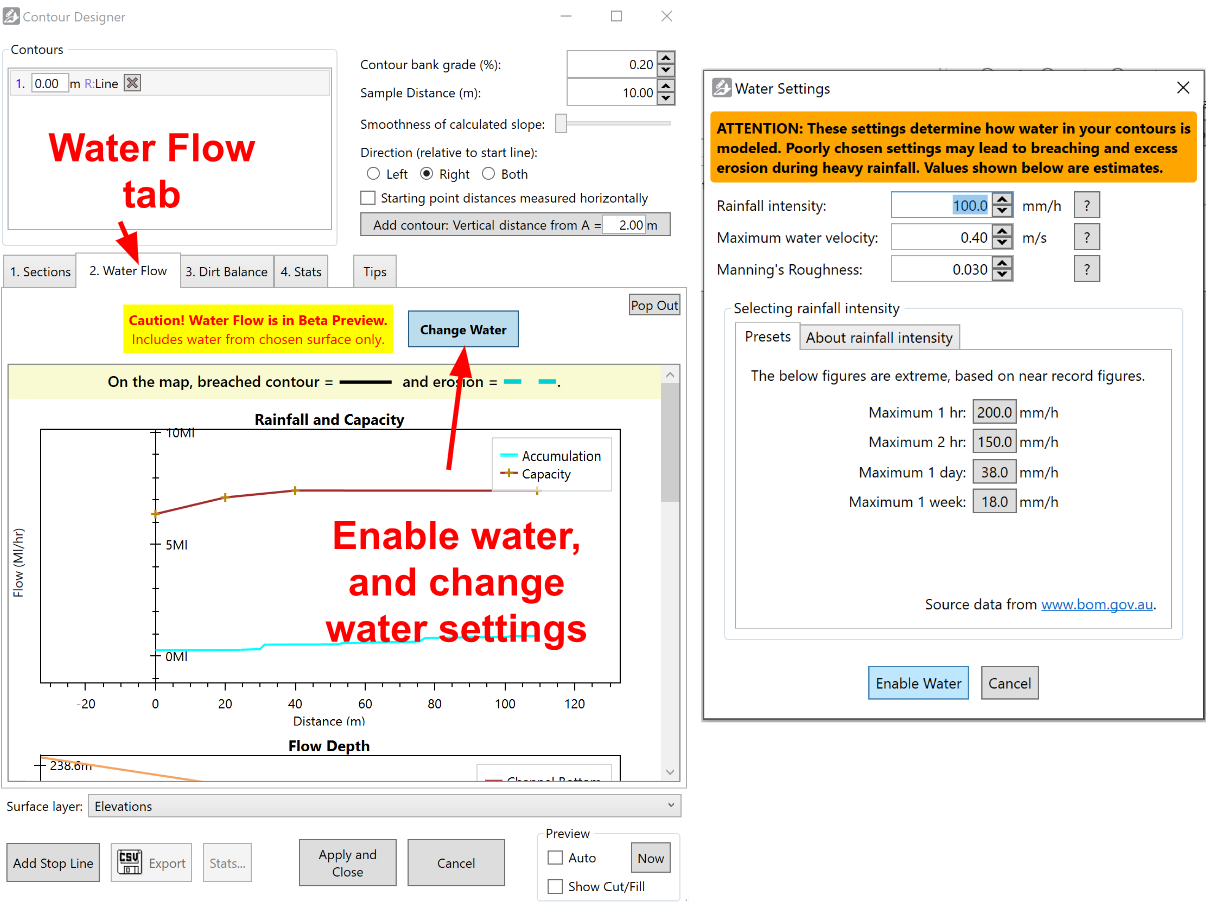Once calculations are complete, the ‘Water Flow’ tab will display all the water estimates. That includes estimated water depth, water flow speed, and contour capacity (in terms of flow rate and catchment area). The estimated water depth is also shown in each cross section: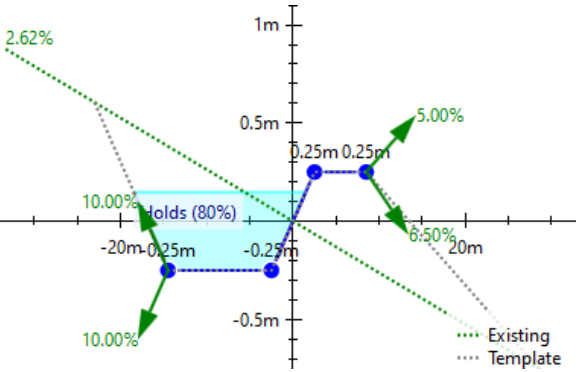When editing your contour, it can be helpful to view the water plots at the same time as you edit cross sections. To do so, click the “Pop out” button in the top right under the water flow tab. The water plots will update as you make changes to each section.While you are working on the water flow, remember that you can stop a contour from breaching by increasing channel capacity or by increasing the grade (moving the water faster). If you do this, ensure you don’t risk eroding the contour channel. 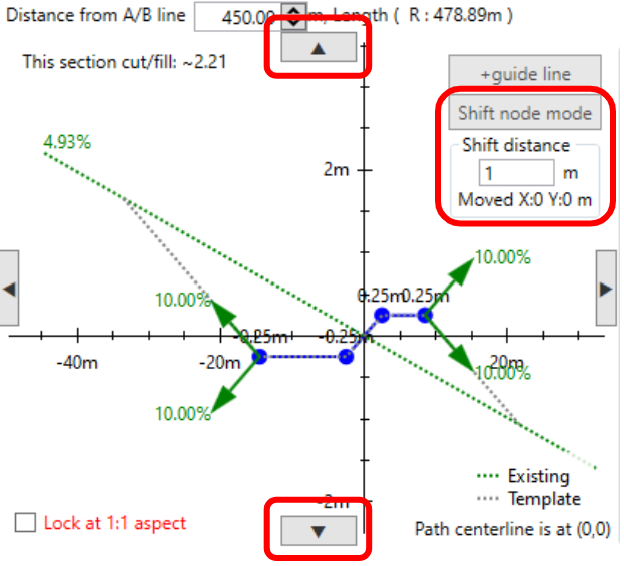You can increase the grade for the whole contour or for one section at a time. To change the grade for one part of a contour, move sections vertically. Do this by ‘editing the section directly’ and entering “Shift node mode” (see right). You may have to move the rest of the sections up or down to match so that they continue to drain appropriately. When doing this, it is helpful to pop out the water depth plot and view the longitudinal profile at the same time.Conversely, to reduce channel erosion, you can widen your contour channel or decrease contour grade. Bank design must balance the competing need to slow water down (reducing channel erosion) and to move adequate volumes of water (to avoid over-topping). If you will be farming over (and in) your contours, check the water flows you expect with and without standing crops. Vegetation can slow down water flow quite a bit, leading to contour breaches.***Step 3: Save on earthmoving***When you are implementing your design, you don’t want to move dirt over long distances. This is especially true for bulldozers, where it would take a lot of effort to move dirt from one end of the contour to the other. Dirt imbalance at a location along the bank occurs because grade and path smoothness considerations result in the channel being too shallow to provide enough dirt for the bank, or so deep that there is no close location to put the dirt. It can also occur in curved sections of the bank where the length of the channel does not match the length of the bank. To manage this, go to the ‘Dirt Balance’ tab and press the ‘Preview pre-balance cut/fill’ button. This shows where there is unbalanced cut (red) and fill (green). While mousing over the graph, a marker appears on the map to show its location.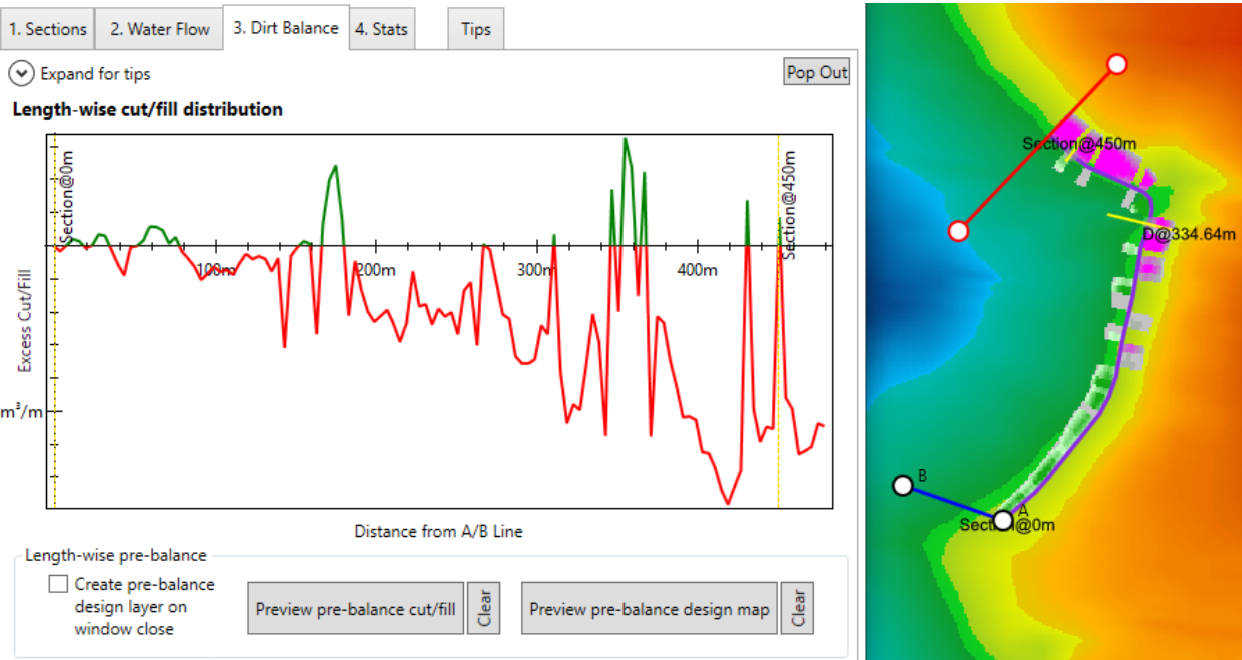It can be very helpful to pop out the dirt balance graph while you adjust the sections individually. If you do, ensure you have Auto-preview checked. To fix this without ruining water flow, only edit the cross sections by moving them left or right. The example above shows excessive cuts at the north end (at the right end of the graph), so the section at that end should be moved out of the hill (to the right in the section plot below). You can easily move a section left/right by ‘editing the section directly’ and entering “Shift node mode”:***Step 4: Guide with guidelines***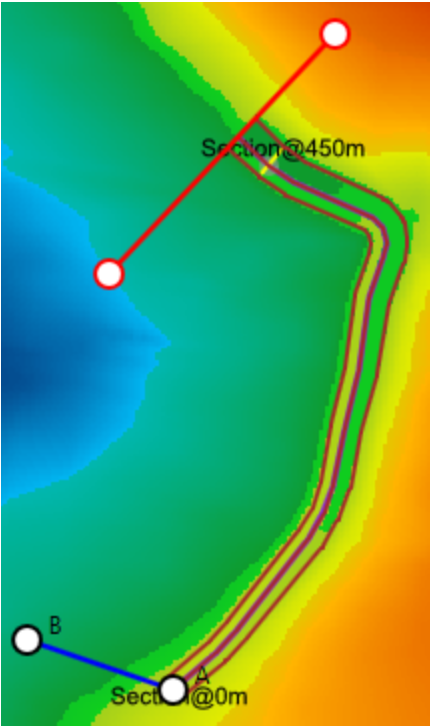To help make implementing easier, guidelines are your friend. These can be exported as tractor auto-steer paths. Well placed guidelines can make the finishing pass with a bucket scraper very clean. To output guidelines, add guideline markers to each section by editing the section directly. The ‘add guideline’ button is just above the “Shift node mode” button. If the number of guidelines on two neighboring sections matches, the guidelines will join up with a smooth transition (see right). If you’re using a bulldozer and want cross contour guidelines, let us know and we’ll get onto it!***Step 5: Implement!***When you are satisfied with the design, press the ‘Apply and Close’ button at the bottom of the window to output the design and create contour guidance lines. Export the original and design surfaces with any desired guidelines to the format of your choice.NOTE: If needed, all banks and drains can now be edited after ‘Apply and Close’ has been selected. Simply highlight the necessary tile (right hand side) in the Guides tab and then select . This will reopen the Contour Designer window.***Stats of the Design***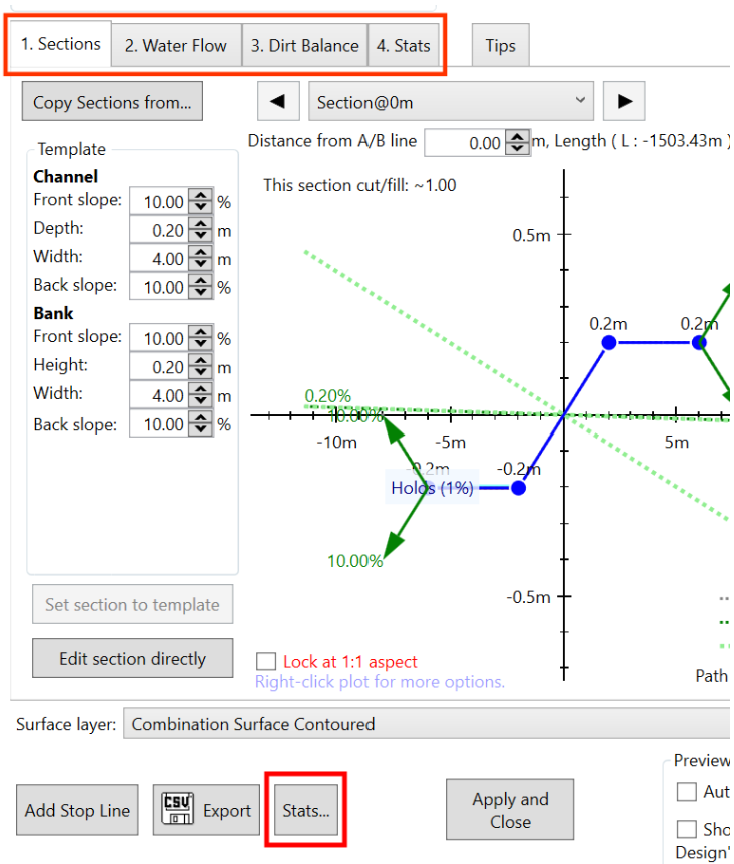Prior to implementing your contour design, you may want to look at the various stats of the design. When using the Contour Tool, there are four tabs at the top of this screen (Sections, Water Flow, Dirt Balance, Stats). All four tabs help create an optimal contour design. There are more stats which can be accessed for the design. Select the Stats button at the bottom of the Contour Designer window. This will open a new window called ‘Contour Info’: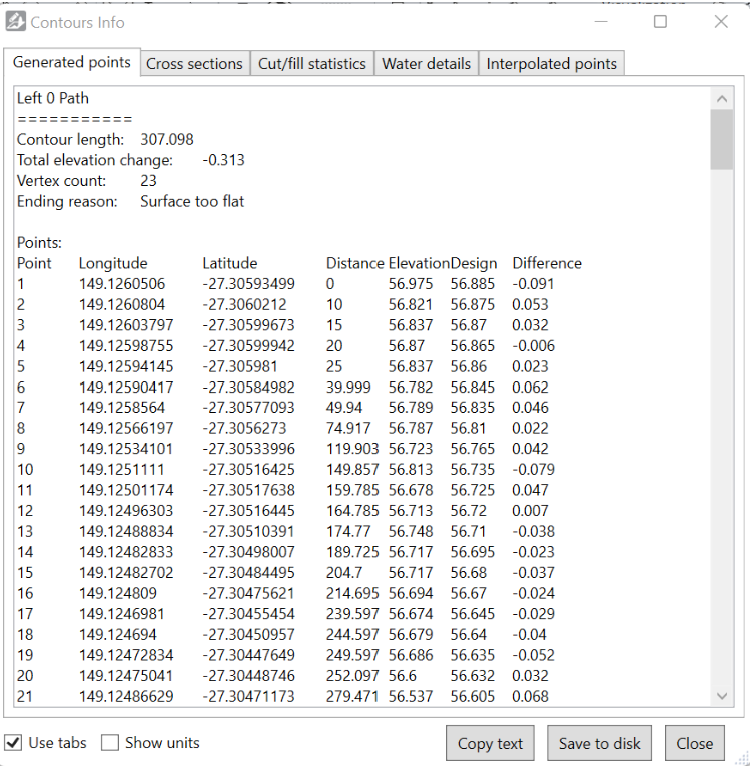The Contour Info window displays very detailed information about your current design, as well as allowing you to export this data (using Copy text or Save to disk options at the bottom). There are five tabs of data available:
- Generated points
- Cross sections
- Cut/fill statistics
- Water details
- Interpolated points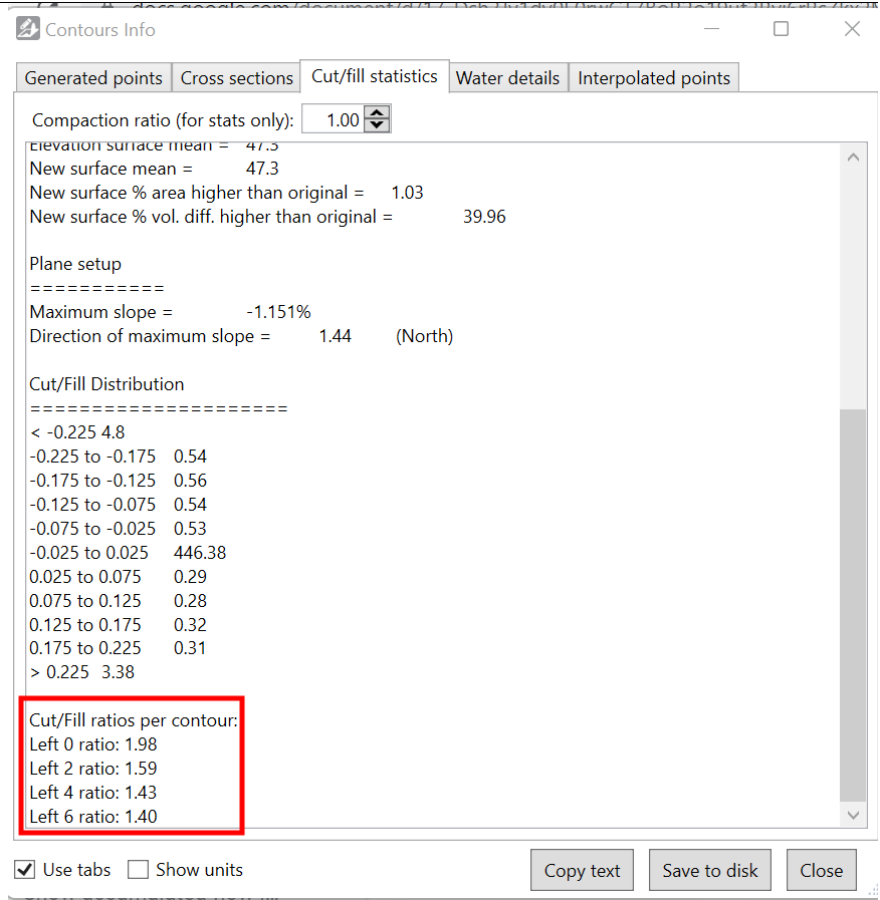The information contained in these tabs is designed to provide everything you need to create your own reports and summaries in other programs, such as Excel.NOTE: By selecting the Cut/fill statistics tab, you are able to check the cut/fill volume for each contour bank within the design. Simply scroll down to the bottom in the parentheses.