# Terrace Design
Use **Terraces** to create Guidance curves that mark erosion-control terraces.
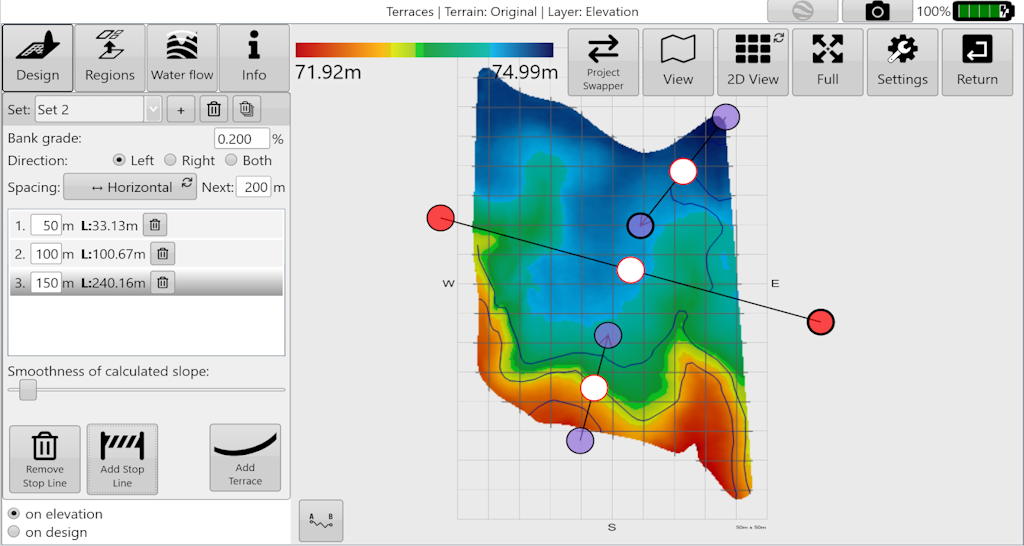Terraces controls and map.## Start a terrace set
Opening the terraces tool displays a start line on the map. Terraces begin at this line; use the following parameters to lay them out.
### Grade and direction
- **Bank grade** sets the terrace slope and therefore affects the speed of water flowing down each terrace.
- **Direction** sets whether terraces flow left, right, or both left and right from the start line. To make them flow towards the start line, change the bank grade to a negative value, for example from 0.2% to -0.2%.
### Spacing and individual terraces
- **Spacing** sets the basis for terrace starting positions: Vertical distance is the elevation drop; Horizontal distance is the distance travelled along the start line.
- Use **Add Terrace** at the lower right of the design pane to add a terrace. Each addition updates the **Next** distance on the right.
- The centre list shows every added terrace and how far it extends. Use this list to change a terrace's start distance or delete it.
### Smoothing and stop lines
The **Smoothness** slider reduces surface irregularities. Increase it if terrace lines are too jagged. However, higher smoothing makes terraces follow the **Bank grade** less closely; this can cause wet spots and/or require earth moving to ensure drainage.
**Add Stop Line** places a black line on the map with large red circles at both ends. Move the red circles to position one or more stop lines where terrace lines should end, such as at a waterway.
## Manage multiple sets
Terraces belonging to one start line form a **set**. After creating one set, use the smaller Plus button at the top to add another start line. You can add as many as needed. Switch start lines using the **Set** drop down or by tapping one of the line's purple circles on the map. To remove a start line and its entire terrace set, select it and use the delete button at the top.
## Export and video
When the terrace layout is complete, you may export the terraces as guidance lines, etc.
For a demonstration, watch the video on using [Terraces](https://youtu.be/iMdKKKnJRdo?feature=shared).